
Last updated: November 19, 2026
You can install an APK from the Files app on Android without using a separate file manager by opening the APK in Files by Google, allowing the installer permission if prompted, and tapping Install. This guide explains how to install an APK from the Files app on Android without using a file manager, plus the exact taps, common blockers, and the folder to check first. If you need the short version: in most cases, it takes 6 taps or fewer from download to install.
Key Takeaways
- Open the APK from the Files app or the Downloads folder; that usually launches the package installer directly.
- If Android blocks the install, the fix is usually allowing installs from this app for Files or Chrome.
- The APK has to be a real
.apkfile, not a zipped download or a renamed document. - If you can’t find it, check Downloads first, then the app’s own file list.
- A failed install often means the file is incomplete, unsigned for your device, or meant for a newer Android version.
How do you install an APK from Files app on Android?
You install it by opening the APK in the Files app, which hands the file to Android’s package installer instead of a separate file manager. That is the shortest path when the APK is already on your phone, especially in the Android downloads folder.
If the file is already on your phone, the steps are short. The process is simple, but one permission screen can stop it if you miss it. Here’s the catch:
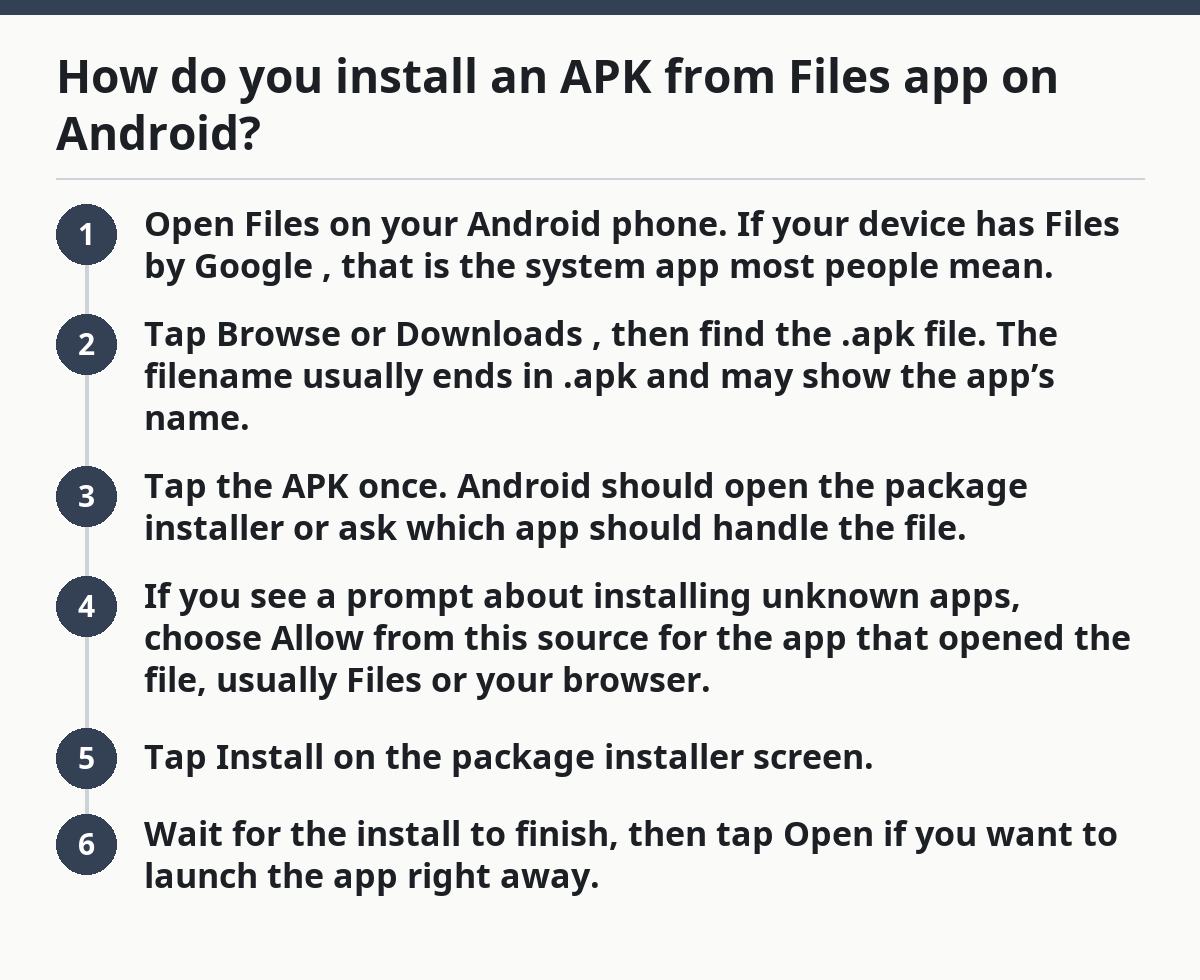
- Open Files on your Android phone. If your device has Files by Google, that is the system app most people mean.
- Tap Browse or Downloads, then find the
.apkfile. The filename usually ends in .apk and may show the app’s name. - Tap the APK once. Android should open the package installer or ask which app should handle the file.
- If you see a prompt about installing unknown apps, choose Allow from this source for the app that opened the file, usually Files or your browser.
- Tap Install on the package installer screen.
- Wait for the install to finish, then tap Open if you want to launch the app right away.
A successful install ends with a confirmation screen, not a crash back to the home screen.
If nothing happens when you tap the file, the APK may be damaged, incomplete, or not really an APK at all. A file ending in .apk.zip is not the same thing, and Android will not install it as an app. If you are unsure what the file is, a tech support professional can help confirm whether it is a valid APK before you try again.
Where should I look in Files first?
You should check the Downloads folder first, because that is where Android and most browsers save APKs by default. If you used Chrome, Samsung Internet, or another browser, the file often lands there unless you changed the save location.
If you know the download finished but Files looks empty, the problem is usually not the installer — it’s the folder. The file is often one tap away if you check the right place first. Use these checks:
- Open Files and tap Browse.
- Look for Downloads or Recent.
- Search the exact app name if you remember it.
- Open the APK from there, not from a random document folder.
Some phones hide recent downloads behind a small storage view instead of a plain list. On a few Android builds, the file may appear in a browser’s download list before it shows up in Files. That delay is annoying, but normal.
If you still can’t find it, check whether the file downloaded as a .zip, .xapk, or another package type. Files can show those names plainly, and they will not behave like a standard APK in the package installer.
What permission does Android need before the install works?
Android needs permission for the app that opened the APK to install unknown apps. That permission is usually per app, so allowing it for one app may not cover every source on the phone.
If you tapped the APK and Android blocked it with a permission screen, that is not a broken phone. It’s the operating system asking which app you trust to hand it an installer file. The wording changes by Android version, but the fix is the same. Do this:
- When prompted, tap Settings.
- Find Install unknown apps or Allow from this source.
- Turn it on for Files, Chrome, or whichever app opened the APK.
- Go back to the APK and tap it again.
- Finish the install in the package installer.
If you do not see the prompt, go into Settings > Apps > Special app access and look for the same permission there. On some phones, Samsung and Pixel place it in slightly different menus, but the label is close enough to spot.
The trade-off is clear: the phone stops random installs by default, so you get one more safety gate before the app goes on the device. That is a good thing if you only install trusted APKs. It is a bad thing if you expected the file to install like a photo.
What if Files opens the APK, but install still fails?
The install usually fails because the file is incomplete, incompatible, or blocked by the app source. That is the part generic guides gloss over, and it saves the most time.
If the package installer throws an error instead of an install button, the file may be fine as a download and still wrong for your phone. The installer is picky for good reason, and it gives clues if you know what to look for. Check these common failures:
- The download is incomplete. Re-download the APK from the original source.
- The file is not an APK. A renamed
.zipor document will not install. - The app is not compatible. Some APKs need a newer Android version or a different CPU type.
- A newer version is already installed. The package installer may reject a downgrade.
- The source app lacks permission. Files or your browser may still be blocked from installing unknown apps.
If the package installer says the app is not installed or the package appears corrupted, delete the file and download it again. If the same error returns, the APK itself is the problem, not Files.
One more thing: Android package names matter. If a different version of the same app is already on the phone, the installer may only accept an update signed by the same developer key. If the signature does not match, Android stops the install. That is normal security behavior.
Why Files works better than a random file manager
Files works well because it is already part of Android’s path for downloads, sharing, and open-with actions. You do not need to move the APK around or teach another app where the file lives.
If you want the shortest route from download to install, Files does that job with fewer steps, especially when the APK is already in the Downloads folder. It also keeps the process tied to Android’s own permission screen. The result is predictable.
Here is what Files does better than a generic file manager in this job:
- It usually shows the phone’s download history in one place.
- It opens APKs directly into the package installer.
- It keeps the install flow inside Android’s own permission system.
- It reduces the chance of saving the file in the wrong folder.
The downside is that Files is not trying to be a full rescue tool. It will not fix a broken APK, and it will not move files into the right place for you. That is why this page stays focused on opening the file, not reorganizing storage.
If your phone vendor ships a different files app, the idea is the same. Open the APK, allow the installer permission if needed, and use the system package installer.
Which mistakes waste the most time?
The biggest mistake is tapping the wrong file type, because it looks right but cannot install. The second is denying the install permission, then thinking Files is broken. Both errors waste time and send people hunting for a nonexistent fix.
If the phone keeps refusing the app, the problem is often visible on the file name or in the permissions screen. You do not need a new tool; you need the right file and the right source permission. Watch for these:
-
.apk.zip or .zip instead of .apk
Android won’t treat it as an installable app. If you are not sure how the file was packaged, consult the app source or a tech support professional before trying again.
Do this instead: unzip it only if the source intended that format, or redownload the actual APK. -
Wrong source permission
The installer opens, then stops.
Do this instead: allow installs from Files or the browser that opened it. -
Old APK left behind
You may install the wrong version or get a signature conflict.
Do this instead: delete older copies and keep one current file. -
Assuming every download goes to Downloads
You waste time searching the wrong folder.
Do this instead: check Recent and the browser’s download history. -
Using a file renamed to .apk
Android rejects it or fails silently.
Do this instead: use a real APK from the source, not a renamed document.
This is also where the limits of the Files app show up. It is a launcher for the file, not a repair shop for bad packages. If the package installer refuses the app after a clean download, the file itself is the likely problem.
A few sources worth trusting before you install
You should trust the Android Help pages and the app developer’s own download notes before you trust a random mirror. That is one practical way to check whether an APK is meant for your device and Android version.
If you have the file but are not sure where it came from or whether it matches your phone, do not guess. Check the source and the system rules the installer follows. Two useful places to start are the official Android Help pages on installing apps from unknown sources and the app developer’s support page for the APK itself. For the Android side, the Google Help Center explains how unknown-app installs work; for the file side, the developer usually states version and device limits. The Android help page and the developer page can also save you a reinstall cycle if the APK is only meant for a specific Android release.
That matters because the package installer is strict for a reason. It protects you from files that look normal but are not meant for your phone. If a source page does not say which Android versions it supports, be cautious before you try again.
This page fits under the larger guide to APK installation and package types, but it stays focused on one job: opening an APK from Files and letting Android do the rest.
Can I install an APK from the Files app?
Yes, you can install an APK from the Files app if Android recognizes the file as an app package and allows the source permission. Open the APK in Files, accept the install permission if prompted, and tap Install in the package installer. If the file won’t open, check that it really ends in .apk.
Why can’t I find the APK in Files?
You usually can’t find it because it saved in a different folder, the download is still finishing, or the file list is filtered. Start with Downloads and Recent, then search the app name. On many phones, browser downloads show up in the browser’s own list before they appear in Files.
What folder should I open in Files to install it?
Open Downloads first. That is the most common place for APKs saved by Android browsers and download tools. If it is not there, check Recent in Files and the download history in the browser that got the file.
Drafted with AI; not yet reviewed by a person.
