

Last updated: November 19, 2026
Quick Answer: In most cases, you can verify an APK update came from the same developer account in under 5 minutes by checking the package name, the signing key, and the release trail. An APK update from the same developer account should keep the same package name, the same signing key, and a release trail that still points back to the original publisher. Consult a professional or the publisher if any of those change, and use official Android guidance such as app signing and package identity checks to confirm what you are seeing. The steps below show what to compare, what a name change can hide, and where a legit update usually leaves a trail.
Key takeaways
- Start with the package name and the developer certificate; that pair does most of the work.
- A changed app title means very little on its own.
- A changed signing key is the biggest red flag.
- Release history can help when the publisher rebrands or moves stores.
- If the source cannot show the same account trail, consult a professional or the publisher and verify with a trusted source before treating the APK as the same publisher.
What “same developer account” means for an APK
A same-account update keeps the app tied to the same publisher identity, not just the same app name. Picture this: you already installed version 3.2, and version 3.3 shows up from a new site, a new uploader name, and a different file sign-off. You need to know if that is the same source or just a copy.
The first thing to check is the package name. That name is the app’s Android ID, like com.example.app, and it should stay the same across normal updates. The second thing is the signing key inside the APK. That key is what proves the update was signed by the same developer certificate, not just given the same label.
The app title can change. The store listing can change. Even the brand can change after a company rename.
The package name and signing identity are the harder signals.
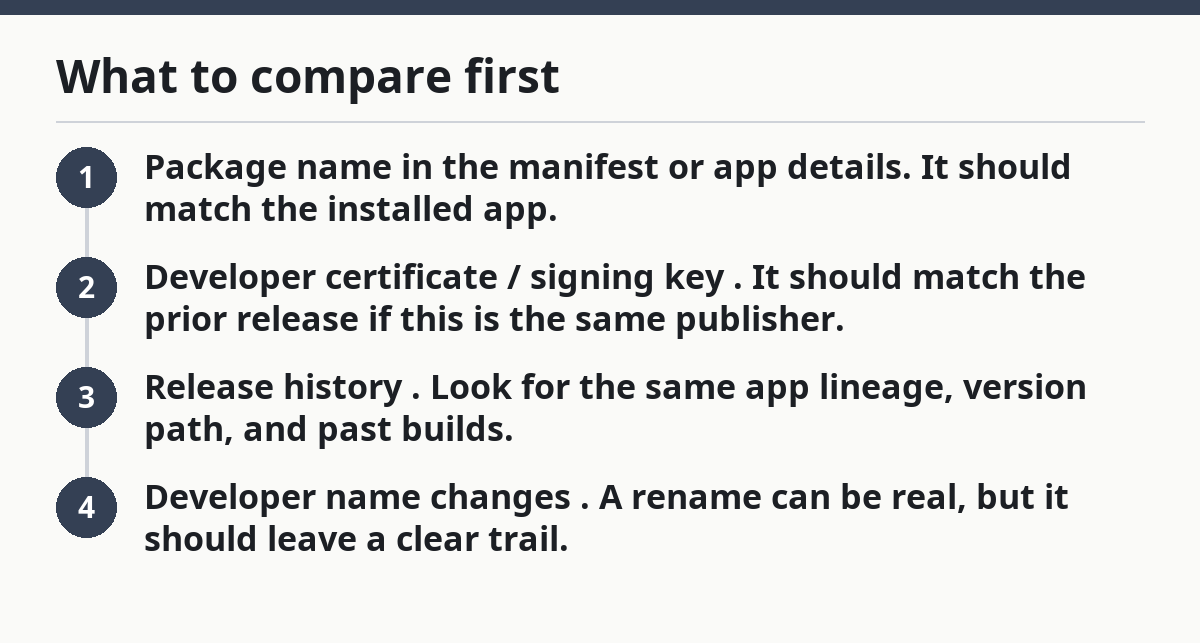
What to compare first
- Package name in the manifest or app details. It should match the installed app.
- Developer certificate / signing key. It should match the prior release if this is the same publisher.
- Release history. Look for the same app lineage, version path, and past builds.
- Developer name changes. A rename can be real, but it should leave a clear trail.
If the package name changes, you are usually not looking at an update. You are looking at a different app.
How do I tell if an APK update came from the same developer account?
You tell by matching the app’s identity trail, not by trusting the filename or the upload page. The cleanest check is this: the package name, the developer certificate, and the release history all line up with the earlier build.
Before you decide, compare the APK to the installed app and the oldest trusted version you have.
- Check the package name. Open the APK’s app info or inspect the manifest with a trusted tool. The package name should be the same as the installed app, such as
com.vendor.app. If it differs, stop there. - Compare the signing key. Look at the certificate fingerprint from the new APK and compare it with the prior release. The same developer account normally signs with the same key across updates.
- Look for the same publisher trail. Search the app’s older releases, changelog, or store listing. A real update usually sits in a version chain, not as a lone file with no past.
- Check for a name change story. If the developer name is different, look for a rebrand, company acquisition, or store transfer. A clean change usually comes with a note in release history.
- Decide based on the whole set. If the package matches, the key matches, and the release trail makes sense, the update is likely from the same account. One match by itself is not enough.
The best part is that you do not need to solve every mystery. You only need enough proof that the new APK belongs to the same publishing line. On Android, that means identity first, file second.
Why the signing key matters more than the app name
The signing key matters because Android treats it as the real publisher identity, not the store title or the logo. Picture this: two APKs share the same app name and icon, but only one is signed with the same certificate as the build already on your phone. The name can fool you. The key usually does not.
A developer can rename an app from “Pro” to “Lite” in a day. They can change the visible publisher name on a listing, too. But if they keep shipping official updates, the signing key should still tie the builds together. That is why certificate continuity is the main check for developer account continuity.
There is one wrinkle: a developer may migrate to a new signing setup on some stores or during a platform transition. That does not happen casually, and it should leave a public trace in the release notes, migration notice, or store support docs. If you see a different key with no explanation, consult a professional or verify the source through another trusted record before assuming it is the same developer account.
What a key mismatch costs you
- You lose the main proof that the APK belongs to the same publisher.
- You may install a repackaged copy that only borrows the app’s name.
- You can no longer use the old release as a clean reference point.
That is why “same app name” is not enough.
Not even close.
Where release history helps, and where it lies
Release history helps when the publisher has a long line of versions and a steady package name. Picture this: version 2.9 lists bug fixes, version 3.0 adds a feature, and version 3.1 arrives with the same package and the same signer. That is the kind of chain you want.
Look at the version path first. If the new APK claims to be 5.0, but the last official build you know is 2.4, ask why. A large version jump is not proof of fraud by itself, yet it is a sign to slow down. The same is true if the changelog mentions a rebrand, a transfer, or a “new signing certificate” note. Those phrases matter.
You can also use older store pages or release mirrors to see whether the developer name has shifted over time. A legal rename often keeps the same package line and points to the same release family. A copycat build often has a fresh page, a fresh uploader, and no believable path from the old version to the new one.
Good signs in release history
- Same package name across multiple versions
- Changelog that follows the app’s older feature line
- A stated rename, merger, or publisher transfer
- Old releases that still show the same app lineage
Bad signs in release history
- No earlier versions anywhere
- Sudden package-name change with no explanation
- Changelog that looks copied and pasted
- A new uploader claiming an old app with no proof
The release trail is a clue, not a verdict. Use it to support the certificate check, not replace it.
What to do when the developer name changed
A changed developer name does not automatically mean a different source. Picture this: the app used to list “Blue River Labs,” and now it lists “Blue River Software Ltd.” That may be a rebrand, a corporate rename, or a store label change. The question is whether the same developer account still backs the APK.
Start with the package name and signer. If both match the older build, a new visible name may just reflect a business change. Then look for a release note, support page, or store listing that explains the rename. A public explanation is the cleanest sign that the account trail is still intact.
If the name changed and the signing key also changed, the case gets weak fast. That does not prove malicious intent, but it does mean you no longer have the same proof chain. In that case, consult a professional or the publisher and treat the APK as new until you can confirm the source through another trusted record.
A simple rule helps here:
- Name changed, key unchanged: plausible rename.
- Name changed, key changed: do not assume continuity.
- Name unchanged, key changed: still a warning sign.
That rule saves time. It also keeps you from trusting a label that anyone can copy.
A quick decision check before you install
You can usually sort this out in under 5 minutes if you know what to look for. Picture this: the APK is sitting in your downloads folder, and you have the old version already installed. You want a plain answer, not a lecture.
Use this checklist.
- Same package name? If no, it is not the same app line.
- Same signing key or certificate fingerprint? If no, consult a professional or the publisher before treating it as the same developer account.
- Release trail makes sense? If no, keep digging.
- Developer name changed with an explanation? If yes, that can still fit a legit update.
- One source matches and the others do not? Trust the mismatch, not the lucky match.
The safest habit is to compare against the oldest trusted release you have, not just the last file you downloaded. Old builds give you a fixed reference point. That matters when a site rehosts APKs or when a brand changes names midstream.
For broader update checks, the hub on APK version, compatibility, and updates is the right companion page. This article only handles the developer identity question.
Common mistakes that lead to the wrong answer
The most common mistake is trusting the app name alone. Picture this: two APKs both say “Photo Cleaner,” but one came from a different publisher account. The visible name helps with branding and almost nothing else.
Another mistake is treating a mirror site’s label as proof. Mirror sites often repeat titles, icons, and descriptions from somewhere else. That copy can lag behind the real publisher by days or weeks. If the mirror has no package match, no signing proof, and no version history, it is not enough.
A third mistake is ignoring a changed signing key because everything else “looks right.” That can cost you the only solid proof of continuity. On Android, the key is the hard signal. Everything else can be copied.
A better habit is to compare the APK against the installed app and the oldest known official build.
- Package name: must match.
- Signing key: should match.
- Version path: should make sense.
- Developer name change: should have a reason.
If those four pieces do not line up, stop calling it the same developer account.
FAQ
can a different developer publish the same app name?
Yes. App names are not unique on their own. A different developer can copy the title, icon style, and description, but that does not make it the same publisher. The package name and signing key are much stronger signals than the display name.
how do i tell if an update is official?
An update is official when it matches the app’s package name, keeps the same signing key or developer certificate, and fits the earlier release trail. A store listing alone is not enough. If the source cannot show those links back to the old build, treat it as unconfirmed.
does the app name prove the developer is the same?
No. The app name is the weakest clue in the set. It can change for a rebrand, and it can be copied by another publisher in a matter of hours. The package name and signing identity carry the real weight.
Drafted with AI; not yet reviewed by a person.
