
Last updated: November 19, 2026
If you’re about to install an APK, the real question is simple: can you trust the source and confirm the file is the one the publisher meant to ship?
The answer is yes — but only if you verify the publisher, the file hash or signature, and the download path before you tap install.
This guide on APK source trust and file verification settles the checks that matter, the traps that fool beginners, and the signs that an APK should be skipped.
I write about Android app distribution and device security, so this is the exact part of the stack I spend time on: source reputation, signing, hashes, sideload risk, and what verification can and can’t prove.
Key Takeaways
- The safest APK is usually the one you get from the app maker, not a random repost site.
- File verification starts with the publisher’s signature or hash, not the app name.
- A clean scan is helpful, but it does not prove the APK is safe.
- If the site hides the developer name, version trail, or original package source, treat that as a warning and consider asking a qualified security professional for help, using the Android Developers documentation as a reference point.
- A mismatch in hash, signature, or package name is a hard stop.
What “trust” means before you install an APK
Trust means the APK came from the real publisher, was not altered after release, and matches the version the publisher intended. That is the source trust part of APK source trust and file verification, and it matters more than a flashy download page or a big green “safe” badge.
Picture this: you found an app that isn’t on Google Play, and the download page looks polished enough to feel legit. The file could still be repackaged, renamed, or wrapped with ad code, so the practical test is whether the source can be tied back to the publisher and the file itself can be checked against a known value.
That breaks into three questions:
- Who posted it? The developer, a mirrored archive, or an unknown uploader?
- What exactly is the file? The package name, version, and signature have to line up.
- Can I compare it? A hash, signature, or publisher key should give you something to check.
A generic article will tell you to “use trusted sites.” That advice is too soft to be useful. A site is only trusted if it shows the original package name, version history, signature details, and a clear path back to the developer’s release channel.
Here’s the catch: an APK can be real and still be a bad idea.
A real file can carry a bad permission set, a risky SDK bundle, or a version that no longer gets security fixes.
How do I know an APK source is trustworthy?
A trustworthy APK source names the developer, shows the original package identity, and gives you a way to verify the file against a known release. If the source cannot do those three things, trust drops fast.
Because APK source trust and file verification depend on evidence, the page should give you enough detail to connect the download to the publisher. Then you can decide whether the source is worth using.
Picture this: you’re comparing two sites that offer the same app. One shows the developer name, package name, version code, changelog, and checksum; the other shows a download button and a vague “verified” tag. The first one gives you evidence. The second gives you marketing.
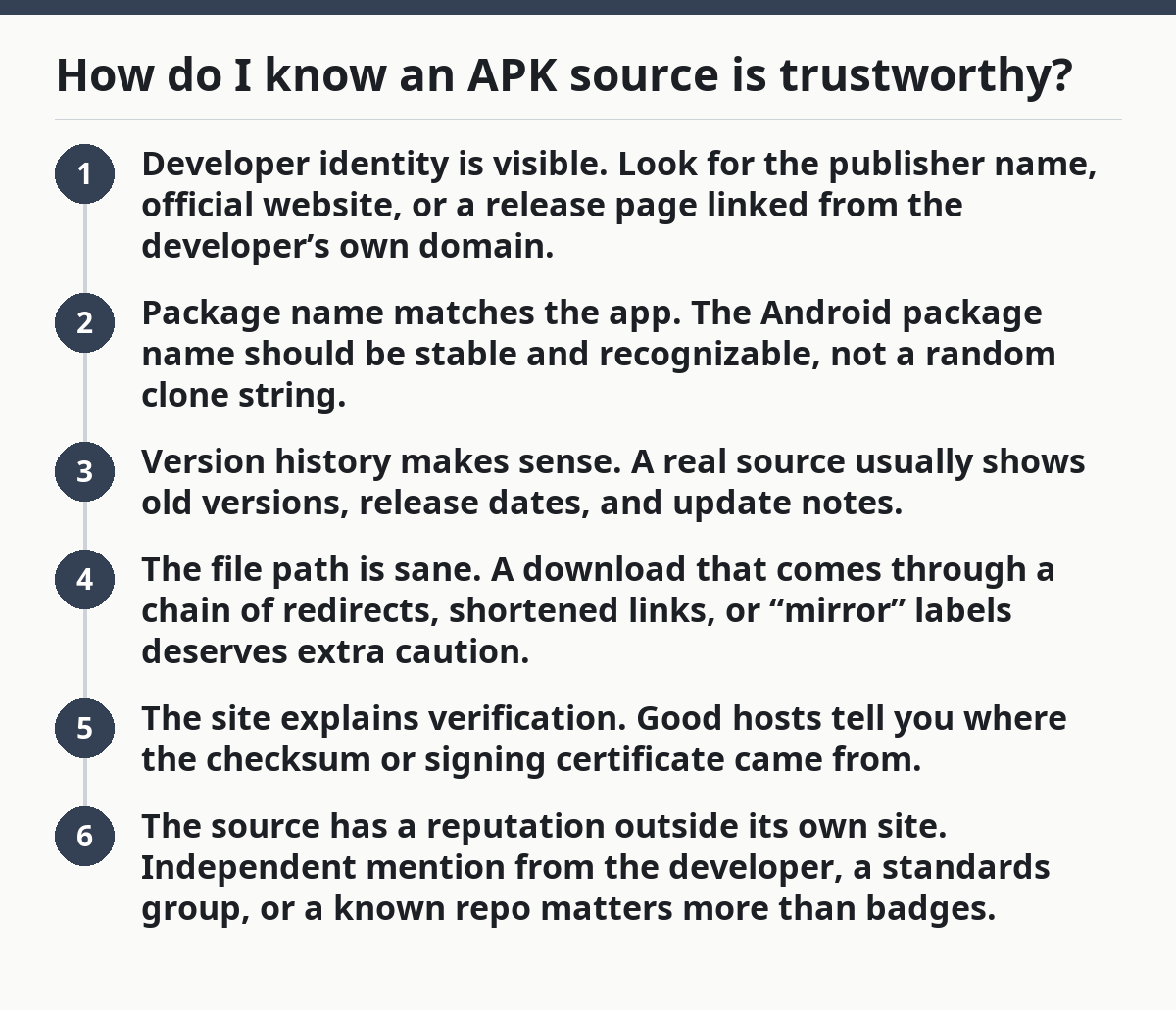
Use this checklist:
-
Developer identity is visible.
Look for the publisher name, official website, or a release page linked from the developer’s own domain. -
Package name matches the app.
The Android package name should be stable and recognizable, not a random clone string. -
Version history makes sense.
A real source usually shows old versions, release dates, and update notes. -
The file path is sane.
A download that comes through a chain of redirects, shortened links, or “mirror” labels deserves extra caution. -
The site explains verification.
Good hosts tell you where the checksum or signing certificate came from. -
The source has a reputation outside its own site.
Independent mention from the developer, a standards group, or a known repo matters more than badges.
A clean download page is not enough. The page should let you answer, “Who built this, who published this copy, and how do I prove they match?”
For authority, use the publisher’s own release notes when possible, and compare them with guidance from Android Developers on app signing and package integrity. The Android docs are the baseline because the signing key is part of how the platform knows an app update is the same app.
What’s the difference between a hash and a signature?
A hash tells you whether the file changed; a signature tells you who signed the app and whether the Android system can trust that signer. They solve related problems, but they are not the same thing.
Because the two checks answer different questions, APK source trust and file verification work best when you use both. Then you can tell whether the bytes changed and whether the app identity still matches the publisher.
Picture this: you have two copies of the same APK on your laptop. If the hash differs, the bytes differ — one copy was altered, compressed differently, or replaced. If the signature differs, the app identity may be different, because Android uses the signing certificate to decide whether an update belongs to the same publisher.
Use the right check for the right job:
- Hash: Best for confirming a file has not changed since the publisher posted it.
- Signature: Best for confirming the APK was signed by the expected developer key.
- Package name: Best for spotting obvious lookalikes and clones.
- Version code: Best for confirming you got the intended release, not an old build.
A lot of people stop after a virus scan. That is weak.
A scan can miss a repackaged APK, and a repackaged APK can still look clean if it avoids known signatures.
The strongest setup is simple:
- Get the APK from a source that lists the SHA-256 or another published hash.
- Compare it with a tool that reads the file exactly as downloaded.
- Check the app’s signing certificate if the source exposes it.
- Confirm the package name and version code match the release notes.
The Android platform documents app signing under Android Developers. For file integrity methods, NIST guidance on cryptographic hashes is the right reference point, even though the exact tool you use may vary by device or workflow.
How do I verify an APK file step by step?
You verify an APK by checking the source, the hash, the signature, and the package details in that order. Skip one of those checks and you lose part of the chain.
Since APK source trust and file verification depend on comparing the download to a known release, start with the file and work back to the publisher record. That keeps the process grounded in evidence instead of appearance.
Picture this: you’ve downloaded an APK to your phone or desktop, and the file size looks normal. That means almost nothing. A tampered file can be the same size as the original, so you need a check that binds the file to the publisher’s release record.
Follow these steps:
-
Confirm the source page first.
Save the developer page or the trusted repository page that posted the APK. -
Find the published checksum.
Look for SHA-256 or another explicit hash value on the source page, release notes, or developer post. -
Compare the hash locally.
Run a hash tool on the downloaded file and compare every character. -
Check the signing certificate.
If the source or your inspection tool can display the signer, confirm it matches the expected developer identity. -
Inspect package name and version code.
The name should match the app, and the version code should fit the release you wanted. -
Review permissions before installing.
A note-taking app asking for SMS access deserves a hard look. -
Scan as a backstop, not as proof.
Use a reputable scanner if you want an extra layer, but don’t let it replace the steps above.
If the source does not publish a hash, the next best move is to prefer an official download channel. If that is not available, the APK becomes a trust judgment, not a verified file.
A few practical tools and references help here:
- Android package manager tooling for package identity and install checks
- APKSigner or another signature inspection tool on desktop
- VirusTotal as a reputation and detection backstop, not a guarantee
- Official developer release notes for version and build matching
The truth is, file verification is only useful if the source gives you something stable to compare against. Without that, you can inspect the APK, but you cannot prove its origin.
What the warning signs look like in the real world
A risky APK source usually shows the same handful of patterns: vague authorship, broken version history, no signature details, and a download path that feels too indirect. Those signs matter more than a pretty page.
Because APK source trust and file verification depend on traceable evidence, the absence of developer data is itself a warning. If the page cannot explain the file, it is asking you to guess.
Picture this: the site says “100% safe,” but it gives you no developer name, no hash, and no explanation of where the file came from. That is not trust. That is a sales pitch dressed as a download page.
Watch for these red flags:
- No named developer
- No package name or build history
- No hash or signature information
- Repacked “mod,” “cracked,” or “premium opened” wording
- A mirror that copies the app but not the publisher’s verification notes
- Permission requests that don’t fit the app’s job
- A file name that differs from the release record with no explanation
Some of these are not proof of harm. They are proof of weak evidence. That is enough reason to stop.
A common beginner mistake is to trust a site because other apps on it seem fine. That logic fails fast. One good file on a source does not make every file on that source trustworthy.
The better question is this: does the page give you enough evidence to verify the APK as a specific release from a specific publisher? If the answer is no, you’re guessing.
Official store, developer site, or third-party mirror: which is safest?
The official store or the developer’s own site is safest; third-party mirrors are only worth using when they give you the same level of release evidence. That means hash, package name, version trail, and signer details.
Since APK source trust and file verification are easier when the publisher controls the distribution path, begin with the source that gives you the clearest chain of custody. Then move outward only if you have to.
Picture this: you can get the same app from three places. One is Google Play, one is the developer’s own download page, and one is a mirror that hosts old versions and a big “download now” button. The first two usually give you the best chance of source trust. The mirror may still be useful, but only if it preserves the original release data.
Here’s the practical ranking:
-
Official app store
- Best for ordinary users
- Stronger identity checks
- Easier update path
- Still not perfect, but the source chain is usually clearer
-
Developer’s official site
- Best when the app is distributed directly
- Good if it publishes hashes and signing details
- More work for you, since you must verify more yourself
-
Known third-party repository
- Useful when it preserves signatures and version history
- Risk rises if it modifies the package, strips metadata, or rewrites the release notes
-
Random mirror or repost site
- Worst choice
- Often missing the proof you need
- Harder to trust if the operator is hidden
One detail matters a lot: a source can host the same package name and still be unsafe if it replaces the signing key or bundles extra code. According to Android’s app signing model, a changed signer is treated as a different app lineage, so that is the kind of detail a generic “safe download” article skips.
If the official store has the app, start there. If it doesn’t, the developer’s own domain is the next best route. A mirror should be the exception, not the default.
What should I do if the hash or signature doesn’t match?
Stop. A mismatch means the file you downloaded is not the file the publisher said to trust, and that is enough reason not to install it.
Because APK source trust and file verification depend on exact matches, any difference between the expected and actual result means the chain is broken. You do not need to guess why before you act.
Picture this: you checked the SHA-256 hash and one character is different. That tiny difference is the whole point of the check. Something changed, even if you can’t see it.
Use this response plan:
- Do not install the file.
- Delete the download.
- Return to the source and compare the release notes again.
- Check whether the publisher posted a newer build or corrected hash.
- If the source cannot explain the mismatch, drop the source.
There are a few innocent reasons a mismatch can happen, such as a broken mirror or a bad copy process. But from the user side, the consequence is the same: you can’t prove this is the intended file.
A mismatch is not a “maybe.”
It’s a stop sign.
If the source insists the file is correct but gives you no matching proof, the source has failed the trust test. That is the right time to find another distribution path or another app.
When a scanner helps — and when it doesn’t
A scanner helps when you want a second opinion; it does not help when you need proof of origin. That distinction matters because many people treat a scan result like a certificate of authenticity.
Since APK source trust and file verification are not the same as malware detection, use scanners as support, not as the main decision-maker. Then the scan can add context without replacing the evidence.
Picture this: you upload an APK to a scanning service and get a low-risk result. That may reduce one set of concerns, but it does not prove the file came from the developer, nor does it prove the app is a clean build of the intended release.
Use scanners for these jobs:
- Spot known malware signatures
- Flag suspicious permissions or code patterns
- Cross-check reputation across multiple engines
- Add one more layer before installation
Do not use scanners for these jobs:
- Proving the file is original
- Proving the source is legitimate
- Proving the app is safe for your device and data
- Replacing hash or signature checks
That last point is where beginners get burned. Malware can be new, targeted, or wrapped in a way that avoids common detections. A clean scan is a useful signal, not a verdict.
For an authoritative baseline on software integrity, stick with the signing and hash guidance from Android documentation and the general cryptographic integrity principles described by standards bodies such as NIST.
The honest verdict: which files are worth your trust?
Files from the official store or the developer’s own release page are worth your trust when they also give you a hash, a stable package name, and a matching signature trail. Files from mirrors are only worth your trust when they preserve that same evidence and the publisher’s identity stays intact.
Because APK source trust and file verification are about evidence, not hype, the safest answer is the one that lets you confirm identity with the least guesswork.
Picture this: you want the fastest safe path, not a research project. The best path is the one that lets you confirm identity with the least guesswork.
Choose the official store if the app is there and the listing matches the developer. Choose the developer site if it publishes the APK directly and shows hashes or release notes. Choose a mirror only when it reproduces the original release details exactly and you can still verify the file yourself.
Skip any source that hides the developer, refuses to show hashes, or dresses up altered builds as “mods” or “premium opens.” Those are not trust signals. They are warnings.
Exception scenarios
Sometimes the verdict flips, and you need to know exactly when:
-
The app is open source and the publisher provides reproducible builds.
In that case, a well-documented mirror may be acceptable if the build hash matches the published release record. -
The official store is blocked in your region.
A direct developer release page can be the better option, but only if it shows hashes and signer details. -
You need an old version for device compatibility.
A reputable archive can make sense, but the archive still has to expose the original package identity and integrity checks. -
The app is a device-specific vendor tool.
The vendor’s own support page may be the only sensible source, even if it sits outside the app store.
Even so, a “special case” is not a free pass.
It just means the evidence has to be stronger.
FAQ
Can I trust an APK just because a lot of people download it?
No, download count alone does not prove source trust or file integrity. Popular files can still be repacked, mirrored badly, or distributed from a source that hides the original publisher. Use the developer name, hash, and signature checks instead of crowd size.
Is a virus scan enough to prove an APK is safe?
No, a virus scan is only one signal and it does not prove the file came from the real publisher. Scanners can miss new threats, repackaged builds, or unwanted code that avoids common detections. Treat scanning as a backup check, not the main proof.
What is the single best thing to verify first?
Check whether the source names the developer and publishes a hash for the exact file you downloaded. That gives you the strongest first pass on both trust and file integrity. If either piece is missing, the source is already weak.
What should I do if the package name looks wrong?
Do not install it. A package name that doesn’t match the app or the publisher’s release notes can mean you’re looking at a clone, a repack, or the wrong build entirely. Go back to the source and compare it with the official listing.
Is it safe to install APKs from a mirror site?
Only if the mirror preserves the original release evidence and you can verify the file yourself. If the mirror omits hashes, signer details, or the publisher’s release notes, it’s a weak source and a poor choice for installation.
Drafted with AI; not yet reviewed by a person.
