
Last updated: November 19, 2026
Key Takeaways
- An APKS file on Android usually shows split app pieces before installation, not one installable file.
- You need an archive-capable file app to open ZIP-style archives and extract them on Android.
- You open an APKS file on Android with a file manager, then browse or extract it from storage.
- The main files in an APKS package are the base APK and matching split APKs for your device.
An APKS file on Android is a package container, and this guide explains How to Open an APKS File on Android and Extract the Contents with basic file tools. In many cases, you can inspect it in under 2 minutes if your file manager supports archive browsing. You can also extract 1 or more APK files for later use.
What an APKS file on Android lets you see
An APKS file on Android lets you see the split APK contents before installation, usually as separate package pieces rather than one app file. That matters because the archive often holds a base APK plus configuration splits, and those parts are what an installer reads later.
Think of it as a folder packed into one file. You are not running the app here; you are inspecting the package. A typical archive viewer will show filenames, sizes, and file paths, which is enough for package inspection and basic extraction. For Android app package structure, Google documents split APK delivery in its Android App Bundles guidance. See Android Developers and APKMirror Installer help.
What you usually find inside:
- a base APK file
- one or more split APK files for language, screen density, or device architecture
- sometimes metadata files used by installers
- occasional signing or manifest-related files
If your goal is just to peek inside, that is simple. If your goal is to install it later, opening the file is only the first step.
What you need before you open the file
You need an archive manager or file app that can open ZIP-style archives and extract their contents on Android. Many file managers do this out of the box; some do not. If the app cannot see the archive as a folder, it will not help you much.
You also need enough free storage to extract the contents. A 200 MB APKS package can easily need more room than that once the files are unpacked. On a nearly full phone, extraction may fail partway through.
Use this quick checklist:
- a file manager with archive support
- the APKS file saved locally, not still in a cloud preview
- enough free space for the extracted files
- a way to find the Downloads folder or the folder where the file landed
The truth is, a bad file app wastes more time than a bad file. If the archive manager only opens one part of the package or hides file extensions, switch apps before you start blaming the file. For Android file handling, see Files by Google help and Samsung My Files support.
How do you open an APKS file on Android?
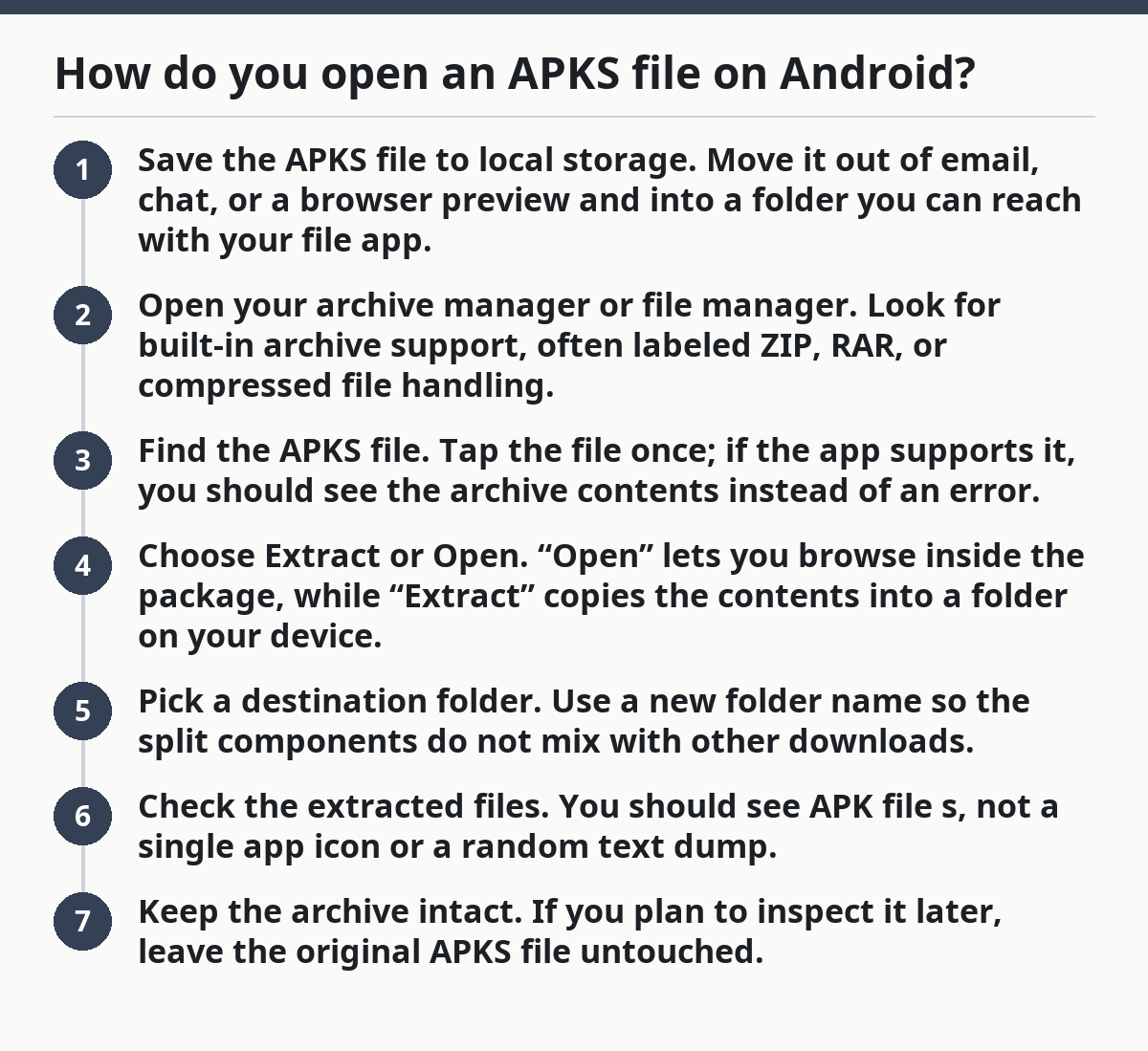
You open an APKS file on Android by using an archive-capable file manager, then extracting or browsing the package contents from storage. That is the direct route, and it works best when the file is already on your phone in a normal folder like Downloads.
- Save the APKS file to local storage. Move it out of email, chat, or a browser preview and into a folder you can reach with your file app.
- Open your archive manager or file manager. Look for built-in archive support, often labeled ZIP, RAR, or compressed file handling.
- Find the APKS file. Tap the file once; if the app supports it, you should see the archive contents instead of an error.
- Choose Extract or Open. “Open” lets you browse inside the package, while “Extract” copies the contents into a folder on your device.
- Pick a destination folder. Use a new folder name so the split components do not mix with other downloads.
- Check the extracted files. You should see APK files, not a single app icon or a random text dump.
- Keep the archive intact. If you plan to inspect it later, leave the original APKS file untouched.
A common mistake is tapping the file in a gallery app or chat app and expecting Android to understand it. You need a file tool that knows how to handle compressed archives, and the result should be visible files, not a launcher prompt.
Which files inside the APKS matter most?
The most important files inside an APKS package are the base APK and the split APKs that match your device. The base APK usually carries the main app code, while the split files supply extras for hardware, language, or screen profile.
Here’s the catch: not every file in the archive is meant to be opened by hand. Some are support files for the installer, and some are only useful when the package is installed as a set. You can inspect them, but their names matter more than their icons.
Look for these patterns:
- base.apk or a similarly named main package
- config files that mention language, density, or architecture
- files ending in .apk rather than odd temporary extensions
- metadata that helps an installer confirm the package set
A split package can look broken if you extract only one APK and ignore the rest. That is not a file failure; it is how split apps are built. If you only need to read the package, one part may be enough. If you need the app to install later, the full set matters.
How to extract the contents without installing them
You extract the contents without installing them by using the archive app’s extraction option, then reading the unpacked files from a normal folder. That gives you the contents as separate files, which is the cleanest way to inspect an APKS package on Android.
Use this path:
- open the APKS file in the archive manager
- choose Extract or Unzip
- select a fresh folder name
- wait for the progress bar to finish
- open the output folder and review the APK files
If the app only offers “share” or “open with,” that is not enough. You want a real extraction path that places the files on storage where other tools can read them. A proper extraction also makes it easier to copy the APK files to another device later.
The most useful part is that you do not need to install anything to inspect the package contents. The file is just data until an installer processes it. Android’s APK installation flow still depends on the package being handled by an installer, not a file preview. See Android Developers package overview and APKMirror Installer help.
What goes wrong when the file won’t open
An APKS file usually fails to open because the app you used does not support archive browsing, the download is incomplete, or the filename is damaged. Those are the common failures, and they each point to a different fix.
Here are the usual problems:
- No archive support: the file manager treats the APKS like unknown junk. Consult a professional if you are unsure whether the file is damaged, and use a different archive manager.
- Corrupt download: the file opens halfway or throws an error. Re-download the package.
- Wrong file extension: the file may not really be APKS. Check the full name, not just the icon.
- Low storage: extraction stops before all split files appear. Free space and try again.
- Only part of the archive opens: the app can read ZIP structures but not preserve every filename correctly. Switch apps.
A sloppy extraction can hide a bigger problem. If only the base APK appears and the split files vanish, you may think the package is empty when it is really incomplete. That is why the output folder matters more than the progress bar.
How to inspect the package before you do anything else
You inspect the package by checking the file list, the split names, and the extracted size before you hand it to an installer or move it anywhere else. That gives you a quick read on whether the package looks complete.
A practical inspection takes a minute or two:
- confirm there is a base APK
- look for matching split files in the same archive
- check whether the archive opens cleanly in one app, not three
- note the file sizes so you can spot a missing piece
- keep the extracted folder separate from other downloads
If you are comparing packages for support work or troubleshooting, this is the point where the file either makes sense or does not. A clean APKS package should show a sensible set of APK files, not a single oversized blob or a pile of unrelated documents.
For a broader look at package formats and installation packages, see the hub article in this cluster. This page stays focused on opening and extracting the APKS file itself.
FAQ
Is an APKS file the same as an APK?
No, an APKS file is not the same as an APK. An APK is usually a single installable package, while an APKS file is a container that holds an app package set, often with split APK components inside. That is why an archive manager is useful for opening it.
Can I extract APKS files without installing them?
Yes, you can extract APKS files without installing them. Use an archive manager or file app that can open compressed archives, then choose an extraction option instead of an install option. The result should be a folder of APK files and related package data.
What is inside an APKS package?
An APKS package usually contains a base APK plus one or more split APKs. Those splits can cover language, screen density, or device architecture. You may also see metadata files that help the installer assemble the full app package correctly.
Drafted with AI; not yet reviewed by a person.
