
Last updated: November 19, 2026
A bad update can break an app, and the safe fix is a version rollback after you back up app data and confirm the old APK matches the app’s signature. This guide to How to Downgrade an APK Safely on Android When the New Version Breaks Things covers when a downgrade works, when it wipes data, and when you should stop and reinstall instead.
Key Takeaways
- Back up app data first if you care about chats, offline files, or settings.
- A downgrade only works cleanly when the APK signature matches the installed app.
- If the newer version changed the data format, an older build may open and then crash.
- In many cases, Android blocks a direct rollback unless you uninstall the newer app first.
- A careful rollback usually means save data, remove the broken build, install the older APK, then test before you restore everything.
What you need before you roll back an APK
Picture this: you open the app and the latest update has wrecked one feature, but you still need the rest of the app today. You can downgrade it, but only if you have the older APK file, a backup of anything local, and the same signing key as the app already on the phone.
You also need enough free space for the reinstall. A rollback often needs a few hundred MB of room, because Android has to unpack the APK and rebuild app files. If the app stores login tokens, downloads, or notes on the device, treat those as fragile until you back them up, and if you are not sure what to copy, consult a qualified Android technician or the app developer. See Android’s app-signing guidance at https://developer.android.com/studio/publish/app-signing and Google’s backup overview at https://support.google.com/android/answer/2819582.
Here’s the catch:
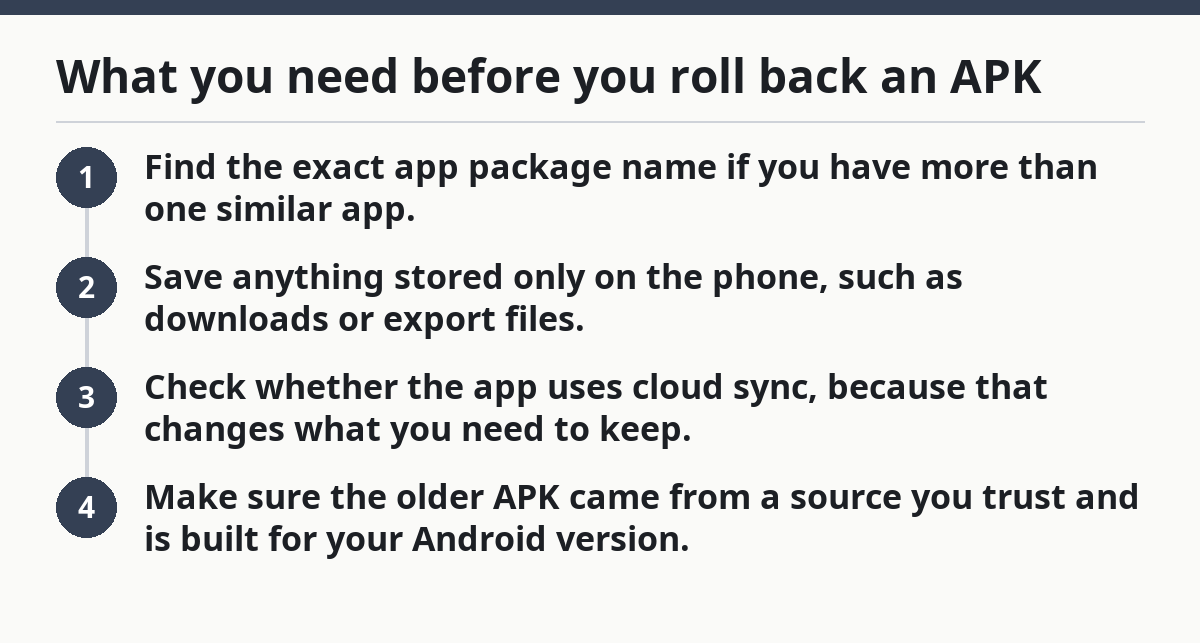
- Find the exact app package name if you have more than one similar app.
- Save anything stored only on the phone, such as downloads or export files.
- Check whether the app uses cloud sync, because that changes what you need to keep.
- Make sure the older APK came from a source you trust and is built for your Android version.
What worked in the end is simple. You need the right file, the right signature, and a backup you can live with.
How do you downgrade an APK safely on Android?
You downgrade an APK safely on Android by removing the broken newer build, installing an older signed APK, and then checking whether the app accepts the old data format. That is the shortest safe route for most sideloaded apps.
Follow the steps in order.
- Back up the app first. Export chats, copy local files, or use the app’s own backup tool if it has one. When this works, you should have a file or cloud copy you can open outside the app.
- Check the app’s signature match. The older APK must be signed by the same developer key as the version already installed. If the key differs, Android often refuses the install or treats it as a different app; consult a qualified Android technician or check Android’s signing docs at https://developer.android.com/studio/publish/app-signing.
- Turn off anything that might auto-update it. Pause the app store’s auto-update setting or disconnect the updater if you sideload. If this worked, the bad version will stop coming back after a reboot.
- Uninstall the current app if Android blocks the rollback. Many devices reject an older version over a newer one, especially if the version code is lower. After uninstalling, the app icon disappears and Android clears the installed package.
- Install the older APK. Open the APK from your file manager and approve the install prompt. A successful install ends with the app showing the older version number in App info.
- Open the app once before restoring data. This checks whether the old build starts at all. If it crashes on launch, the app’s data format may be too new for that version.
- Restore only what the old app can read. Bring back settings or files in small pieces. If the app accepts them, they will appear after a refresh, sign-in, or restart.
This process tells you fast whether the rollback is real or just a temporary install. If the app opens and keeps your key data, you’re done. If not, stop before you overwrite anything else.
Can you install an older APK over a newer one?
You can install an older APK over a newer one only sometimes, because Android checks version codes and signatures before it allows a downgrade. If the newer build has a higher version code, the install often fails with a package error instead of replacing the app.
That means the answer depends on the package, not on a trick. With some apps, the older APK can replace the newer one only if the signatures match exactly and the app allows downgrades. On many phones, you will have to uninstall first.
A few signs tell you what happened:
- If the install button is greyed out or the system says the app is already installed, the version rule is blocking you.
- If Android says “App not installed,” the package name, signature, or version code is the problem.
- If the install works but the app crashes on launch, the old code cannot read the newer data files.
Now, a higher Android version can change this. A phone on Android 13 may handle package checks more strictly than an older device, especially with split APKs or Play-based installs. If the app has multiple package parts, a simple file swap may not be enough.
What happens to app data when I downgrade?
App data may stay on the phone, but the old version may not understand it. That is the part people miss, and it’s why a rollback can look successful for 10 seconds before the app breaks again.
Most apps keep data in one of three places: cloud sync, internal app storage, or shared files on the device. Cloud data usually survives a downgrade because it lives outside the app. Internal storage is the risky part, because the older build may expect a different database schema or file layout.
Watch for these common outcomes:
- The app opens and shows your old data. That is the cleanest result.
- The app opens but resets settings. This usually means the data survived, but some preferences did not.
- The app crashes or loops on startup. That often means the data format is too new for the older build.
- The app starts empty after uninstalling. This is normal if you did not restore a backup.
The practical rule is plain: backup before downgrade, not after. If the app has in-app export, use it. If it stores files like photos, downloads, or notes in a visible folder, copy that folder before you touch the installed package. For messier apps, a developer-supplied backup or cloud sync is safer than hoping Android keeps everything intact.
Signature matching is the gatekeeper for version rollback
Signature matching decides whether Android sees the older APK as the same app or a stranger. If the signatures do not match, the rollback usually fails, even if the package name looks right.
This matters because Android protects app identity with signing keys. The old APK has to come from the same developer certificate as the current install. If the app was rebuilt with a new key, repackaged by a third party, or tampered with, you should expect install failure or security warnings. See Google’s Play App Signing guidance at https://support.google.com/googleplay/android-developer/answer/9842756 and Android’s app-signing overview at https://developer.android.com/studio/publish/app-signing.
A clean match usually gives you a normal install path. A mismatch usually gives you one of these results:
- “App not installed”
- “Package appears to be invalid”
- “There was a problem parsing the package”
- A silent refusal from the installer
You do not need a deep tools lesson to catch the problem. If the APK is from the same developer and the file name, package name, and version line up, that’s a good sign. If the source is random, renamed, or stripped of its developer identity, stop there. A rollback that depends on a modified APK is not a safe rollback.
The key point is that the file may look fine, but the signature is what the phone trusts.
What to do when the downgrade still fails
A downgrade still fails when the old app cannot read newer data, the install is blocked by Android, or the APK is not truly the same app. That does not mean the phone is broken. It means the rollback path is the wrong one for that app.
Try this order:
- Confirm the file is the right package and version.
- Uninstall the newer app fully.
- Reboot the phone so Android clears stale install state.
- Install the older APK again.
- Open it before restoring any backup.
- If it still fails, restore your backup to another device or wait for the app to fix the bug.
A common mistake is forcing a reinstall over a damaged install cache. That can waste time and leave you with half-restored files. Another mistake is restoring a full backup immediately, then finding out the old app can’t use it. That can cost you the only clean copy of your settings.
If the app is part of a larger Android update strategy, this is the branch where a rollback stops being the right tool. For the bigger picture on sideloaded apps, the hub page on APK update strategies for sideloaded Android apps belongs next, not another blind reinstall.
How to keep a rollback from turning into a bigger mess
You keep a rollback safe by changing one thing at a time and stopping as soon as the app proves it cannot handle the old build. That matters more than chasing the newest APK or the oldest one.
Use this short discipline:
- Keep the backup outside the app folder.
- Save the old APK’s version number in the file name.
- Turn off auto-update before you test.
- Restore only the data you need, not every file at once.
- Test the login screen, one local file, and one setting before you call it fixed.
This approach tells you where the break is. If login fails, the issue is account state. If files fail, the issue is storage format. If the app won’t launch, the rollback itself is the problem.
Big mistake: treating a downgrade like a normal update. It isn’t. An update usually expects forward compatibility; a rollback often breaks that assumption. That’s why backup, signature, install, then test is the safer order.
Can I install an older APK over a newer one?
You can, sometimes, but only if Android accepts the package as the same signed app and the version check allows it. If the newer install has a higher version code, the phone may refuse the downgrade.
If that happens, uninstalling the current app is usually the next step. That clears the version conflict, but it can also remove local data, which is why the backup comes first.
What happens to app data when I downgrade?
Your app data may stay on the device, but the older version may not read it correctly. Settings, local databases, and offline files are the parts most likely to cause trouble.
If the app uses cloud sync, that data is often safer than local storage. If it stores everything on the phone, export or copy it before you uninstall anything.
Do I need to uninstall before downgrading an APK?
Often, yes. Android usually blocks an older version from replacing a newer one, especially when the version code goes backward.
If the downgrade is allowed without uninstalling, the app should replace cleanly and keep its data path intact. If Android rejects the install, remove the newer build first, then install the older APK after your backup is saved.
Drafted with AI; not yet reviewed by a person.
