

Last updated: November 18, 2026
Quick answer: in 3 steps, many launch crashes clear up if you clear cache, reinstall a fresh APK, and verify the app matches your device’s CPU and Android runtime. This guide covers How to Fix an APK That Crashes Immediately After Opening when the app dies in the first 1 to 10 seconds, before the main screen loads. Most first-launch crashes come from a bad install, missing app data, or a device-specific runtime mismatch—not from the phone being “too slow.” For Android install basics, see Google’s app troubleshooting guidance and Android’s app bundle docs: https://support.google.com/googleplay/answer/7513003 and https://developer.android.com/guide/app-bundle.
Key takeaways
- Start with the quickest fixes: clear the app cache, force stop the app, then reinstall the APK from a clean file.
- If the crash happens only on one phone model, suspect a device-specific runtime issue, not just a broken app.
- Missing split APK files, an outdated device firmware build, or a mismatched Android app runtime can cause instant launch crashes.
- If the app opens once and then dies on the second launch, the problem is often initialization or corrupted app data.
- When the APK came from an unofficial source, a bad package is common; a fresh copy from the original distributor is often faster than tinkering.
Fix the crash in the first 5 minutes

The fastest workable fix is usually to clear the Android app cache, force stop the app, and reinstall the APK with a fresh file. That 3-step sequence solves a large share of “opens and immediately closes” problems because the app gets a clean launch environment instead of reusing broken startup data. Google recommends clearing cache and data as part of standard Android troubleshooting, and Android’s app bundle format can require more than one file. See Google’s support page: https://support.google.com/googleplay/answer/7513003 and Android’s bundle guidance: https://developer.android.com/guide/app-bundle.
-
Open your phone’s app settings for the crashing app.
Go to Settings > Apps > [app name] > Storage on most Android phones. On Samsung, One UI may show Storage after App info. You want the screen that shows cache, storage used, and buttons like Clear cache. -
Tap “Clear cache.”
This removes temporary files without deleting the app’s saved login or local data. If the crash was caused by a corrupted startup file, the app may now stay open for at least a few seconds instead of dumping you back to the home screen. -
Tap “Force stop,” then reopen the APK once.
Force stop ends any stuck process in memory. If the app now shows a splash screen or sign-in page, the launch path is at least partly working. If it still closes instantly, move on. -
Delete the APK and install a fresh copy from the original package.
Don’t reuse the same file you already tried. A partial download, a damaged transfer, or a renamed file can install but fail at first launch. A fresh APK should install cleanly and open past the splash screen. -
Restart the phone before the next launch.
A reboot clears stale background processes and reloads the app runtime. If the app was blocked by a temporary system state, the next open may work normally. -
Open the app with Wi‑Fi off for one test launch.
Some apps crash during the first network handshake or when they try to load remote assets. If it opens offline but not online, the issue may be server-side, login-related, or tied to missing remote dependencies. If the app needs remote assets, consult a developer or vendor support page before changing more settings.
If none of those steps changes anything, the crash is usually deeper than cache. At that point, the problem is more likely to be a bad build, missing split package files, or a runtime mismatch on that specific device.
Why an APK crashes immediately after opening
An APK crashes immediately after opening when Android can start the app process but the app fails during initialization. That usually means the problem happens before the main screen loads, often in the first 1 to 10 seconds, when the app checks permissions, loads native libraries, or pulls required resources.
The most common causes are:
- Corrupted install or damaged APK file. The package installs, but one file inside it is broken.
- Missing split APK dependencies. Some apps are not a single file; they rely on extra split packages for language, device density, or CPU architecture.
- Device-specific runtime mismatch. The app may be built for an Android runtime or chipset combination your phone does not fully support.
- Outdated device firmware. Older Android builds can miss behavior the app expects from newer system libraries.
- Broken first-run data. The app writes bad startup data on the first launch and then crashes on the second.
A generic article often stops at “reinstall the app” and leaves it there. That is too shallow for sideloaded APKs. Reinstalling helps only if the file itself is bad or incomplete. If the app was packaged as an app bundle, or if it depends on a device-specific split, a simple reinstall of one APK may not fix anything. For app bundle behavior and splits, consult Android’s official guidance: https://developer.android.com/guide/app-bundle.
The clue is the crash timing. If the app dies before the logo finishes animating, think installation or runtime. If it loads a login screen and then quits after the first tap, think app initialization or missing backend assets. If it only fails on one phone, the issue may be tied to that handset’s chipset, Android version, or vendor firmware rather than the app alone.
Check whether the APK file is incomplete or the wrong package
The APK file may be incomplete, signed wrong, or missing required split files, and fixing that is often faster than changing any phone setting. This is the step many generic guides miss, because they treat every APK as a single self-contained file when many modern apps are not. If you are unsure whether the package is a bundle or a single APK, consult a professional or the publisher’s documentation; Android’s app bundle docs explain why split files can be required: https://developer.android.com/guide/app-bundle.
Start by asking a simple question: did you install one standalone APK, or did you install a package that also came with .apks, .xapk, or multiple split files? If the app came from a bundle format and only part of it was installed, the app can open and then crash because key resources are missing.
What to check:
- File source: If the APK came from a chat app, browser download, or file transfer, the file may have been truncated.
- File size: A suspiciously small APK compared with the expected package often means it is incomplete.
- Format: If the app was distributed as split packages, install it with the proper installer or package set rather than extracting just one file.
- Signature mismatch: A modified APK can install and still crash on launch if the signing or library set is wrong.
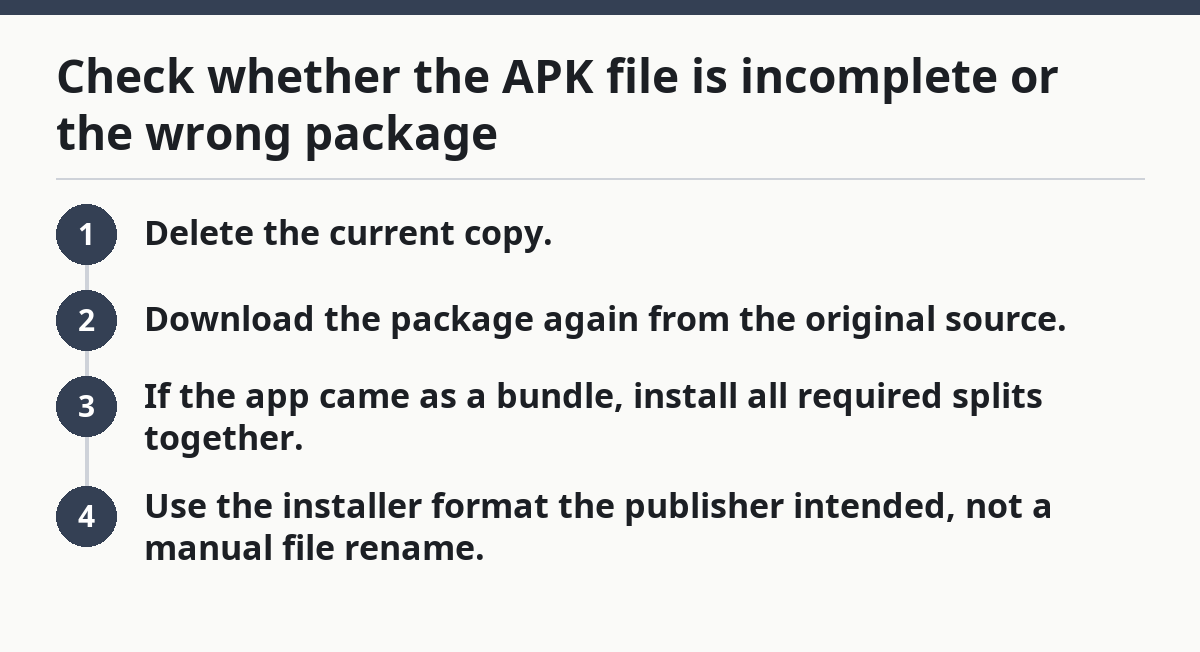
What to do instead of guessing:
- Delete the current copy.
- Download the package again from the original source.
- If the app came as a bundle, install all required splits together.
- Use the installer format the publisher intended, not a manual file rename.
If the app opens after a clean reinstall, the old package was the problem. If it still crashes in exactly the same place, the package may be fine and the phone may be the limiting factor.
A bad package is a strong suspect when the app fails on every device after sideloading, but it is not the only one. If the same APK works on one Android model and fails on another, move to device-specific checks next.
Why the same APK works on one phone but not another
The same APK can crash on one phone and run normally on another because Android devices do not all expose the same firmware, graphics drivers, CPU architecture, or app runtime behavior. That is especially common with sideloaded apps that include native code for only certain chips.
This is where device-specific crash paths show up:
- CPU architecture mismatch: An APK built for ARM64 may behave differently from one built for ARMv7, and x86 builds are a separate case.
- Vendor firmware quirks: Samsung, Xiaomi, OnePlus, Pixel, and older OEM skins can handle background startup differently.
- Android app runtime differences: The ART runtime and system libraries vary by Android version and by firmware build.
- Graphics or media libraries: Apps that load video, game, or camera components can fail before the main screen appears if a required native library does not match the device.
Practical signs you are dealing with a device-specific issue:
- The APK crashes only on a particular model, such as a Samsung Galaxy A-series phone but not a Pixel.
- The app opens on Wi‑Fi but crashes on mobile data, or vice versa.
- Another user’s phone with the same Android version still runs it, which points toward firmware or chipset behavior, not the app version alone.
What to do next:
-
Update the phone firmware if an update is waiting.
Go to Settings > Software update. A newer system build can fix runtime problems that affect first launch. If the crash disappears after update, the old firmware was the weak point. -
Retry on a clean reboot after the update.
The app runtime loads fresh after restart. If the app now reaches the login screen, the firmware change helped. -
Test on another device with a different chipset if you can.
If the app works there, the APK itself is not universally broken. It is likely incompatible with the first phone’s runtime path.
This is the section where many readers waste time blaming the app alone. Sometimes the app is fine. The device is the problem, and no amount of clearing cache will fix a runtime mismatch.
What to do when the crash happens on the first launch only
If the APK crashes only on the first launch, the app is probably failing during setup, not during everyday use. That means its startup routine is choking on permissions, missing data, or a first-run initialization step that did not finish cleanly.
First-launch crash patterns usually look like this:
- the splash screen appears, then the app closes
- the app asks for permissions and crashes right after you tap Allow
- the app opens once, creates files, and then crashes on the second try
- the app needs a sign-in, activation, or asset download before it can continue
The fixes are different from a general reinstall:
-
Clear app data, not just cache, only if you have not configured anything important yet.
In Settings > Apps > [app name] > Storage, use Clear data or Clear storage. This wipes the app’s local setup files. If the app opens cleanly afterward, the bad first-run state was the culprit. If you already logged in and care about local data, this can remove it. -
Grant only the permissions the app truly needs.
Some apps crash during initialization when they try to access storage, camera, microphone, or location before the permission prompt settles. After reinstalling, give permissions one at a time if the app allows it. -
Leave the phone online for the first launch if the app requires account verification or asset download.
Some apps crash because they expect a network call that never finishes. If the app needs a server check, launching offline can trigger a failure path. -
Check the storage space first.
If the device is nearly full, the app may fail while writing startup files. You do not need dozens of gigabytes free, but a device under storage pressure is a bad place to troubleshoot a first-run crash.
The trade-off here is simple: clearing data can solve the crash, but it can also erase local setup. That makes it a useful step for a brand-new sideload, and the wrong step for an app whose local state matters.
When the app still crashes after reinstalling the APK
If the app still crashes after a fresh install, a reboot, cache clear, and firmware check, the likely cause is the app build itself or a deeper compatibility issue. At that point, keep changing one thing at a time so you know which change mattered.
The most useful next checks are:
- Try the exact APK on another Android device. If it fails there too, the package is likely broken.
- Try a different build of the same app. A later or earlier release can fix initialization bugs without changing your settings.
- Check whether the app depends on Google Play services or another runtime component. Some apps will install but fail to launch if a required service is missing or disabled.
- Confirm that the app was built for your device class. Games, emulators, and camera tools often have tighter runtime requirements than simple utilities.
What a bad job looks like here is repeated reinstalling with no change in source, no change in build, and no attention to runtime. That wastes time and usually leads to the same crash loop. The better approach is to treat the APK as a build artifact that can be incomplete, device-limited, or dependent on something outside the file itself; if the issue persists, consult a professional or the app publisher’s support resources. Android’s own troubleshooting pages and developer docs are the best starting points: https://support.google.com/googleplay/answer/7513003 and https://developer.android.com/guide/app-bundle.
If the app is important for work, and it crashes on one model but not another, the practical answer may be to use a different device or a different build. That is not satisfying, but it is honest. Some sideloaded apps never become stable on certain firmware versions, and no amount of cache clearing will change that.
For broader Android install failures and package issues, the hub on APK installation troubleshooting covers the neighboring problems that sit before launch. This page stays focused on the immediate crash path and the fixes that matter first.
Why does an APK crash on launch?
An APK usually crashes on launch because the app fails during startup, before the main screen loads. Common causes include a damaged file, missing split packages, a runtime mismatch, or a bad first-run state stored in app data.
Can an APK crash because of my phone model?
Yes. A phone model can matter because chipset, firmware, graphics drivers, and vendor Android builds differ by device. If the same APK works on one phone but not another, the crash is often device-specific rather than a simple bad install.
Should I reinstall or update the APK?
Reinstall first if the file may be damaged or incomplete, and update if the crash started after a known app release or you can get a newer build from the source. If reinstalling the same package changes nothing, a different build or a firmware update is usually the better next move.
Drafted with AI; not yet reviewed by a person.
