
Last updated: November 18, 2026
Safe APK management on Android means installing, updating, backing up, and removing APKs without letting malware, broken permissions, or stale sideloaded apps take over the device. This Safe APK management on Android — The Complete Guide focuses on the steps that keep sideloading controlled: verify the source, check the package name and signing key, limit install permissions, keep a rollback plan, and remove anything you can’t trust or update cleanly.
Key Takeaways
- APKs are normal app packages, but sideloading removes Google Play’s usual guardrails.
- The safest workflow is usually: verify the source, verify the package, verify the signature, then install with the least permissions possible.
- If an app needs updates from a third-party store, the update channel matters as much as the APK itself.
- Backups should include app data only when you trust the app and understand what its data contains.
- A broken or abandoned sideloaded app is often safer to uninstall than to keep patching around.
What Actually Makes an APK Safe or Unsafe?
An APK is safe when the file, the publisher, and the install path all line up. If one of those three does not check out, the risk changes fast: a clean file from a fake source is still dangerous, and a legitimate source with a tampered package is just as bad.
The first question is often where the APK came from. If it came from Google Play, the Galaxy Store, Amazon Appstore, F-Droid, the developer’s official site, or a well-known distribution channel, that lowers risk, but it does not erase it. If it came from a mirror site, a Telegram channel, a “modded” repository, or a random download page, the risk jumps because the package may have been repacked, resigned, or bundled with adware.
The second question is whether the APK is the exact app you think it is. Android identifies an app by its package name, like com.whatsapp or com.microsoft.office.outlook, not by the logo on the download page. A fake package can copy the icon, screenshots, and description almost perfectly. That is why package names matter more than marketing copy.
The third question is signing. Android uses app signing certificates to prove that an update came from the same publisher as the original app. If a sideloaded update is signed by a different key, Android treats it as a different app or refuses the install; if that happens, consult the publisher’s documentation or a qualified professional before forcing a workaround. That is a good thing. It blocks some hijacking attempts, but it also means a shady “update” can’t safely replace the real app unless the attacker controls the signing key or tricks you into installing a separate package. See the Android app signing documentation at https://developer.android.com/studio/publish/app-signing.
| Situation | Best Path | Why Other Options Fail |
|---|---|---|
| App is available on Google Play | Use Play Store install and updates | Random APK mirrors add tampering risk without adding value |
| App is only on the developer’s site | Download from the official domain and verify package/signature | Third-party mirrors can repack the same app with extra code |
| App is “modded,” “cracked,” or “premium opened” | Do not install it | These are common malware carriers and often violate license terms |
| App is no longer on Play but still needed | Use a trusted alternative source and pin the original version if needed | Chasing the newest APK from unknown sites can break compatibility or security |
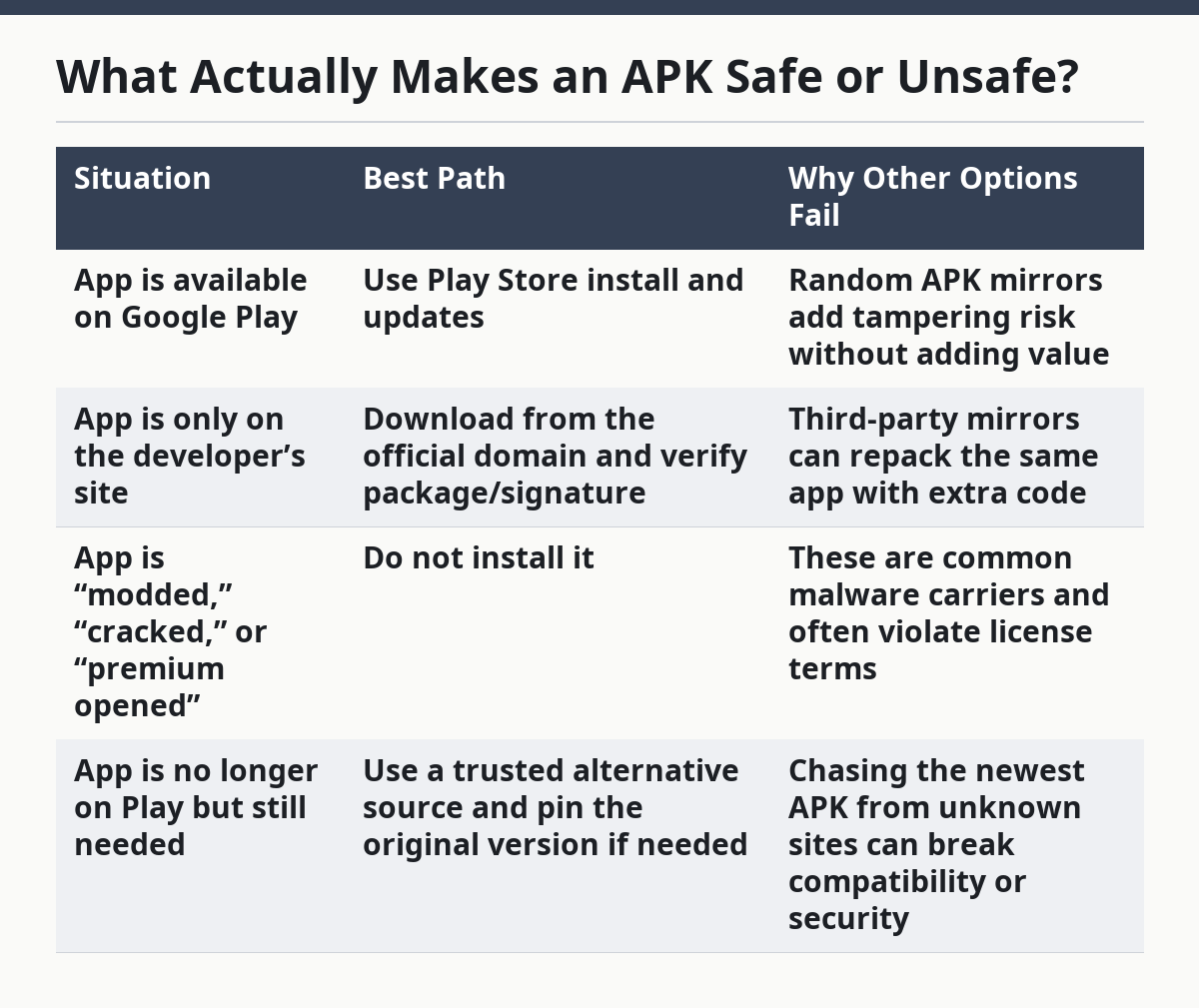
If you want a hard rule, use this one: if you cannot name the publisher and explain why the package should be trusted, do not install it. That rule is blunt, but it saves time. Quick check: are you evaluating a normal app, a sideload from the developer, or a file from a mirror you can’t verify?
How Do I Install an APK Without Creating a Mess?
You install an APK safely by treating the permission prompt as a security boundary, not a nuisance. On modern Android, the install source permission applies per app, so the browser, file manager, or package installer gets permission only when you grant it. On Android 8.0 and later, that permission is usually called “Install unknown apps,” and it should stay off everywhere except the one app you actually use for trusted sideloads.
If the APK came from a known developer, the clean path is short and boring. Download the file over HTTPS, confirm the app name and package name on the download page, scan the file with a reputable mobile security app if you use one, then open it from the same trusted source app you used to fetch it. If the app is large and distributed in split form, like an .apks bundle or split APK set, use a tool that understands split packages rather than forcing the system installer to guess.
If the APK came from an unfamiliar site, the answer often flips. Then the safer move is not to “install carefully” but to stop and replace the source. Unknown APK sites are not dangerous only because of malware; they are dangerous because they make you guess. Guessing is the problem.
A good install workflow looks like this:
- Download the APK only from the publisher’s official domain or a source you can identify by name.
- Check that the package name matches the real app, not just the logo or title.
- Look for the signing information if the publisher provides a checksum or certificate fingerprint.
- Turn on “Install unknown apps” only for the one app doing the download, then turn it back off after installation.
- Review the permissions screen before tapping install. If a flashlight app wants SMS, contacts, and accessibility access, stop.
- Open the app once, then review its permissions again in Settings because some requests appear after first launch.
- Remove the installer file if you do not need it, especially on shared devices.
The important trade-off is convenience versus control. Sideloading is useful for regional apps, enterprise software, app versions removed from stores, and development builds. It is a bad fit for casual apps that already live in a store. Quick check: are you installing one trusted app, or are you repeatedly sideloading from different places and hoping for the best?
What Should I Check Before I Trust an APK File?
You should check the source, package name, signature, permissions, and update path before you trust any APK file. If even one of those is off, the file may still run, but it is no longer safe by default.
Start with the source. The official developer site is best when it is clearly the publisher’s real domain and uses HTTPS. F-Droid is useful for open-source apps because it republishes source-built packages and exposes metadata, though it is not a magic shield; you still need to care which app you are installing. Google Play is often the easiest option for mainstream apps because Play Protect can inspect apps and updates, but Play Store availability is not the only standard of legitimacy. See Google’s Play Protect overview at https://support.google.com/googleplay/answer/2812853 and F-Droid’s repository documentation at https://f-droid.org/docs/.
Next, look at the package name. A real banking app might use a package name that looks nothing like the display name, and that is normal. A fake package often tries to mimic the brand in the package name too, but not always. If the download page does not show the package name and you cannot verify it from the developer’s documentation, that is a warning sign.
Then check permissions. Android’s permission model is explicit, but an app can still ask for things that are not needed for its job. A PDF reader should not need call logs. A note app should not need device admin. Accessibility access, SMS access, notification access, and install permissions deserve extra suspicion because they can be abused to read content, overlay screens, or approve actions.
For checksums and signatures, use them when the publisher provides them. A SHA-256 checksum on a download page is only useful if you can compare it against the exact file you downloaded. It is not a universal guarantee, but it does catch accidental corruption and some tampering. If a developer also publishes signing certificate details, that is even better, because it helps you tell whether an update is really from the same publisher.
Two authoritative references are worth keeping in mind here: Android’s app signing documentation in the Android Developers documentation, and the F-Droid repository and verification documentation on the F-Droid project site. Those pages explain how app signatures and repository verification work in practice.
The clean judgment is this: trust is cumulative, not automatic. A familiar logo, a glossy website, and a five-star claim are not enough. Quick check: can you name the publisher, the package name, and the reason the signature should match before you install?
How Do I Update, Backup, and Restore Sideloaded Apps Safely?
You update, backup, and restore sideloaded apps safely by preserving the signing chain and avoiding data imports from apps you no longer trust. If the app update comes from the same publisher and is signed with the same key, updating is usually straightforward. If the signing key changes, Android may block the update or treat it as a separate app, which is a sign to stop and investigate. For a signing mismatch or a package transfer, check the publisher’s guidance first or consult a qualified professional before you try to bypass the warning.
This is where many people get burned. They install a sideloaded app once, forget where it came from, then months later try to update from a different mirror. If the package name matches but the signing key does not, the update may fail. The fix is not to force it; the fix is to find the original publisher or uninstall and reinstall only if you are sure the data loss is acceptable.
For backups, think in layers. App APKs are just installation files; app data is the settings, account state, documents, downloads, and caches the app stores locally. Backing up APKs is easy. Backing up app data is trickier because the data may contain tokens, personal files, or encrypted content. If the app is untrusted, backing up its data can preserve the problem. If the app is trusted, a backup tool such as Seedvault on supported Android builds, or a device-vendor backup feature, may save time after a reset.
A safe restore path looks like this:
- Confirm the app is still supported and that the new APK comes from the same publisher.
- Back up the app’s data only if you trust the app and need the state preserved.
- Record the current version number and package name before you uninstall anything.
- Restore the APK first, then launch it once before importing or restoring data.
- Check that permissions, account login, and storage access behave normally after restore.
- If the restore requires root-only tools, weigh the risk: root expands what backup tools can touch and what malware can abuse.
The honest limitation is that no backup method is universal on Android. App sandboxing, encryption, and OEM differences make some restorations partial or brittle. That is why a clean reinstall plus account sign-in is often safer than trying to transplant old data into a changed app build. Quick check: are you trying to preserve app state, or are you just trying not to lose access to an app you can reinstall later?
When the Standard Advice Is Wrong
The standard advice is wrong when the app is abandoned, region-locked, enterprise-managed, or packaged as a split bundle. In those cases, “just download the latest APK” is often bad advice.
If the app is abandoned but still critical, the safest move may be to freeze on the last known-good version and isolate it. That means disable automatic update checks, block network access if the app can function offline, and keep a copy of the installer and checksum in a documented place. This is not ideal, because old apps accumulate unpatched bugs, but it may be the only workable choice for niche hardware, older Android versions, or a dead vendor.
If the app is region-locked, a legitimate APK may still be hard to obtain in your country. The risk here is that people drift toward mirror sites. That is when the publisher’s own website, an official beta channel, or a recognized open-source repository matters more than convenience. If none exist, the app may simply not be safe to chase.
If the app is enterprise-managed, the correct answer may be zero sideloading. A company app distributed through Microsoft Intune, Managed Google Play, Samsung Knox, or another mobile device management system should stay inside that management boundary. Sideloading a competing APK can break policy, account access, or device compliance.
If the app is a split APK or App Bundle, a normal file manager may not install it correctly. Tools such as APKMirror Installer are built for some split-package distributions, and Android Studio’s bundletool exists for developers handling .aab workflows. If you force the wrong installer, you may get a broken app that crashes on launch because a language pack, screen-density split, or architecture split is missing.
If the app needs root, the safety bar changes sharply. Root gives an app broad access to the system partition, other apps’ data, and sensitive settings. That is not automatically bad for power users, but it is absolutely not casual territory. Root-only APK management is for readers who already know how to recover from boot issues and verify what a root manager is doing.
Quick check: is your case about an app that is old, region-restricted, enterprise-managed, split into parts, or rooted? If yes, the normal “download and install” rule is too simple.
What Are the Edge Cases That Break the Usual Rules?
The usual rules break when the app’s packaging, permissions, or trust model is unusual. In those situations, the right move is not more confidence; it is more caution.
| Situation | What Changes | What to Do Instead |
|---|---|---|
Split APK or App Bundle (.apks, .apkm, multiple splits) |
One file is not enough for a complete install | Use a tool that handles split installs, and verify all parts come from the same source |
| App was signed with a different key after a rebrand | Android sees a different publisher | Treat it as a new app, not an update; back up what matters first |
| App needs accessibility or device admin | It can act with raised control over the UI or device | Install only if the publisher is trusted and the need is easy to explain |
| App is from a repository with community rebuilds | Source may be clean, but rebuild provenance matters | Check repository metadata, maintainer identity, and package history |
| Old APK for a legacy Android phone | Compatibility may matter more than the newest version | Pin a known-working version, disable auto-update, and isolate the app |
| APK comes from a chat app or file transfer | Transfer may alter your trust assumptions | Re-download from the source if possible; do not treat forwarded files as verified |
Here is the one edge case people miss most often: a file that installs successfully is not automatically safe. An app can install cleanly, open normally, and still hold an unnecessary permission that makes it risky later. Accessibility access, notification access, overlay permission, and device admin status can quietly widen the blast radius.
Another subtle case is architecture. A device with an ARM64 CPU may still run 32-bit code for some apps, but not every package is built for every chip. If you install the wrong ABI build, the app may fail or behave oddly. That is why compatibility details like ARM64-v8a, armeabi-v7a, and x86_64 matter to technical readers.
The practical rule is simple: if the APK is not a plain, single-package install from a publisher you trust, slow down. Quick check: are you dealing with a special packaging format, a permissions-heavy app, or an old device that needs a narrow version?
A Safe APK Workflow You Can Actually Repeat
A safe APK workflow is a repeatable checklist, not a one-time trick. If you follow the same sequence every time, you reduce the chance that curiosity or convenience will override judgment.
- Decide whether you really need sideloading. If the app is on Google Play and works there, use the store.
- Identify the publisher and the exact package name.
- Prefer an official site, an official repository, or a recognized distribution channel over mirrors.
- Check whether the download is a single APK or a split package.
- Review permissions before installing, especially SMS, accessibility, overlay, contacts, and device admin.
- Install from a single trusted source app, then revoke unknown-app install permission when finished.
- Open the app, confirm it behaves as expected, and remove the installer file if you do not need it.
- Record the version number and source so future updates come from the same place.
- For anything sensitive—banking, work email, password vaults—prefer store distribution over sideloading unless your organization explicitly requires otherwise.
This workflow is not perfect, and that is the point. Safe APK management on Android is not about making risk disappear; it is about shrinking the number of places where risk can hide. It is also not for people who want the quickest possible install from a random download page. Those readers are exactly the ones who get hurt by the shortcuts.
The final judgment is plain: use APKs when you need control, not as a habit. If you do not need sideloading, do not create a maintenance problem just to avoid the store. Quick check: do you have a real reason to sideload, or are you doing it because it feels more flexible?
What Should I Do If I’m Not Sure the APK Is Legit?
If you are not sure the APK is legit, do not install it until you can verify the publisher, package name, and update path. Uncertainty is itself the warning sign.
Start by searching for the app’s official distribution page on the developer’s own site or verified repository listing. If the app has a checksum, compare it. If the publisher documents signatures or release notes, compare those too. If the source is a mirror with no clear maintainer, stop there. A missing trail is a problem, not an inconvenience.
Then ask what the app wants to do. A photo editor asking for camera and storage access is normal. A wallpaper app asking for SMS, contacts, and notification listener access is not. An app that requests accessibility services should have a very clear reason, because accessibility access can read screen content and automate taps. A legitimate app may still need it, but the burden of explanation is high.
If the app is for work, ask your IT team or device administrator. Enterprise app distribution often has approved package names, hashes, or managed channels. A second source is useful when policy matters.
If the app is for personal use and you cannot verify it, the safest answer is to walk away. There will almost always be another app, or another day. The one exception is a legacy tool you already rely on and understand well; even then, pin the source and keep a local record of the trusted version.
Quick check: can you prove the file came from the real publisher, or are you hoping the download page is telling the truth?
Is It Ever Safe to Keep Old APKs Around?
Yes, but only when you can explain why you need them and how you will contain them. Old APKs are common in legacy setups, offline devices, and long-lived workflows, but they are also a magnet for stale vulnerabilities.
If the app is offline, low-risk, and tied to a specific device function, keeping a known-good APK can be reasonable. A kiosk app, a field-device helper, or an older media viewer may fall into this category. In that case, store the installer, note the version, and document the reason you kept it. If possible, put the device behind network restrictions and disable needless permissions.
If the app handles sensitive data, old APKs are a different story. Outdated password managers, messaging apps, finance apps, and health apps should not linger just because they still open. The longer the app goes without updates, the harder it becomes to defend. For anything sensitive, update to a maintained version or replace it.
Old APKs also create confusion during troubleshooting. People forget which version is installed, then mix files from three different sources. That is how the same app ends up with mismatched signatures and failed restores. A simple version log on the device or in your password manager can save hours later.
The bottom line is that old APKs are a tool, not a museum piece. Keep them only when they serve a known purpose. Quick check: is the old APK part of a controlled setup, or is it just lingering on the device because nobody cleaned it up?
FAQ
Can an APK contain malware even if it installs normally?
Yes. A successful install only means Android accepted the package format and signature rules at that moment. It does not guarantee the app’s behavior is benign, so permission review and source verification still matter.
Is Google Play always safer than sideloading?
Usually yes, because Play adds store-level checks and easier update handling. That said, safety still depends on the app itself, its permissions, and whether you keep it updated.
Should I use antivirus apps to verify APKs?
They can help with known threats, but they are not a substitute for source control and signature checks. A clean scan does not prove an APK is trustworthy, especially for newly packaged or repacked files.
What is the safest way to uninstall a risky APK?
Remove the app, revoke any special permissions first if you can, then delete the installer file and clear leftover downloads. If the app had account access or sensitive data, change relevant passwords and review account sessions as a precaution.
Can I move an app from one Android phone to another by copying the APK?
You can copy the app file, but that does not always preserve data, updates, or signature compatibility. The safer path is to reinstall from the same trusted source on the new phone and restore only the data you know is safe to move.
Drafted with AI; not yet reviewed by a person.
