
Last updated: November 05, 2026
If you are comparing APK side-loading and installation files, the real question is not “can I install it?” It is “is this APK safe, signed by the right developer, and compatible with my phone?” That is the guide this article answers, because the file itself is only half the story; the other half is the installer, the signing certificate, and the permissions you grant when you tap through.
I write about Android app packaging and mobile security with the bias of someone who cares more about what breaks than what looks clever. That matters here, because side-loading is useful, but it can also lead to a bad app in a few taps.
Key takeaways
- APK files are Android app packages, not magical shortcuts; they still need to be signed, compatible, and correctly installed.
- The safest side-loaded apps often come from a developer’s official site, F-Droid, or a store that verifies signatures and package metadata.
- The biggest risks are tampered files, outdated versions, permission abuse, and “APK mirror” downloads that are not what they claim to be.
- Many installation failures come from format problems, such as split packages, architecture mismatch, or an app that requires a newer Android version.
- If an app needs broad access to storage, SMS, accessibility, or device admin rights, treat that as a warning sign, not a normal setup step; if you are unsure, consult a professional and check Android’s permission guidance and Google’s app security docs.
- A good side-load leaves a clear audit trail: source, version number, signer, and the reason you trusted it.
What an APK file actually is
An APK is the Android Package Kit file that contains an app’s code, resources, certificate signature, and manifest data. In plain language, it is the installable container Android reads before it puts an app on your device.
That matters because an APK is not just “the app.” It is a package with identity. Android checks the digital signature to decide whether the file came from the same developer as an earlier version, whether an update is legitimate, and whether the package can be installed at all. If the signature changes without a proper developer migration path, Android usually treats the file as a different app or rejects the update; if you are unsure how that applies to a specific file, consult a professional and review Android’s app-signing documentation.
A generic guide often stops at “APK = Android app.” That is too shallow. The signature is what protects you from a malicious update pretending to be the same app. The manifest is what tells Android the app’s minimum SDK version, required permissions, and package name. The native libraries inside the file matter too, because an app built for arm64-v8a may not behave correctly on older 32-bit devices.
Two common alternatives sit next to APKs:
- AAB, or Android App Bundle: the format Google Play uses to generate device-specific installs. Users usually do not sideload AABs directly.
- APKS or split APK bundles: installers such as APKMirror Installer may use these because one app can be split into a base package plus configuration splits for language, screen density, or CPU architecture.
If a download page says “APK” but the install keeps failing, the file may actually be a split package or an incomplete bundle. That is a format problem, not necessarily a security problem.
Why people side-load apps instead of using Google Play
Side-loading wins when the app is unavailable, delayed, region-locked, or distributed outside Play for policy reasons. That is the strongest case for it, and it is usually practical rather than exotic.
The cleanest reasons are straightforward. Some developers publish beta builds on their own site. Some open-source apps distribute releases through F-Droid or GitHub. Some apps are blocked by device compatibility rules in Play even though the developer still supports them on a specific phone model. In enterprise settings, an internal tool may never touch a public store at all.
The downside is that side-loading shifts the burden of trust onto the user. Google Play at least gives you a central review layer, package history, and warning systems. A direct download does not. If the file is altered on the hosting page, mirrored poorly, or renamed to resemble a known app, the device will still ask the same basic question: do you trust this signature enough to install it?
That is why side-loading is best for one of three user profiles:
- Power users who understand where the file came from and can verify the developer.
- Privacy-conscious users who prefer open-source apps from F-Droid or direct developer releases.
- Enterprise or support users who have an IT-approved APK and need a specific version for compatibility.
It is not a good fit for someone who just wants the easiest possible install. If the only reason for side-loading is that the app looks interesting and the source is vague, the safer choice is to skip it. A working Android app is not worth a bad package from an unknown mirror.
How to check whether an APK is safe before you install it
A safe APK is one whose source, signature, and permissions all make sense together. If any one of those three looks off, do not install it.
Start with the source. The best source is often the developer’s own website or a known distribution channel such as F-Droid, especially when the release notes, package name, and file version all line up. GitHub can be acceptable when the repository is clearly maintained by the developer and the release assets match the codebase. Random “APK download” pages are the weakest option, because the page often offers no proof that the file was built by the app’s real publisher.
Then check the signer. Android uses app signing certificates, and reputable release notes often mention the developer name or signing key continuity. If a page offers hashes, that is better, but a hash only helps if you already trust the source of the hash. A SHA-256 checksum is useful when it is published on the developer’s own site or release page, because you can compare the file you downloaded against the expected value. A checksum from the same shady mirror is not much help.
Permissions are the third filter. A flashlight app that wants SMS access, contacts, notification access, or accessibility services deserves skepticism. An app that asks for REQUEST_INSTALL_PACKAGES, device admin, or “draw over other apps” may still be legitimate, but the request should match the app’s actual function. If it does not, stop.
A few concrete red flags matter more than a long list:
- The APK filename does not match the app and version shown on the download page.
- The release page gives no developer name, version history, or changelog.
- The app asks for broad permissions that have nothing to do with its job.
- The file is packaged as an “opened,” “mod,” or “premium” build.
- The download source tells you to disable security checks permanently.
That last point is especially important. Android gives you a temporary permission to install from unknown sources on modern versions, but a page that pushes you to weaken your device settings beyond that is telling you what it needs from you. Usually that answer is too much trust.
For authoritative background, Android’s own app security and package documentation are useful starting points, and F-Droid’s publishing model is worth reading if you care about open-source distribution. The relevant references are at Google’s Android developers site and the F-Droid project documentation. The APKS format and split-install behavior are also documented by APKMirror Installer and Android package tools.
How do you install an APK on Android?
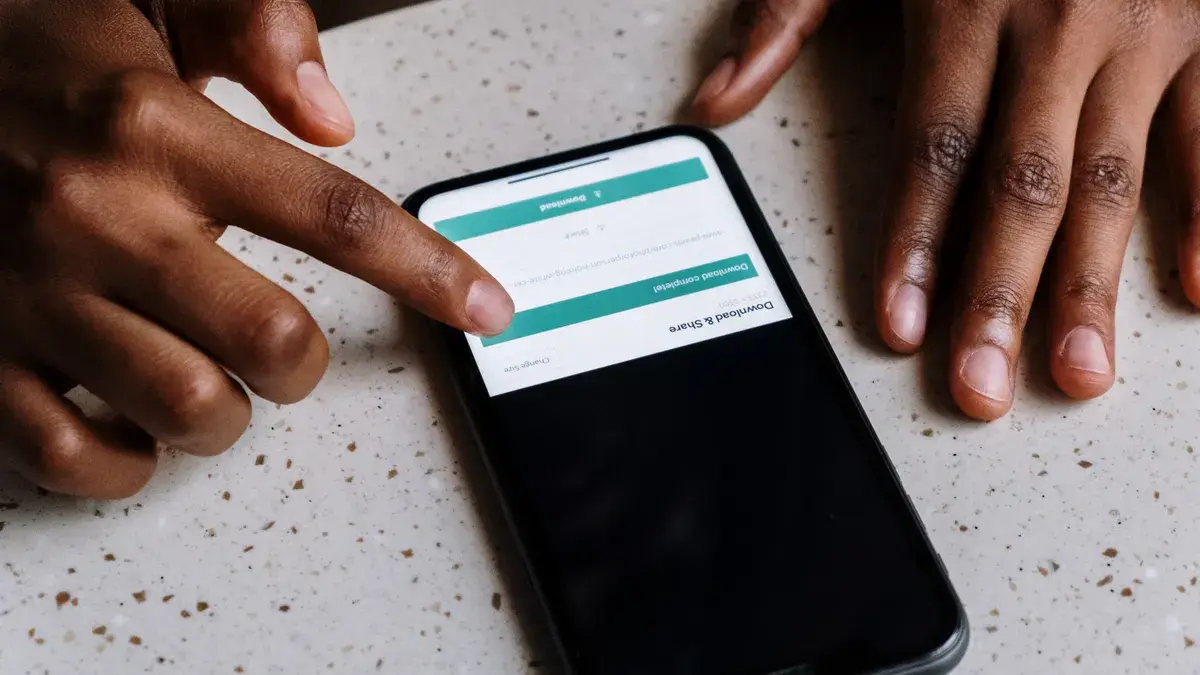
You install an APK by downloading it from a trusted source, allowing the file manager or browser to install unknown apps for that one source, and then opening the file to run the package installer.
On Android 8 and later, the permission is per-app source rather than a permanent system-wide switch. That means Chrome, Files, Samsung My Files, or another source app may each need separate approval. Older Android versions used a more general “Unknown sources” setting. If a guide still tells you to flip one global switch and leave it on forever, it is outdated.
The basic sequence is simple:
- Download the APK from the developer or another trusted source.
- Open the file from your downloads folder or file manager.
- Approve installation from that source if Android asks.
- Review the permission prompt.
- Complete the install and launch the app.
- If needed, go back and revoke the source permission after installation.
The step that gets people into trouble is the permission screen. Do not treat it as a formality. Android shows the permissions the package requests for a reason. If the app looks ordinary but requests broad access, that is the right time to stop.
Two common failure points appear here. First, the package may be split, meaning the file you downloaded is not a complete installable unit by itself. Second, the device may reject the app because the minimum Android version in the manifest is too high, or because the CPU architecture does not match. A Pixel running arm64 is not the same target as an older x86 emulator or a 32-bit device.
If the install fails with a generic parsing error, the file may be corrupted, incomplete, or incompatible. If it says the app was not installed, the most common causes are signature mismatch, insufficient storage, or package conflicts with an existing version.
The honest side-by-side: APK files, split packages, and app stores
APK files win on control. App stores win on convenience and guardrails. Split packages sit in the middle and are often what the app developer actually ships now.
| Criteria | APK file | Split package / bundle | Winner for this condition |
|---|---|---|---|
| Direct control over where the app comes from | Strong | Strong | APK file, if the source is trusted |
| Ease of installation for nontechnical users | Moderate | Low | APK file |
| Handling device-specific resources | Weak unless it is a full package | Strong | Split package |
| Risk of incomplete or wrong architecture installs | Higher | Lower when installed correctly | Split package |
| Easy manual sharing | Strong | Weak | APK file |
| Works with store-style update flow | Weak | Moderate | App store or managed installer |
| Best for open-source release channels | Strong | Strong | APK file, especially F-Droid |
| Best for beta or internal builds | Strong | Strong | APK file |
| Best for least friction on mainstream phones | Moderate | Strong | App store |
| Best when the developer uses Play App Signing | Weak for direct sideloading | Strong via store delivery | App store |
The table is not a verdict by itself, because the format is only one piece of the decision. A signed APK from a reputable developer can be perfectly fine. A bundle installed with the wrong helper app can be a headache. A store install may be safer, but it also gives you less control over version choice and release timing.
The strongest practical rule is this: if the app is meant for general users and you can get it from a reputable store, that is the better path. If you need a specific build, an older version, an open-source release, or a device-specific package outside the store, the APK route makes sense. The less certainty you have about the source, the less attractive the APK path becomes.
What makes an installation file legitimate, and what does not?
A legitimate installation file comes from a known developer, matches the published version history, and carries a signing certificate that stays consistent across updates.
That sounds technical, but the check is often simple. The release page should look like it belongs to the app, not just to a file dump. The package name should stay stable. The version number should make sense relative to the changelog. If the app has a public repository, the release asset and commit history should line up with what the developer says they built.
A fake or risky installation file usually fails one of three tests:
- It is hosted on a site that also pushes cracked, modified, or “premium opened” apps.
- The file name and release notes do not match.
- The package asks for excessive permissions or behaves oddly after install.
The “premium opened” label is not a bonus. It is a warning. Modified APKs can strip ads, remove licensing checks, or bundle hidden code. Even when they appear to work, they often break update continuity because the signature no longer matches the official one. That means the next legitimate update may refuse to install, leaving you stuck with the altered build or forced to uninstall and start over.
A legitimate file also leaves room for verification. The developer may publish a SHA-256 checksum, a PGP signature, or a release note with a known signing certificate fingerprint. Not every app does all of that, but the more transparent the release process, the better the file deserves your trust.
A generic article often forgets the practical question: what is the bad-job equivalent here? It is a package that installs, runs, and still harms you by taking too many permissions, breaking future updates, or hiding code you never agreed to run. Installation success is not the same thing as safety.
When APK side-loading is the right choice
APK side-loading is the right choice when the source is trusted, the app is unavailable in a store, and you need a specific build or a faster release path.
That covers the real-world cases. It is the correct route for beta testers receiving a signed preview, users of open-source apps distributed outside Play, IT teams deploying internal tools, and people whose devices are blocked by store compatibility rules but can still run the app properly.
It also helps when you need a particular version. Some users do this for compatibility with an older device or a workflow that broke in the newest release. That can be reasonable, but it comes with a cost: you may lose automatic updates, and you may miss security patches if you park on an old build for too long.
The trade-off is simple. The more you value version control, the more side-loading makes sense. The more you value safety by default, the less it does. A store install is usually better for family devices, rental phones, or anyone who will not check signatures and permissions carefully.
This is also where people overestimate the benefit of APK mirrors. A mirror is only useful when it is clearly tied to the real publisher and keeps the same signature chain. Otherwise it is just another download page with a familiar file extension.
Exception scenarios where the answer changes
The answer flips in a few specific situations, and those cases matter more than a broad “APK is fine” rule.
-
The app is a critical security or finance app. If the app handles banking, passwords, authentication, or private medical data, I would avoid side-loading unless the publisher is the official vendor and the file is distributed through a clearly controlled channel. The risk of a tampered build is too high.
-
The phone is managed by work, school, or family controls. If a device policy blocks unknown sources or the admin expects app-store distribution, side-loading can violate policy or break management rules. In that setting, use the approved channel.
-
The download is a split APK but the user only has a single-file installer. If the page clearly offers an
.apks,.xapk, or other bundle format and the device lacks the right installer, do not force it. Use the developer’s installer instructions or a compatible tool. -
The app needs root, accessibility abuse, or device-admin tricks to function. Some legitimate utilities do require advanced permissions. Many shady ones also ask for them. If the app’s core function depends on permissions far beyond normal app behavior, step back and verify the developer first.
These exceptions are not edge-case noise. They are the situations where a routine decision becomes a security decision.
The verdict: which installation route should you choose?
Choose an APK file if you trust the publisher, need a specific version, or cannot get the app through a reputable store. Choose a store install or a managed bundle if you want the easiest update path and the least chance of a bad package. Neither if the file comes from an unknown mirror, the permissions are excessive, or the app is important enough that a tampered build would hurt you.
That is the clean recommendation. APK side-loading is useful, but it is not the default safe path. It becomes smart when the source is strong and the reason is clear. It becomes reckless when the file is just “available” and nothing else checks out.
How do you avoid the mistakes that cause bad installs?
You avoid bad installs by checking the source, matching the version, and stopping when the permissions do not fit.
That final step is the one most people skip. They focus on whether the file opens, not whether the package deserves a place on the device. A rushed install often creates three problems at once: a failed app, a polluted permission list, and a future update conflict.
Use this short checklist before you tap install:
- Confirm the developer or publisher.
- Match the version number against the release notes.
- Prefer a published checksum or signature reference.
- Avoid modified, cracked, or repackaged APKs.
- Install only from a source app you recognize.
- Revoke the unknown-app install permission afterward if you do not need it.
If the source cannot answer basic questions about who built the file, when it was released, and what version it is, do not make the device answer them for you.
Drafted with AI; not yet reviewed by a person.
