
Last updated: November 29, 2026
If a Samsung phone refuses an APK because of permissions, storage, or a package conflict, the fix is usually to check the install source setting first, clear enough space, then remove the app version that is already on the phone. That order solves the most common Samsung APK installation error without guessing. If the file still fails after those checks, the problem is usually a bad download or a signer mismatch.
Key takeaways
- Start with the easiest blockers: app install permission, free storage, and an already-installed app with the same package name.
- A file can be the right size and still be broken if the download stopped early or was renamed by a file manager.
- Samsung’s Device care and Settings app can show whether storage or app permissions are the real issue.
- If the error appears after a prior install or update, package conflict is more likely than storage.
- When the install log names a conflict, the APK itself may be fine, but the phone already has a different build of that app.
What the error is really telling you
A Samsung APK install error usually points to one of three things: the phone is blocking the source, the device is too full to unpack the app, or the package name already exists on the phone. That is why the same file can fail on one Samsung phone and work on another with a different app history or 1 GB more free space.
The first clue is the wording. If the phone mentions permissions, the issue is usually the setting that allows installs from that app, such as the browser or Files app. If it mentions storage, the APK may not have enough room to expand while installing, even if the file itself looks small. If it mentions package conflict, the phone already has an app with the same package name, version, or signature.
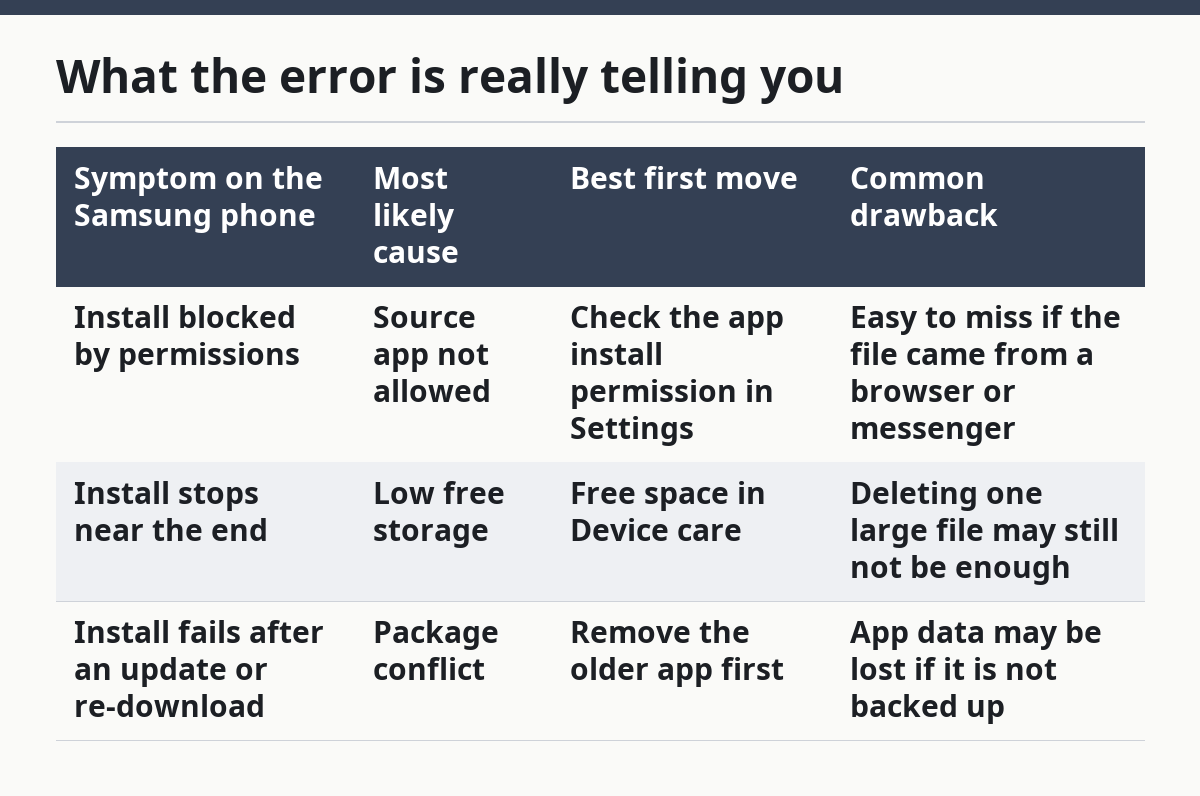
A useful way to think about it is by symptom, not by the file type alone:
| Symptom on the Samsung phone | Most likely cause | Best first move | Common drawback |
|---|---|---|---|
| Install blocked by permissions | Source app not allowed | Check the app install permission in Settings | Easy to miss if the file came from a browser or messenger |
| Install stops near the end | Low free storage | Free space in Device care | Deleting one large file may still not be enough |
| Install fails after an update or re-download | Package conflict | Remove the older app first | App data may be lost if it is not backed up |
Samsung’s own support material on app permissions and Android’s install-source rules is the right place to confirm what the phone is blocking: Samsung Support and Android Help. The exact menu labels change a little by One UI version, but the cause is usually one of those three.
How do I fix Samsung APK install permissions?
Fixing the permission block means allowing the app that opened the APK to install unknown apps, then trying the install again. On many Samsung phones, the source is the browser, a messaging app, or the Files app, and each one can be blocked on its own.
Use this order, because it avoids changing more settings than needed:
- Open the Settings app on the Samsung phone.
- Tap Apps.
- Find the app that opened the APK, such as the browser or Files app.
- Tap Install unknown apps or the equivalent install permission.
- Turn the permission on for that source.
- Return to the APK installer and try the file again.
If the APK came from a browser, the browser permission matters even when the file now sits in Downloads. If the APK came from a chat app, that app may need the install permission even if the file is stored locally. This is where a lot of fixes go wrong: the phone is not blocking the APK itself, only the app that delivered it.
A good sign that this is the real issue is a fast failure before the install even starts. A bad sign is when the phone asks for the same permission twice after the toggle is already on; that can point to a second block, such as storage or a corrupted file. For a reader who is still at the “how do I install an APK on a Samsung phone” stage, the hub guide covers the setup path; this article is only the troubleshooting branch.
Is storage the real problem?
Yes, low storage can stop an APK installation on a Samsung phone even when the APK file itself is small. The install process needs room for unpacking, temporary files, and the app’s final files, so a phone that looks “almost full” can still fail on a modest APK.
Check storage in Device care first, because it shows the clearest picture of what is eating space. Then use the Files app or the phone’s storage screen to remove large videos, cached downloads, or duplicate files. On many Samsung phones, clearing a few hundred MB is enough to move past a failed install, but there is no single safe number that fits every app.
A practical cleanup order is better than random deletion:
- Open Device care.
- Tap Storage.
- Look for large items, especially videos, downloads, and old installation files.
- Remove items you do not need.
- Empty the trash or recycle bin if the phone uses one.
- Retry the APK install before changing any other setting.
The trap here is thinking the file size of the APK is all that matters. An APK can be tens of MB and still fail if the phone has almost no working space left. That is also why a download folder with several old APKs can cause problems; the phone may be short on usable space, not just total space.
If the phone is tight on storage and the APK is a large app, this is the least satisfying fix because it asks the user to delete something first. It is still the right one when the install screen refuses to move past the unpacking step. Samsung’s Device care screen is the fastest place to confirm whether that is the real bottleneck.
Is this a package conflict?
A package conflict is the most likely cause when Samsung says the app is already there, partly there, or signed differently. That happens when the phone already has an app with the same package name, an older build of the same app, or leftovers from a previous install.
This is different from a simple storage problem. The file may be fine, but the phone will not accept it because the package already exists. That is common when a reader tries to install a newer APK over a store version, a modded build over the original, or an app that was removed only partly.
The clean fix is short and blunt:
- Find the app already on the phone.
- Uninstall it from the Samsung phone.
- Restart the phone if the app was recently removed.
- Install the APK again.
If the app is important, back up its data first. Some apps keep local files that are not recovered after uninstall. The trade-off is simple: remove the conflict, but accept that the old app state may not come back unless it was synced somewhere else.
The table below shows why package conflict is not the same as permission trouble:
| Issue | What changes on the phone | What the user sees | What usually fixes it |
|---|---|---|---|
| Permission issue | Source app is blocked | Install never starts | Turn on install permission |
| Storage issue | Not enough free room | Install halts mid-way | Free storage in Device care |
| Package conflict | Same app name or signature already exists | Install rejected after checking the file | Remove the old app first |
This is the point where many generic guides get it wrong: they tell the user to redownload the APK again and again. Redownloading does nothing if the conflict is on the phone, not in the file.
How do I tell if the APK itself is bad?
An APK is probably corrupted if it fails in the same way after permissions are open, storage is free, and the old app is gone. A bad download often shows up as a file that ends early, has a strange size, or came from an interrupted transfer.
The easiest signs are practical rather than technical. The file may not open properly in the APK installer, may fail on the same percentage each time, or may install on one device and not on the Samsung phone that has the error. If the file was renamed, partially moved, or downloaded through a spotty connection, the problem can be the package file itself.
Use this quick comparison:
| File clue | What it suggests | Better next step |
|---|---|---|
| Same file fails on more than one Samsung phone | APK itself may be damaged | Re-download from the original source |
| File opens but install stops every time | Could be corruption or conflict | Remove the old app, then retry |
| File size looks odd or very small | Download may be incomplete | Get a fresh copy |
| APK came from a forwarded message | Transfer may have broken it | Download it again from the source |
A bad APK is the right suspicion when the error appears after every phone-side fix. It is the wrong place to start because permissions, storage, and conflict are more common and faster to check. If the source offers a checksum or a fresh copy, use that instead of trying the same damaged file again.
When should you stop and look at the install log?
You should look at the install log when the same APK fails after the three basic fixes and the phone gives a specific error code or repeated installer message. That usually means the problem is no longer a simple permissions or storage issue.
The log clues matter because they tell you whether the phone is rejecting the package, the signature, or the file path. On Samsung phones, a package conflict may show a message that looks different from a permission block, and that difference saves time. If the log points to a signature mismatch, the APK is not the same build that the phone expected, and reinstalling the same file will not help.
A short reading rule helps:
- If the message names storage, free space first.
- If it names permission or install from unknown apps, fix the source setting first.
- If it names package or already exists, remove the existing app first.
- If none of those appear, the APK is more likely damaged or mismatched.
This is where generic advice becomes weak. Telling someone to “clear cache” or “restart the phone” can waste time if the phone is actually refusing a package signature or an app name that already exists. The log does not fix the phone, but it stops the user from repeating the wrong fix three times.
What should I try first on a Samsung phone?
The best first move is to check the source app permission, then look at storage in Device care, then check whether the app is already installed. That order covers the most common Samsung APK installation error without forcing the user to delete the file or change deeper settings.
A simple rule keeps the process tight: fix the setting that controls the install source before changing the file itself. If that fails, clear enough space to make the install possible. If the phone still refuses the APK, remove the older app version and try once more. That sequence is better than random guessing because each step addresses a different cause.
If none of those steps works, the APK is either damaged or built for a different package identity than the one on the phone. At that point, the fastest path is a fresh download from the original source, not another round of the same install attempt.
Drafted with AI; not yet reviewed by a person.
