
Last updated: November 19, 2026
APK compatibility and install readiness are about whether an Android app package can run on your device, and whether your phone can accept it without errors, blocks, or broken features. This guide shows you how to tell the difference before you tap install. It also sorts out the checks that matter, the ones that don’t, and what to do when the answer is no. If you need a quick answer, the safest short version is that 3 checks—Android version, CPU architecture, and package type—cover most installs, but you should consult a professional or the app publisher if anything looks unclear, especially for banking, work, or medical apps. Google’s Android documentation explains why app identity and device compatibility are treated as security issues, not just convenience checks.
Key Takeaways
- APKs can fail for more than one reason: Android version, CPU architecture, screen support, permission limits, signature mismatches, or app policy blocks.
- A device can be “compatible” on paper and still refuse an APK because the app is unsigned, split incorrectly, or meant for a different variant.
- The fastest pre-check is to match the app’s Android version floor, CPU type, and installer format before you try anything.
- If an APK came from outside the Play Store, install readiness depends on source trust, file integrity, and your phone’s security settings.
- The cleanest fix is not guesswork. Check the device build, the APK metadata, and the error code, then choose the right path.
What APK compatibility really means
APK compatibility means your phone can run the app’s code, data, and graphics stack without a mismatch. If your device is running Android 10 and the APK requires Android 13, the app may install or may stop at install time depending on how it was built. If the app is compiled only for arm64-v8a and your device expects armeabi-v7a, the install may fail or the app may crash on launch.
Picture this: you’ve got an APK file on your phone, and you want a clean install, not a mystery error. The answer starts with three checks: Android version, CPU architecture, and package type. If those line up, the rest gets much easier.
Here’s the catch: “compatible” does not mean “works perfectly.” A game can install and still lose sound because the device lacks a required graphics feature. A productivity app can open and then fail to sign in because the build targets a newer Android permission model. The file can be valid and still be a bad fit.
The easiest way to think about it is this:
- Platform match: Android version, CPU, and screen support
- Package match: Single APK, split APK, or app bundle output
- Policy match: Unknown-source install permission, signature, and device admin rules
Two authoritative references help here: Google’s Android compatibility documentation and the Android Developers guide on app bundles and split APKs. Those pages explain why one APK can work on one handset and fail on another. Android compatibility is also documented across multiple Android Developers pages, including app signing and package installation behavior, which is why device checks and package checks belong together.
Quick check: If you know your Android version but not your CPU type, you still don’t know enough.
What actually determines the right answer here
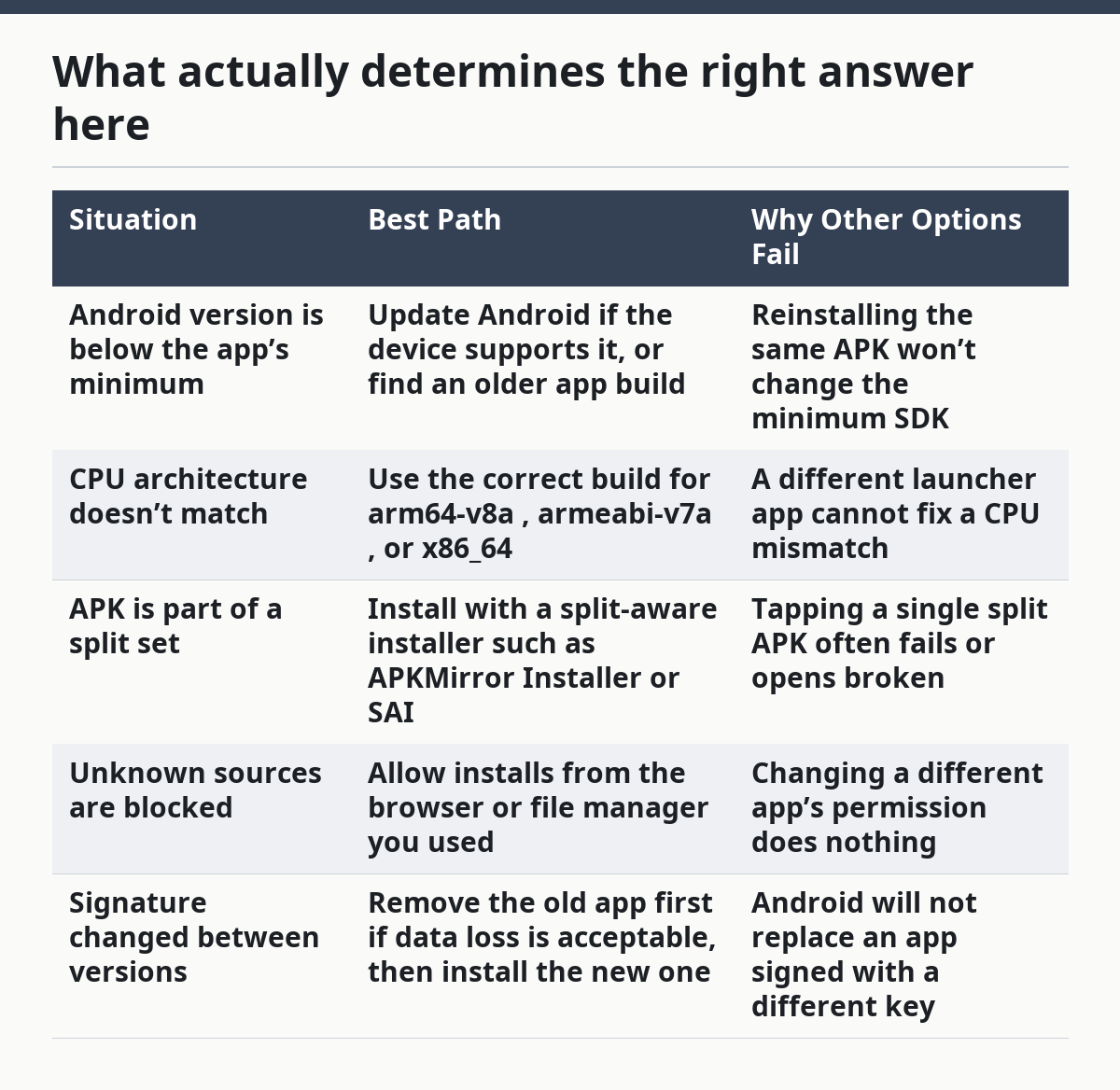
The right answer depends on four things: the Android build on the device, the CPU architecture, the app’s minimum SDK, and whether the APK is a plain APK or part of a split package. Miss one, and the install can fail for a reason that looks random.
Picture this: you’re staring at an install screen that just says “App not installed.” That message is useless by itself. The real question is which layer failed—system, package, or policy. Once you separate those layers, the fix usually becomes obvious.
| Situation | Best Path | Why Other Options Fail |
|---|---|---|
| Android version is below the app’s minimum | Update Android if the device supports it, or find an older app build | Reinstalling the same APK won’t change the minimum SDK |
| CPU architecture doesn’t match | Use the correct build for arm64-v8a, armeabi-v7a, or x86_64 |
A different launcher app cannot fix a CPU mismatch |
| APK is part of a split set | Install with a split-aware installer such as APKMirror Installer or SAI | Tapping a single split APK often fails or opens broken |
| Unknown sources are blocked | Allow installs from the browser or file manager you used | Changing a different app’s permission does nothing |
| Signature changed between versions | Remove the old app first if data loss is acceptable, then install the new one | Android will not replace an app signed with a different key |
The best path starts with the device’s own facts. On many phones, you can find Android version in Settings > About phone. CPU architecture is less visible, but tools like CPU-Z, Droid Hardware Info, or AIDA64 can show it quickly. App details matter too: APKPure, APKMirror, and F-Droid listings often show the minimum Android version and supported architectures.
Before you install, check the device first. On many phones, Settings > About phone gives you the Android version, and that number is the starting point for compatibility. CPU architecture is less visible, but tools like CPU-Z, Droid Hardware Info, or AIDA64 can show it quickly. App details matter too: APKPure, APKMirror, and F-Droid listings often show the minimum Android version and supported architectures. For official background, Android Developers documents app signing and package behavior, and Google’s help pages explain why signature changes block simple updates.
- Check the Android version in Settings > About phone.
- Check the device CPU architecture with a trusted hardware info app.
- Read the APK listing for minimum Android version and supported ABI.
- Confirm whether the file is a plain APK or a split package.
- Check whether unknown-source installs are allowed for the source app.
- Install only after you know the signature and source are consistent.
A lot of generic advice skips the signature problem. That’s a mistake. Android protects app identity with signing keys. If an app was installed from one source and the new file is signed differently, the system blocks the update. No amount of retrying changes that.
Quick check: If you see “App not installed” after updating an existing app, suspect signature mismatch before you blame storage.
How do I check APK install readiness before I tap install?
You check APK install readiness by matching the file to your device, then matching the file to your installer settings, then checking the file’s trust level. If all three line up, the install is usually ready. If any one fails, stop there.
Picture this: you’ve downloaded an APK from a site you trust, but you’re not sure it belongs on your phone. This is the point where careful people save time. One wrong file can waste 20 minutes, and one unsafe file can do much worse.
The best part is that you don’t need special tools for the first pass.
- Read the app requirement. Look for the minimum Android version, often written as
minSdkVersionor in plain English on the listing page. - Check CPU support. Match the app to
arm64-v8a,armeabi-v7a,x86, orx86_64as needed. - Confirm package format. If the download contains multiple APK files, it may be a split install, not a single APK.
- Verify file integrity. If the source offers an SHA-256 checksum, compare it before installing.
- Check source permissions. On Android 8 and later, each source app—browser, file manager, cloud app—needs its own “install unknown apps” permission.
- Watch storage and scope. Leave enough free space for the install and any first-run data unpacking.
- Open the installer carefully. If the system warns about a conflict, read the exact wording before you tap through it.
Now, you might be wondering about apps that install but won’t open. That usually means install readiness was only half the job. A file can be technically installable and still be missing the hardware or permission support it needs at runtime.
Useful tools for this step include:
- AIDA64
- CPU-Z
- Droid Hardware Info
- APKMirror Installer
- SAI (Split APKs Installer)
A simple rule helps: if the file came as a single .apk, your path is easier. If it came as .apks, .xapk, or a bundle-style download, assume you need a split-aware installer.
Quick check: If you haven’t checked both architecture and file type, don’t call the APK “ready” yet.
Which errors mean the APK is not compatible?
These errors usually mean the APK is the wrong fit: App not installed, Parse error, package conflicts, and apps that open but crash instantly. The exact message matters because each one points to a different layer of failure.
Picture this: you tap install, wait a few seconds, and Android throws a vague error. That’s annoying, but it’s not random. Most install failures fall into a short list of causes, and each one has a different fix.
Common error patterns and what they usually mean
| Error or symptom | Likely cause | Best next move |
|---|---|---|
| App not installed | Signature mismatch, package conflict, or unsupported ABI | Remove the old version, then check the file’s architecture |
| Parse error | Corrupted file, bad download, or incompatible Android version | Re-download from a trusted source and re-check the minimum Android version |
| “There was a problem parsing the package” | Old Android build or incomplete APK | Verify the file integrity and Android version floor |
| Install button won’t work | Unknown-source permission blocked | Allow installs from the app you used to open the file |
| Installs, then crashes on launch | Missing hardware support, wrong build, or app bug | Check device features and try the correct variant |
| Stuck at “Installing…” | Storage, package manager, or system cache issue | Free space, reboot, and retry once |
The standard advice is often too vague: “clear cache and try again.” That can help with a stuck package manager, but it won’t fix the wrong CPU build or a signature conflict. If the APK is for arm64-v8a and your phone is armeabi-v7a, the error is structural, not temporary.
The clean sequence is this:
- Read the exact error text.
- Compare the app’s Android minimum to your device version.
- Check whether the APK matches your CPU architecture.
- See whether an older version of the same app is already installed.
- Confirm the file is complete and not corrupted.
- Only then retry installation.
Google’s Android help pages and the Android Developers docs on package installs explain why signatures and package names matter. If you want the short version, Android treats app identity as a security boundary, not a suggestion.
Quick check: If the error appears before the app opens, think install problem; if it appears after launch, think compatibility or app support problem.
If the APK is from outside the Play Store, what changes?
If the APK is from outside the Play Store, you need to check source trust, file integrity, and update handling before you install. That third part matters more than many people expect, because sideloaded apps don’t always update cleanly.
Picture this: you found an app on a third-party site because the Play Store version is missing a feature or isn’t available in your region. That can be fine, but it changes the risk profile. The install itself is only one step. The update path matters just as much.
Here’s what changes:
- Source trust matters more. A known site is not the same as a signed checksum.
- Permissions matter more. Your browser or file manager must be allowed to install unknown apps.
- Updates can break easier. A sideloaded app may need the same source and same signing key later.
- Split packages are common. Many third-party APK sites host bundle-style files, not plain single APKs.
Before you download, choose a source that shows the package name, version, and signature info.
- Choose a source that shows the package name, version, and signature info.
- Prefer listings that include checksum data or a clear verification method.
- Check whether the source offers the exact architecture your phone uses.
- Allow unknown-source installs only for the app you used to download the file.
- Open the file with the correct installer if it is split.
- After install, note the source name so future updates come from the same place.
The hard truth is that third-party APKs are not all equal. Some mirror the Play Store build. Some repackage it. Some are old. Some are wrong for your handset. If the listing cannot tell you the minimum Android version and architecture, that’s a bad sign.
Two widely used references for this kind of work are Android Developers documentation on app signing and the APKMirror Installer help pages. The exact source you choose still matters. You should consult a professional or the app maintainer if the app handles sensitive data, and you should not treat every APK site as interchangeable. F-Droid and APKMirror are often cited because they document builds and signatures more clearly than many random mirrors.
Quick check: If you don’t know where the APK came from, you do not have install readiness yet.
When the standard advice is wrong
The standard advice is wrong when the app is a split APK, when the device is on a custom ROM, when the phone uses a different CPU family, or when the app depends on Google Play services. In those cases, simple install steps miss the real blocker.
Picture this: you followed every basic step and the app still fails. That’s the point where many beginner guides get thin. They stop at “turn on unknown sources,” but the problem is usually deeper than that.
Edge cases that change the answer
-
Split APKs and app bundles
What changes: one file is not the whole app.
What to do instead: use a split-aware installer like SAI or APKMirror Installer, or get the full bundle package. -
Custom ROM or rooted device
What changes: device fingerprint, signature checks, and Play Integrity behavior may differ.
What to do instead: match the app to your ROM behavior, and expect some bank or streaming apps to refuse launch. -
Old Android device with a new app build
What changes: the minimum SDK is too high even if the app file installs.
What to do instead: look for an older, compatible version from the same source. -
Tablet, Chromebook, or TV box
What changes: screen size, input method, and Play services support can differ.
What to do instead: confirm the app supports that device class, not just Android in general. -
App requires Google Play services
What changes: the APK may install but still fail at sign-in, maps, push alerts, or billing.
What to do instead: choose an alternative app or a build that supports your device’s service stack. -
App split by ABI or density
What changes: the APK is built for a specific CPU and screen density.
What to do instead: match the exact variant, not just any APK with the right name.
A generic “just sideload it” answer misses all of this. The real question is not “can Android install it?” The question is “can this device run this exact package in this exact form?”
If you need a practical rule, use this: the more the app depends on hardware, services, or package splitting, the less you should trust a one-file download from a random mirror.
Quick check: If your device is not a stock phone running a current mainstream Android build, edge-case rules matter more than basic ones.
How to fix compatibility problems without guessing
You fix compatibility problems by changing one variable at a time: Android version, APK variant, source permission, or install method. Guessing at all four at once turns a simple issue into a mess.
Picture this: the app is the one you want, but the install keeps failing. The goal now is not speed. It’s isolation. You want to identify the exact blocker so you can stop wasting time on the wrong fix.
Use this order:
- Compare the app’s minimum Android version with your device version.
- Check whether the file matches your CPU architecture.
- Confirm whether the package is single-file or split.
- Remove any older version only if you’re sure the new one is signed the same way.
- Allow the correct source app to install unknown apps.
- Retry after a reboot if the package manager seems stuck.
- Replace the file only if checksum or source trust is unclear.
The best fix depends on the failure mode:
- Wrong Android version: update the OS if your phone supports it
- Wrong architecture: get the right ABI build
- Split package problem: use a split installer
- Signature conflict: uninstall the older app first, if safe
- Source block: grant the right install permission
- Corrupt file: re-download from a source you trust
There’s one trade-off worth saying plainly. Installing an older APK to force compatibility can work, but it can also leave you with missing features and weaker security fixes. That may be acceptable for a simple utility app. It is a bad trade for anything that handles logins, money, or private files.
For source verification, the Android Developers app signing docs are the reference point. For device feature checks, Android’s compatibility pages and the device vendor’s spec sheet matter more than a forum post. If you are comparing versions, Android 14 and Android 13 can behave differently on permission prompts and app targeting, so the exact OS release matters.
Quick check: If you have not identified the exact blocker, do not keep reinstalling the same file.
What should you do before trusting the install?
You should trust the install only after the APK matches your device, the source is credible, and the file passes a basic integrity check. If one of those is missing, wait.
Picture this: the install finally works, but you still wonder if the file is safe. That’s a healthy instinct. Install readiness is not just about “will it open?” It’s also about “do I know what I just put on my phone?”
A practical trust checklist:
- Source name: Can you name where it came from?
- Version match: Is it the version you expected?
- Package name: Does it match the app you meant to install?
- Signature consistency: Does it update from the same signing key?
- Checksum or hash: Did the file verify cleanly?
- Permission scope: Did you grant unknown-app permission only to the source you used?
If the answer to any of these is no, stop and review the download page again. A file that installs cleanly is still a file. It is not proof of safety by itself.
One more point many guides skip: uninstalling and reinstalling to “fix” things can wipe local app data. If the app stores offline files, account tokens, or game saves locally, check the backup path first. That is especially true for older apps that do not sync everything to the cloud. Google’s Android backup and app data documentation is useful here, and some vendor tools can preserve data only when the package signature stays consistent.
Quick check: If the APK came from a site you can’t explain to someone else, don’t treat it as ready.
FAQ
How do I know if an APK will work on my phone?
An APK will work on your phone only if the Android version, CPU architecture, and package format match your device. Check the app’s minimum Android version, then confirm whether your phone is arm64-v8a, armeabi-v7a, or another ABI. If the app is split into multiple files, you also need the right installer.
Why does an APK say “App not installed”?
“App not installed” usually means a signature conflict, a wrong CPU build, or a package conflict with an older version already on the phone. It can also happen if the APK is corrupted or incomplete. The exact wording matters, so check whether the error appears during install or after launch.
What is the difference between APK compatibility and install readiness?
APK compatibility is about whether the app can run on your device after it installs. Install readiness is about whether the phone will accept the file in the first place. A file can be install-ready and still fail later if it needs hardware, services, or permissions your device doesn’t have.
Do I need a special app to install split APKs?
Yes, if the download is a split package or bundle-based file. A single .apk often installs through the normal Android installer, but .apks, .xapk, and other multi-file packages usually need a split-aware installer such as SAI or APKMirror Installer. Without that, Android may reject the package or install only part of it.
Is it safe to install APKs from outside the Play Store?
It can be safe only if you trust the source, verify the file, and understand the trade-offs. Outside-Play-Store installs raise the risk of wrong versions, broken updates, and altered packages. If the source does not show clear version, package, and signing details, skip it.
Drafted with AI; not yet reviewed by a person.
