
Last updated: November 19, 2026
Quick Answer: To check whether an APK needs a minimum screen density or device type, inspect AndroidManifest.xml and the res/ folders; if the package uses sw600dp, compatible-screens, or density buckets like hdpi and xhdpi, it is signaling its target screen class. An APK that expects a tablet, phone, or a certain screen density can refuse to install or show the wrong resources. Check the manifest and the device qualifiers before you sideload it. The steps below show you where to look, what dpi clues matter, and how to tell whether the APK is aimed at android tablets, android phones, or both. This guide covers how to check whether an APK needs a minimum screen density or device type.
Key Takeaways
- Screen density checks are about
dpi, not Android version. - The APK manifest can hint at tablet-only or phone-only support.
- Resource qualifiers like
sw600dpoften point to tablet layouts. - Split APKs can hide the real device target inside extra files.
- A quick check is to inspect the manifest names, then compare them with your device’s density.
- Android’s density buckets include
mdpi,hdpi,xhdpi,xxhdpi, andxxxhdpi.
How do I check whether an APK needs a minimum screen density?
You check the APK’s manifest and resource folders for dpi-based qualifiers such as hdpi, xhdpi, xxhdpi, or xxxhdpi. If those qualifiers are paired with device-only resources or missing alternatives, the APK may be aimed at a narrower set of screens.
Picture this: you already have the APK file, and you want to know if your phone will fit it before you tap install. That means reading the app’s device clues, not guessing from the file name. The real signals are dpi, sw size buckets, and manifest tags. Android uses these qualifiers to map resources to screen sizes and densities.
Here’s the catch: a lot of APKs do not say “minimum screen density” in plain English. They show it indirectly through resource folders and qualifiers. A phone with one density can still run an app built for another density, but the app may look wrong, stretch badly, or miss assets. The Android Developers documentation explains these resource qualifiers and screen-size buckets in detail.
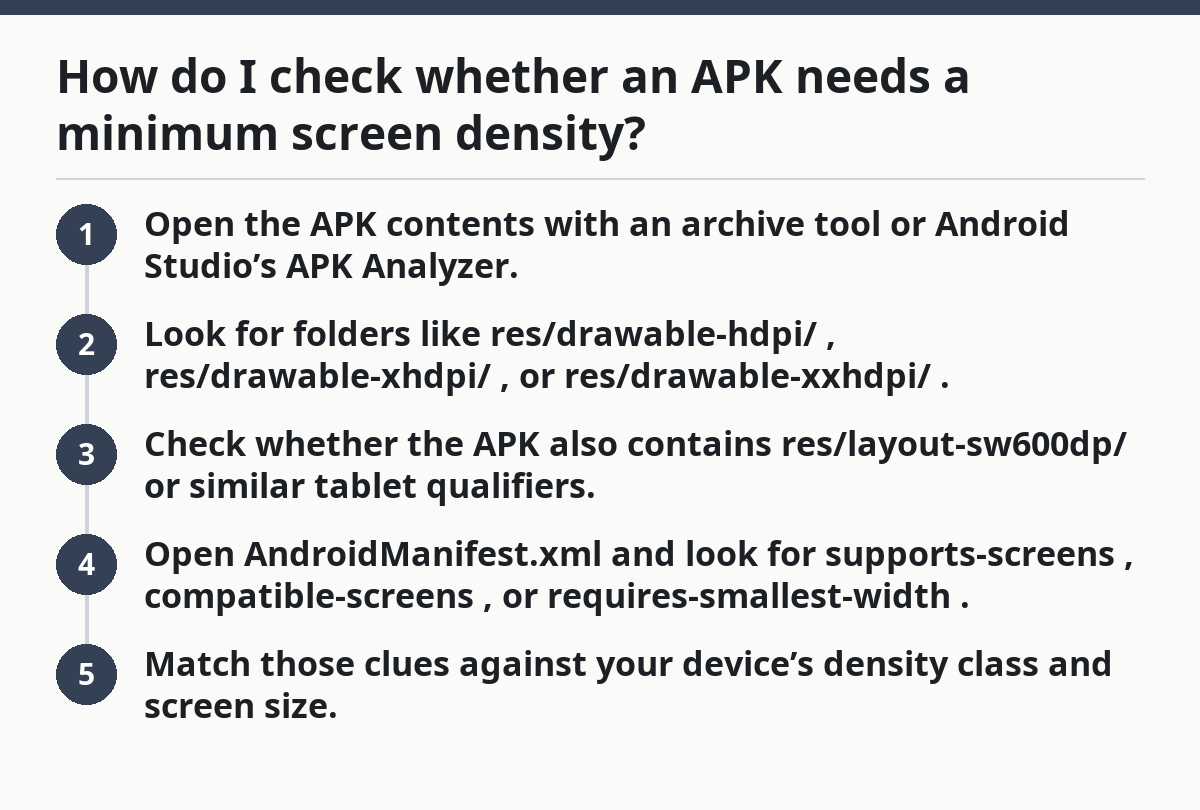
Use this quick check:
- Open the APK contents with an archive tool or Android Studio’s APK Analyzer.
- Look for folders like
res/drawable-hdpi/,res/drawable-xhdpi/, orres/drawable-xxhdpi/. - Check whether the APK also contains
res/layout-sw600dp/or similar tablet qualifiers. - Open
AndroidManifest.xmland look forsupports-screens,compatible-screens, orrequires-smallest-width. - Match those clues against your device’s density class and screen size.
If the APK only has one density bucket and no fallback assets, that is a warning sign. Not a guarantee of failure. It can still install, but the app may not be meant for your screen. On a 2024 Android device, the relevant qualifiers are usually visible in a few folders and manifest lines, not dozens.
For a broader compatibility check, the hub page on APK compatibility and install readiness can sit next to this one.
What do dpi and density buckets mean in an APK?
dpi tells you which screen density the app was built to serve, and the bucket names in the APK tell you how the app scales its images and layouts. Android groups screens into density families, not one exact number per device.
Picture this: you open the package and see mdpi, hdpi, xhdpi, or xxhdpi in the resource tree. That is the app’s map of screen density support. Those labels are the first thing to read. A 160 dpi screen is the baseline mdpi bucket, while xhdpi and xxhdpi target denser displays.
A simple way to think about it:
mdpiis the baseline bucket.hdpiusually targets higher-density screens thanmdpi.xhdpi,xxhdpi, andxxxhdpipoint to even denser displays.- Folders like
drawable-nodpimean the image is not density-scaled at all.
The number is only half the story. The app may include several density folders because Android selects the closest fit at runtime. What matters is whether the APK has a sensible spread of assets or a narrow set that suggests a single device class. Google’s resource-qualifier guidance uses the same idea: one app can serve multiple densities, but the folders reveal the intended coverage.
If you see a resource split like drawable-hdpi plus layout-sw600dp, the developer probably built with density and tablet size in mind. If you see only one or two drawable buckets and no alternate layouts, the app may still run, but it may not be tuned for a tablet or a very high-density phone. In practice, sw600dp often appears in tablet-oriented apps.
Two real clues worth checking:
res/values-sw600dp/often signals tablet-friendly resources.res/values-w720dp/or similar width qualifiers can also point to larger screens.
The APK does not need to spell out “minimum density” to give itself away. The folder names do that job.
Why does an APK say it is for a specific device type?
An APK says that because the developer used device qualifiers or manifest filters that narrow which screens should see the app. That usually means tablet-only, phone-only, or a limited screen-size range.
Picture this: you are on an Android phone and the app store says “not compatible,” or the sideloaded APK opens with tiny controls. The issue may not be your Android version at all. It may be the device type filter.
Look for these signs in the package:
supports-screensin the manifestcompatible-screensin the manifestsmallScreens,normalScreens,largeScreens, orxlargeScreens- resource folders with
sw600dpor larger width qualifiers - tablet-specific UI files that do not have phone fallbacks
compatible-screens is the bluntest clue. If it appears, the developer has named screen sizes and densities the app is meant to support. A phone outside those values may be blocked or may install but behave badly.
supports-screens is looser. It can tell Android whether the app can stretch to different sizes. If the app says it supports only certain screen classes, that is a hint the developer did not build a general-purpose layout.
If a package leans hard on sw600dp, xlarge, or tablet-only layouts, the app was probably built with a tablet first. If the same package has phone-specific layouts and density buckets across the board, it is more likely to work on both android tablets and android phones.
Check the manifest first, then compare the device clues
The manifest gives the clearest answer because it is where Android declares screen support rules. You want to inspect it before you install anything, especially if the APK came from outside the Play Store.
Picture this: you have the APK on your computer and need a fast yes-or-no answer. The manifest is your shortest route. Start there, then verify the resource folders.
A practical order works best:
- Extract or inspect the APK in Android Studio APK Analyzer.
- Open
AndroidManifest.xml. - Search for
supports-screens,compatible-screens, andrequires-smallest-width. - Note any width values such as
600dpor720dp. - Then open
res/and scan the density folders. - Compare those clues with your device’s screen class and
dpi.
If the manifest names a smallestWidth requirement, that is a strong tablet hint. For example, 600dp often appears in tablet-oriented layouts, while smaller widths usually show phone-first design. That pattern is common, though it is not a universal rule. The Android compatibility documentation uses the same framework for screen-size support.
A few practical mismatches to watch for:
- A phone with the right
dpibut too littledpwidth may still get a tablet layout that feels cramped. - A tablet with a low-density display can miss crisp assets if the app only ships high-density art.
- A narrow package may install, yet the store or launcher still marks it as incompatible.
If you need an outside reference for the density side, Android’s developer documentation on screen compatibility and resource qualifiers is the right place to check. The Android Developers site and the Android compatibility docs both explain how density buckets and screen size qualifiers work. Apple’s App Store rules are not relevant here; this is an Android-specific check. Search the Android Developers pages for compatible-screens and resource qualifiers.
Can a split APK hide the screen-density requirement?
Yes, a split APK can spread the density-specific pieces across multiple files, so the main APK may not show the full picture by itself. The device target can be split into config APKs for dpi, language, or screen size.
Picture this: the base APK looks ordinary, but the app came as a set of files with split_config names. That is the clue you need. A single file may not tell the whole story.
Here is what usually happens with splits:
- The base APK holds the core app.
- A density split may carry assets for one screen class.
- Another split may carry tablet or phone resources.
- The installer expects all needed pieces to match your device.
This matters because a reader often checks only the main APK and misses the config splits. Then the install fails, or the app launches with missing images. If you are seeing split_config.arm64_v8a, split_config.en, or split_config.xxhdpi, the package was built to depend on device-specific slices. On many devices, split APK sets are the only way to carry density-specific assets.
A simple rule helps:
- If the APK is alone, inspect its
res/folders and manifest. - If the APK has split files, you need the density split too.
- If the density split is missing, the app may not install or may not render right.
This page stops short of explaining how to install split APKs without missing files. That belongs on a different guide. The job here is only to tell you whether density or device type is part of the package’s requirements.
One more clue: if the package name or file set includes dpi in the split name, treat that as a density-specific build until proven otherwise. If you are not sure, consult an Android developer or the package maintainer, and check the split naming guidance in the Android Developers docs before you sideload it.
What should I do if I find tablet-only or phone-only qualifiers?
You should match the package to the device class you actually own, and skip it if the qualifiers do not fit your screen. That is the cleanest way to avoid a bad install or a broken layout.
Picture this: you are holding an Android tablet, and the APK seems built for phones only. Or you are on a compact phone and the app keeps showing tablet layouts. That mismatch deserves attention, and if the app is important, ask a qualified technician or developer to review it before you install.
Use this decision path:
- If you see
sw600dpor larger width qualifiers, expect tablet-oriented layouts. - If you see only phone-sized layouts and no tablet fallbacks, a tablet may get a stretched or cramped interface.
- If the APK names specific
compatible-screensvalues, compare those directly to your device class. - If the density set is narrow, expect visual problems on other
dpibuckets.
This is not just about install success. An APK can install and still be the wrong fit. That costs time later, when buttons overlap, images look soft, or the app refuses to scale well on your screen. A bad fit is a usability issue, not merely a cosmetic one.
If the app is mission-critical, choose a build that explicitly lists your device type or offers both phone and tablet support. If the package is only a side app or game, you can sometimes live with a mismatch, but know the trade-off: the app may render oddly and updates may not fix it.
A quick verdict:
- Good fit: the manifest and folders mention your screen class.
- Gray area: density matches, but width qualifiers look narrow.
- Bad fit: the package names a device type or density class that excludes your screen.
What is the fastest practical way to tell if my device fits?
The fastest practical check is to compare the manifest’s screen rules with your device’s density and width, then confirm the resource qualifiers. That usually takes only a few minutes.
Picture this: you want one answer before you move on to the next file. You do not need a lab setup. You need three things: manifest rules, density buckets, and screen-size qualifiers.
Use this checklist on every APK that looks suspect:
- Open the package in APK Analyzer or an archive tool.
- Search the manifest for
supports-screens,compatible-screens, andrequires-smallest-width. - Scan
res/formdpi,hdpi,xhdpi,xxhdpi, orxxxhdpi. - Look for
sw600dp,w720dp, or similar tablet markers. - Decide whether the package is phone-first, tablet-first, or general purpose.
If the package gives you no clear hints, that usually means it is meant to adapt across devices. That is common. Still, a package with explicit screen qualifiers deserves a closer look before you install it.
The truth is, screen density is one of the easiest compatibility checks to miss because it does not shout. It hides in file names, folder names, and manifest lines. Once you know the pattern, you can spot a tablet-only build or a density-specific APK in under a minute.
What is screen density in an APK?
Screen density in an APK is the set of image and layout resources the app uses for different dpi classes. Those resources live in folders like drawable-hdpi or drawable-xxhdpi, and Android picks the closest match for your screen. If the APK only ships narrow density support, the app may look wrong on other devices.
Why does an APK say it is for a specific device type?
An APK says that because the manifest or resource qualifiers limit which screen sizes it supports. That can mean tablet-only, phone-only, or a narrower screen class such as sw600dp. The app may still install on other devices, but the developer has signaled that the fit may not be right.
How do I know if my APK supports my tablet?
Check for tablet markers such as sw600dp, xlarge, or wider layout folders in res/, then compare them with the manifest’s screen rules. If the package includes tablet layouts and density assets, it is more likely to support your tablet cleanly. If it only names phone-sized resources, treat it as a poor fit.
Drafted with AI; not yet reviewed by a person.
