
Last updated: November 19, 2026
If an APK works on one phone and fails on another, it often needs Google Play Services. Quick Answer: use 3 checks — the manifest, the app’s Google-backed features, and device settings — to tell whether an APK requires Google Play Services before you sideload it. This guide on how to check whether an APK requires Google Play Services shows the fastest way to verify compatibility before installation.
What Google Play Services dependency looks like
Google Play Services dependency shows up when an app calls Google’s own Android APIs for things like sign-in, location, maps, push notifications, or in-app checks. That does not mean the APK came from the Play Store. It means the app expects the Google Play Services package to be present on the device.
Picture this: you have an APK file, a spare Android device, and no idea why the app installs but still acts broken. The dependency is often hidden in the app’s code, not in the file name, so you have to check a few places. One clue is the app asking for a Google login screen or a map tile that never loads.
The catch is that many apps use Google Play Services only for one feature, not for the whole app. A weather app may still open without it, while location tracking or push alerts fail.
- Login support may break first.
- Location support is a common trigger.
- Notification support often depends on it too.
For a broad compatibility check, start with the APK’s manifest, then test the feature list. If the app is part of a larger install-readiness check, the hub on APK compatibility and install readiness gives the wider framework.
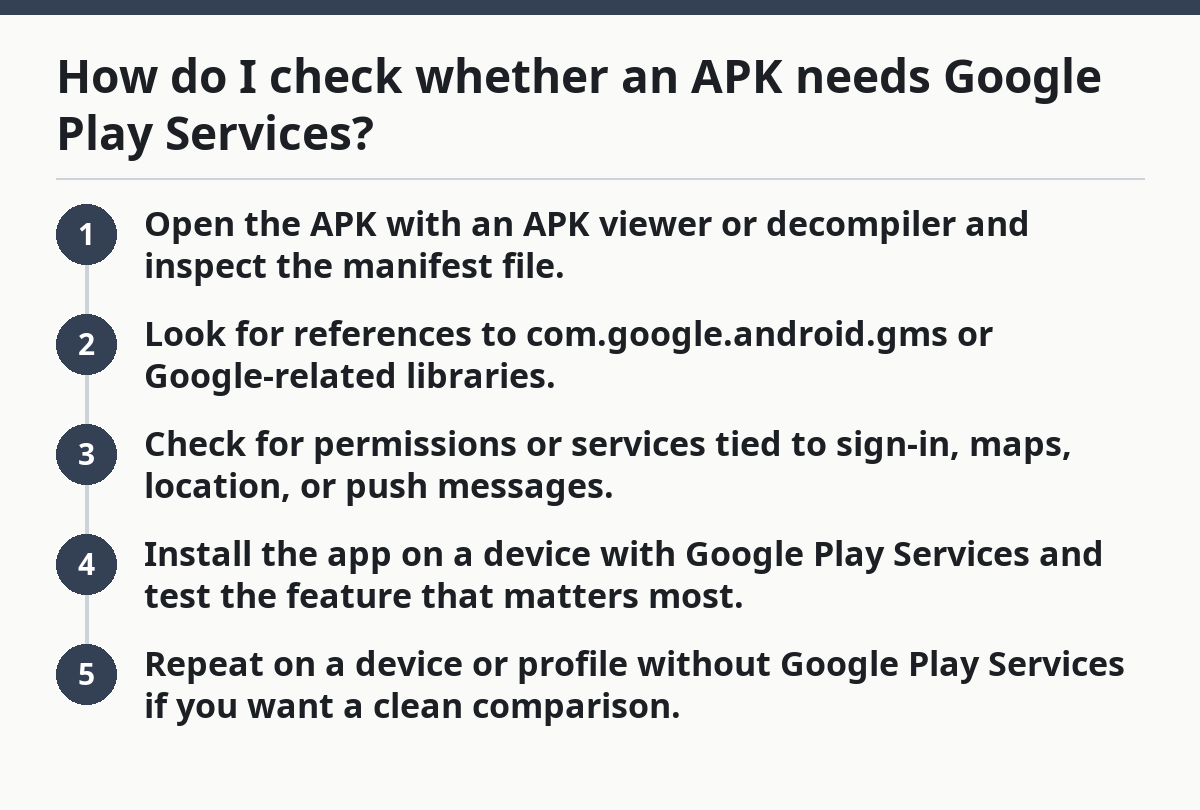
How do I check whether an APK needs Google Play Services?
You can check it by reading the APK’s manifest, scanning the app for Google APIs, and watching for feature failures tied to Google Play Services. That is the cleanest route when you want an answer before you install or launch the app.
Picture this: you have the file on your phone or laptop and want proof, not guesswork. The quickest method usually starts with the APK’s manifest file, because app developers often declare Google components there. If you also know the app’s main features, you can match the code to the behavior you expect.
Here’s the core procedure:
- Open the APK with an APK viewer or decompiler and inspect the manifest file.
- Look for references to com.google.android.gms or Google-related libraries.
- Check for permissions or services tied to sign-in, maps, location, or push messages.
- Install the app on a device with Google Play Services and test the feature that matters most.
- Repeat on a device or profile without Google Play Services if you want a clean comparison.
You do not need to memorize the whole manifest. Look for the obvious markers first. A Google Maps SDK entry, Firebase Cloud Messaging, or Google Sign-In library is a strong signal. If the APK contains those pieces, the app may still install on Android without issue, but one or more features can fail at runtime.
One common mistake is stopping after the APK opens in a file manager. That only proves the archive is readable, not that the app’s Google-dependent parts will work. Another mistake is assuming every permission request points to Google Play Services. Some apps ask for location or notifications for their own code, then only rely on Google for the delivery layer.
Which APK file clues point to Google Play Services?
The strongest clues are Google package names, Google API libraries, and feature code for maps, sign-in, location, or notifications. Those markers usually show up in the manifest or in the app’s bundled classes.
Picture this: you are looking at a decompiled APK and want a simple yes-or-no answer fast. The file may not say “requires Google Play Services” in plain English, but the dependency leaves fingerprints. Those fingerprints are often enough to judge whether the app is built around Google APIs.
Look for these clues:
- com.google.android.gms in the manifest, smali, or library list
- Google Sign-In classes such as sign-in client references
- Maps SDK references, especially if the app shows maps on launch
- Firebase Cloud Messaging or push-related Google packages
- Location client or fused location provider references
- References to Google SafetyNet or device attestation code
A single clue is not always decisive. An app can bundle a Google library and still have a fallback path that works without it. But if the APK’s core flow depends on that package, the dependency is real. That is especially common in apps that need a Google account login or map-based screens.
You can often spot the dependency without deep reverse engineering. Search the APK text for “google,” “gms,” “firebase,” or “maps.” If those strings appear in the app’s startup path, the odds are high that Google Play Services is not optional.
- Maps app? High likelihood.
- Google login? High likelihood.
- Push alerts? Often yes.
- Offline tool? Often no.
If the app is meant to work on devices without Google services, the developer usually leaves clear fallback code in place. No fallback, no mercy.
Can app features reveal the dependency?
Yes — if login, location, maps, or notifications fail without Google Play Services, the app depends on it at least for those features. That is often easier to prove than reading code.
Picture this: the APK installs, the icon appears, and then the app refuses to move past sign-in or a blank map. That pattern tells you a lot about how the app uses Google Play Services. The app may not be fully blocked, but one part of its design expects Google Play Services to provide the missing layer.
Use the feature itself as the test:
- Login support: Try Google sign-in or account linking. If the app throws a Google account error, the dependency is likely active.
- Location support: Open the map or location screen. If the app cannot find your place, it may be waiting on Google’s fused location provider.
- Notification support: Watch for push alerts after enabling notifications in Android device settings. If messages never arrive on one device but do on another with Google Play Services, the app may rely on it.
- Other Google APIs: If the app uses in-app maps, device checks, or Google-backed analytics, those pieces may fail even if the base app loads.
The limitation is simple: a broken feature does not prove the entire APK needs Google Play Services for every screen. It may only need it for that one path. That is why you should match the feature failure to the dependency, not to the whole app.
A reader often misses the difference between app permissions and Google dependencies. Android app permissions like location or notifications tell you what the app wants from the phone. Google Play Services tells you how the app may get that data or deliver that feature. Those are related, but they are not the same thing.
What should I look for in Android device settings?
Check whether Google Play Services is installed, enabled, and allowed to run in the background. If it is missing or turned off, many APKs that depend on it will look broken even though the install itself succeeded.
Picture this: the APK is on the phone, but the app still fails to sign in, show a map, or receive alerts. Before blaming the APK, open Android device settings and inspect the Google Play Services app entry. On many devices, that is where the real answer sits.
Use this short check:
- Open Settings > Apps or Settings > Apps & notifications.
- Find Google Play Services in the app list.
- Confirm it is installed and not disabled.
- Check that storage, battery, and background limits are not blocking it.
- Make sure the device has a working Google account setup if the app needs one.
If Google Play Services is disabled, a dependency-heavy APK may still install but fail later. If notifications are blocked at the system level, the app may appear to “miss” messages even when the server side is fine. That is why settings matter as much as the APK file itself.
There is one more useful test: compare two devices. One with Google Play Services, one without. If the app’s login, maps, or alerts work on the first device and not the second, the dependency is confirmed. That is much more reliable than guessing from the APK name.
What breaks if Google Play Services is missing?
The app can lose Google-backed features first, and in some cases it still installs and opens normally. Login, maps, location, and push notifications are the common failures.
Picture this: the app opens, but the screen is missing the one thing you came for. A map stays gray. A login button loops. A notification never arrives. That kind of failure points to Google Play Services more often than to the APK file itself.
The most common break points are:
- Google sign-in stops working.
- Maps and location fail to load or update.
- Push notifications arrive late or not at all.
- SafetyNet or device checks may block a sensitive flow.
- In-app services that depend on Google APIs may time out.
Not every app will fail the same way. Some continue with reduced features, especially if the developer built a fallback path. Others stop at the first screen that calls a Google service. The app’s design decides how harsh the failure looks.
A hidden trap is assuming “it installed” means “it is compatible.” Installation only proves Android accepted the package. Runtime behavior is where Google Play Services dependency shows itself. That is why this check matters before you spend time troubleshooting the wrong layer.
If the APK’s main purpose is tied to Google services, the device setup matters as much as the file. A stripped-down Android build, a work profile with restrictions, or a phone without Google components can all change the result.
When can an APK run without Google Play Services?
An APK can run without Google Play Services when it uses only local Android features or when the developer built non-Google fallback paths. That is common in simple tools, offline apps, and some privacy-focused builds.
Picture this: you are deciding whether the app is actually dependent or just Google-friendly. If the core functions are local — calculator, notes, image viewer, offline reader — the app may work fine without Google Play Services. If the app needs live maps, account login, or push delivery, the answer changes fast.
Here is the rough dividing line:
- Likely fine without it: offline utilities, media players, simple editors
- Often partly broken without it: travel, chat, maps, delivery, account-based apps
- Often dependent on it: apps centered on Google login, location, or notifications
The way to tell is still the same: inspect the APK for Google package names, then test the exact feature the app is built around. If the app loads but one feature hangs on Google code, you have a partial dependency. If the whole app uses those services on startup, you have a hard dependency.
There is a trade-off here. Apps with Google Play Services often get better sign-in, location accuracy, and push delivery. Apps without it can be lighter and work on more Android setups. The choice depends on the app’s job.
Key Takeaways
- Check the APK manifest first for com.google.android.gms and other Google library names.
- Match the dependency to the feature: login, maps, location, and notifications are the usual suspects.
- Android device settings can reveal whether Google Play Services is disabled or blocked.
- An app may still install and open while one feature fails at runtime.
- Missing Google Play Services often breaks only the Google-backed parts, not the entire APK.
How can I tell if an APK needs Google Play Services?
Look for Google package names in the APK and test the app’s Google-backed features. If you see com.google.android.gms, Google Sign-In, Maps, Firebase Cloud Messaging, or fused location code, the APK likely depends on Google Play Services for at least part of its work.
What breaks if Google Play Services is missing?
Login, maps, location, and push notifications are the usual failures. The app may still install and even open, but the Google-dependent parts can stop working or act blank. Some apps keep a limited offline mode, while others stall at the first Google call.
Can an app still run without Google Play Services?
Yes, if it uses local Android features or has a fallback path that avoids Google APIs. Simple offline apps often do fine. Apps built around sign-in, maps, location, or notification delivery are much more likely to lose features or fail at runtime without it.
Drafted with AI; not yet reviewed by a person.
