
Last updated: November 19, 2026
If you need to know whether two APKs came from the same publisher account, use How to Check Whether an APK Was Uploaded by the Same Publisher Account as a checklist for the developer profile, upload history, release names, and hosting account on the app store or download site. The answer is in the account trail, not the APK file alone. The steps below show what matches, what does not, and where the check stops. For related guidance, see APK source trust, APK verification, and the APKMirror Help Center.
Key Takeaways
- The quickest practical check is the developer profile behind each APK listing.
- Match the publisher name, the upload history, and the release history first.
- A shared account can still show changed branding, so name changes alone are not proof.
- A copied app page can reuse screenshots and text, so the account trail matters more than the sales copy.
- This check is about the same uploader account; it is not the same as signature or certificate verification.
Start with the developer profile, not the APK file
Picture this: you have two APK listings in front of you and want a quick answer before you download anything. The quickest public starting point is to open each listing’s developer profile and compare the account name, the profile link, and the app list tied to that account.
On most stores and hosting sites, the profile page is the clearest public record of who uploaded the file. If the same account owns both listings, you’ll usually see the same publisher name, the same profile ID, or the same set of linked apps. That is the first pass. Not the last one.
Use this checklist on both listings:
- Open the app’s publisher profile or developer page.
- Compare the visible publisher name exactly as written.
- Look for a profile URL, handle, or account ID that stays the same across both pages.
- Scan the other apps on that profile. A shared catalog is a strong clue.
- Check whether the page says “by [name]” in the same format on both listings.
If the store gives you only a bare listing with no profile page, that is a weak sign. Some hosts hide account details, and some mirrors strip them out. In that case, move to the release history and hosting account clues. The profile alone can be enough on a clean store page, but it often isn’t on a mirror. That’s the catch.
The guide to APK source trust and file verification fits here as the wider map. This page stays on the uploader side of the check.
How do you tell if two APKs came from the same publisher account?
You tell by matching the public trail the uploader leaves behind: the account name, the release history, the app family, and the hosting page pattern. If all four line up, the chance is high that the same publisher account posted both files.
That sounds simple, but the details matter. A new logo or a renamed profile can hide a long-running account, while a mirror site can copy a real publisher name without controlling the account. So the check is about patterns, not one label.
Use this order:
- First, compare the publisher name.
- Second, compare the profile or hosting account ID.
- Third, compare the release history dates and app titles.
- Fourth, compare how the uploader describes the app across versions.
A real account usually keeps some stable thread even when the branding changes. The app list, the profile handle, and older releases often stay tied together. If one listing has a long history and the other is a one-off with no other uploads, that mismatch matters. If both show the same older apps and the same account name, that is a stronger match.
Do not treat matching screenshots, descriptions, or icons as proof. Those are easy to copy. The account trail is harder to fake, especially when the site shows a stable profile page with multiple releases. If a site hides all of that, you may only be able to say “looks related,” not “same publisher account.” When the page is unclear, consult the platform’s help or support documentation before treating the match as confirmed; Google Play’s developer account and store-policy documentation are a useful reference point for how public account data is presented on store pages (Google Play Help, Google Play policy center).
What profile details should I compare?
You should compare the publisher name, the profile URL or handle, the app list, the upload dates, and the release history attached to each listing. Those five details usually tell you more than the APK name itself.
Here is what to look for in a 2-minute pass:
| Detail | What to check | What it means |
|---|---|---|
| Publisher name | Exact spelling, spacing, punctuation | Same name can mean same account, but not always |
| Profile URL / handle | Same account page or same user ID | Strongest public sign of shared ownership |
| App list | Other apps tied to the profile | A shared catalog helps confirm the match |
| Upload dates | First upload and later update dates | A long, steady history is useful context |
| Release history | Version order and version notes | Matching patterns can point to one uploader |
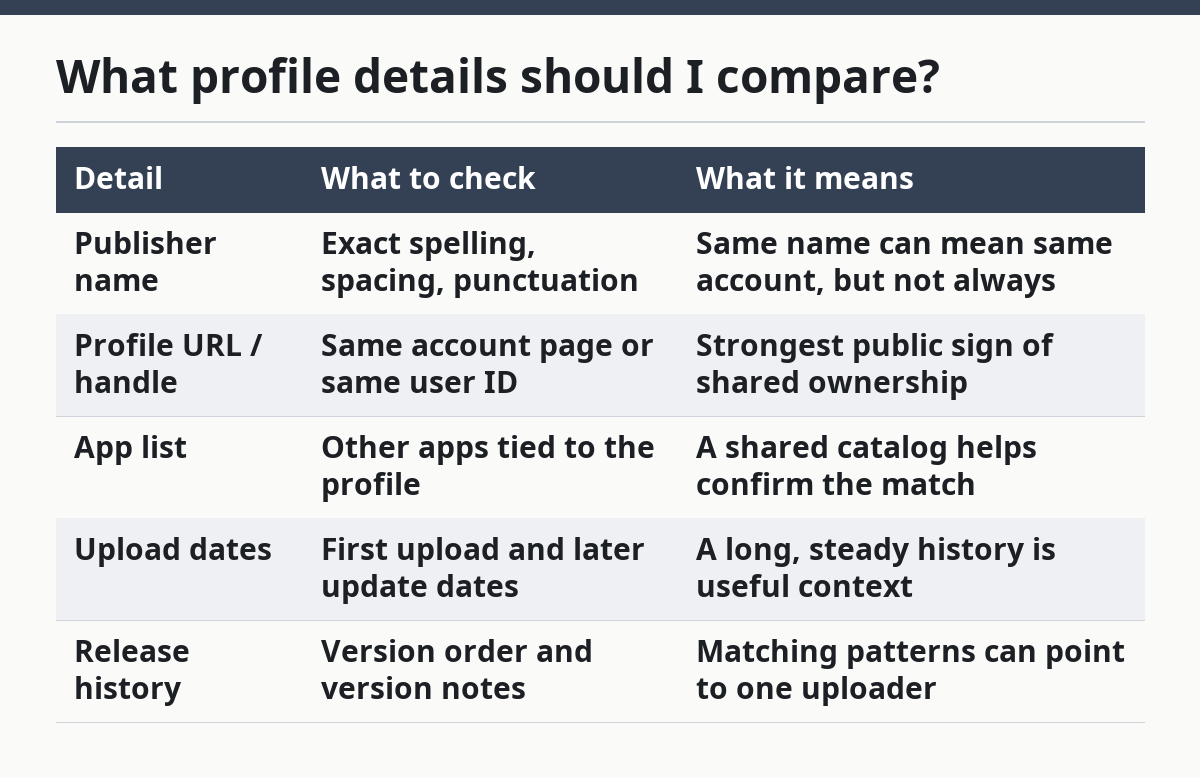
That table is the spine of the check. A lot of readers stop at the publisher name and call it done. The name match is useful, but it can be copied or changed. The profile URL and app list do more work.
Look for small details that stay stable over time:
- The same writing style in version notes.
- The same category of apps on the profile.
- The same upload rhythm, such as regular updates rather than one isolated post.
- The same hosting account name on the page footer or author line.
If the host shows a team name instead of an individual, treat that as a shared publisher account only if the account page links those APKs together and the platform’s profile structure supports that reading. A branded studio page is not the same thing as a random mirror posting the studio’s name in a title. The host structure matters. For reference, APKMirror’s support pages explain how its listing and publisher information are organized (APKMirror FAQ), and Uptodown’s help pages show another public example of publisher-page formatting (Uptodown Help).
What release history can tell you
Release history can tell you whether two APKs are coming from the same publishing account, especially when the profile name is bland or reused across several sites. A steady update trail is often harder to fake than a single listing.
Open the release history and compare the older versions first. If one APK page shows version 4.2 from last month and another app on the same profile shows version 4.3 from this week, the publisher trail is probably intact. If one page has no old versions at all, that says less.
Use this as your quick read:
- Same account pages often keep the same version order.
- Older releases may point to the same upload pattern or build cycle.
- A publisher that updates several apps from the same profile will often keep the same naming style.
- A sudden jump in app titles, with no older releases, can be a red flag for a copied or trimmed profile.
The truth is, release history helps most when the account has been active for months, not hours. A new account with one APK tells you very little. A profile with a year of updates, older APKs, and a stable naming pattern gives you something real to compare.
Here’s the catch: release history alone cannot prove identity. Two different accounts can follow the same version pattern, especially on copied store pages. So use release history as support, not as a standalone verdict. Pair it with the publisher profile and hosting account details.
What does not prove the same publisher account?
A matching app name does not prove the same publisher account, and neither do the same screenshots, the same description, or the same APK filename. Those things are easy to copy in under 10 minutes.
People get fooled by surface matches because they look official. But a mirrored page can copy the title, paste the release notes, and keep the icon. That still tells you nothing about the account behind the upload. If the host duplicates page text, you need to look for the account trail hidden in the profile path, author line, or release list.
Watch out for these false signals:
- Same app title — many publishers choose the same title style.
- Same icon or screenshots — these are copied all the time.
- Same description text — mirrors reuse it by design.
- Same APK filename — filenames can be renamed before upload.
- Same download page layout — the template can be identical across accounts.
The practical cost of trusting those clues is simple: you may connect the wrong publisher account to the file and miss a cloned listing or a mirror host. That can send you down the wrong verification path.
Instead, favor the items that are harder to fake:
- Profile ID or username.
- Other apps under the same account.
- Older uploads and version history.
- Stable publisher naming across several pages.
- A direct link from the app page back to the same account.
If the site gives you none of that, say so plainly: the publisher account cannot be confirmed from that page alone. That is a real answer.
What to do when the publisher account looks changed
A changed publisher account name does not always mean a different publisher account, because some platforms let the profile name change while the account stays the same. The trick is to separate the display name from the underlying account.
This is where people jump too fast. A new brand name can sit on top of the same uploader account. Or the opposite: the display name can stay the same while the real account behind it changes. You need the profile link, not the label.
Check for these signs:
- The profile URL stays the same even though the display name changes.
- Older releases still sit under the same account page.
- The app list remains grouped under one publisher profile.
- The hosting site keeps the same author ID or profile slug.
If the display name changed and the profile page changed with it, treat that as a new account until you can prove otherwise. That is the safer call on a public download page. A changed account can be normal rebranding, or it can be a new uploader taking over an old name. The page itself usually won’t tell you which.
For a serious check, compare the oldest visible release on each profile. If the older app history lines up under one stable account page, you likely have the same publisher account with a renamed profile. If the older history is gone, you have less to work with. In that case, avoid guesswork and keep the result unconfirmed.
A clean, repeatable workflow for one APK pair
You can check two APKs in about 5 minutes if the host exposes the right fields and you keep your eyes on the account trail. The order matters more than the tool.
- Open both APK pages side by side.
- Click each developer profile or publisher link.
- Compare the visible publisher name, profile URL, and account handle.
- Open the release history on each page and compare the oldest versions first.
- Scan the other apps on each profile for overlap.
- If the host shows an author ID, compare that too.
- Write down whether the match is exact, partial, or not supported by the page.
That final step keeps you honest. A lot of confusion comes from mixing “same name” with “same account.” Those are different claims.
Use this three-tier judgment:
- Strong match: same profile URL or account ID, same publisher name, and overlapping app history.
- Possible match: same publisher name and similar release history, but no clear account ID.
- Not confirmed: only the app title, icon, or description match.
If you need a clean answer for a store page, this is the standard I’d use. Strong match is good enough to say the APKs were uploaded by the same publisher account on that platform. Possible match is a clue, not proof. Not confirmed means stop.
FAQ
Can a publisher account change over time?
Yes. A publisher account can keep the same underlying profile while the display name, branding, or app lineup changes. That is why the profile URL, account ID, and old release history matter more than the name alone. A changed label does not automatically mean a new uploader.
Is the uploader the same as the developer?
Not always. The uploader is the account that posted the APK, while the developer is the person or group the store page says made it. On some platforms they are the same; on others, a reseller, mirror, or team account can upload on behalf of someone else.
What profile details should I compare?
Compare the publisher name, profile URL or handle, other apps on the account, and the release history for each listing. If the site shows an author ID or account slug, compare that too. Those details usually tell you more than the APK title or icon.
What if the site hides the publisher account?
If the site hides the account, you may not be able to confirm it from that page alone. In that case, treat the match as unconfirmed and look for a source that exposes the developer profile or the upload history. If none is available, the page does not give you enough evidence.
Drafted with AI; not yet reviewed by a person.
