
Last updated: November 19, 2026
Quick Answer: In most cases, a new APK can reinstall over an older Android version in 1 step if the package name and signature match, and Android accepts the version code. This guide explains How to Reinstall a New APK Over an Older Version on Android with the install-on-top steps, the version-downgrade traps, and when Android may refuse the overwrite.
Key Takeaways
- Android treats the old app and the new APK as the same app only when the package name matches exactly; if you are unsure, consult a professional or the Android app signing docs.
- The signature must also match, or the Android package installer may block the update; if you are unsure, consult a professional or the Android app signing docs.
- A newer version usually installs over the older one; a lower version often does not.
- Reinstalling over the top can keep app data, but mismatched builds can still trigger data loss or a failed install.
- If the APK came from a different developer key, you usually need to uninstall the old app first.
What has to match before Android will overwrite the app
Android will overwrite the old APK only when the package name and signature line up, because that tells the system the file is the same app. If either one is different, the package installer may treat it like a different app and stop the update; if you are unsure, consult a professional or the Android package installer docs.
Picture this: you have the old app already installed, and the new APK is sitting in Downloads on your phone. The name on the icon can look identical, but Android cares about the package ID inside the file. That is the part that decides whether the new build can sit on top of the old one.
Before you tap install, check these points:
- Package name: it must match exactly. A tiny change, like
com.example.appversuscom.example.app2, means no overwrite. - Signature: the APK must be signed with the same developer key as the installed app.
- Version code: the new build usually needs a higher version code than the one already on the device.
- App variant: a debug build, beta build, or modded build often uses a different key or package name.
If the package name matches but the signature does not, Android may not merge them.
That is by design.
For background on signing, the Android developer docs on app signing are the right reference point, and Google’s package visibility and install rules explain why Android compares app identity this way.
How do I reinstall a new APK over an older version on Android?
You do it by opening the newer APK with the Android package installer and letting it replace the installed app in place. The basic path is short, but each step matters because one mismatch can stop the overwrite.
Picture this: you already downloaded the updated APK from a trusted source, and you want the new build to land on top of the old one without losing your setup. The job is mostly about opening the right file and letting Android compare it to what is already installed. Here’s the catch: the file has to be a valid update, not just any APK with the same app icon.
-
Check the app is already installed.
Open your app drawer or Settings > Apps and confirm the old version is on the phone. You should see the app listed by its current name. -
Confirm the APK is the same app.
Look for the same package name in the file details if your file manager shows it, or use the source you got it from. The package name must match the installed app exactly. -
Open the newer APK file.
Tap the APK in Downloads, Files, or your browser’s download list. Android should launch the Android package installer screen instead of asking you to pick a random app. -
Read the install prompt.
If Android recognizes it as an update, you’ll see an install or replace screen rather than a brand-new app screen. The installer may show the app name and the permissions it wants. -
Tap Install or Update.
The system will copy the new APK over the old one. On many phones this takes only a few seconds, and the old icon usually stays in place. -
Open the app and check the version.
In Settings > Apps > [App name], or inside the app’s About screen, confirm the build changed. The version number should reflect the newer APK.
If the installer refuses the file, stop and read the error. That is usually the first clue that the signature, package name, or version code is off.
What if Android says the app can’t be updated?
Android says no when the new APK does not meet the rules for an in-place replace. The most common reason is a signature mismatch, and the next most common is a version downgrade.
Picture this: you found an APK with the same app name, but Android still blocks it with an install error. The phone is not being fussy for fun. It is checking whether the new file came from the same developer identity and whether it belongs over the installed build. A single mismatch is enough to stop the update.
Use this checklist when the overwrite fails:
- Different signature: the installed app was signed with one key, and the APK you downloaded was signed with another. This is common with reuploads, forks, and modded builds.
- Lower version code: the APK is older than the app already on the phone. Android often refuses a downgrade unless the build is explicitly allowed for that install path.
- Different package name: the file is a cousin, not the same app.
- Split APK confusion: the app may have been installed as a bundle or split package, but you are trying to install a single standalone APK.
- Corrupt download: the file is incomplete or damaged.
The fix depends on the problem:
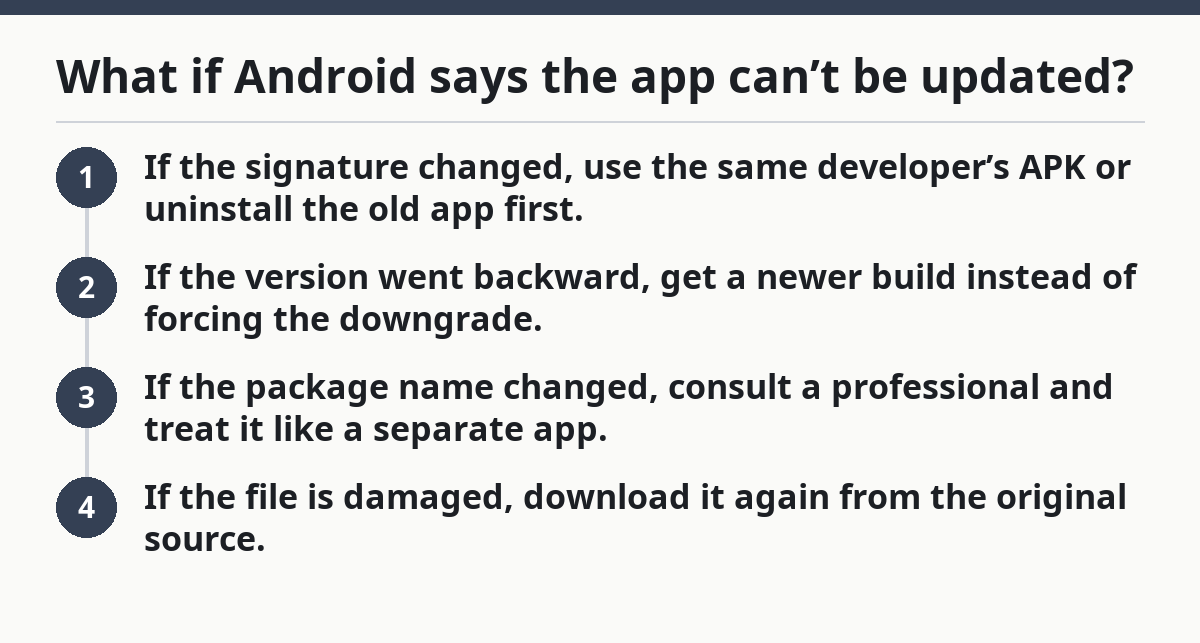
- If the signature changed, use the same developer’s APK or uninstall the old app first.
- If the version went backward, get a newer build instead of forcing the downgrade.
- If the package name changed, consult a professional and treat it like a separate app.
- If the file is damaged, download it again from the original source.
Google’s Android app signing docs and the package installer behavior documented by Android explain why signature checks are strict. That strictness is what keeps one developer from silently overwriting another developer’s app.
Will reinstalling over the top keep my app data?
It often keeps app data, but that is not a promise, and it depends on the APK and the way the app stores its files. If the package name and signature match, Android usually preserves the app’s internal data folder during an in-place update.
Picture this: you care less about the APK itself and more about the login, settings, scores, or drafts inside the app. An overwrite is often safer than uninstalling first, because uninstalling can remove the app’s private data. The catch is that a bad build can still break compatibility after launch.
Keep these trade-offs in mind:
- In-place reinstall: usually best for keeping app data.
- Uninstall then install: safer for clearing a broken app state, but it usually wipes the app’s private data.
- Different signing key: Android may not treat it as the same app, so a reinstall-over-top is blocked.
- Downgrade: can sometimes keep data, but old builds may not read data created by newer ones.
If the app stores important local files, export them before you touch the APK. That might mean a built-in backup, cloud sync, or an export file inside the app itself. Don’t assume the overwrite will save everything.
It usually won’t.
For a deeper look at update paths, Android’s own guidance on app updates and signing is the safe reference, and the Play Console docs on app signing explain the same identity rule from the developer side. See also the Android Developers app signing guide and the Play Console help pages.
Common mistakes that stop the overwrite
The most common mistake is grabbing the right-looking APK and assuming it belongs to the installed app. Android does not care about the icon. It checks the package name, version code, and signature, and one wrong detail can waste your time.
Picture this: you have three APK files in your Downloads folder and one of them is the one you want. You tap the first one that looks right, and the install fails. That is a classic sideloading mistake, and it usually costs you a clean update or sends you into a full uninstall cycle.
Watch for these errors:
- Installing the wrong variant: arm64, x86, beta, and stable builds are not interchangeable in every case.
- Mixing sources: one build from the Play Store and another from a third-party site may have different signatures.
- Trying to downgrade without checking version code: Android may reject the file without a clear explanation.
- Renaming the APK: the file name does not matter much, but it can make you lose track of what the package really is.
- Forcing an uninstall first: that removes the easy path to keeping app data.
The better move is to verify the package details before you install. If your file manager or APK info tool shows the package name, compare it with the installed app’s package ID in Settings > Apps. If those do not match, stop there. The wrong APK is not a shortcut.
If you manage sideloaded apps often, the hub on APK update strategies for sideloaded Android apps is the right next step after this page.
When downgrading is the real problem
A downgrade is only possible when Android allows it, and many phones will not accept it as a normal overwrite. The newer app may have written data that the older build cannot read, so rolling back can create a broken app state even if the install succeeds.
Picture this: the newer APK has a bug, and you want the older build back. That sounds simple, but Android update logic is built around forward motion. If the version code drops, the install may fail outright, or the app may open and then crash because the saved data no longer fits the old code.
Here is the practical rule:
- If you need the same app back after a bad update, use a build that matches the installed signature and a supported version path.
- If the old build is signed differently, Android may treat it like a different app.
- If the old build is truly older, the package installer may block it unless the app was designed for rollback.
That is why a downgrade is not the same thing as a normal reinstall. One is an overwrite in place. The other is a step back through version history, and Android is strict about it.
If the app matters enough to preserve data, back up the app’s export files, cloud sync, or local database before you attempt a downgrade. If the app has no backup path and no rollback support, the safer answer is to leave the newer build in place and fix the bug another way.
Can I install a newer APK over an older one?
Yes, if the APK has the same package name and signature and Android sees the new file as a valid update. The installer will then replace the old build instead of making you install a second copy. If either identity check fails, Android stops the overwrite.
Why does Android refuse to overwrite an app?
Android refuses to overwrite an app when the package name, signature, or version rules do not match. That usually means the APK came from a different developer key, is an older build, or belongs to a different variant. The package installer is protecting the installed app from being replaced by the wrong file.
Will reinstalling an APK delete app data?
Not usually, if Android accepts the APK as the same app and installs it on top of the old version. The app’s private data often stays in place, but that is not guaranteed if the build changes too much or if you uninstall first. If the data matters, back it up before you change versions.
Drafted with AI; not yet reviewed by a person.
