Category: APK installation and troubleshooting
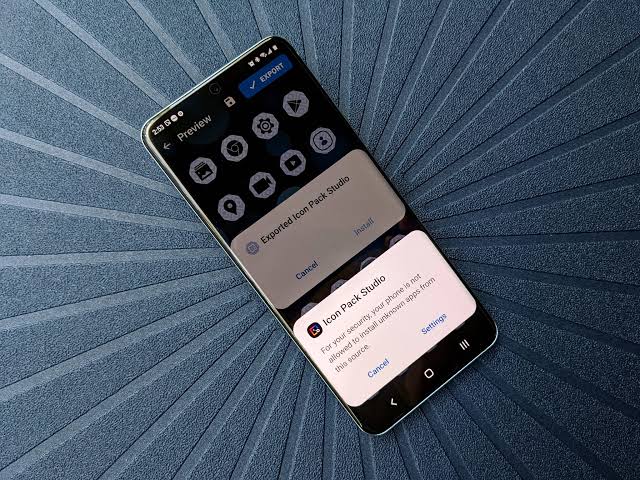
  • How to Update an APK App Without Losing Your Data

    How to Update an APK App Without Losing Your Data

    Last updated: September 10, 2026

    Key Takeaways

    • Back up anything you cannot replace in 5 minutes.
    • Leave at least 500 MB free for small apps, and more for games or media-heavy tools.
    • The whole process usually takes 5 to 15 minutes for a simple app, longer if you need to copy large files or reauthenticate an account.
    • Proceed with Install rather than Uninstall when Android shows an update screen.

    Usually, you can update an APK app without losing your data by installing the new APK over the old one. Three conditions have to line up: the package name stays the same, the app is signed with the same developer key, and the build does not force a data wipe. Simple enough. This guide shows how to update an APK app without losing your data on Android, whether the file comes from a developer site, a backup folder, or another trusted source. By that, I mean the normal sideloading case, not Google Play. The real question is whether your saved logins, local files, game progress, or app settings survive. Cloud sync may already keep some of that off the device. If the app stores files locally, you need to be far more careful. Messy? A little.

    Who this applies to — and what I’m assuming

    How to Update an APK App Without Losing Your Data

    Android users with an APK already installed are the target here, especially if they want a newer APK without wiping local data. I’m assuming you can get to your phone’s file manager, tap an APK to install it, and tell the app itself apart from the file that installs it. I’m also assuming the app is not using a separate cloud account for everything. If it syncs to the developer’s servers, the stakes shift because most of the important stuff may already sit off the device.

    The basic rule is straightforward: when Android treats the new APK as the same app, it normally keeps the app’s data directory. That data sits inside Android’s app sandbox, so you cannot browse it directly without special access. But there’s a catch. An “update” only counts as one if the package name matches and the signing certificate matches. When either piece changes, Android may see a different app or refuse the install. Consult the app developer if you are unsure. Android’s app-signing documentation is clear on this point; in-place updates depend on matching identity and signing.

    This method fits ordinary apps, offline tools, many games, and utility apps. It is not the right move if the APK came from an unknown source, if the app was modified or repackaged, or if the app itself says it will reset data during migration. In those cases, the risk is bigger than losing app data. You could install a tampered build that no longer trusts the same backups, sign-ins, or update path. Ugly stuff.

    What has to match for an APK update to keep your data?

    Android keeps your data only when it accepts the new APK as the same app. Three things decide that: the package name, the signing certificate, and the app’s own storage behavior.

    The package name is the app’s internal ID, such as com.example.app. Change that, and Android sees a different app. Check with the developer before trying to install it over the old one. The signing certificate is the developer key used to sign the APK. If the key changes, Android blocks the update unless the app supports key rotation through Android’s signing schemes. The storage behavior is whether the app keeps data in its normal sandbox or tells you to export and import first. Some apps keep almost everything in the cloud. Others stash databases, caches, and settings locally in files under the app’s private directory.

    Here’s the practical test I use: same developer, same package name, newer version. That usually means you can install over the existing app. But if the APK is a mod, a clone, a “pro” unlocked build, or a repack from a third party, I would assume data loss is possible even when the install itself goes through. A modified APK often changes the signature, and once that happens Android will not treat it as the same app. When in doubt, contact the app’s support channel. That’s the line in the sand.

    One more wrinkle matters. Some apps use external storage for media or project files, not just private internal storage. In those cases, photos, downloads, exports, or offline maps may survive even if the app data gets wiped. But don’t mix up files sitting in Download or another visible folder with the app’s private database. If you care about progress, settings, or in-app purchases, those usually live in private storage, not in a public folder. Different place. Different outcome.

    How do I update an APK app without losing data?

    How to Update an APK App Without Losing Your Data

    Back up what matters first, install the new APK as an overlay, then check whether the app opens with the same account state and settings. The order matters. The whole thing is short, but it is easy to mess up.

    1. Check the app name, package name, and version number. Open the current app info screen and note the installed version, then compare it with the new APK’s version. If you can inspect the APK details, confirm the package name matches exactly. What to verify: the package name is identical and the new version is higher. What indicates a problem: the package name differs, the app icon is different because it is a clone, or the APK is older than what you already have.
    2. Back up anything you cannot replace in 5 minutes. Export save files, chat history, documents, photos, or project files to a second location before you touch the APK. On Android, use the app’s own export function if it has one; otherwise copy visible files to cloud storage or another folder. What to verify: you can open the backup file or see it in the destination folder. What indicates a problem: the app has no export option and the files are hidden in private storage you cannot reach.
    3. Make sure the new APK is from the same developer and matches the app’s signing lineage. If the update came from the developer’s site or a trusted distribution channel, confirm it is intended as an update to the installed app. What to verify: release notes mention an update path, not a replacement build. What indicates a problem: the APK is labeled as a mod, rebuild, or different edition.
    4. Free enough storage for the install and the app’s own migration. Leave at least 500 MB free for small apps, and more for games or media-heavy tools. What to verify: Android reports enough free space before you start. What indicates a problem: the install stalls, the system says storage is full, or the app crashes while unpacking resources.
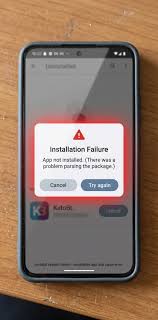
    5. Install the APK by tapping the file and choosing the existing app when prompted. If Android shows an update screen, proceed with Install rather than Uninstall. What to verify: the prompt names the same app and does not warn that data will be erased. What indicates a problem: Android says “App not installed,” “signature mismatch,” or asks you to uninstall the old app first.
    6. Do not clear app data or cache during the install. Clearing cache is sometimes harmless, but clearing data will usually reset local settings and offline content. What to verify: you have not tapped the storage menu’s Clear Data button. What indicates a problem: you already cleared data and the app opened like a fresh install.
    7. Open the app immediately after installation and compare the state. Check login status, saved items, and the last synced content. What to verify: the app opens with the same account, the same preferences, and the same offline files. What indicates a problem: the app launches to a welcome screen, asks for a new sign-in, or your local content is missing.
    8. Test one feature that depends on old data. Open the most recent save, note, playlist, or project and confirm it loads without corruption. What to verify: the file opens normally and recent changes are present. What indicates a problem: the app opens but the save file errors out, rolls back, or shows missing assets.

    For a simple app, the whole thing usually takes 5 to 15 minutes; larger files or a fresh sign-in can stretch that out. Boring is good here. The app opens, the settings stay put, and no forced setup wizard appears. Bad news usually shows up fast because the app behaves like a clean install or refuses to read the old data.

    What should I check before I tap Install?

    Check whether the new APK is truly an update, whether the app stores your important data locally, and whether you have a backup path if the install fails. That is the practical center of how to update an APK app without losing your data.

    Start with the app’s data model. Apps that sync everything to an account are easier to update, because your device mainly holds a login token and cache. Apps that keep documents, offline maps, game saves, or databases on the device are more fragile. Use the export or backup feature if the app has one. If it does not, treat the update as potentially destructive and keep a copy of anything you can restore. Android’s backup and app-data rules draw a bright line there.

    Next, check the Android version and the APK’s architecture. An APK built for Android 14 may not install cleanly on an older device, and an APK built only for one CPU architecture, such as arm64-v8a, will not help a device that needs a different build. This is not directly about data loss, but failed installs burn time and can leave you mid-repair without the app open. If the APK page lists a minimum Android version, match it against your phone’s version before you begin.

    Then look at split APKs or bundle installer format. Some apps ship as a set of files rather than one APK, and a plain tap-to-install file may not be enough. If the update package is a split set, you need the proper installer that can handle every part together. A generic “APK installer” often falls flat here, and the result is an incomplete app that crashes on launch. A little annoying. Very common, too.

    Finally, look for an explicit warning in the release notes about database changes, migrations, or account re-linking. A major version jump can rewrite local storage. That is not automatically bad, but it is the point where I would want a backup I can actually restore, not just hope for the best.

    When should I stop and not force the update?

    Stop when Android or the APK itself says the update is not a straight replacement. Forcing it is how data gets burned.

    Package name mismatch: the APK is for a different app ID — do not install it over the old app; back up data first and treat it as a separate app or skip it entirely. If you are not sure, ask the app developer.

    Signature mismatch: the signing key changed — Android will usually block the install, and if you sidestep that by uninstalling first, you will likely lose local app data.

    The app demands uninstall first: that means the developer or repackager does not support an in-place upgrade — stop and export anything you can before proceeding.

    The app stores mission-critical local files only: if your saves, projects, or databases are not synced anywhere else, the install is riskier — make a manual backup before trying again.

    Release notes mention a migration or reset: the new version may rewrite the database or clear incompatible settings — confirm you have a backup and expect to reconfigure the app.

    The APK is a mod, cracked build, or repack: those packages often break the original signing chain — do not treat them like a normal update; use the official build instead.

    Ignore those signs, and the outcome is rarely subtle: the app may fail to install, may come up as a fresh copy, or may open with missing data. If the data matters enough that you would be upset to lose it, stop before you click through warnings you do not understand. Hard stop.

    The mistakes people make most often

    The most common mistake is uninstalling the old app first because they think a clean reinstall is safer. It is safer for removing corrupted app files, but it is the worst move if you care about local data. Once the app is uninstalled, Android removes its private data unless the app has a separate backup path. The better move is to install the APK over the existing app and only uninstall if the update is impossible.

    Another mistake is assuming the app’s visible files are the same as its full data. A folder in Downloads or DCIM might hold exports, but it will not hold login tokens, in-app settings, or databases stored in the sandbox. Use the app’s export feature or account sync instead, because that is the part built to survive updates.

    People also ignore version jumps. Moving from version 1.4 to 1.5 is often routine; moving from 1.x to 2.x can change the underlying database schema, which is the structure the app uses to store records. A schema change is not a problem by itself, but it can make old data unreadable if the app’s migration fails. Before a major update, make a backup and read the release notes. Plain and simple.

    A fourth mistake is mixing sources. They install the old app from one place and the update from another that republishes the same app under a different signature. Even when the name looks right, Android sees a different developer key. Stick to the same developer or distribution path.

    A fifth mistake is clearing storage because they are trying to fix a crash during install. Clearing cache may help a stuck installer; clearing data usually erases local state. If you need to troubleshoot, clear cache first, reboot, and try again before touching data.

    What changes when the app is a game, a work tool, or an APK from another source?

    The standard approach changes when the app leans heavily on local data, barely uses an account, or has been repackaged. Games often store save files locally, sometimes in app-private storage and sometimes in a public folder. Work tools may keep files in both places, so you need to protect both the database and the exported documents. A repackaged APK is the sketchiest case, because even if it installs, it may not preserve the original app identity. That part is a minefield.

    For games, I would treat any update that changes the package, the signature, or the save format as high risk. If the game has cloud sync, confirm the sync finished before updating. If it does not, export the save or copy any visible save files before you touch the APK. A bad game update usually shows up as a missing profile, a reset tutorial, or a save that the new version cannot open. Brutal, but true.

    For work apps, the hidden risk is not just the app database but attached files and local drafts. A note app, scanner app, or document editor may keep unsynced drafts on the device. Before updating, make sure those drafts are saved into a visible folder or exported to cloud storage. If the app uses a proprietary format, open one file after the update and confirm it still renders correctly.

    How much does it cost, and what affects the price?

    The APK update itself usually costs nothing if you already have the file, and the main price is time. For a basic app, expect 5 to 15 minutes. For a large game or a tool with media files, budget 15 to 30 minutes so you can back up data, download the APK, and verify the update.

    Several things change the cost in practice. Storage can force you to buy cloud space or clear room on the device. A paid backup app or a PC-based transfer tool may also be worth it if the data matters. If you are updating a work app, the real cost may be the time needed to reauthenticate accounts or rebuild offline files after the install.

    Why it is worth doing

    Keeping the old data is worth the effort because a clean install often costs more in lost time than the update itself. Recreating settings, resyncing libraries, or rebuilding game progress can take longer than the installation. When the app holds notes, documents, or saves, a careful update protects work you may not be able to replace.

    It is also worth doing because a planned update is safer than a rushed one. A backup, a version check, and a quick source check turn a risky sideload into routine maintenance. If you follow the same process each time, you are much less likely to get surprised by a signature mismatch or a storage wipe. So yes, it is worth the trouble.

    Sources

    • Android Developers: App signing
    • Android Developers: Back up user data
    • Google Play Help: Manage apps on your Android device
  • How to Enable Unknown Sources on Android for APK Installation

    How to Enable Unknown Sources on Android for APK Installation

    Last updated: September 10, 2026

    Key Takeaways

    • On many phones, the whole process takes under 3 minutes.
    • I would not spend 15 minutes hunting through menus if the phone is managed by a work profile.
    • A reasonable expectation is that the whole job, including finding the menu, should take 2 to 5 minutes on a phone you know.
    • Open Downloads, tap the APK, and let Android show the installer.

    On modern Android, there usually is not one big master switch anymore. Instead, you give install permission to the app that will open the APK — Chrome, Files, or another file-handling app. That is the practical answer for how enable unknown sources on android apk installation works now, and it solves most blocked installs. Not all. If you are unsure the file is safe, consult a professional or the app publisher before continuing. Google help, Android Developers

    Who this applies to, and what you already need

    How to Enable Unknown Sources on Android for APK Installation

    This is for someone using an Android phone or tablet with a legitimate APK who wants to install it without hitting a permissions wall. For how enable unknown sources on android apk installation, I am assuming you already know where the APK came from, you can unlock the device, and you are comfortable tapping through Settings once or twice.

    I am also assuming this is a consumer Android device running a version close to Android 8.0 or later, where the permission model changed. On older hardware, the wording may still say Unknown sources as a single toggle in Settings > Security. Newer phones usually say Install unknown apps, and the control sits inside the app doing the installing.

    This is not the route to take if the APK came from an untrusted link, a random chat message, or a site that repackages paid apps for free. An APK is just an Android app package, and sideloading means you are bypassing the Play Store’s normal checks. That does not make it wrong, but it does shift more responsibility onto you. If the source is unclear, consult a professional or stick to the publisher’s official download path. Android Developers

    Honestly, I would treat this like a 2-minute settings task, not a scavenger hunt. Still, if the phone is managed or the APK source is uncertain, consult a professional or the device admin before changing permissions. Trying to install a managed work app, a banking app, or anything blocked by device policy? Then the answer may be a company admin, not a settings change.

    How do I enable unknown sources on Android?

    You enable unknown sources on Android for APK installation by allowing the specific app that opens the APK to install other apps, then launching the APK from that app and approving the install. On many phones, the whole process takes under 3 minutes.

    Here is the cleanest order to do it:

    1. Find the app that will open the APK. If you downloaded the file in Chrome, the installer path usually starts there; if the file is in Files, that app may handle it. Verify the APK is visible in your Downloads folder. A problem shows up if you cannot find the file at all, which usually means the download failed or saved somewhere else.
    2. Open the app’s permission page. Go to Settings > Apps > Special app access > Install unknown apps on many Android 8+ devices. Some brands move this under Settings > Security or Apps & notifications. Verify you are looking at a list of apps such as Chrome, Files, Drive, or your file manager. If you only see a broad security page and no app list, you are likely on an older Android version.
    3. Choose the source app. Tap the app that will handle the APK, such as Chrome or Files. Verify the screen says something like Allow from this source or a similar toggle. A problem is tapping the wrong app; then the permission is granted, but nothing changes when you try to install.
    4. Turn on the install permission. Toggle Allow from this source on. On some devices this is a 1-switch change; on others you may get a warning. Verify the toggle turns blue, green, or otherwise active. If it springs back off, device policy, parental controls, or enterprise management may be blocking it.
    5. Return to the APK file and tap it once. Open Downloads, tap the APK, and let Android show the installer. Verify the package name and app icon look like the app you meant to install. A problem appears if the installer asks for a different file type or opens a document viewer; that usually means you did not tap an APK.
    6. Read the installer screen before approving. Android will list permissions the app wants, such as camera, contacts, or storage. Verify the app name, version, and permission list make sense. A red flag is an app asking for unrelated access, such as a flashlight app requesting SMS and call history.
    7. Tap Install and wait for completion. Installation often takes 10–60 seconds for a normal consumer app, longer if the device is low on storage. Verify the screen ends with App installed. If you see App not installed, the file may be corrupted, incompatible, or blocked by the system.
    8. Turn the permission back off if you do not need it again. Go back to the same source app and switch off Allow from this source. Verify the toggle is disabled. The problem with leaving it on is not dramatic by itself, but it expands the number of apps that can prompt installs later.

    The older phrase “unknown sources” is misleading because Android is not asking whether the app is mysterious; it is asking whether you want this specific app to install software outside Google Play. That distinction matters.

    Where do I find the setting on my phone?

    How to Enable Unknown Sources on Android for APK Installation

    Usually, you find it inside the app that downloaded the APK, not in one universal place — and that is the bit most generic guides miss. For how enable unknown sources on android apk installation, the route is often Settings > Apps > Special app access > Install unknown apps on Android 8.0 and later. On Samsung, you may still reach the same control through Settings > Apps > 3-dot menu > Special access > Install unknown apps or a similar path. Pixel devices tend to use cleaner labels and closer-to-stock Android wording.

    Using Chrome, Firefox, or Samsung Internet? Give permission to the browser itself. If the APK sits in a file manager, allow the file manager. And if cloud storage such as Drive delivered it, that app may need permission too. The rule is simple: the app that hands Android the APK needs the right to install it.

    A quick check helps here: tap the APK, and when Android says the app is blocked from installing unknown apps, it usually names the source app in the warning. That is the one to allow. If the warning names Package Installer or Files, the device may be using a system file handler rather than the app you expected. Strange, but common.

    I would not burn 15 minutes wandering through menus if the phone is managed by a work profile. A managed device can hide or override this setting completely. In that case, nothing is “broken”; it is simply restricted by policy.

    What should I check before I install the APK?

    Check the file, the source, and the app signature before you tap Install, because once the package is on the phone, the risky part is already done. An APK is not automatically malicious, but it is executable code, and Android treats it that way. If you are unsure what the file is or who published it, consult a professional before installing it.

    Start with the file name and extension. It should end in .apk. If you see .zip, .pdf, or no extension at all, stop and identify what you actually downloaded. A file can be renamed, so the extension alone is not proof, but it is the first filter.

    Next, look at where it came from. I would trust a developer’s official site more than a reposted link, and I would trust an APK hosted by the app’s own publisher more than a mirror site with ads and “mod” language. If the page pressures you to disable more security settings, that is a bad sign. The safest choice is the publisher’s own site or a source the publisher names.

    Then check the package name if Android shows it. Legitimate apps usually keep a stable package identifier, such as com.example.app style naming. If the package name does not match the app you expected, that is a reason to stop.

    Finally, pay attention to the permissions screen. If a simple utility wants access to contacts, messages, accessibility services, or device admin rights, the request deserves scrutiny. Accessibility access can control large parts of the phone, so I treat it as sensitive; if the request does not make sense, consult a professional or the app publisher before you approve it. Every so often, the installer is the only clear look you get before the app lands on the device.

    A good result looks boring: the file opens, the installer shows the expected app name, the install completes, and the app launches without asking for odd extra permissions right away.

    When should I stop and not install it?

    Stop when the app, the device, or the file does not behave like a normal sideloadable APK, because forcing it usually wastes time or creates avoidable risk.

    The phone is managed by work or school policy: This means a device administrator or MDM profile may block sideloading — Use the approved app source or ask the admin to whitelist the app. Do not keep toggling settings; policy wins.

    The installer says “App not installed” after a 30–60 second wait: This usually means the APK is incompatible, corrupted, or signed differently from an existing app — Download the correct build, match the Android version and CPU architecture, or remove the conflicting app first if you know it is safe to do so.

    The APK asks for accessibility, device admin, or overlay permissions for no clear reason: These permissions can let an app watch taps, display over other apps, or control settings — Stop and verify the publisher. If you cannot explain why those permissions are needed, do not continue.

    The file came from a site that also offers “cracked,” “mod,” or “premium unlocked” versions: That is a common sign of repackaged software — Treat it as unsafe and find the publisher’s own install path instead. If you are unsure, consult a professional before proceeding.

    Android warns that the app was built for an older version or cannot be installed on this device: The package may not support your Android release or chipset — Use a version made for your device, or choose another app. Forcing it will not fix the compatibility gap.

    The APK arrives as a bundle, such as .apks, .xapk, or split packages: A plain tap may not install it the normal way — Use the publisher’s recommended installer format or a compatible package installer. If you do not know what the bundle is, stop and identify it first.

    That is the point where I would pause instead of trying five more workarounds. The bad outcome here is not merely a failed install; it is installing something you do not understand.

    What mistakes do people make most often?

    They usually make the same 5 mistakes, and each one has a predictable cost.

    First, they enable unknown-app installs for the wrong source. The result is a permission that does nothing when they tap the APK, so they think Android is broken. The fix is to grant the exact app that opened the file, not a random one in the list.

    Second, they leave the permission on permanently. That does not guarantee a problem, but it widens the path for future installs from browsers and file managers. My preference is to turn it back off after the install unless you sideload often.

    Third, they confuse APKs with app bundles. A bundle format such as .apks or .xapk may need a special installer, while a single APK can usually be tapped directly. If you use the wrong handler, you get a failed install or a file the system cannot open.

    Fourth, they download from a mirror site because it is faster. The cost is uncertainty about who repackaged the app and whether the file was altered. The correct alternative is the publisher’s official site, F-Droid for open-source apps, or another source the developer explicitly names.

    Fifth, they ignore storage and version mismatches. If the phone has only a few hundred MB free, installs can fail for plain reasons, and if the APK was built for a different Android API level, the package may not fit the device. Check storage first and read the app’s stated Android requirement if it is given.

    Those mistakes are common because the process looks simple. It is simple, but only if you respect the source, the format, and the exact app that is opening the file.

    What changes on older Android versions, Samsung phones, and work devices?

    The setting changes shape, but the logic stays the same: the app that installs the APK must be allowed to do that job. On older Android, often before Android 8.0, you may find a single Unknown sources switch in Settings > Security. That older toggle applies more broadly, so I would be more cautious about leaving it on.

    On Samsung devices, menu labels often differ, and the My Files app may be the main installer path. On Pixels and stock Android, the navigation is usually cleaner, but the app list in Special app access is still the key. If your browser downloaded the APK, the browser—not the phone generally—needs permission.

    On a work profile or enterprise-managed phone, the setting may be hidden, greyed out, or blocked by policy. In that case, sideloading is not a settings problem. The device owner controls it.

    Regional and carrier variations can change the wording enough to confuse people, but they rarely change the basic mechanism. Look for terms like Install unknown apps, Allow from this source, or Special app access. Those are the real landmarks.

    A reasonable expectation is that the whole job, including finding the menu, should take 2 to 5 minutes on a phone you know. If it drags on, the device is probably the odd case, not you.

    What does a successful install look like?

    A successful install looks ordinary: the source app has permission, the APK opens, the installer shows the expected app name, and Android ends with an install confirmation. The app then appears in the app drawer or home screen and opens without another install loop.

    A bad job is easy to spot once you know the signs. The setting stays on when you did not mean it to, the APK refuses to open, the installer names a different app, or Android throws “App not installed” with no obvious reason.

  • APK Installation and Troubleshooting — The Complete Guide

    APK Installation and Troubleshooting — The Complete Guide

    Last updated: September 10, 2026

    Key Takeaways

    • This article on APK installation troubleshooting — complete guide applies to anyone installing an APK on Android 8 through Android 15, including phones, tablets, and Android-based TV boxes that allow sideloading.
    • I would keep at least 1 GB free before troubleshooting anything else.
    • A file that is 4 MB when the source says 42 MB is a clue, not a mystery.
    • On a current Android phone, the process usually takes 2 to 5 minutes.

    APK installation troubleshooting — complete guide is simple when the file is legitimate, your Android version supports it, and the app was built for your device; it turns awkward fast when one of those pieces is off. This guide is for someone trying to install an APK on an Android phone or tablet and deciding whether the trouble comes from a bad file, a blocked setting, or the device itself.

    Who this applies to, and what I’m assuming you already have

    APK installation and troubleshooting — The Complete Guide

    This article on APK installation troubleshooting — complete guide applies to anyone installing an APK on Android 8 through Android 15, including phones, tablets, and Android-based TV boxes that allow sideloading. I’m assuming you already have the APK file, a working device, and a clear reason for installing it outside the Play Store. Don’t know where the file came from? Stop there. A random APK is not “just another installer”; it is executable code.

    An APK is an Android Package Kit file — the install package Android uses for apps. From a developer’s site, a workplace portal, or a trusted app archive, the main job is just getting Android to accept it. But if it arrived through a forum post, a forwarded message, or a mirror site with no obvious owner, the real issue is trust, not installation.

    I’d sort readers into three buckets:

    • Simple sideloaders: you have a single APK and a modern Android phone. This is the easiest case.
    • Split-package users: you have an app in multiple files, usually an APK plus one or more companion files. That needs a different installer or package set.
    • Troubleshooting mode: the install fails, the app crashes, or Android says the package is invalid.

    I would not treat APK sideloading as a casual habit on a work phone, a child’s device, or any phone that holds banking, password manager, or authentication apps unless you know exactly why you need it; if you are unsure, consult a professional or the device administrator. If the Play Store has the app, that route is usually cleaner. Less drama.

    What matters most before you start is the file’s shape. A normal APK is a single file. A split app may arrive as .apks, .xapk, .apkm, or as several APKs that belong together. Those are not the same thing, and using the wrong installer can chew up 20 minutes and send you chasing a packaging issue instead of a device issue.

    What has to be true before the install will work

    Android has to be able to read the file, the file has to fit your device, and the app has to be allowed to run on your Android version. Sounds basic, sure. Most failures still come from one of those three checks.

    First, check the Android version. Many app compatibility problems are not “APK problems” at all. If the app targets a newer Android API level than your device supports, it may refuse to install or open. The API level is the developer-facing compatibility number; Android 14 corresponds to API level 34, Android 15 to 35. You do not need to memorize the numbers, but you do need to know that “Android 10 and up” on an app page is not decorative text. For compatibility details, see Google’s Android Developers documentation on API levels.

    Second, check the file type. A single .apk usually works with the built-in package installer. A split package may need a bundle installer such as SAI or another app that can assemble split APKs. And if the file is .zip, .rar, or something renamed to look like an APK, Android will not install it.

    Third, confirm storage space. APK files can be small, but the installed app plus its data can need several hundred megabytes. If a device is nearly full, installation can fail with a vague “app not installed” or “insufficient storage” message. I would keep at least 1 GB free before troubleshooting anything else.

    Fourth, check for device architecture where relevant. Most current consumer phones are ARM64, meaning 64-bit ARM. Apps built only for x86 are uncommon on phones but still show up in some Android emulators and specialized devices. If an app was built for the wrong CPU architecture, Android may reject it or the app may crash on launch.

    Finally, check whether the APK is complete. A damaged download, an incomplete transfer from a computer, or a file intercepted by a messaging app can corrupt the package. A file that is 4 MB when the source says 42 MB is a clue, not a mystery.

    If the APK comes from a business or school environment, there may also be a policy layer. Managed devices can block sideloading entirely through Mobile Device Management, and no amount of tapping through settings will override that. That is not a “bug”; it is a control. For managed-device guidance, see Microsoft’s documentation on Android Enterprise devices.

    How do I install an APK on Android?

    APK installation and troubleshooting — The Complete Guide

    You install an APK by turning on the app source, opening the file with a package installer, and approving the prompts Android shows. On a current Android phone, the process usually takes 2 to 5 minutes.

    1. Find the APK in Downloads or your file manager. Open Files by Google, My Files, or your device’s file manager and go to the folder where the APK was saved, usually Downloads. Verify that the filename ends in .apk and that the size looks plausible. A 60 MB app package should not suddenly appear as 600 KB. If the extension is missing, the file may have been renamed or hidden by the app that downloaded it.

      Problem sign: the file opens as text, a photo, or a zip archive instead of an app installer.

    2. Allow installs from that source. On Android 8 and later, the permission is granted per app source, not globally. If you opened the file from Chrome, Files, or a messaging app, Android may ask for “Install unknown apps.” Turn on the permission for that source only, then go back and tap the APK again. “Unknown apps” here means anything outside the Play Store, not malware by default.

      Verify: the source app now has install permission enabled in Settings.

      Problem sign: Android keeps bouncing you back to settings or the toggle refuses to stay on, which can indicate device policy restrictions.

    3. Open the APK with the Android package installer. Tap the file once. You should see the system install screen with the app name, icon, and requested permissions. If you are asked which app to use, choose the package installer or “Package Installer” rather than an archive tool.

      Verify: the package name and app name look like the one you intended to install.

      Problem sign: you get a prompt from a zip extractor, PDF reader, or browser download page instead of the installer.

    4. Read the permissions before continuing. A flashlight app asking for contacts, SMS, call logs, or accessibility access should make you stop. Normal app requests should fit the app’s purpose. Storage access, camera access, and location are common for legitimate apps; SMS and accessibility are more sensitive.

      Verify: requested permissions make functional sense.

      Problem sign: the app asks for broad device control with no reason. That is a trust problem, not an installation problem.

    5. Tap Install and wait for completion. On many devices the progress bar runs for 10 to 30 seconds, and slower storage can take longer. Keep the screen awake if possible.

      Verify: you see “App installed” or a similar success message.

      Problem sign: the install ends with “App not installed,” “Parse error,” or “There was a problem parsing the package.”

    6. Open the app once after installation. First launch catches missing dependencies, bad splits, or architecture mismatch faster than a later use case. Sign in only after you confirm the app opens, because some apps fail immediately on startup even when installation itself succeeds.

      Verify: the app reaches its home screen or login screen without crashing.

      Problem sign: it installs but closes instantly, which usually points to incompatibility, missing component files, or an app bug.

    7. If it is a split package, use the right installer. Files ending in .apks, .xapk, or .apkm often contain multiple parts. Install them with an app that can read bundle formats and install all splits together. Try one split file alone, and Android may only see a fragment.

      Verify: the installer identifies the package as a bundle and completes all components.

      Problem sign: the app installs but lacks assets, refuses to launch, or shows a blank screen.

    8. Record the app source and version number. Save the source page or file name in case you need to update later. If the app is a side load for work, write down the version string shown in the package details. That saves time when a future update fails and you need to compare files.

      Verify: you can match the installed version to the file you used.

      Problem sign: you cannot tell which file was installed, which complicates troubleshooting and updates.

    The part people skip is the source check. An APK can install cleanly and still be the wrong app, a repackaged app, or an outdated build. Success is not safety. Different thing. For more on app safety, see Google’s Play Protect help and Mozilla’s security guidance.

    Why does Android say “App not installed”?

    Android says “App not installed” when the package fails one of a handful of checks, and the message is annoying because it hides the real reason. The fix depends on whether the file is damaged, incompatible, conflicting with an existing app, or blocked by storage or policy.

    The most common cause is a signature mismatch. Android signs apps with a digital signature, and it uses that signature to decide whether an update belongs to the same app. If you are trying to install a modified APK over an existing app from the Play Store, Android may reject it because the signatures do not match. Usually the fix is to uninstall the current app first, but only if you are willing to lose its local data unless it syncs to an account.

    Another frequent cause is conflicting package names. A package name is the app’s internal identifier, like com.example.app. If you already have another app with the same package name but a different signature, Android may treat them as incompatible; if that is happening in a work profile or managed setup, consult the device administrator or app vendor before changing anything. Modified builds, test builds, and enterprise apps run into this all the time.

    Storage can also trigger the error, especially on older or cheaper devices with fragmented internal storage. If the device shows free space but installation still fails, clearing 500 MB to 1 GB and trying again is a practical test. If the app is large, the installer needs more than the final app size because it stages files during setup.

    A corrupted download is another ordinary cause. If the file came through email, messaging, or a cloud sync app, re-download it directly from the original source. A checksum, if the developer provides one, is the cleanest way to confirm integrity. A checksum is a short verification value; if it does not match, the file changed.

    If nothing else helps, the device may be blocking sideloads through policy or parental controls. On managed devices, that block can sit above the settings screen you are tapping.

    What should I check before I try again?

    Check the APK’s integrity, compatibility, and install source before repeating the same failed attempt. Re-tapping the same broken file five times does not make it better.

    Start with the filename and format. A genuine APK should end in .apk. A split package may not. If the file is compressed in a ZIP archive, extract it first only if the archive truly contains an APK or split bundle. Do not rename a .zip to .apk; Android reads the file structure, not the label.

    Next, compare the app’s stated requirements to the device’s Android version. If the app requires Android 11 and your device is on Android 10, the install may fail or the app may open and crash. The device version is found under Settings > About phone. On many phones, the security patch level there is also useful when comparing app behavior against device age.

    Then inspect the source app permission. If the file came from Chrome, Files, Telegram, or WhatsApp, make sure that exact app has permission to install unknown apps. A common mistake is enabling it in one source and trying to install from another. Android treats them separately on versions 8 and later; if the toggle keeps failing, check whether a work policy or parental control profile is blocking it.

    If the package is split, confirm you have all parts. Many app bundles include a base APK plus configuration splits for screen density, language, or CPU architecture. Missing one part can produce a partial install that opens to a crash or blank interface. A bundle installer should show all pieces before proceeding.

    I would also look for duplicate installs. If an app from the same family is already installed, especially a beta, work, or modded build, remove the conflicting version first. On Android, two apps can share a similar name but still be different packages underneath.

    A final practical check is the app’s permissions request after install. If the app opens and then requests Accessibility Service, Device Admin, or notification access, slow down. Those are high-impact permissions. Accessibility in particular can let an app read screen content and interact with the device. That is not automatically malicious, but it deserves a clear reason; if you are not sure why the app needs it, consult the developer or a professional before granting access.

    When do I stop and use a different approach?

    You stop the sideload route when the problem is not the installer but the file, the device policy, or the app’s trustworthiness. Pushing past those limits can waste time or put the device in a bad state.

    The APK came from an unverified or anonymous source: that means you cannot tell who built it or whether it was altered — do not install it. Get the app from the developer’s official site or the Play Store, or skip it entirely.

    The file is a modified “mod,” cracked app, or repackaged premium build: that usually breaks signatures and often carries extra risk — do not try to force-install it over a legitimate app. If you need the app, use the legitimate release only.

    The device is managed by an employer, school, or family control app: that means sideloading may be intentionally blocked — do not keep toggling settings. Ask the device administrator whether APK installs are allowed.

    The app asks for Accessibility, SMS, or device administrator access without a clear reason: that means the app can gain broad control over the phone — stop and verify the source before granting anything.

    The install works, but the app crashes on launch on two different APK versions: that usually means incompatibility with the Android version, CPU architecture, or missing split files — use the Play Store version if available or choose a build explicitly made for your device.

    You are trying to overwrite an installed app and Android reports a signature conflict: that means the new file is not the same package as the one already on the phone — uninstall the old version only if you accept losing data, then install the new one fresh.

    The app is for payments, password management, or other sensitive accounts: that raises the cost of a bad file sharply — use the official store version rather than a sideload unless the provider requires APK delivery.

    That is the point where stubbornness stops being useful. A sideload should be a narrow solution, not a default habit.

    Why does the app install but still fail later?

    An app can install cleanly and still fail later because installation only proves that Android accepted the package, not that the app can run on your device. Later failures usually come from missing components, permissions, or version mismatch.

    A classic case is a split app installed as a single APK. The base app may install, but if it depends on language, density, or architecture splits that were omitted, it can crash on launch or show missing graphics. This is common with app bundles distributed outside the Play Store. The correct fix is to install all package parts together with a split-capable installer.

    Another case is runtime permissions. Android separates install permission from app permissions. An app may install fine but then fail to use the camera, microphone, storage, or location because you denied the runtime request. That is not a broken install; it is a permission decision. Open Settings > Apps > [App name] > Permissions and grant only what the app needs.

    Background restrictions can also make a sideload look broken. Some phones restrict battery usage, auto-start behavior, and background data aggressively. A messaging or navigation app may appear to “not work” until you remove battery optimization or allow background activity. I would only change those settings if the app’s purpose really depends on them. For device-specific guidance, check the Android Help page on [battery optimization](https://support.google.com/android/answer

  • How to Install an APK on Android Step by Step

    How to Install an APK on Android Step by Step

    Last updated: September 10, 2026

    Key Takeaways

    • Freeing 500 MB is often enough for small apps, but larger apps may need more.
    • On a standard phone, the whole process usually takes under 5 minutes once the file is downloaded.
    • On many phones, 200 MB free is enough for a small app, but games and large tools can need much more once they unpack.
    • I would also check that your battery is above 20% so the phone does not power off halfway through.

    Install the file from a trusted source, open it, and approve the prompts. Simple? Yes — but only if the APK is legitimate and your phone still supports the app. This guide explains how to install an APK on Android step by step, and APK means Android Package Kit, the installer format Android uses for apps outside the Play Store.

    Who this is for, and who should do something else

    How to Install an APK on Android Step by Step

    This guide on how to install an APK on Android step by step applies to anyone with an Android phone or tablet running a recent version of Android, usually Android 8.0 or later, who has an APK file already saved on the device or downloaded to it. It also assumes you know the source of the file, such as a developer’s website or a private file-sharing link, and that you are comfortable checking app permissions before you install.

    Random APKs from text messages, social media, or unfamiliar download sites? I would skip them. That is the wrong tool when you cannot verify the source, because APKs can request access to contacts, storage, SMS, camera, or accessibility services. For a work app, a banking app, or anything handling personal data, I would be stricter still and only use a source you can clearly identify.

    Compatibility is the other catch. Some APKs are built for a specific Android version, CPU architecture, or screen type. A modern phone may still reject an APK if the app was built only for older 32-bit devices, or if the package is not signed properly. Signed means the app has a developer-generated cryptographic signature that Android uses to verify the file has not been altered. When the signature is wrong or missing, installation often fails.

    Trying to replace a system app, force a preinstalled app to change, or brush past Android’s security warnings because the file “should work”? Stop there. That is where the usual method stops making sense, and the real issue is source trust, compatibility, or device policy. Not tapping. Not luck.

    What you need before you tap Install

    You need the APK file, a file manager or download notification, and enough free storage for the app plus its data. On many phones, 200 MB free is enough for a small app, but games and large tools can need much more once they unpack. I would also check that your battery is above 20% so the phone does not power off halfway through.

    The most common setup issue is Android’s permission gate for “Install unknown apps.” On Android 8.0 and later, this is not a global switch in the same way it used to be. It is granted per app, meaning your browser or file manager may need separate permission to install APKs. That matters because the app that downloads the file and the app that opens it are not always the same app.

    Before you begin, check three things:
    1. The file ends in .apk, not .apks, .xapk, or .zip.
    2. The Android version on your phone is new enough for the app.
    3. You know which app will be used to open the file, such as Files by Google, Samsung My Files, or a browser download manager.

    A plain APK is usually all you need. But a .apks or .xapk file often points to a split app bundle or a packaged installer that needs another tool. Treating those as if they were ordinary APKs is a fast way to get an error — or half an app.

    How do I install an APK on Android?

    How to Install an APK on Android Step by Step

    You install an APK on Android by allowing the source app to install unknown apps, opening the APK from your downloads or file manager, and confirming the prompts until the install finishes. This is the core of how to install an APK on Android step by step, and the exact menu names vary a little by brand, but the order is the same on most devices.

    1. Download the APK from a source you can verify. Save it to local storage, not to a temporary cloud preview. Verify that the file name ends in .apk and that the size looks plausible for the app, usually from a few MB to a few hundred MB. If the download is incomplete, Android may refuse to open it or show “Parse error.”
    2. Open the app that will launch the installer. Use your browser’s download list or a file manager such as Files, My Files, or Files by Google. Check that the file is in Downloads or the folder you chose. If the file is missing, the install cannot start, and a browser cache is not the same as a saved file.
    3. Allow installs from that source. If Android asks for permission, tap the setting that lets that app install unknown apps. On Android 8.0+, this is usually under Settings > Apps > Special access > Install unknown apps, though some phones place it under Security. Verify that the permission is tied to the correct source app. If you enable it for the wrong app, the APK may still fail to launch.
    4. Tap the APK file once. The Android package installer should open. Confirm that the app name and version shown on screen match what you expected. If the installer displays a different package name, odd symbols, or a blank icon, stop and check the file source.
    5. Review the permission list before you continue. Compare the requested permissions with the app’s purpose. A flashlight app asking for SMS access is a red flag. If the permissions look broader than they should be, the safest choice is to pause and verify the source before you install.
    6. Tap Install and wait for completion. Most installs finish in 5 to 30 seconds for a normal app, though larger apps can take longer. Keep the screen on if your device is slow or the file is large. If the bar freezes or the app crashes back to the home screen, the file may be corrupted or incompatible.
    7. Open the app immediately after installation. Confirm it launches and shows the expected login or home screen. If it opens and then closes, or asks for a missing component, the APK may be only part of the app or built for a different Android version.
    8. Turn off the install permission if you do not need it anymore. This reduces the chance of accidental installs later. If you leave the permission enabled, a wrong tap in your browser or file manager can start another installation without much warning.

    If the installer shows “App not installed,” “Parse error,” or “There was a problem parsing the package,” I would not keep tapping Install. Those messages usually point to a bad download, unsupported Android version, signature mismatch, or an APK that is not a plain APK at all.

    What should I check if the install fails?

    Check the file type first. Then Android version, storage space, and the source-app permission. Those four issues cause most failed installs. In practice, failure is usually not mysterious at all.

    Start with the file itself. If the download stopped partway through, the APK can be 0 bytes, much smaller than expected, or missing its internal package data. Redownload it once from the same source and compare the file size. If the size changes wildly, the source may be unstable.

    Then check Android compatibility. Some apps require a minimum API level, which is the Android software version they were built for. If the app was made for a newer API level than your phone has, no amount of tapping will fix that. The device may need a different build from the developer.

    Next, make sure the app that opened the APK has permission to install unknown apps. This is a common miss on Samsung, Pixel, Xiaomi, and other devices because the permission sits in a different menu on each skin. If you downloaded in Chrome, Chrome may need the permission even if Files already has it.

    Then look at storage. Android needs room not only for the APK but for temporary extraction during install. If storage is nearly full, the install may fail even when the APK itself is small. Freeing 500 MB is often enough for small apps, but larger apps may need more.

    If the APK came from outside the Play Store, I would also check whether the developer offers a different package type, such as an app bundle, a split APK set, or a device-specific version. A single APK is not always the right format for every device or release. Sometimes that packaging detail is the whole ballgame.

    When should I stop and use a different approach?

    You should stop and choose a different source or format when the APK is not a plain, trusted install file or when your device clearly does not support it. That is the point where more tapping does not help.

    The file is not an APK at all: A .apks, .xapk, or .zip file usually needs a split-package installer or another delivery method — use the correct installer or ask the developer for a single APK.

    The app asks for odd permissions: A calculator asking for accessibility access, SMS, or device admin is a warning sign — do not install it, because those permissions can be abused.

    Your phone says the app is incompatible: The APK was built for a different Android version, CPU type, or screen configuration — look for a version meant for your device instead.

    The installer reports a signature problem: The file may be altered, repackaged, or damaged — do not try to force it; get a clean copy from the original source.

    The app is a replacement for a system app: Overwriting built-in apps can break updates or device behavior — use the official update path or a device-approved package instead.

    You cannot verify who made the file: The risk is not just installation failure but what the app can access once installed — do not proceed.

    These are not cases for “trying one more time.” They are cases where the installation method is wrong for the file, the device, or the level of trust you have.

    The mistakes people actually make

    The most common mistake is installing from a browser download without checking the source. The consequence is obvious: you may end up with a repackaged app that behaves differently from the real one. The correct alternative is to download only from the developer’s own site or another source you can identify clearly.

    Another mistake is granting install permission to every app on the phone. That turns a narrow permission into a standing risk. I would enable it only for the one app that needs it, then turn it back off after the install.

    A third mistake is ignoring app permissions because the app “looks normal.” That can cost you privacy later, especially with apps that request storage, contacts, SMS, or accessibility access. The better move is to compare the permissions with the app’s purpose before you tap Install.

    People also try to install an APK that is really a split package or bundle. The result is a confusing error and sometimes a half-installed app. The fix is to use the correct package format or the developer’s own installer method.

    A fifth mistake is downloading the file over a weak connection and assuming the installer will sort it out. A partial download can still look valid in your file manager. If install fails, redownload on a stable Wi‑Fi connection and check the file size before opening it again.

    What a good install looks like

    A good install ends with the app appearing in your app drawer, opening normally, and matching the expected version name or screen flow. It should not ask for strange extra steps just to start. A clean installation also means Android shows no parse error, no signature warning, and no compatibility complaint.

    The first launch matters. Many apps ask for one or two necessary permissions on first run, such as notifications or storage access. That is normal if the app has a clear reason for it. What is not normal is an app that refuses to open until you grant broad access to contacts, accessibility, or device admin without a clear explanation.

    If the app installs but crashes on launch, I would treat that as a compatibility or package problem, not a “restart and hope” moment. Try one clean reinstall from the original file. If the same problem returns, the APK is probably the wrong build for your device.

    On a standard phone, the whole process usually takes under 5 minutes once the file is downloaded. The slow part is often finding the install permission menu, not the install itself.

    What if the APK is from a work app or a managed device?

    You should follow your organization’s device policy instead of the normal APK path if the phone is managed by work, school, or a mobile device management system. Managed devices can block unknown-app installs outright, or they may require a company-approved distribution method.

    If the device has Android Enterprise, the install may need to happen through a work profile, an enterprise portal, or an approved app store rather than a manual APK tap. Trying to bypass that can break policy or simply fail. If your device shows a work profile badge on the app drawer, I would assume the rules are stricter until proven otherwise.

    This also applies to banking, healthcare, and other sensitive apps. A manual APK install is not wrong by itself, but if the organization expects a managed channel, that channel exists for a reason: version control, auditability, and fewer tampered files.

    FAQ

    Can I install an APK without turning on unknown app installs?
    No. Android requires permission from the app that opens the APK, even if the file itself is valid.

    Why does my APK say “App not installed”?
    It usually means the file is incompatible, corrupted, signed differently from an existing version, or not enough storage is available.

    Is it safe to install APKs?
    Only when you trust the source and the permissions make sense. A safe-looking file name is not enough.

    Can I install the same APK over an app I already have?
    Sometimes, but only if it is signed by the same developer key and is meant as an update. If the signatures differ, Android will block it.

    What if the file is an XAPK or APKS file?
    Treat it as a different package type, not as a plain APK. Use the developer’s instructions or the correct installer for that format.

  • How to Fix “App Not Installed” When Installing an APK

    How to Fix “App Not Installed” When Installing an APK

    Last updated: September 10, 2026

    Key Takeaways

    • A 15 MB APK can still fail if it is missing a split module.
    • Many modern apps need Android 8.0, 9, 10, or later; some APKs are built only for 64-bit devices.
    • Clear at least 500 MB to 1 GB beyond the APK’s size before trying again.
    • Correct alternative: keep at least 500 MB to 1 GB free before retrying.

    “App not installed” is blunt, and it usually means one of a few very specific things: the file is damaged, the app clashes with an older version already on the phone, you are treating a split package like a single APK, or Android is blocking the install because of storage, signature, or permission problems. So I’d start with the package itself, not with random cleanup. This guide on how to fix “app not installed” when installing an APK follows the order I’d use in real life; it keeps you from chasing the wrong cause first.

    Who this applies to, and what I’m assuming you already have

    How to Fix 'App Not Installed' When Installing an APK

    This guide on how to fix “app not installed” when installing an APK applies if you have an Android phone or tablet and you are trying to install an APK — the Android Package Kit file format used for app installation outside the Play Store. I’m assuming the file is already on the device, you know how to open it in a file manager, and you can reach the install prompt. No prompt at all? Different problem.

    This is for ordinary install failures, not device repair or app development. And if the APK came from a mirror site, a modified build, or a chat attachment from someone you do not trust, stop there. Replace it with a known-good copy. Corrupted or tampered files can throw the same message as a harmless version conflict, which is maddening. Same symptom. Different cause.

    The fastest fixes fit into about 10 minutes: check the file name and format, remove the old app if the signing key changed, and make sure you are not trying to install a split package as though it were a plain APK. That’s the practical route, not a factory reset or a cache-clearing frenzy. Android is built to reject incompatible packages before they run, so begin with the package, not broad cleanup. See Google’s APK and app bundle guidance and Android’s app install behavior documentation for the package checks involved. Android Developers, Android Developers

    Managed work profile? Locked-down phone? Unknown app installs blocked by policy? Then this may not be the right path at all. In that case, the issue is the device policy, not the APK.

    Why Android says “App not installed”

    Android throws “App not installed” when the package manager rejects the app during install. The package manager is the system component that checks the APK’s signature, version code, architecture, permissions, and package name before it lets the app on the device. The message is vague because several checks can fail at the same point. Android’s own install and app-signing documentation explains why the package manager is strict about signatures and compatibility. Android Developers, Android Developers

    Most causes are ordinary, just annoying:

    • The APK is incomplete or corrupt.
    • The app already exists on the phone with a different signing key.
    • You are installing an older version over a newer one.
    • The APK was built for the wrong CPU architecture, such as ARM64 vs armeabi-v7a.
    • The app is a split APK or App Bundle package, not a single standalone APK.
    • There is not enough free storage for extraction and install.
    • A permission, profile, or security setting blocks unknown sources.

    File size can fool people. A 15 MB APK can still fail if it is missing a split module. A 200 MB game can fail even with 1 GB free if the installer cannot unpack it cleanly. That error is a bucket, not a diagnosis. In practice, the package is what I’d inspect first.

    The mistake I see most is people hammering the same broken file three times and blaming the phone. That math stops working fast. If the APK is wrong, no setting on the device will rescue it. You need to find which check failed.

    How do I fix “App not installed” on Android?

    How to Fix 'App Not Installed' When Installing an APK

    Start with the file, then the app conflict, then the install method, and only after that move to phone settings. Do the steps in this order so you do not erase something you meant to keep. Android’s own documentation on app bundles and install sources supports this order of checks. Android Developers, Android Developers

    1. Confirm the file is really an APK and not a ZIP, XAPK, or APKS bundle. Check the extension in your file manager and the file size against the source listing. A single APK usually ends in .apk; .apks and .xapk often contain multiple parts. Verify that the file opens as an install prompt, not as an archive. If it looks like a compressed package or the file size is tiny compared with the app description, that is a problem.
    2. Delete the old version of the app if the signature may have changed. Uninstall the existing app completely, then try the APK again. This matters when you are moving from a Play Store build to a modified build, or from one distributor to another. Verify that the app is gone from Settings > Apps, not just removed from the home screen. If Android says the package cannot be installed over the existing one, the signatures do not match. Google’s Android app signing documentation explains why signature mismatches block updates. [Android Developers](https://developer.android.com/studio/publish/app-signing)
    3. Check the Android version and CPU architecture. Look for the app’s requirements and match them to the device. Many modern apps need Android 8.0, 9, 10, or later; some APKs are built only for 64-bit devices. Verify your phone model’s architecture if the install fails on an older handset. If the app is meant for ARM64 and the phone is 32-bit only, the install will not complete.
    4. Make sure there is enough free storage, then leave extra headroom. Clear at least 500 MB to 1 GB beyond the APK’s size before trying again. Android often needs space for unpacking and optimizing the app, not just storing the file. Verify free space in Settings > Storage. If the phone is nearly full, the installer may fail even when the APK itself is small. Google’s storage guidance notes that apps and installers need more room than the download itself. [Android Help](https://support.google.com/android/answer/7431795)
    5. Install split packages with the right installer. If you have an APKS, XAPK, or a folder of multiple APKs, use the installer format meant for that package type, or extract the base APK plus required splits together. Do not install one split at random. Verify that the package includes a base APK and any config splits for screen density or language. A missing split often ends in “App not installed.”
    6. Allow installs from the app you are using to open the file. On recent Android versions, the permission is granted per source app, such as Files, Chrome, or a third-party file manager. Turn on “Install unknown apps” for that source, then try again. Verify that the toggle is on for the exact app launching the installer. If the permission is blocked, the installer may fail with a generic message or a silent close. Android documents this per-app setting in its security guidance. [Android Developers](https://developer.android.com/privacy-and-security/risks/unknown-sources)
    7. Clear the package installer’s temporary data if the same APK should work but keeps failing. Go to Settings > Apps > show system apps, then find Package Installer or the system package manager component and clear its cache, not your whole phone. Some devices also expose a “Clear data” option. Verify that you are not clearing the app’s data unless you understand the consequence. If the installer was stuck on a bad temporary state, this often resets it.
    8. Redownload the APK from the original source and compare the file size. If the file was sent through messaging apps or downloaded over an unstable connection, get a fresh copy. Verify that the new file size matches what the source says or is at least consistent with the same release. If the new copy still fails, the problem is probably not corruption.

    For the shortest route, I’d do this: uninstall the old app, confirm the file type, check storage, then confirm architecture or split-package format. That sequence solves more cases than any one settings tweak.

    What mistakes make this worse?

    The biggest time sink is assuming every APK is a single file you can tap once. Plenty of install failures come from bundled packages, and the fix is not “try harder.” It is “use the right format,” or ask a professional if you are not sure which package type you have. If you only have an XAPK or APKS and treat it like a plain APK, Android is doing exactly what it should: refusing a partial install. Google’s app bundle documentation and Android’s install-source guidance cover why split packages need the correct handling. Android Developers, Android Developers

    1. Leaving the old app installed when the signing key changed. Consequence: Android blocks the install because the two copies are treated as different apps with the same package name, and if you are unsure, consult a professional or the app publisher’s support. Correct alternative: uninstall the existing app first, then install the new APK.
    2. Grabbing the wrong architecture. Consequence: the app may install and crash, or fail at install time on some devices. Correct alternative: match ARM64, ARMv7, or x86 to the device and app listing.
    3. Using a renaming trick instead of the real file. Consequence: changing .zip to .apk does not turn an archive into an installable app. Correct alternative: download the genuine APK or the proper bundle installer.
    4. Ignoring free space because the APK itself is small. Consequence: extraction fails even though the download looked tiny. Correct alternative: keep at least 500 MB to 1 GB free before retrying.
    5. Clearing random system data. Consequence: you can sign yourself out of apps or lose local settings without fixing the install. Correct alternative: clear only the installer cache first, and only move broader if you know why.
    6. Downloading from a source that repacks apps. Consequence: altered signatures, missing splits, or corrupted metadata produce the same error message, and if you cannot verify the source, consult a professional or use the original publisher. Correct alternative: replace the file with a clean copy from a source you trust.

    The ugly part is easy to spot: the APK keeps failing the same way after you changed three settings, and the source never changed. That usually means the file is wrong, not the phone. A good outcome is much simpler. The install prompt completes, the app appears in Settings > Apps, and it opens without an immediate crash. That’s what fixed looks like.

    When should I stop trying to force the install?

    Stop when the error points to a package mismatch, a device limitation, or a policy block your settings cannot override. Pushing past that point usually wastes time or makes a mess on the phone.

    The app was installed before, but from a different source: the signing key is probably different — uninstall the old app completely, then install the new one, or keep the original source version.

    The APK is labeled for ARM64, but the phone is older and 32-bit: the CPU cannot run that build — find a compatible version instead of retrying the same file.

    The file is actually an XAPK or APKS bundle: you do not have a standalone APK — use the correct installer or unpack the bundle properly.

    Managed work profile or “Install unknown apps” is blocked by policy: the device is enforcing a restriction — you cannot fix this with storage or cache changes; you need the policy changed.

    The app is meant for a newer Android release than the phone has: the minimum SDK level is too high — the install may fail or the app may crash later, so you need a version built for your Android release.

    The same APK fails on multiple phones: the file itself is suspect — get a fresh copy instead of chasing phone settings.

    I’d also stop if the only available source is a repackaged or modified build and you cannot verify what changed. That is not just an install problem; it is a trust problem. If the app matters enough to keep, it matters enough to get it from the original publisher or a clean distributor. If you are unsure, consult a professional or the publisher’s support. Android Developers

    What is different when the APK came from a bundle or from another device?

    The fix changes because not every APK file is meant to stand alone. A lot of modern apps are distributed as App Bundles, then split into a base app plus configuration pieces for language, screen density, and hardware. If you only copy one piece, Android may reject it with the same “App not installed” message. Google’s bundle documentation explains the split-package model. Android Developers

    Pulled the file from another phone? Watch for two traps. First, the source device may have the app’s data but not the installable package. Second, the copied package may be signed by a different developer key after an app update. The first case is a file problem; the second is a version conflict. They look similar, but the fix is different.

    A bundle installer such as an APKS or XAPK handler is useful when the package is split. The trade-off is another layer between you and the app, so if that installer is buggy, you can still fail even with a valid package. That is why I prefer to verify the package type before I install it, not after it breaks.

    If the APK came from a PC backup, a phone clone app, or a file transfer app, check the file size again. A transfer that strips metadata or renames multiple pieces into one file can leave you with something that looks right and installs wrong. When the package was moved across devices, the cleanest answer is often to download a fresh copy rather than trying to reconstruct one from fragments.

    How long should this take, and what does a good fix look like?

    Most fixes take 5 to 15 minutes if the issue is simple, and longer only if you need to hunt down the right APK version. Uninstalling a conflicting app, checking storage, and retrying with the correct file usually happens fast. If you are sorting out bundle formats or architecture mismatch, expect closer to 20 or 30 minutes because you may need to find the exact build. Google’s package guidance is built around that kind of exact-match install, not guesswork. Android Developers, Android Developers

    A good fix has three signs. The installer finishes without the generic error, the app appears under Settings > Apps, and the first launch gets past the splash screen. A bad fix is when the install prompt closes cleanly but the app never appears, or it appears and crashes immediately. That means you solved the install layer, but not the compatibility layer.

    I would not keep retrying the same file more than a few times. If three sensible checks do not change the result, stop and change one of these: the file,