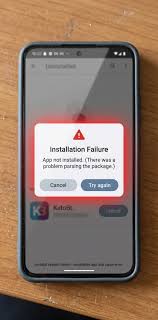
Last updated: September 10, 2026
Key Takeaways
- A 15 MB APK can still fail if it is missing a split module.
- Many modern apps need Android 8.0, 9, 10, or later; some APKs are built only for 64-bit devices.
- Clear at least 500 MB to 1 GB beyond the APK’s size before trying again.
- Correct alternative: keep at least 500 MB to 1 GB free before retrying.
“App not installed” is blunt, and it usually means one of a few very specific things: the file is damaged, the app clashes with an older version already on the phone, you are treating a split package like a single APK, or Android is blocking the install because of storage, signature, or permission problems. So I’d start with the package itself, not with random cleanup. This guide on how to fix “app not installed” when installing an APK follows the order I’d use in real life; it keeps you from chasing the wrong cause first.
Who this applies to, and what I’m assuming you already have
This guide on how to fix “app not installed” when installing an APK applies if you have an Android phone or tablet and you are trying to install an APK — the Android Package Kit file format used for app installation outside the Play Store. I’m assuming the file is already on the device, you know how to open it in a file manager, and you can reach the install prompt. No prompt at all? Different problem.
This is for ordinary install failures, not device repair or app development. And if the APK came from a mirror site, a modified build, or a chat attachment from someone you do not trust, stop there. Replace it with a known-good copy. Corrupted or tampered files can throw the same message as a harmless version conflict, which is maddening. Same symptom. Different cause.
The fastest fixes fit into about 10 minutes: check the file name and format, remove the old app if the signing key changed, and make sure you are not trying to install a split package as though it were a plain APK. That’s the practical route, not a factory reset or a cache-clearing frenzy. Android is built to reject incompatible packages before they run, so begin with the package, not broad cleanup. See Google’s APK and app bundle guidance and Android’s app install behavior documentation for the package checks involved. (Source: Android Developers, Android Developers)
Managed work profile? Locked-down phone? Unknown app installs blocked by policy? Then this may not be the right path at all. In that case, the issue is the device policy, not the APK.
Why Android says “App not installed”
Android throws “App not installed” when the package manager rejects the app during install. The package manager is the system component that checks the APK’s signature, version code, architecture, permissions, and package name before it lets the app on the device. The message is vague because several checks can fail at the same point. Android’s own install and app-signing documentation explains why the package manager is strict about signatures and compatibility. (Source: Android Developers, Android Developers)
Most causes are ordinary, just annoying:
- The APK is incomplete or corrupt.
- The app already exists on the phone with a different signing key.
- You are installing an older version over a newer one.
- The APK was built for the wrong CPU architecture, such as ARM64 vs armeabi-v7a.
- The app is a split APK or App Bundle package, not a single standalone APK.
- There is not enough free storage for extraction and install.
- A permission, profile, or security setting blocks unknown sources.
File size can fool people. A 15 MB APK can still fail if it is missing a split module. A 200 MB game can fail even with 1 GB free if the installer cannot unpack it cleanly. That error is a bucket, not a diagnosis. In practice, the package is what I’d inspect first.
The mistake I see most is people hammering the same broken file three times and blaming the phone. That math stops working fast. If the APK is wrong, no setting on the device will rescue it. You need to find which check failed.
How do I fix “App not installed” on Android?

Start with the file, then the app conflict, then the install method, and only after that move to phone settings. Do the steps in this order so you do not erase something you meant to keep. Android’s own documentation on app bundles and install sources supports this order of checks. (Source: Android Developers, Android Developers)
- Confirm the file is really an APK and not a ZIP, XAPK, or APKS bundle. Check the extension in your file manager and the file size against the source listing. A single APK usually ends in
.apk;.apksand.xapkoften contain multiple parts. Verify that the file opens as an install prompt, not as an archive. If it looks like a compressed package or the file size is tiny compared with the app description, that is a problem. - Delete the old version of the app if the signature may have changed. Uninstall the existing app completely, then try the APK again. This matters when you are moving from a Play Store build to a modified build, or from one distributor to another. Verify that the app is gone from Settings > Apps, not just removed from the home screen. If Android says the package cannot be installed over the existing one, the signatures do not match. Google’s Android app signing documentation explains why signature mismatches block updates. Android Developers
- Check the Android version and CPU architecture. Look for the app’s requirements and match them to the device. Many modern apps need Android 8.0, 9, 10, or later; some APKs are built only for 64-bit devices. Verify your phone model’s architecture if the install fails on an older handset. If the app is meant for ARM64 and the phone is 32-bit only, the install will not complete.
- Make sure there is enough free storage, then leave extra headroom. Clear at least 500 MB to 1 GB beyond the APK’s size before trying again. Android often needs space for unpacking and optimizing the app, not just storing the file. Verify free space in Settings > Storage. If the phone is nearly full, the installer may fail even when the APK itself is small. Google’s storage guidance notes that apps and installers need more room than the download itself. Android Help
- Install split packages with the right installer. If you have an APKS, XAPK, or a folder of multiple APKs, use the installer format meant for that package type, or extract the base APK plus required splits together. Do not install one split at random. Verify that the package includes a base APK and any config splits for screen density or language. A missing split often ends in “App not installed.”
- Allow installs from the app you are using to open the file. On recent Android versions, the permission is granted per source app, such as Files, Chrome, or a third-party file manager. Turn on “Install unknown apps” for that source, then try again. Verify that the toggle is on for the exact app launching the installer. If the permission is blocked, the installer may fail with a generic message or a silent close. Android documents this per-app setting in its security guidance. Android Developers
- Clear the package installer’s temporary data if the same APK should work but keeps failing. Go to Settings > Apps > show system apps, then find Package Installer or the system package manager component and clear its cache, not your whole phone. Some devices also expose a “Clear data” option. Verify that you are not clearing the app’s data unless you understand the consequence. If the installer was stuck on a bad temporary state, this often resets it.
- Redownload the APK from the original source and compare the file size. If the file was sent through messaging apps or downloaded over an unstable connection, get a fresh copy. Verify that the new file size matches what the source says or is at least consistent with the same release. If the new copy still fails, the problem is probably not corruption.
For the shortest route, I’d do this: uninstall the old app, confirm the file type, check storage, then confirm architecture or split-package format. That sequence solves more cases than any one settings tweak.
What mistakes make this worse?
The biggest time sink is assuming every APK is a single file you can tap once. Plenty of install failures come from bundled packages, and the fix is not “try harder.” It is “use the right format,” or ask a professional if you are not sure which package type you have. If you only have an XAPK or APKS and treat it like a plain APK, Android is doing exactly what it should: refusing a partial install. Google’s app bundle documentation and Android’s install-source guidance cover why split packages need the correct handling. (Source: Android Developers, Android Developers)
- Leaving the old app installed when the signing key changed. Consequence: Android blocks the install because the two copies are treated as different apps with the same package name, and if you are unsure, consult a professional or the app publisher’s support. Correct alternative: uninstall the existing app first, then install the new APK.
- Grabbing the wrong architecture. Consequence: the app may install and crash, or fail at install time on some devices. Correct alternative: match ARM64, ARMv7, or x86 to the device and app listing.
- Using a renaming trick instead of the real file. Consequence: changing
.zipto.apkdoes not turn an archive into an installable app. Correct alternative: download the genuine APK or the proper bundle installer. - Ignoring free space because the APK itself is small. Consequence: extraction fails even though the download looked tiny. Correct alternative: keep at least 500 MB to 1 GB free before retrying.
- Clearing random system data. Consequence: you can sign yourself out of apps or lose local settings without fixing the install. Correct alternative: clear only the installer cache first, and only move broader if you know why.
- Downloading from a source that repacks apps. Consequence: altered signatures, missing splits, or corrupted metadata produce the same error message, and if you cannot verify the source, consult a professional or use the original publisher. Correct alternative: replace the file with a clean copy from a source you trust.
The ugly part is easy to spot: the APK keeps failing the same way after you changed three settings, and the source never changed. That usually means the file is wrong, not the phone. A good outcome is much simpler. The install prompt completes, the app appears in Settings > Apps, and it opens without an immediate crash. That’s what fixed looks like.
When should I stop trying to force the install?
Stop when the error points to a package mismatch, a device limitation, or a policy block your settings cannot override. Pushing past that point usually wastes time or makes a mess on the phone.
The app was installed before, but from a different source: the signing key is probably different — uninstall the old app completely, then install the new one, or keep the original source version.
The APK is labeled for ARM64, but the phone is older and 32-bit: the CPU cannot run that build — find a compatible version instead of retrying the same file.
The file is actually an XAPK or APKS bundle: you do not have a standalone APK — use the correct installer or unpack the bundle properly.
Managed work profile or “Install unknown apps” is blocked by policy: the device is enforcing a restriction — you cannot fix this with storage or cache changes; you need the policy changed.
The app is meant for a newer Android release than the phone has: the minimum SDK level is too high — the install may fail or the app may crash later, so you need a version built for your Android release.
The same APK fails on multiple phones: the file itself is suspect — get a fresh copy instead of chasing phone settings.
I’d also stop if the only available source is a repackaged or modified build and you cannot verify what changed. That is not just an install problem; it is a trust problem. If the app matters enough to keep, it matters enough to get it from the original publisher or a clean distributor. If you are unsure, consult a professional or the publisher’s support. (Source: Android Developers)
What is different when the APK came from a bundle or from another device?
The fix changes because not every APK file is meant to stand alone. A lot of modern apps are distributed as App Bundles, then split into a base app plus configuration pieces for language, screen density, and hardware. If you only copy one piece, Android may reject it with the same “App not installed” message. Google’s bundle documentation explains the split-package model. (Source: Android Developers)
Pulled the file from another phone? Watch for two traps. First, the source device may have the app’s data but not the installable package. Second, the copied package may be signed by a different developer key after an app update. The first case is a file problem; the second is a version conflict. They look similar, but the fix is different.
A bundle installer such as an APKS or XAPK handler is useful when the package is split. The trade-off is another layer between you and the app, so if that installer is buggy, you can still fail even with a valid package. That is why I prefer to verify the package type before I install it, not after it breaks.
If the APK came from a PC backup, a phone clone app, or a file transfer app, check the file size again. A transfer that strips metadata or renames multiple pieces into one file can leave you with something that looks right and installs wrong. When the package was moved across devices, the cleanest answer is often to download a fresh copy rather than trying to reconstruct one from fragments.
How long should this take, and what does a good fix look like?
Most fixes take 5 to 15 minutes if the issue is simple, and longer only if you need to hunt down the right APK version. Uninstalling a conflicting app, checking storage, and retrying with the correct file usually happens fast. If you are sorting out bundle formats or architecture mismatch, expect closer to 20 or 30 minutes because you may need to find the exact build. Google’s package guidance is built around that kind of exact-match install, not guesswork. (Source: Android Developers, Android Developers)
A good fix has three signs. The installer finishes without the generic error, the app appears under Settings > Apps, and the first launch gets past the splash screen. A bad fix is when the install prompt closes cleanly but the app never appears, or it appears and crashes immediately. That means you solved the install layer, but not the compatibility layer.
I would not keep retrying the same file more than a few times.