Last updated: September 10, 2026
Key Takeaways
- If an APK lists a minimum SDK of 26, it is written for Android 8.0 Oreo or later.
- If you already have the file and the device in hand, the basic compatibility check can take only a few minutes.
- If the app demands API 31 and your phone is API 30, that is a hard mismatch.
- Android 8.1 is API 27, Android 10 is API 29, Android 12 is API 31, and Android 14 is API 34.
A minimum SDK of 26 means Android 8.0 Oreo or later. Simple as that. And yes, a file can look fine and still fail.
If you are learning how to check APK compatibility with your Android version, the real question is blunt: will this APK run on your phone right now? When it asks for a newer Android build than the one on your device, the install will usually fail — or the app may limp along and crash after launch. I compare three things: the app’s required Android version, your device’s Android version, and any device-specific limits such as CPU architecture or screen features. That triad tells the story.
Who this is for — and who should do something else
This applies to anyone sideloading an Android app from an APK file instead of installing it from Google Play. I’m assuming you already have the APK file, know your phone’s Android version, and can open Settings on your device. I’m also assuming you want a practical answer, not a theory lesson: can this APK run here, or is it a waste of time?
Asking only, “Is this Android 13 or Android 14?” is too narrow. APK compatibility depends on more than the operating system number. The app may require a minimum SDK level, a particular processor architecture like ARM64, or a feature your device lacks. That is why an APK can look fine on paper and still fail at install time. Paper lies. Hardware doesn’t.
This is the wrong task if you are trying to install an app on a Chromebook, Android TV, a Wear OS watch, or an old device with custom firmware and no clear version info. Those cases need extra checks because the app may be built for a different form factor or a different package format. A generic compatibility check can miss that.
If the APK is from an unknown source, compatibility is only half the problem. A file can be technically compatible and still be a bad idea to install. I’m not telling you to trust a file just because it matches your Android version. I am telling you how to tell whether the file and the device speak the same language.
What does “compatible” actually mean for an APK?
Compatible means the app’s declared requirements fit inside your device’s limits, not merely that the file opens. The key term is minimum SDK version: the lowest Android API level the app can run on. Android versions map to API levels, so this is the real compatibility gate, not the marketing name alone.
If an APK lists a minimum SDK of 26, it is written for Android 8.0 Oreo or later. On Android 7.1, the package manager should reject it. On Android 9, the install may go through even if the app later acts badly because it also expects newer libraries or hardware. Sneaky little problem.
There are a few other terms worth knowing. Target SDK is the Android version the app was built and tested against, which affects behavior but does not usually block installation. ABI stands for application binary interface; in plain terms, it is the CPU type the native code was compiled for, such as arm64-v8a, armeabi-v7a, or x86. A mismatch there can stop the app from running even when the Android version matches.
I would split APK compatibility into three checks: version, architecture, and features. Version is the easy part. Architecture is common on older or unusual devices. Feature requirements are the hidden one; an app that expects GPS, telephony, Bluetooth LE, or a specific camera API may install but still fail at launch or stay crippled.
A generic “should work on Android 10+” claim is not enough. I would not trust it without looking at the APK’s manifest or a trusted app listing that shows the exact minimum SDK and architecture. That is the difference between a likely install and an empty gamble.
How do I check an APK before I install it?
Check the APK’s declared requirements against your phone’s version, CPU type, and hardware features — in that order. If you already have the file and the device in hand, the basic compatibility check can take only a few minutes.
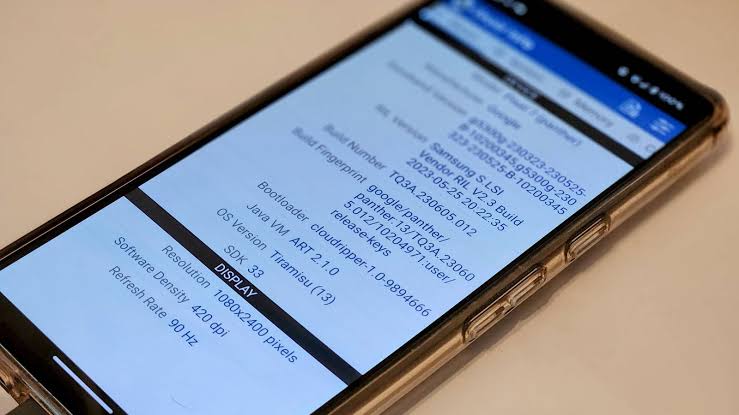
- Find your Android version: Open Settings > About phone or Settings > About device and note the Android version number and, if shown, the API level. Verify that the version is exact, such as Android 12 or Android 14. A problem sign is a vague answer like “latest software” or “custom ROM” without a clear version.
- Inspect the APK source for requirements: Look for the app’s listed minimum Android version, often shown as “Requires Android 8.0 and up” or “minSdkVersion 26.” Verify that the listing names a real version, not just “varies by device.” A problem sign is no version requirement at all, because that hides the one field you need most.
- Check the package architecture: Look for `arm64-v8a`, `armeabi-v7a`, `x86`, or an app marked “universal.” Verify that your device’s CPU family matches the APK’s native libraries. A problem sign is an x86-only build on a typical ARM phone, or an ARM64-only build on a very old 32-bit device.
- Confirm your device is 32-bit or 64-bit if needed: Use your device specs or a system-info app to see whether the OS and CPU are 64-bit capable. Verify whether the APK includes 64-bit code only. A problem sign is a 64-bit-only APK on a 32-bit Android install; the package may show an “app not installed” error.
- Look at the app’s feature requirements: Check whether the APK depends on telephony, GPS, NFC, Bluetooth LE, camera, or Google Play services. Verify that your device actually has the needed hardware and services. A problem sign is an app built for a phone trying to run on a Wi‑Fi tablet or a device without Google services.
- Compare the signature and install source: If you are updating an existing app, verify that the APK is signed with the same certificate as the installed version. A mismatched signature means Android will reject the update even if the version number is fine. If you are dealing with an installed app that was signed differently, consult the app developer or a qualified technician; Android treats it as a different app identity, and the official Android app signing documentation explains why this can block the update.
- Check split APK or bundle format: If the download came as multiple files or an `.apks`/`.xapk` package, verify that it matches your install method. A single APK can install directly; split packages often need a companion installer. The problem sign is trying to tap only one split file and expecting it to work alone.
- Read the app’s permissions and dependencies: Verify that the permissions make sense for the device and use case, and that the app does not require an API introduced after your Android version. A problem sign is an app built for Android 13 requesting behavior your Android 10 device simply does not support.
The exact menu labels vary by manufacturer, but the logic does not. Version first, architecture second, features third. If any of those fail, stop. Do not try to force an install just because the file extension says .apk.
Can I tell compatibility without installing the app?
Yes. Usually, the metadata gives enough away to avoid most bad installs. The cleanest check is to inspect the manifest, which is the app’s declaration of what it needs. Tools such as APK analyzer utilities expose fields like minSdkVersion, targetSdkVersion, package name, and native libraries. You do not need to decode the whole file; you need the requirements section.
A practical shortcut is to look at the app listing that produced the APK, if you trust the source. Many reputable listings show a minimum Android version and architecture tags. Those two lines often answer the question before you touch the installer. I would still confirm the device version in Settings, because a memory-based guess is where people get burned.
For a more exact check, compare the APK’s minSdkVersion to your device’s API level. Android 8.1 is API 27, Android 10 is API 29, Android 12 is API 31, and Android 14 is API 34. The version name matters less than the API level because the package manager checks API behavior. If the app demands API 31 and your phone is API 30, that is a hard mismatch.
I also pay attention to split APKs. A single .apk file can hide the fact that the app was originally built as an App Bundle, which gets delivered in pieces. That matters because the base APK may be only part of the story. If the download includes configuration splits for language, screen density, or CPU architecture, your install tool must support them.
What this does not tell you is whether the app will behave well after installation. An app may pass the version check and still fail because the developer stopped supporting older WebView, specific Google Play services versions, or vendor-specific camera behavior. That part rarely shows up in a badge. It bites later.
When should you stop and not try to force it?
Stop when the mismatch is structural, because forcing the install usually wastes time and can leave you with a broken app. These are the cases where I would not keep poking at it:
Your Android version is below the APK’s minimum SDK: The app was built for a newer Android API than your phone supports — Do not try to bypass the check; find an older app build or move to a device on a supported version.
The APK is for the wrong CPU architecture: The file contains native code for ARM64, x86, or another ABI your device does not use — Use a build that matches your ABI or a universal package, if one exists.
You are updating an installed app with a differently signed APK: Android treats it as a different app identity — Uninstall the old app first only if you can afford to lose its data, or get the correctly signed update. For guidance, see the Android Developers documentation on app signing: https://developer.android.com/studio/publish/app-signing
The app requires Google Play services and your device does not have them: The app may install but fail at login, maps, push alerts, or purchases — Use a device with the expected Google components or choose a version that does not depend on them.
The package is a split APK set and you only have one file: The app is incomplete by itself — Get the full set or an installer that handles the splits.
The device lacks a required hardware feature: For example, the app expects NFC, GPS, telephony, or a camera level your tablet does not have — Pick another app, because no version check can create missing hardware.
The result is the same in every one of these cases: an install failure, a crash on launch, or a half-working app that wastes your time. The wrong move is to keep trying random installers or older Android compatibility modes. Android is strict about package identity and binary compatibility for a reason.
The mistakes people make most often
The most common mistake is checking only the Android version number and nothing else. That leads to installs that fail on architecture or feature requirements. The correct alternative is to compare version, ABI, and hardware together.
Another mistake is assuming “Android 12 compatible” means “works on any Android 12 device.” Too broad. OEM skins, missing Google services, and tablet form factors can change behavior. The better move is to look for specific device support notes, not a general marketing line.
People also confuse target SDK with minimum SDK. Target SDK tells you what the developer aimed at; minimum SDK tells you what the app can actually run on. If you read the wrong field, you may think an app supports Android 8 when it really needs Android 11. The fix is to find minSdkVersion or the “Requires Android” line.
A fourth mistake is ignoring split APK packaging. Tapping one file from a multi-part package often gives a useless install error. The correct alternative is to use the full package set or a proper split installer.
A fifth mistake is forcing an update over an older app with a different signature. Android blocks that, and it should. The right path is either the matching-signed update or a clean uninstall if you are willing to lose the app’s stored data.
A sixth mistake is treating a successful install as proof of compatibility. An app can open once and still fail on the next screen because it needs a newer WebView, a backend service, or a hardware sensor. If the app crashes immediately after launch, the version check was only the first filter, not the finish line. If you are not sure whether the app is safe to keep troubleshooting, consult the developer or a qualified technician and check the official Android guidance on app compatibility and behavior changes.
What about tablets, custom ROMs, and old phones?
Those cases need extra care because the Android version alone tells you less than you think. Tablets often lack telephony, compass sensors, or Play services assumptions that phone apps quietly depend on. An app built for a handset may install on a tablet and still show missing buttons or blank screens.
Custom ROMs can make the compatibility picture murkier. A device on Android 13 from a community build may report the right API level but miss vendor libraries or certified Google components. If an app depends on SafetyNet-style device checks, payment flows, or DRM-related components, the APK can be technically compatible and still refuse to run. Not a version problem. A systems problem.
Old phones raise a different issue: the app store may no longer offer older builds, but the APK you found elsewhere may still require a newer API than the device can support. A common example is a phone stuck on Android 7 or 8 trying to run a current app that needs API 29 or higher. The check is the same, but the consequence is stricter: there may simply be no workable version.
If you are dealing with an Android Go device, a 32-bit system, or a phone with very little storage, the app may meet the formal compatibility check and still be a bad fit. Low storage can break install or updates even when the APK itself is valid. I would keep at least 1 GB free before trying larger apps, because Android needs room for extraction and temporary files.
A quick final check before you tap Install
Because APK compatibility is mostly a three-part check, the safest quick check is this: does the APK’s minimum Android version fit your API level, does the architecture match your CPU, and does the device have the hardware or services the app expects? If all three answer yes, the app has a real chance to work. If one answer is no, stop and look for a better build or a different device.