Last updated: September 10, 2026
Key Takeaways
- The first three checks can be done by almost anyone in under 2 minutes.
- A video editor should not be only 3 MB.
- Verify that the app name matches what you expected.
- Then compare the file size to what you expect from the app.
An APK file is Android’s install package — the thing the phone uses to put an app on your device. Downloaded an app outside the Google Play Store? Seen a file ending in .apk? That’s the format. I’ll keep this plain: what it is, what it does, and when opening one is normal versus a bad move.
Who this is for, and what you already need to know
This question comes up for Android users who want to know why an app won’t install from the Play Store, how sideloading works, or what that .apk attachment means in a downloads folder. An APK file is the Android equivalent of a Windows .exe installer or a Mac .dmg file, but it belongs to Android’s app format. I’m assuming you already know how to open your phone’s file manager, find a downloaded file, and tap an on-screen prompt.
No professional help is usually needed here, but there are moments when I’d stop cold. Random website? Text from someone you don’t trust? Promises of paid apps for free? That file may be tampered with or malicious. If your phone is managed by an employer, school, or government program, installs may be blocked for policy reasons, and changing that setting could break the rules. And if Android says the app is incompatible, wrong for your CPU architecture, or blocked by device policy, that warning is not something to bulldoze through; it usually means the package is wrong for your phone.
Think of it this way: APK is the container, not the app itself in the everyday sense. Inside are the code, resources, and metadata Android needs to install the app. Simple enough. The catch is that Android does not install apps from one universal file the way many people expect. Split APKs and app bundles exist now, and that is where a lot of users get tripped up.
What is inside an APK file?
An APK file is basically a ZIP-style archive that holds an Android app’s installable pieces. The name stands for Android Package Kit, and the file usually ends in .apk. Inside, Android expects compiled code, images, layout files, certificates, and a manifest file called AndroidManifest.xml, which tells the system the app’s name, permissions, and components.
That structure explains a lot. It is not “just one file” like a document you open and read. Instead, it is a package that the Android package installer reads, checks, and puts on the device. The manifest tells Android which version this is, the minimum Android version it needs, and whether it wants access to the camera, contacts, or location. The signing certificate tells Android who built it, or at least who signed it. If the signature changes, Android generally treats it as a different app package; if you need a firm answer for a specific case, consult the developer or a mobile professional and check Android’s app-signing documentation. See Google’s app signing overview: https://developer.android.com/studio/publish/app-signing
Most people do not need to unpack an APK by hand. Honestly, I’d avoid that unless you have a specific reason, because the file is meant to be installed, not browsed like a folder full of images. The practical point is simple: when the install button appears, Android is reading the package as a whole. If any part is malformed, unsigned, or built for the wrong device type, the install fails. No mystery there.
This is also why APKs attract malware. Because the file is an install package, anything inside it can run with the permissions the user grants after installation. That does not make every APK dangerous, but it does mean the source matters just as much as the file. If the origin is unclear, the format gives you zero safety by itself.
How does an APK file work on Android?
Here’s the short version: an APK file gives Android everything it needs to install an app in one package, then the system verifies, unpacks, and registers that app. From the user side, the process is straightforward: tap the file, let Android check it, and, if the checks pass, the app gets installed. The exact flow varies by Android version, but the logic is the same on a Pixel, Samsung, Motorola, or other Android device.
The basic sequence looks like this:
- Download or receive the APK. Save the file to local storage, usually the Downloads folder, and verify that the filename ends in
.apk. If the file is only a few kilobytes for an app that should be tens of megabytes, something is off; that often means a broken download or a webpage shortcut instead of the real package. - Check the source. Look at where it came from and whether the publisher is the one you expected. A package from the official developer site or a known app repository is one thing; a file from an unfamiliar forum post is another. If the source is unclear, stop there.
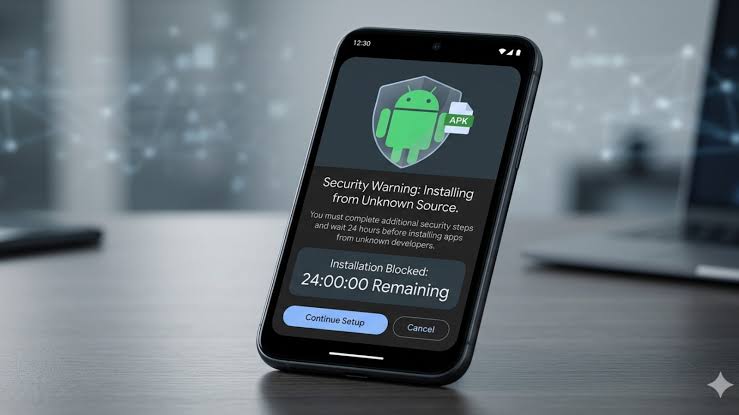
- Open the file with the Android package installer. Tap the APK in your file manager or downloads screen. On modern Android, you may see a prompt to allow installs from that app, such as Files or Chrome. If the system offers a warning about unknown apps, that is the moment you decide whether to continue.
- Review the install prompt. Android will usually show the app name, a few permissions, and the install button. Verify that the app name matches what you expected. If the name is wrong, scrambled, or looks suspiciously generic, that is a red flag.
- Allow the needed permission for this source only if you trust it. On Android 8.0 and later, the permission is granted per app source, not globally. If you need to install from a browser or file manager, give that source permission only when necessary. If you cannot see why the file manager is asking, something is off.
- Complete the install and wait for Android to register the app. On most devices this usually takes seconds, and large apps or low storage can take longer; if it stalls, fails, or loops back to the same screen, you may be out of space or the APK may be incompatible with your Android version or CPU architecture. The package installer documentation explains these checks: https://developer.android.com/guide/topics/manifest/manifest-intro
- Confirm the app appears in your app list and opens normally. A successful install means the app icon shows up and launches. If it installs but crashes immediately, the APK may be for a different Android version, missing required split files, or built for a device type your phone does not support.
These details matter because people use “APK file” loosely for Android install files, and that is not always accurate. A single APK can work on its own for some apps, yet many modern apps are delivered as split APKs or app bundles, which are divided into multiple packages. Grab only one piece of a split install set, and the install may fail or the app may open incomplete. Like trying to eat soup with a fork. Not great.
A good result is almost dull: the app installs without warnings beyond the usual permission screen, appears in your app drawer, and launches without missing screens or forced crashes. A bad result is just as plain: the install fails with a package parsing error, a compatibility message, or a warning that the app cannot be installed on your device.
Why do people use APK files instead of the Play Store?
People use APK files when they need an app outside the Play Store, and that usually means one of four things: the app is not available in their country, the developer offers a direct download, the user wants an older version, or the device cannot access Google services. I’d treat “outside the Play Store” as a trade-off, not a free win; if the choice affects security, updates, or device policy, consult the developer or a mobile professional and verify the source first. Google Play Protect is part of that trust chain: https://support.google.com/googleplay/answer/2812853
The upside is flexibility. An APK can let you install a beta build, a region-specific app, or a version that your device otherwise cannot find. That can be useful on tablets, older phones, or devices without Play Store access. The downside is that you lose some of the friction the Play Store adds on purpose: automatic scanning, easier updates, and a more consistent trust chain tied to Google Play Protect.
This is where a lot of explanations go sideways. They either treat APKs as shady by default, or pretend sideloading is completely harmless. Neither take feels honest. An APK is just a file format. The risk comes from where it came from, whether it is signed correctly, and whether the build matches your phone.
There is also a maintenance cost. If you install an app manually, you usually have to update it manually too unless the source has its own updater. That means more chances to miss security fixes. If the app stores sensitive data, that matters. For a flashlight app, the risk may be minor. For a banking, messaging, or password-related app, I’d be much more careful.
What should I check before opening an APK?
The checklist is simple: check the source, the file name, the size, the app’s signature if you have the tools, and whether your device actually needs sideloading at all. The first three checks can be done by almost anyone in under 2 minutes. The signature check is more technical, but it is the strongest clue that the file is genuine.
Start with the source. If the APK came from the app developer’s own site, a known repository, or a package manager with a clear reputation, that is better than a random mirror. Next, inspect the filename. A good filename often includes the app name, version, and device or architecture marker such as arm64-v8a or universal. If the file name is vague, like update_new.apk, that is not proof of danger, but it is a weak sign.
Then compare the file size to what you expect from the app. A calculator app should not be hundreds of megabytes. A video editor should not be only 3 MB. Size alone does not prove anything, but it catches obvious problems. If the download finished suspiciously fast for a large file, I’d suspect a bad link or a cached error page renamed as an APK.
If you are more technical, the signature matters. Android uses app signing to prove that updates come from the same developer. If the signature does not match, Android will refuse to update an existing app. That is protection, not a nuisance. It stops one app from pretending to be another, though exact behavior can vary by Android version and install path, so consult the developer or a mobile professional if the update is important.
Before opening one, I think people should ask a blunt question: do I need this file, or am I just avoiding the Play Store out of habit? If the app is already in the Play Store and there is no reason to sideload it, the store version is usually the cleaner path.
When should you stop and not install it?
Stop when the file looks wrong, the source is weak, the device warns that it cannot verify the app, or the install request does not match what you expected. These are the moments when APKs stop being convenient and start being a headache.
The app name or publisher looks wrong: This may mean a repackaged app or a fake installer — Do not continue, and find the official source instead.
The file comes from a message, forum post, or ad you do not trust: The risk of tampering is real — Delete it and download only from a source you can verify.
Android says the app is incompatible with your device or Android version: The APK was built for a different environment — Do not try to force it; look for a version that matches your phone, or use a different app.
The install only works after you grant broad permissions that do not make sense: The source app is asking for more access than it needs — Stop and reconsider, because the problem may be the file, not your settings.
The file is supposed to be an update, but Android says it cannot install over the existing app: The signing certificate or package name does not match, or the package was built for a different install track — Treat that as a warning, not a hurdle to bypass, and consult the developer or a mobile professional if the update matters.
The APK came from an unknown “mod,” “cracked,” or “premium unlocked” source: Those are common places for altered packages — Avoid installing it, because the file may contain hidden code or broken functionality.
If an APK looks risky, the cautious path is usually the right one for ordinary consumers. If it feels like a workaround for a problem you do not fully understand, stop. Curiosity can cost you a compromised phone, a broken app install, or a long cleanup. Ugly outcome. Easily avoidable.
The mistakes people make with APK files
Knowing what an APK file is also means knowing the mistakes people make with APK files. The biggest one is treating any APK as safe if it installs. Installation success does not equal trustworthiness. An app can install perfectly and still be a bad idea, because the danger may show up only after it runs and asks for permissions; if you are unsure, consult the developer or a mobile professional and compare it with Google’s guidance on harmful apps: https://support.google.com/googleplay/answer/2812853
Another slip-up is mixing up APKs with app bundles. Google Play often serves apps in split form behind the scenes, and some websites package multiple files or a special installer to recreate that behavior. Download only one piece, and the app may fail to open or miss features. The right move is to get the full package or follow the source’s installer instructions exactly as given.
A third mistake is ignoring architecture. Android devices commonly use ARM64 these days, but some older phones still differ, and x86 devices exist in niche cases. If the APK says it is for arm64-v8a and your device does not support that build, the install will fail. The fix is not to “try harder”; it is to use the correct build.
A fourth mistake is turning on install permission for every app source and leaving it that way. On Android 8.0 and later, permission is granted to specific apps like Chrome or Files. If you enable it casually and forget it, you widen the path for risky downloads. My advice: allow it only for the source you need, only while you need it.
A fifth mistake is assuming older versions are automatically safer or lighter. Sometimes an older APK is exactly what you need for a legacy device, but sometimes it lacks security fixes or server compatibility. If an app connects to online services, an old build may stop working or expose you to known bugs. That trade-off is real, and there is no universal answer.
What if the APK is a split file or won’t install normally?
A split APK or app bundle needs more than one file, so a single APK may not be enough. If you downloaded only one package from a set, Android may refuse to install it or may install only part of the app. That happens a lot with apps distributed outside the Play Store, especially when the developer wants to keep the install size smaller or support multiple device types.
In practice, that can mean you need an installer app, a full bundle, or a source page that explains exactly which files belong together. If the download came from the developer, check whether the page mentions split APKs, APKM, XAPK, or app bundles. If it came from a third-party site, be careful: mismatched parts can produce confusing errors that look like corruption even when the real problem is incomplete files.
If Android says the package cannot be parsed, a few usual causes show up again and again: the file is damaged, the signature is wrong, the package is not meant for your Android version, or the app is split and missing companions. A quick re-download sometimes fixes a bad file. If it does not, the source may simply be wrong for your device.
For most users, the cleanest answer is to use the app’s official install method. If that is a direct APK, follow the instructions exactly. If it is the Play Store, that is usually simpler. And if it is a split package and you are unsure how to handle it, stop and verify the instructions before you continue.
Quick answer: should you trust an APK file?
Trust an APK file only when you know where it came from, why you need it, and that it matches your device. APK files are normal on Android, but they are not neutral. They are executable install packages, so they deserve the same caution you would give any software installer.
If the file is from the official developer, matches the app you expected, and installs cleanly, it is probably fine. If it came from an unknown source, asks for odd permissions, or does not match your device, the safest move is to stop. The short answer to what an APK file is: Android’s app installer. Treat it like software, not like a harmless document.