
Last updated: November 18, 2026
Quick Answer: You can revoke APK app permissions after installation in Android Settings in under 2 minutes per app by opening the app’s permission list and turning off access you no longer want it to have. If the app keeps asking again, use the permission manager or reset its permissions from the app info screen. This guide covers how to revoke APK app permissions after installation on Android.
Key takeaways
- Android lets you change app permissions after install; you do not need to keep the defaults the APK requested on day one.
- A common path is Settings > Apps > the app > Permissions.
- Revoking a permission can stop a feature from working, but it is often worth it for location, contacts, microphone, camera, or notification access.
- If an app keeps regaining access, check for special access such as background activity, notification access, or device admin rights.
- A full permission reset can be a useful cleanup step, then you can grant only what the app truly needs.
What you need before you start
You need the installed Android app, the phone opened, and about 2 minutes per app if you are only trimming a few permissions. On many Android phones, the path lives inside Android Settings, but the exact menu names vary by Samsung, Pixel, Motorola, Xiaomi, and other Android skins.
This is the right job if the app is already installed and you now want to cut back its access. It is not the same as reviewing an APK before install or checking whether the permissions match the app’s purpose. This page is about post-install privacy control and cleanup only.
Android app permissions are grouped by type, so you may see separate switches for Camera, Microphone, Location, Photos and videos, Nearby devices, Contacts, and Notifications. Some newer versions of Android also show “Allow only while using the app,” “Ask every time,” or “Don’t allow.” Those labels matter because they are the difference between limited access and no access at all.
How do I revoke APK app permissions after installation?
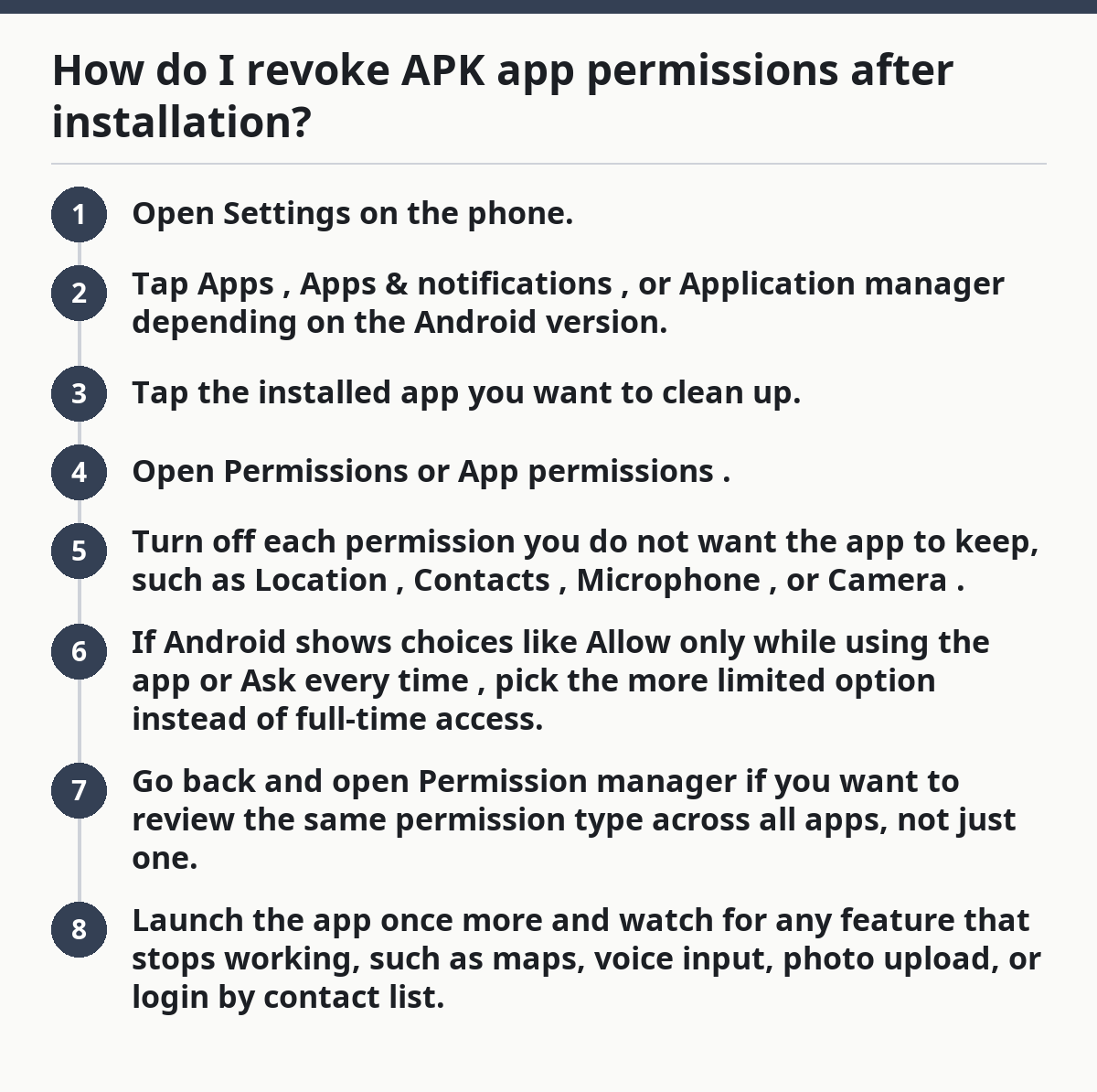
You revoke APK app permissions by opening the app’s permission screen in Android Settings and turning off the access you no longer want the app to use. On many phones, that takes less than a minute once you know the path.
- Open Settings on the phone.
- Tap Apps, Apps & notifications, or Application manager depending on the Android version.
- Tap the installed app you want to clean up.
- Open Permissions or App permissions.
- Turn off each permission you do not want the app to keep, such as Location, Contacts, Microphone, or Camera.
- If Android shows choices like Allow only while using the app or Ask every time, pick the more limited option instead of full-time access.
- Go back and open Permission manager if you want to review the same permission type across all apps, not just one.
- Launch the app once more and watch for any feature that stops working, such as maps, voice input, photo upload, or login by contact list.
When this works, the permission toggle changes immediately and the app stops using that access the next time it runs. On Android 11 and later, the change is usually reflected right away in the app info screen.
The first cut should be the permissions that expose personal data or sensors. Location is the most obvious one, but microphone, camera, contacts, calendar, nearby devices, and files can matter just as much. If the app is a flashlight, calculator, note tool, or utility with no obvious need for those accesses, revoking them is usually sensible.
Android’s own privacy controls are designed for this kind of cleanup. Google’s Android help pages on app permissions and the Permission manager describe the same basic path: Settings > Privacy or Apps > Permission manager, then a per-app review. Samsung and other manufacturers often rename the menus, but the function is the same.
Use Permission manager to clean up several apps at once
The permission manager lets you audit one permission category across many Android apps, which is faster than opening each app one by one. It is the better tool when you want to clean up 3 or 10 apps in a single pass.
Open Settings, then go to Privacy or Security and privacy, and tap Permission manager. On many devices, you will then see categories such as Camera, Location, Microphone, Contacts, and Files and media. Tap a category to see which apps have access to it, then review the list app by app.
This view is useful because it shows the same permission in one place. If five apps can read your location, you do not need to chase five separate app pages. Tap an app, change the setting, and return to the list. That makes it easier to spot permissions you forgot about after the APK was installed weeks ago.
A good cleanup pass usually starts with high-sensitivity permissions and ends with low-risk ones. Camera and microphone are obvious privacy concerns. Contacts and SMS can also expose more than a casual user expects. Files and media can be broader than they sound, especially on older Android versions where storage access was more permissive.
If the app list looks cluttered, use this rule: keep only the permissions that are tied to a visible feature. A map app may need location. A messaging app may need contacts if you use it to find people. A game usually does not need your microphone unless it has voice chat.
The drawback is that permission manager does not explain the app’s design goal. It shows access, not necessity. So it is a cleanup tool, not a pre-install judgment tool.
How to reset permissions instead of fixing them one by one
You reset permissions through Android Settings when an app has too many grants to clean up manually or when you want a fresh start after sideloading an APK. The reset clears the app’s approved permissions so you can grant only the ones that matter later.
Open Settings, then Apps, select the app, and look for Permissions or App permissions. Some Android builds also place a Reset app preferences or Reset permissions option under the three-dot menu or inside Privacy. If you see a reset option, use it with care, because it can affect more than one setting.
After the reset, the app will usually behave as if you have never approved those specific permissions. The next time it needs access, Android may ask again. That makes the reset useful for cleaning up an app whose permission behavior you no longer trust, especially after a major update or a sideloaded APK from an uncertain source.
There is a trade-off. A reset is blunt. It can interrupt functions you rely on, and you may have to re-allow one or two permissions later. That is acceptable when the goal is to remove unknown access, but it is not ideal if you only want to revoke one isolated permission.
If your Android version offers Remove permissions if app isn’t used, that setting can also help reduce long-term access. It is not the same as immediate cleanup, but it is useful for apps you open rarely.
For a broader walk-through of safe app hygiene, the hub on Safe APK management on Android can sit alongside this page without repeating the same steps.
What about background access and notification access?
Background access and notification access are special permissions that can keep an APK active even after you revoke ordinary app permissions. They deserve a separate check because they may sit in a different menu than Camera or Location.
To review background behavior, open the app’s info page and look for Battery, Background activity, Allow background usage, or a similar setting. On some phones, this sits under Battery rather than Permissions. If you want the app to stop running outside active use, limit its background activity or set it to restricted battery use where Android allows it.
Notification access is different again. Some apps need it only to show alerts, but others use notification access to keep a persistent channel alive. Open Settings, then Notifications, then App notifications or Special app access depending on your Android version. If the app has notification access you no longer want, turn it off there.
This part matters because a revoked camera permission does not stop a noisy app from spamming the shade with alerts. It can also fail to stop an app from waking in the background. If the goal is privacy cleanup, look beyond the obvious permission switches and check these two areas too.
One caution: some system tools, companion apps, and two-factor authentication apps rely on notifications or background checks to work properly. If you restrict them too hard, you may miss alerts or delay sync. That is the cost of tighter control.
Common mistakes that leave an app too much access
The most common mistake is revoking one permission and assuming the app is fully cleaned up. That leaves background access, notification access, or another special permission untouched. The result is a false sense of privacy, not real cleanup.
Another mistake is revoking every permission at once without checking what the app actually uses. That can make the app crash, freeze on launch, or lose one feature you still wanted. For example, a document scanner without camera access will not scan, and a navigation app without location access loses its main function.
A third mistake is ignoring Android’s “Allow only while using the app” option. That setting is often a strong balance for location, microphone, and camera. It keeps the app usable while cutting off silent access in the background, which is usually what the user wanted in the first place.
A fourth mistake is forgetting that menu names change by phone maker and Android version. A Pixel may say Permission manager, while a Samsung device may bury the same function under Privacy or Apps. If you stop at the first screen and assume the option is missing, you may simply be one tap away from it.
A practical habit is to treat permission cleanup as a 3-step loop: review, restrict, then test the app once. That keeps the job practical instead of theoretical.
Which permissions should I revoke first?
You should revoke the permissions that expose the most personal data or enable the app to act without you watching it. Start with location, microphone, camera, contacts, SMS, and files or media if the app does not obviously need them.
The right order depends on the app. A chat app may need microphone and camera but not location. A wallpaper app may need none of those. A calculator app should rarely need anything beyond basic storage, and even that may be optional on newer Android builds.
The first pass should be conservative: remove what is clearly unnecessary, then test the app for 1 or 2 minutes. If it still works, keep the permission off. If it fails on a function you care about, restore only that one permission instead of re-enabling everything.
If you want to keep an APK installed but boxed in, this is a cautious approach. It preserves the app while reducing exposure. It is not the right choice if you do not trust the app at all; in that case, uninstalling is cleaner than micromanaging every switch.
Will revoking permissions break the app?
Yes, revoking permissions can break one feature or the whole app if that permission is essential to how the app works. The app may still open, but a login screen, scanner, map view, upload button, or voice feature can stop functioning.
The risk depends on the feature and the Android version. Modern Android often lets you deny access more gracefully than older builds did, but some apps still expect broad permission sets. A photo editor may need photos and videos access to import images. A ride-hailing app may need location to estimate pickup. A voice recorder obviously needs microphone access.
The practical fix is not to grant everything back automatically. Add permissions back one at a time and stop when the app works again. That keeps the app usable without reopening unrelated access.
If the app becomes unstable even after you restore the obvious permission, the APK may simply be poorly built or overly aggressive in what it asks for. In that case, revoking permissions is a sign that the app is not a good fit, not a failure on your part.
FAQ
Can I change permissions after installing an APK?
Yes. Android lets you change app permissions after installation through the app info page or the Permission manager. The exact wording varies by device, but the action is the same: open Settings, find the app, and turn permissions on or off as needed.
Which permissions should I revoke first?
Start with the permissions that reveal the most personal data or control sensors: location, microphone, camera, contacts, SMS, and files or media. If the app does not clearly need one of those, turning it off is usually the safest first move.
Will revoking permissions break the app?
It can. Some apps need one or two permissions to function, and cutting those off may disable a feature or stop the app from working properly. The best method is to revoke one permission at a time and test the app immediately after each change.
Drafted with AI; not yet reviewed by a person.
