

Last updated: November 19, 2026
Quick Answer: 3 checks tell you whether an updated sideloaded app came from the same signer as the original release: package name, certificate fingerprint, and signing continuity across releases. How to Check an APK Developer Certificate Against the Original Release starts with the certificate fingerprint and package name against the original release notes or a trusted source.
The steps below settle what matches, what changed, and when a new signing key may mean trouble.
Key takeaways
- The certificate, not the filename, tells you who signed the APK.
- A matching package name is only part of the check; the signing key has to match too.
- The certificate fingerprint is the cleanest field to compare between releases.
- A signing-key change can be legitimate, but it should be explained in the release history.
- Android Studio can show signing details without guessing or relying on file names.
Picture this: you have an APK from a newer build and the app still looks right, but you need to know if it came from the same developer as the original release. The answer lives in three checks: package name, certificate fingerprint, and signing continuity across releases. If one of those breaks, the story changes.
Here’s the catch: this page is about identity, not malware scanning. If you also need the wider trust picture, the hub on APK safety and trust covers that broader workflow without repeating it here.
What to compare on an APK developer certificate
The APK developer certificate is the signer identity you compare, and the fingerprint is the field that makes the comparison practical. A fingerprint is a short hash-like value for the signing certificate, often shown as SHA-256 or sometimes SHA-1 in older tools. If that fingerprint matches the original release, you are looking at the same signing key.
Picture this: you open two APK details screens and one field looks familiar while the app version number is different. That version number can change every week. The certificate fingerprint usually should not.
Use these identifiers in this order:
- Package name: the app’s Android identity, such as
com.example.app - Certificate fingerprint: the signer’s fixed identity, usually SHA-256
- Signing key: the private key behind the certificate
- Release history: the record that explains whether a key change was planned
A matching package name alone is weak evidence. Two different APKs can share a package name and still be signed by different keys. That is why the certificate check matters. On Android, signature continuity is tied to update trust, not to the app label or icon.
The original release is best checked against the developer’s own release page, changelog, or a trusted distribution listing that includes signing data. If the source does not show a fingerprint, you may need to extract it from the APK in Android Studio or from a release note that names the key change. No fingerprint, no real comparison.
What to look for first:
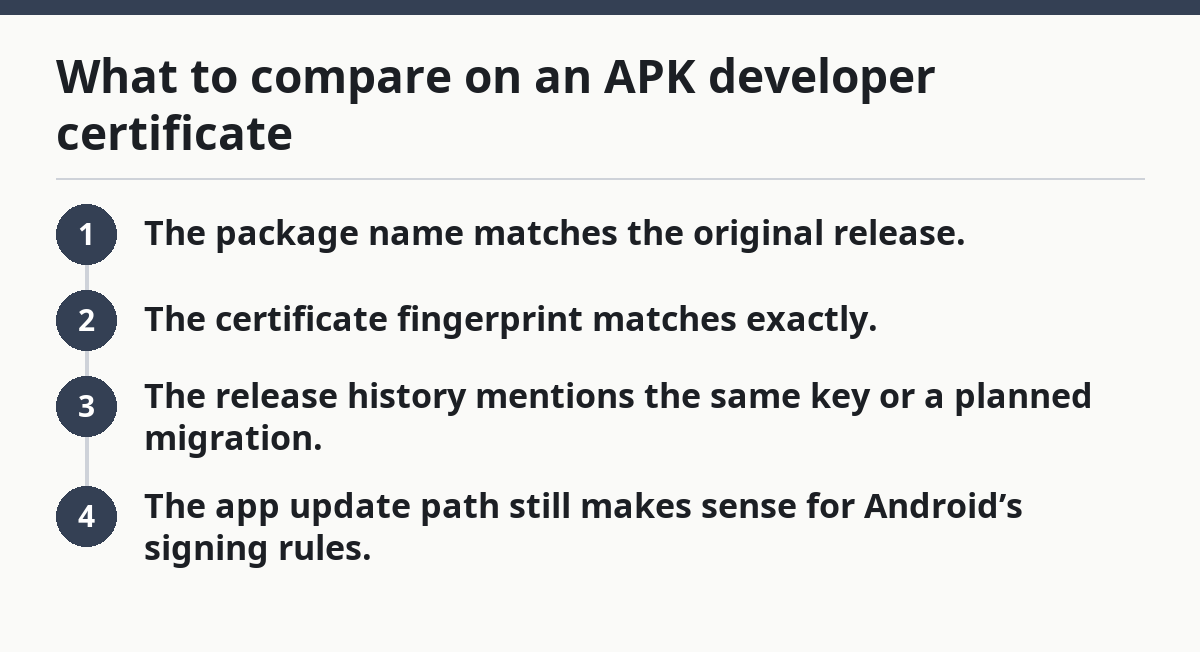
- The package name matches the original release.
- The certificate fingerprint matches exactly.
- The release history mentions the same key or a planned migration.
- The app update path still makes sense for Android’s signing rules.
A certificate mismatch is not a typo. It means the signing identity changed, and that needs an explanation.
How do I check an APK developer certificate step by step?
You check it by extracting the signing details, then comparing the fingerprint and package name against the original release record. The cleanest path uses Android Studio, because it shows the signing certificate without forcing you to inspect raw files by hand.
Picture this: you have the APK on disk and the original release page open in another tab. You want a yes-or-no answer, not a guessing game. The steps below give you that answer with the fewest moving parts.
-
Open Android Studio and use the APK analysis or import flow that exposes the app package and signing info.
You should see the app identifier and certificate details, not just the icon. If the tool only shows the version name, that is not enough. -
Find the package name and write it down exactly.
A small difference, such ascom.example.appversuscom.example.app.beta, means you may be comparing two different builds. The package name must match the original release you are checking. -
Locate the certificate fingerprint, ideally SHA-256.
Copy it character for character. The result should be a long hex string. Treat it as exact text, and if needed consult a trusted technical source or a professional who can verify the comparison. -
Open the original release record and find its signing data.
Good sources include the developer’s changelog, a signed-release note, a trusted repository entry, or an Android Studio export from the known-good APK. If the release record lists a fingerprint, compare that value directly. -
Compare the two fingerprints.
An exact match means the same signing key was used for both APKs. A mismatch means the APK was signed by a different key, even if the app name and package name are the same. -
Check the release history for key changes.
If the developer rotated keys, migrated signing infrastructure, or rebuilt the app after a certificate loss, that should be stated in the release notes. Without that note, a changed certificate is an open question. -
Verify the update story fits Android behavior.
If the newer APK is meant to update the original app, the signing relationship has to make sense. If Android would reject it as a different signer, then the update path is broken unless the developer used a supported key-migration flow.
If you want a quick rule, use this: same package name plus same fingerprint equals same signer. Anything else needs context.
Where the original release data should come from
The original release data should come from the developer or a trusted release channel, not from a random mirror. A certificate comparison is only useful if the “original” value is actually original. If the source is sloppy, the check is sloppy.
Picture this: you found an old APK on a forum, and the page says it is “official.” That word means nothing unless the signing data matches a trusted release record. The fingerprint is the anchor, not the label on the post.
Best places to get the original certificate data:
- The developer’s official release notes
- A release page that shows the signing fingerprint
- A repository entry that keeps the app’s history intact
- A previous APK that you already trust, checked through Android Studio
What can go wrong:
- The mirror rewrites the package listing but not the file.
- The release page lists only the app name, not the signer.
- A later version uses a different certificate because the developer changed keys.
- A community upload mixes up two builds with the same app label.
The package name helps here because it reduces false matches. Still, package name alone does not prove identity. A clean comparison needs both the app identity and the signing identity.
If the original release record includes a SHA-256 fingerprint, use that over SHA-1 when both are present. SHA-256 is the stronger, more current format in most Android tooling. If the record only offers SHA-1, you can still compare it, but do not stop there if a newer fingerprint is available.
One more detail matters: release continuity. If a developer says the key changed in version 4.2 after a signing migration, then version 4.3 may legitimately carry a different certificate. That does not make the APK fake by itself. It means you need the release history to tell the rest of the story.
What a certificate change means, and when it is a red flag
A certificate change means the app is now signed by a different key, and that is either a planned migration or a trust break. The number you are watching is the fingerprint, not the version number. If the fingerprint changes without a good reason, the update is not continuous.
Picture this: the app updates cleanly for months, then one release shows a different certificate and no explanation. That is the moment to stop treating the APK as a routine update and consult the developer’s release notes or a trusted source. The signer identity changed, and the release notes should say why.
Common reasons a certificate changes:
- The developer rotated keys after a security event
- The signing process moved to a new toolchain
- The app was rebuilt under a different publisher account
- The APK was repackaged by someone else
Only the first two are normal in a managed release process. The last two are warning signs. If the package name stays the same but the certificate changes, you do not have proof of a trusted update path. You have a claim that needs evidence.
What to do with that mismatch:
- Check the developer’s release notes for a key migration statement.
- Compare the suspicious APK against another release from the same official channel.
- Look for the same fingerprint across adjacent versions.
- If no official explanation exists, consult a professional or a trusted source and treat the APK as a different signer.
You do not need a long checklist to make this call. A single fingerprint mismatch is enough to tell you that the signing identity is not the same. What you do next depends on whether the developer documented the change. If they did not, the safest reading is that this is not the original signer.
How to use Android Studio without getting lost in the weeds
Android Studio shows the signing certificate in a way that is easier to compare than raw command-line output. The key is to focus on the fields that matter: package name, certificate fingerprint, and signing certificate details. If you chase every tab, you will waste time.
Picture this: you have one APK in Android Studio and a screenshot of the original release in front of you. You do not need every build detail. You need a clean match on the signing identity and the app identity.
A simple workflow:
- Open the APK in Android Studio’s APK viewer or analysis tool.
- Note the package name exactly as shown.
- Find the signing certificate section and copy the fingerprint.
- Compare that fingerprint with the one from the original release record.
- Keep the version name in view, but do not rely on it for identity.
If the tool shows multiple signatures, look for the one tied to the release certificate, not debug noise or unrelated metadata. APK signing can show more than one layer of information, and the extra fields can distract you from the one answer you actually need.
Two mistakes show up often:
-
Reading the app label instead of the package name.
The label can change freely. The package name is the app’s actual Android identity. -
Looking at the version code and assuming it proves continuity.
Version numbers can be reused badly or changed honestly. They do not prove the signer.
Android Studio is useful here because it gives you a structured view, but it does not make the judgment for you. You still need the original release data to compare against. That is the whole point of the check.
Common mistakes that make the check useless
A certificate check fails when the comparison target is wrong, the fingerprint is copied badly, or the release history is ignored. Most bad calls happen because people compare the wrong field. The app name is not the signer. The version is not the signer. The icon is not the signer.
Picture this: you find two APKs with the same logo and nearly identical names. That looks convincing for five seconds. Then the fingerprint shows a different key and the whole story changes.
Avoid these mistakes:
- Comparing only the package name and stopping there.
- Using a screenshot of a fingerprint without checking every character.
- Trusting a mirror page that does not show the source release.
- Ignoring a documented signing-key migration.
- Treating a changed version code as proof of a changed signer.
The cost of these mistakes is simple: you can end up trusting an APK that is not from the same developer, or rejecting a legitimate update that only changed keys. Both outcomes waste time. One wastes more than time.
A better habit is to compare the fingerprint twice: once in the tool, once in the original source record. If the values match, the signer matches. If they do not, stop and look for a release note that explains the change. If no explanation exists, do not call it the original release.
For readers who want the broader trust workflow, the APK safety and trust hub is the right next stop. This page stays on identity, because that is the part that decides whether the APK came from the same signer.
What if the certificate does not match the original release?
If the certificate does not match, the APK is not signed by the same developer key as the original release. That is the plain result of the comparison, and it matters even when the package name is the same. A changed certificate means changed trust history.
Picture this: the APK looks right, installs like an update, and still fails the signer check. That is not a minor detail. It means the certificate lineage is broken unless the developer documented a valid key change.
Use this decision path:
- If the fingerprint matches, the signer matches.
- If the fingerprint differs and the developer explains the migration, follow that documentation.
- If the fingerprint differs and there is no explanation, treat it as a different signer.
- If you only have a package name match, keep looking.
A certificate mismatch does not tell you everything about the APK. It does tell you that you have not proved continuity. That is enough reason to pause.
How do I know if an APK was signed by the same developer?
The APK was signed by the same developer if the certificate fingerprint matches the original release and the package name is the same. The fingerprint is the strongest practical sign because it ties the APK to the same signing key. A matching package name helps, but it does not prove the signer on its own.
What does a certificate fingerprint tell me?
A certificate fingerprint tells you which signing certificate was used. It is a compact identifier for the developer key, usually shown as SHA-256 in modern tools. If two APKs share the same fingerprint, they share the same signing certificate identity.
Can an APK be updated if the certificate changes?
An APK can only be treated as a legitimate update if the certificate change is explained through a valid signing migration or other documented release history. If the certificate changes without explanation, the update path no longer looks continuous. That is a signer change, not just a newer build.
Drafted with AI; not yet reviewed by a person.
