
Last updated: November 19, 2026
Quick answer: in most cases, a sideloaded APK needs a manual update when its installed version code is lower than the developer’s newest posted build. The topic here is How to Know When a Sideloaded APK Needs a Manual Update, and the steps below show how to check it without guessing.
Key Takeaways
- A sideloaded app usually won’t patch itself, so the newest file matters.
- The clearest clue is a version code mismatch between what’s installed and what the developer lists.
- Release notes can confirm whether your bug is already fixed in a newer build.
- An old install date alone does not prove the app is outdated.
- If the app asks for a feature that only exists in a later build, update checks should come first.
What a sideloaded APK update looks like in practice
Picture this: you open an app that you installed from an APK, and it still launches, but a menu is missing, a login loop started yesterday, or the app says the server no longer supports your build. That is the kind of version mismatch that usually means a manual update is due. The file on your phone can keep working for weeks, then fail the moment the developer changes the backend.
The truth is, the app itself often gives you clues before the Play Store would. A newer APK may fix crash bugs, add a required permission flow, or change the minimum Android version. If your installed app is still on build 142 while the developer site lists build 147, the old file is the problem.
Use these signs first:
- The app reports an outdated build number. Open the app’s About or Info screen and look for a version or build label. If it shows an older number than the developer’s current APK, you need the newer file.
- A feature stops matching the release notes. If the developer says version 3.4 fixes barcode scanning and your scan screen is still broken, that is a strong hint.
- Login, sync, or server errors appear after a new release. That usually means the app and the service are out of step.
- The APK you installed is older than the one listed online. When the posted file name or version code is newer, your phone has the stale copy.
The useful part is simple: don’t wait for the app to crash before checking. A visible version mismatch is often enough.
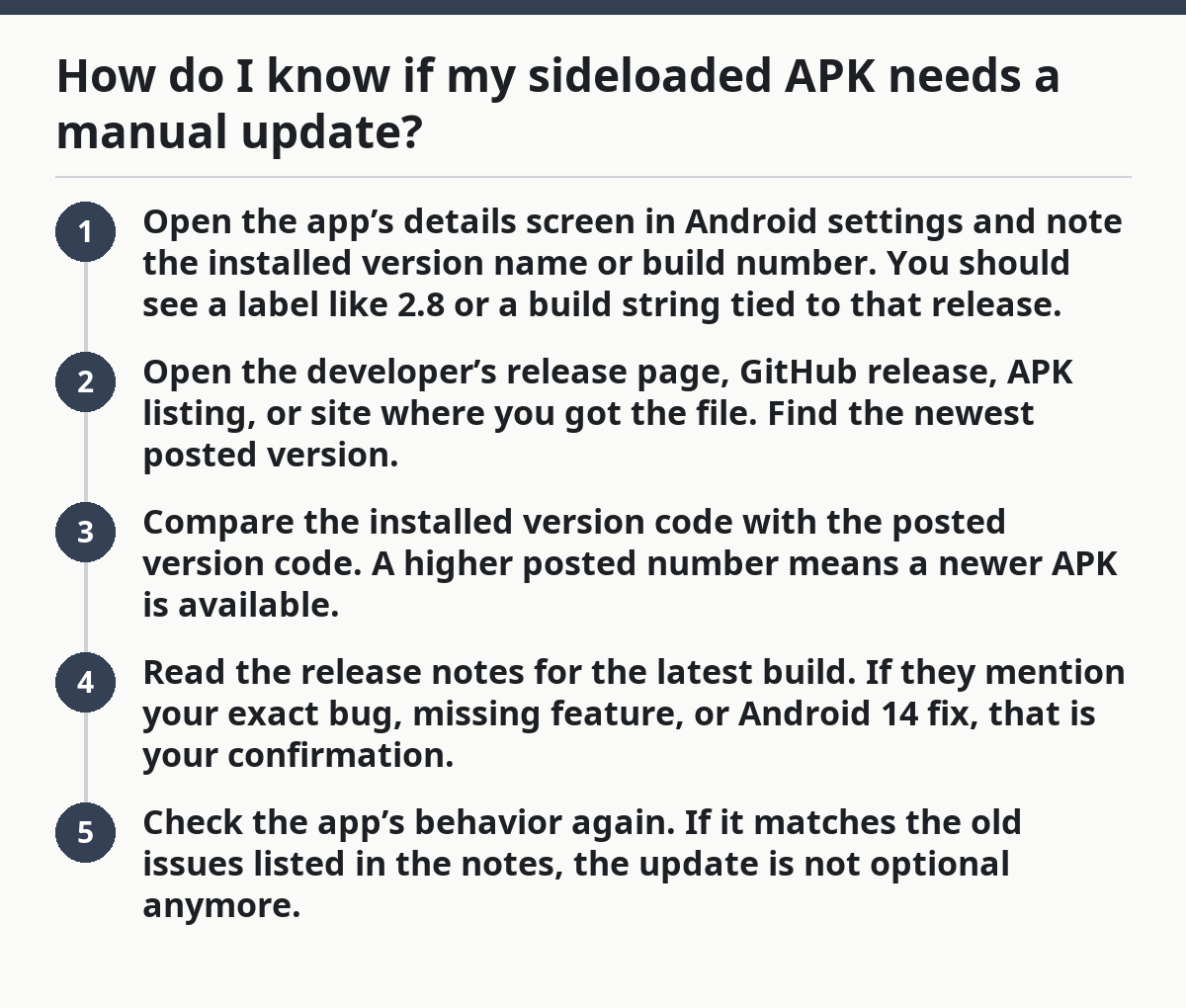
How do I know if my sideloaded APK needs a manual update?
You know it needs a manual update when the installed version code is lower than the current APK’s version code, or when the developer’s release notes describe a fix or feature your app clearly does not have. That is the cleanest test. A newer install date by itself does not matter if the version is unchanged.
Picture this: you have two files in front of you — the one already on your phone and the one on the developer’s page. One number tells the story better than the app icon does. If the version code or version name is different, and the newer file is from the same app package, the installed copy is stale.
Use this check in order:
- Open the app’s details screen in Android settings and note the installed version name or build number. You should see a label like 2.8 or a build string tied to that release.
- Open the developer’s release page, GitHub release, APK listing, or site where you got the file. Find the newest posted version.
- Compare the installed version code with the posted version code. A higher posted number means a newer APK is available.
- Read the release notes for the latest build. If they mention your exact bug, missing feature, or Android 14 fix, that is your confirmation.
- Check the app’s behavior again. If it matches the old issues listed in the notes, the update is not optional anymore.
When this works, you have a match between the numbers and the symptoms. The safest clue is usually that version-code mismatch, but it should be checked alongside release notes and behavior rather than treated as a certainty on its own.
A lot of people get stuck because they look only at the install date. That’s a weak signal. A sideloaded app can be reinstalled today from an old file and still be outdated. The version code is the better marker because it tracks the release itself, not the day you tapped Install.
Where to check the installed APK version
You check the installed APK version in Android’s app info screen, or inside the app’s own About page if it has one. That version number, plus the version code when available, tells you what build is on the phone right now.
Picture this: you need one number before you can compare anything. Android stores that number in the app details, and most sideloaded apps show it somewhere in their settings. If you can’t find it in the app, use system settings instead. The check takes under a minute on most phones.
Start here:
- Android settings: open Settings > Apps > the app name > App info. Look for Version, App version, or Build number.
- Inside the app: open Settings, Help, About, or Information. Many developers put the version in the bottom of that screen.
- File name or source page: if you kept the APK file, the filename may include the version, such as 4.1.2. That helps, but it is not as reliable as the installed version on the device.
If the app was installed from an APK bundle or multiple build sources, the version name can be confusing. That’s where the version code helps. Android uses it as the internal release counter. If the developer’s page lists version code 218 and your installed build shows 214, you’re behind even if both versions share the same marketing name.
This is where the install date can mislead you. A new phone can still have an old APK if someone restored it from backup or copied it from another device. The date on the phone says nothing about the app’s release.
What release notes tell you that the app screen won’t
Release notes tell you whether the new APK fixes the exact problem you’re seeing. The app screen can show you a version, but the notes explain why that version matters. That is often the fastest way to tell a routine update from one you need right away.
Picture this: the app still opens, but one feature has gone dead. The release notes may say “fixes login failures on Android 13” or “updates required API for sync.” That is not fluff. It is a direct match between your symptom and the newer file.
Look for these clues in the notes:
- Bug fix that matches your issue. If the note names crash, freeze, blank screen, or login failure, update.
- Compatibility change. If the note mentions Android 12, 13, or 14 support, older builds can fail without warning.
- Server or API change. This is common with sideloaded apps that talk to a website or cloud service.
- Permission or file access change. If the app needs a new storage or notification flow, the old APK may break partway through use.
Not every release note means you must update today. Small cosmetic changes, icon refreshes, or text tweaks are low priority. But when the note mentions your broken feature, the old file is already behind.
You do not need a long changelog to make the call. One line about the bug you’re seeing is enough. On the flip side, if the notes are vague and your app still works, the update is probably routine rather than urgent.
When version mismatch is real — and when it is not
A version mismatch is real when the installed version code is lower than the developer’s current build and the app’s behavior lines up with the newer release notes. It is not real when the app is still working normally and you are only reacting to an older date or a different file name.
Picture this: you see a newer APK online and assume you must install it immediately. That is not always true. Some apps can run fine for months on the previous build, especially if the update only adds a minor feature or language fix.
Here’s the catch:
- Real mismatch: installed build 41, online build 44, and the release notes say “fixes sign-in on Android 14.”
- Not a mismatch: installed build 41, online build 44, but the notes only mention icon changes.
- Real mismatch: the app starts crashing after a backend change, and the release notes call out that same crash.
- Not a mismatch: you reinstalled the same old APK today, so the install date changed but the version did not.
Two common mistakes cause trouble here. First, people trust the date of installation instead of the release number. That can delay an update for days or weeks. Second, people chase every new build, even when the notes show no fix for their issue. That wastes time and creates extra churn.
If you want the simplest rule, use this: version code first, release notes second, symptoms third. When all three point the same way, a manual update is due.
Why sideloaded APKs miss automatic updates
Sideloaded APKs miss automatic updates because Android treats them as installed files, not as apps connected to a store updater. Unless the app has its own update check built in, nothing on the phone will fetch the newer APK for you.
Picture this: the app works, but the phone never offers an update badge. That is normal for sideloaded software. The device is not broken. The app just isn’t tied to the usual store pipeline.
Use this rule of thumb:
- If the app came from the Play Store, updates may arrive automatically.
- If the app came from an APK file, you often need to check manually.
- If the developer hosts releases on GitHub or a website, the newest file may sit there for weeks before you notice it.
- If the app has a built-in update prompt, it may still require you to download and install the new APK yourself.
That means the update question is really a comparison task. You compare the installed version against the current release, not against a timer on the phone. For a broader look at update paths, the hub page on APK update strategies for sideloaded Android apps is the right next stop.
The useful habit is simple: check once when the app starts acting odd, and check again when the developer posts a new release. That catches most outdated sideloaded apps before they break.
The update signals that should make you stop and check now
You should check now when the app shows a bug the latest release says it fixed, when the version code is lower than the posted build, or when a required feature disappears after a service change. Those are the strongest signs that the sideloaded APK is stale.
Picture this: the app still opens, but the work you need from it no longer finishes. Maybe sync stalls, a button vanishes, or a server error appears right after a new release on the developer page. That is not random noise. It is the app telling you it no longer matches the current file.
Use this short checklist:
- Compare the installed version code to the newest posted build.
- Read the release notes for your exact bug.
- Check whether the app’s behavior changed after a backend update.
- Ignore the install date unless it matches a fresh install from the latest APK.
If two of those signs point to the same result, the manual update question is already answered. You do not need to wait for a full failure.
How do i tell if my apk is outdated?
Your APK is outdated if the installed version code is lower than the current build listed by the developer, or if the release notes mention a fix your app does not have. That is the clearest sign. A newer install date does not change the version inside the app, so compare the build numbers first.
Why does a sideloaded app not update automatically?
A sideloaded app usually does not update automatically because it was installed from a file, not through a store update channel. Android does not treat that APK like a managed store app unless the developer built an update system into the app itself. In many cases, you have to check the release page and install the new file by hand.
Where do i check the installed apk version?
You check the installed APK version in Android’s App info screen or in the app’s About page if it has one. Look for version name, build number, or version code. If the app hides that data, the file name or the original release page can help, but the system app info is the better source.
Drafted with AI; not yet reviewed by a person.
