

Last updated: November 19, 2026
Key Takeaways
- Version pinning keeps one installed build in place and blocks overwrite paths.
- Stop changes by closing every update route, then reinstall only matching APK builds.
- The key controls are store auto-update, install prompts, and any device policy that refreshes apps.
- Android usually treats the same package name as an update path, not a brand-new app.
On Android, a sideloaded app changes the moment the APK gets swapped, the package installer accepts a newer build, or a store app wins the race. How to Keep a Sideloaded App on a Specific Version Without Auto-Changes means blocking store updates, keeping the same package name, and refusing any APK with a higher version code. The steps below settle what to change in Android, APK files, and app update settings. For background on package behavior, see Android’s app-signing and install guidance in the Android Developers documentation and Google Play’s auto-update help.
What version pinning means for a sideloaded Android app

Version pinning means you keep one installed build in place and stop anything else from overwriting it. On Android, that matters because the system does not treat a sideloaded APK as special; it only sees a package name and a version code. Professional guidance helps if the device or profile is managed.
Picture this: you already have the exact APK that works. The next morning, the app opens with a changed layout, a broken login screen, or a new permission prompt. You want the old build to stay put, not get “helped” by a store update or a fresh install. This is Android sideloaded app version pinning in plain terms. For a broader Android overview, the Android package manager docs explain how installs are matched.
The catch is simple: Android has more than one path to replacement. A store such as Google Play can update an app that shares the same package name. A file manager, browser, or package installer can also replace the app if the APK you launch carries a higher version code. Same package name. Different version code. That is the whole game. The Google Play Help Center covers update behavior at a high level.
What you need to control is simple:
- Auto-update settings in any app store on the device
- The package installer behavior when you open a new APK
- The APK replacement rules tied to package name and version code
- Any second copy of the same app from a store or work profile
Miss one of those paths, and the app can change versions again.
How do I stop a sideloaded app from changing versions?
Close every update route the phone can use, then install only APKs that match the version you want to keep. That is the practical rule on Android, and it works whether the app came from a browser download, a file manager, or a local APK store.
Picture this: you have the exact build you want on the phone, but Google Play still lists the same app. You also have a habit of tapping downloaded APKs without checking them. In that setup, one tap can replace the build you meant to freeze. The fix is a small routine, not a single switch.
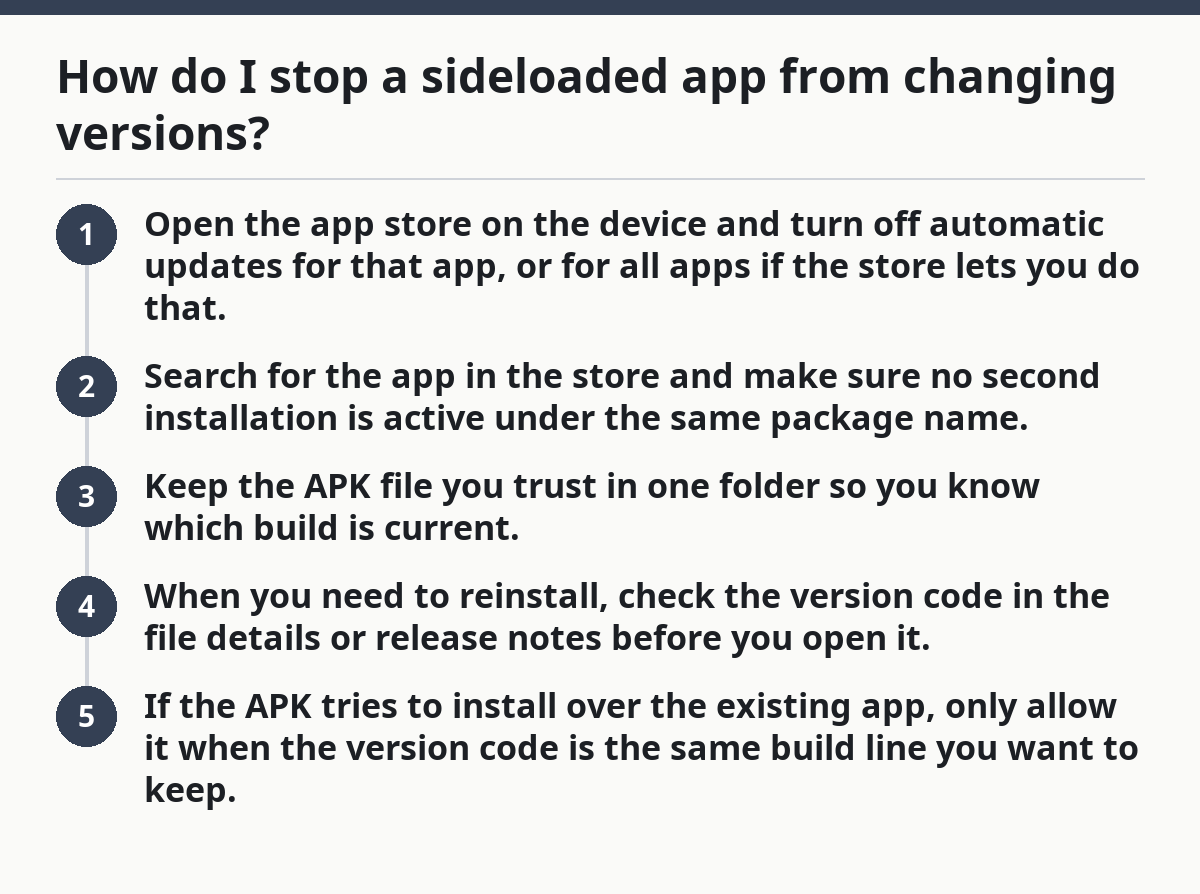
- Open the app store on the device and turn off automatic updates for that app, or for all apps if the store lets you do that.
- Search for the app in the store and make sure no second installation is active under the same package name.
- Keep the APK file you trust in one folder so you know which build is current.
- When you need to reinstall, check the version code in the file details or release notes before you open it.
- If the APK tries to install over the existing app, only allow it when the version code is the same build line you want to keep.
Treat the package installer as a gatekeeper, not the judge. If it says the app will be updated, stop and compare the APK version; don’t just tap through. A same-name app with a different package signature or a higher version code can replace what you had. For file-level checks, APKMirror Installer and Android’s own package docs both show why metadata matters.
Store conflict is the usual problem. Google Play can keep offering the app even after sideloading it. If you want to pin a specific build, either disable Play auto-updates for that app or remove the store version entirely.
What settings keep an APK from being replaced?

The settings that keep an APK from being replaced are the store update toggle, the installer prompt, and any device policy that allows app refreshes in the background. On most Android phones, the package installer itself does not “pin” anything; it only decides whether the new APK can overwrite the old one.
Picture this: you installed a sideloaded app months ago, forgot about it, and now a store app, work profile, or device manager pushes a newer build. You did not touch the app, yet the version changed. That is why the settings list matters more than a single checkbox.
Use this checklist:
- Turn off auto-update in the app store tied to the same package name.
- If you use Google Play, open the app’s page and disable auto-update for that app when the option appears.
- Avoid logging into a second store account that can manage the same app.
- Keep a copy of the exact APK in a known folder so you can reinstall the same build if needed.
- Watch for work profile or managed-device policies that can replace personal installs.
The replacement rule is blunt: same package name plus higher version code usually means overwrite. If the package name changes, Android may treat it as a different app, depending on the install path and signature. If the signature changes, install behavior may fail or force a separate path. That is why random APK mirrors are risky when you are trying to stay on one version.
You do not need special tools for most cases. You need discipline about where the APK comes from and which install path still has permission to act on it. For a deeper map of version choices and compatibility, the hub on APK version, compatibility, and updates belongs here. For policies and managed installs, Android Enterprise is the best starting point.
Why the package installer keeps replacing the app
The package installer keeps replacing the app because Android treats an install with the same package name as an update, not a fresh app. That is normal behavior, and it is exactly what you want to stop when you are pinning a version. Managed or locked-down devices need professional guidance.
Picture this: you tap a downloaded APK named the same as the one already on the phone. The installer sees matching package data and asks to update or replace. If the new APK has a higher version code, Android often accepts it as the next version. If it has the same or lower version code, the install can fail or be blocked. Android’s install rules are documented in the platform package guide and the app signing guide.
Three rules matter here:
- Package name decides whether Android sees the app as the same app.
- Version code decides which build is newer.
- Signature decides whether the update can replace the existing install.
That is why a generic “install latest APK” habit breaks version pinning. The installer is not trying to be clever. It is following Android’s package manager rules.
A common mistake is keeping multiple APK files with similar names and trusting the filename. Don’t. A file called app_v3.apk can still contain an older or newer version code than the name suggests. Check the actual build metadata, not the label.
Another mistake is uninstalling and reinstalling when an install prompt looks confusing. That can wipe app data and still leave you with a newer build if the APK you chose is not the one you meant to keep. If the goal is staying on one version, reinstall only from the exact APK you already approved.
How to pin one APK version without breaking the app
Save the exact file, block competing updates, and refuse any install that changes the version code or signature. That is the whole method, but it only works when the APK itself stays consistent.
Picture this: you found a build that works with your device, language, or login flow, and you want to keep it for months. You are not trying to “freeze Android.” You are just trying to keep one app from drifting while the rest of the phone can update normally. That is a reasonable setup.
After that, the routine is simple:
- Keep one master copy of the working APK in storage you do not clean automatically.
- Rename it clearly with the app name and version, such as the build number from the file source.
- Turn off auto-updates for the app in every store that has access to it.
- Remove duplicate install paths, such as a store copy and a sideloaded copy of the same package.
- Before any reinstall, compare the APK’s version code with the one you want to preserve.
- If the package installer shows an update prompt, stop unless the file matches your pinned build.
- After installation, open the app once and confirm the interface and login still match the pinned version.
This approach has limits. If the app depends on a server change, version pinning won’t save a broken feature. If the app’s developer stops supporting older builds, the old APK may still install but fail to connect. That is not an Android problem; it is a compatibility problem.
The trade-off is plain: pinning gives stability, but it also blocks fixes and security updates. If the app handles sensitive data or account access, long-term pinning can create friction later. That is not a reason to panic; it is a reason to keep a clean copy of the APK and know why you froze it.
Common mistakes that make a pinned app change anyway
The most common mistake is forgetting that the store version still exists on the device or account, which lets auto-updates bring the app back to life. That is how a pinned sideload suddenly changes without a manual reinstall.
Picture this: you think the app is fixed, but another profile, another store, or another download folder keeps a newer build ready to go. The app changes again, and the phone makes it look like a normal update. It is not normal. It is a second update path.
Watch for these traps:
- Leaving Google Play auto-update on for the same app
- Installing the same app from two sources with the same package name
- Downloading a newer APK and forgetting which file is the pinned one
- Using a work profile that manages the app separately
- Trusting the filename instead of the version code
A second mistake is assuming “Disable app” means “freeze app.” It does not. Disabled apps can be re-enabled, and they are not the same thing as version pinning. Another mistake is clearing storage and reinstalling from memory, which often lands you on a different build than the one you wanted.
Keep a plain text note with the app name, package name, and exact APK version you want to hold. It is not fancy, but it is harder to mess up than a vague folder full of APKs. If a newer build is needed later, you can make a deliberate change instead of a surprise one.
How do I know the app is still on the version I pinned?
You know the app is still pinned when the installed version code matches the APK you saved and no store reports a newer replacement for the same package name. That is the simplest check, and it works on Android without guessing.
Picture this: the app looks the same, but a small menu changed or a feature moved. You want proof, not a hunch. Version pinning only counts if you can confirm the build number or package details after install.
Check these points:
- Open the app info screen and look for the installed version number.
- Compare that number with the APK file you kept.
- Open the store page and see whether auto-update is still enabled.
- Confirm no other account or profile can manage the same app.
- If the app starts acting different, compare the package name and build again before reinstalling.
Start with the app info screen on the phone. Then check the APK file itself. After that, look at any store that still has update rights. If all three match the build you meant to keep, the app is pinned as well as Android allows.
One last warning: version pinning is not the same as keeping data intact. An update can preserve app data in many cases, but a reinstall can still disturb settings, caches, or sign-in state. If you care about that, keep a backup of the APK and the app’s data path when appropriate.
How do i stop an app from changing versions?
Turn off every update path tied to that app and keep only the APK version you want. On Android, that means disabling store auto-updates, avoiding a second install from the same package name, and refusing any APK with a higher version code unless you meant to move forward.
can a sideloaded app update itself?
A sideloaded app usually cannot update itself unless it has a built-in updater or a store on the device can replace it. Android still controls the final install through the package installer, so the app needs a valid APK path and the right package details to change versions.
what settings keep an apk from being replaced?
The settings that matter are the store auto-update toggle, the app’s update permission in any second profile or account, and the package installer prompt when a new APK appears. If those paths are closed, the APK is much less likely to be replaced by accident.
Drafted with AI; not yet reviewed by a person.
