
Last updated: November 19, 2026
Quick Answer: How to Fix an APK Update That Fails Because the App Was Installed Another Way
An APK update can fail when the app was installed from a store, a split APK bundle, or another package source. The fix is usually to install updates from the same source, or uninstall the old app and reinstall the version you want. The steps below show which path to take without guessing.
Key Takeaways
- The Android package manager may treat the same app from different sources as a mismatch; check the install path first and, if needed, consult Android documentation or a qualified professional.
- A store install, split APK install, and plain APK sideload may not update each other.
- A practical fix is often to update from the original source, not force a new APK over it.
- If the signatures differ, the update will not replace the current app.
- Uninstalling is the last step, because it can remove local app data if the app does not sync it.
Why your APK update fails after a store install
Picture this: you tap an APK update, Android opens the installer, and then the install fails or refuses to replace the app already on the phone. The problem is usually source mismatch, not a broken file. The package manager sees the installed app as coming from the Play Store, a vendor store, or a split package set, and your APK does not match that install path.
The catch is simple: Android updates are picky about package name, signing key, and install format. A plain APK can replace only an app that was signed the same way and installed as a compatible package. A store build or split APK often adds one more layer that blocks a direct swap.
Common causes include:
- The app was first installed from an app store, but you are trying to update with a sideloaded APK.
- The app was installed as a split APK bundle, not a single file.
- The new APK is signed with a different certificate.
- The package name matches, but the build is for a different flavor, such as debug versus release.
A quick rule helps here. If the current app came from the same source as the update, the install may work. If it came from somewhere else, expect a conflict. A sideloaded APK and a store version can behave like two different apps, even though the name on the launcher looks the same.
For background on update paths, this guide sits alongside the hub on APK update strategies for sideloaded Android apps.
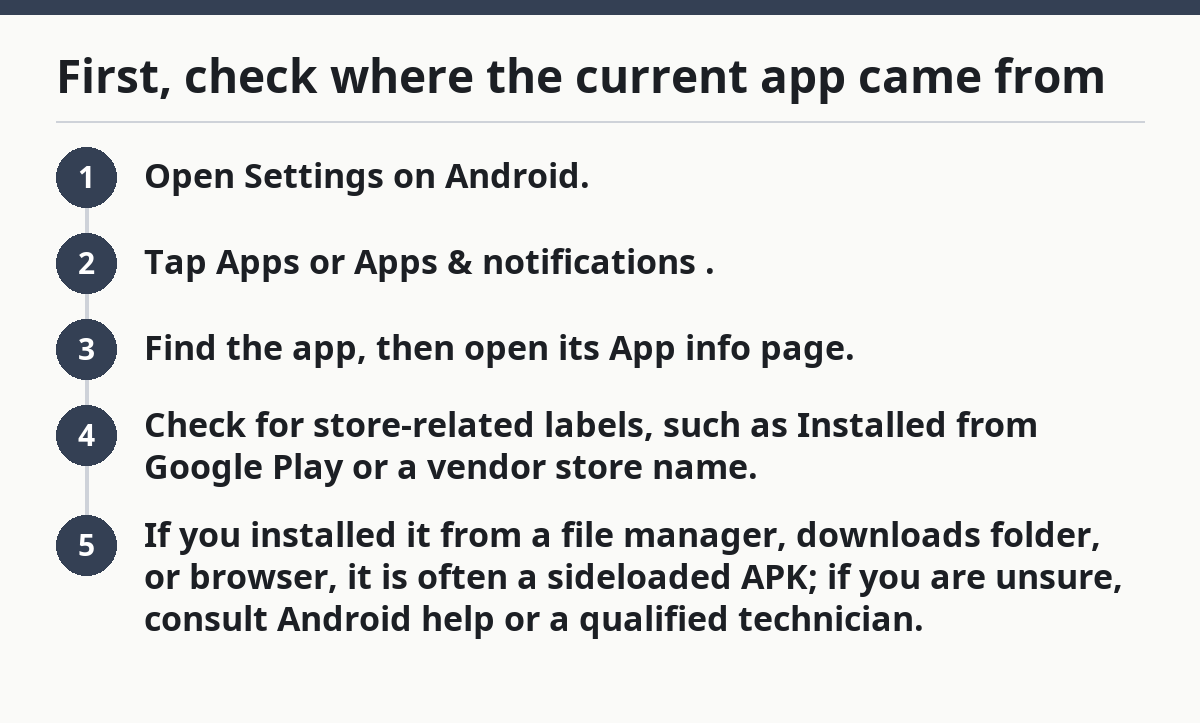
First, check where the current app came from
Picture this: you open the app’s page in your launcher and wonder whether it came from Play Store, a third-party store, or a direct APK. You need that answer before you touch anything else, because the fix depends on the original install path. This can take about 30 seconds if you know where to look.
Look for the source in the app details:
- Open Settings on Android.
- Tap Apps or Apps & notifications.
- Find the app, then open its App info page.
- Check for store-related labels, such as Installed from Google Play or a vendor store name.
- If you installed it from a file manager, downloads folder, or browser, it is often a sideloaded APK; if you are unsure, consult Android help or a qualified technician.
If the app came from a store, the store version is usually the right update path. If the app came from a direct APK, you need the same signing key and the same package type. A store install may not accept a plain APK over the top.
A plain APK often will not overwrite a store install. It is not a failure of Android; it is Android protecting the package record. The file may be valid, but the package manager still rejects it because the origin does not match. That is the first thing to confirm before you blame the APK itself.
The update path that usually works
The simplest fix is to update from the same channel the app came from. If the app was installed from Google Play, open the Play Store and update it there. If it came from a third-party store, use that store’s update flow.
Use this order:
- Open the same store that installed the app.
- Search for the app name.
- Tap Update or Install from that store.
- Wait for the install to finish, then open the app once.
If the store update works, you should see the app launch normally with no reinstall prompt. If the store says the app is already current, but your APK file still fails, the issue is probably not version number. It is the package format or signature.
How do I fix an APK that won’t update over the current app?
Picture this: the APK file is on your phone, the version number is newer, and Android still refuses to install it over the old app. Fix it by matching the install source, then checking the signature, then deciding whether uninstalling is the right move. That order matters more than the version number on the file.
Do these steps in order:
- Stop trying random APK files. Save one known-good build of the app from the same developer source.
- Check the install format. If the app was installed as a split APK, a single APK may not replace it.
- Compare the signing source. A different certificate means Android will block the update.
- Try the original store first. Use Play Store or the same third-party store that installed it.
- If that fails, uninstall the app and reinstall the version you want. Only do this if you can live with the data risk.
- Open the app after reinstalling. A working install should start without an “App not installed” or signature error.
When a step works, the installer finishes and the app icon stays in place, or reappears after reinstall. When it fails, Android usually gives a blunt message such as “App not installed” or “Update incompatible.” That is your clue that the conflict is structural, not temporary.
A useful rule is that most failures fall into three buckets: wrong source, wrong package type, or wrong signature.
Split APK conflicts are a different problem
Picture this: the app installed fine from a bundle, but now your single APK file hits a wall. That happens because a split APK is not just one file; it is a set of pieces that Android assembles together. A lone APK can be the wrong shape for that install.
If the current app came from a split package, a normal APK update often fails because it does not include every required split. That is common with app stores and bundle-based installers. The package manager expects the same structure it already registered, not a different one.
What to do instead:
- Use the same installer that created the split package.
- Update through the app store if the app came from one.
- If the developer offers a bundle installer, use that package type again.
- If you only have a single APK, treat it as a replacement, not an update.
A split APK conflict is not about file size or Android version alone. It is about package shape. The file can be newer and still fail because it does not match the installed app’s package set. That is why “I downloaded the latest APK” is not always enough.
There is one honest trade-off here. Split packages are more work to update, but they often match the device better. A single APK is easier to sideload, but it may not be the right replacement for an app that was installed as a bundle. If the app uses language or device-specific splits, a plain APK is the wrong tool.
Signature mismatch: the update will not replace the app
Picture this: you finally find the right app name and the right version, but Android still refuses to install it. The usual reason is a signature mismatch, which means the new APK was signed with a different key from the installed app. Android blocks that on purpose.
Here is how to think about it. Two APKs can share the same package name and still fail to update each other if they come from different signing keys. That can happen when:
- The developer changed the signing key.
- You installed a modified build, then tried to update with the official release.
- You installed from one store, then tried to replace it with a build from another source.
The fix is simple in theory and annoying in practice:
- Find the version signed by the same developer key.
- Use the same app store or distribution channel if possible.
- If the key changed and there is no compatible update path, uninstall the current app and reinstall the new one.
If the signatures match, the install should proceed without that warning. If they do not, retrying will not help. The package manager is doing exactly what it should do.
One thing to avoid: do not keep forcing random APKs with the same app name. That can create a cycle of failed installs and wasted time. Match the source first. The signature usually tells the truth.
When uninstalling is the right move
Picture this: you have spent 10 minutes trying the store, the APK, and the bundle installer, and nothing replaces the old app. Uninstalling is the clean answer when the installed app and the update cannot agree on source or signature.
Choose uninstall and reinstall when:
- The app came from a store, but you want the sideloaded APK version instead.
- The app came from a split APK, but you only have a single APK.
- The update is signed differently and no same-signed build exists.
Do not treat uninstalling as the default first move. It is the fallback when the package conflict cannot be resolved in place. If the app stores local data only on the device, uninstalling may wipe that data. If it syncs to an account, the risk is lower, but you still need to know what the app keeps locally.
The trade-off is clear. Reinstalling often fixes the package conflict, but it can cost you local state. That is why the same-source update is usually the better first attempt.
What to do if the app still fails after reinstalling
Picture this: you uninstalled the app, reinstalled the APK, and the failure still comes back. At that point, the problem is no longer the old install. It is the file, the package name, or the installer you are using. A clean reinstall should have removed the source conflict.
Check these points:
- Make sure the APK is for the same app package, not a clone.
- Confirm you are using the right installer for split packages if the app needs one.
- Redownload the APK in case the file was damaged.
- Look for a version built for a different Android flavor, such as ARM versus x86 or release versus debug.
If the reinstall from the same source works, the old conflict was the issue. If it still fails, the APK itself may be wrong for your device or build. That is when you stop treating it like an update problem and start treating it like a package mismatch.
This is also why a generic fix article misses the mark. “Just reinstall it” is not enough if the app was first installed from a store or split bundle. The app source decides the safe path, and Android package manager rules decide whether the update is allowed.
FAQ
Why won’t my apk update install over the current app?
The update usually fails because the installed app came from a different source, uses a different package type, or was signed with a different key. Android will not replace a store app with an incompatible sideloaded APK. The quickest fix is to update from the same store or reinstall from the source that matches the current app.
Does installing from a store block apk updates?
Yes, it often does. A store install can block a plain APK if the package manager sees a source or signature mismatch. The app may look the same on the home screen, but Android still treats the install as different under the hood. Use the same store first, then switch to uninstall and reinstall only if that fails.
When should I uninstall before updating an apk?
Uninstall before updating only when the current app and the new APK cannot match by source, signature, or package format. That is common when you are moving from a store version to a sideloaded APK, or from a split APK to a single-file install. If the app keeps local data, check that risk before you remove it.
Drafted with AI; not yet reviewed by a person.
