
Last updated: November 19, 2026
Quick answer: in most cases, 3 fields tell you whether two APK files belong to the same app release: package name, version code, and signature. This guide on How to Check Whether Two APK Files Belong to the Same App Release shows the checks that settle it fast, and what to do when the file name lies.
Key Takeaways
- Start with the package name. If it differs, you are not looking at the same Android app package.
- Next compare the version code, not just the version text you see in a store listing.
- A matching signature usually matters because Android may treat a re-signed APK as a different publisher; if the result affects installation or distribution, consult a professional and verify against Android’s signing docs.
- File names can change without changing the release, so do not trust them alone.
- Build metadata, such as build number or split APK tags, can explain small differences that still point to the same release.
What to check first in two APK files
If you need to know whether two APK files belong to the same app release, compare three fields: package name, version code, and signature.
Start with the package name because it is the app’s identity on Android. Then check the version code, which is the install-time number Android uses to decide whether one build is newer than another. Last, compare the signature, because two APKs with the same app name can still come from different signers.
That order saves time. If the package name is different, stop there. If the package name matches but the version code differs, you may be holding two releases of the same app, not the same release. If both match and the signature matches, you have the strongest case that the files belong together.
- Package name = same app identity
- Version code = same release number
- Signature = same publisher key
How do I check the package name, version code, and signature?
You check them with an APK inspection tool or a package viewer, then compare the same fields side by side. On Android, the tool may show these in a single screen; on a desktop, it may split them across tabs or a manifest view.
Here is the core process.
- Open both APK files in the same inspection tool and find the manifest or app details panel. You should see the package name listed in a field such as
packageorapplicationId. - Compare the package name character for character. A match means both APKs target the same Android app package; one letter off means they do not.
- Find the version code, not just the display version like 1.2.3. If the version code matches, you are probably comparing the same build line.
- Check the signing certificate or signature block. The signer fingerprint or certificate subject should be the same on both APKs if they belong to the same release source.
- Look at build metadata such as build number, ABI split tags, or density split tags. These can explain why two APKs are packaged differently even when they are tied to the same release.
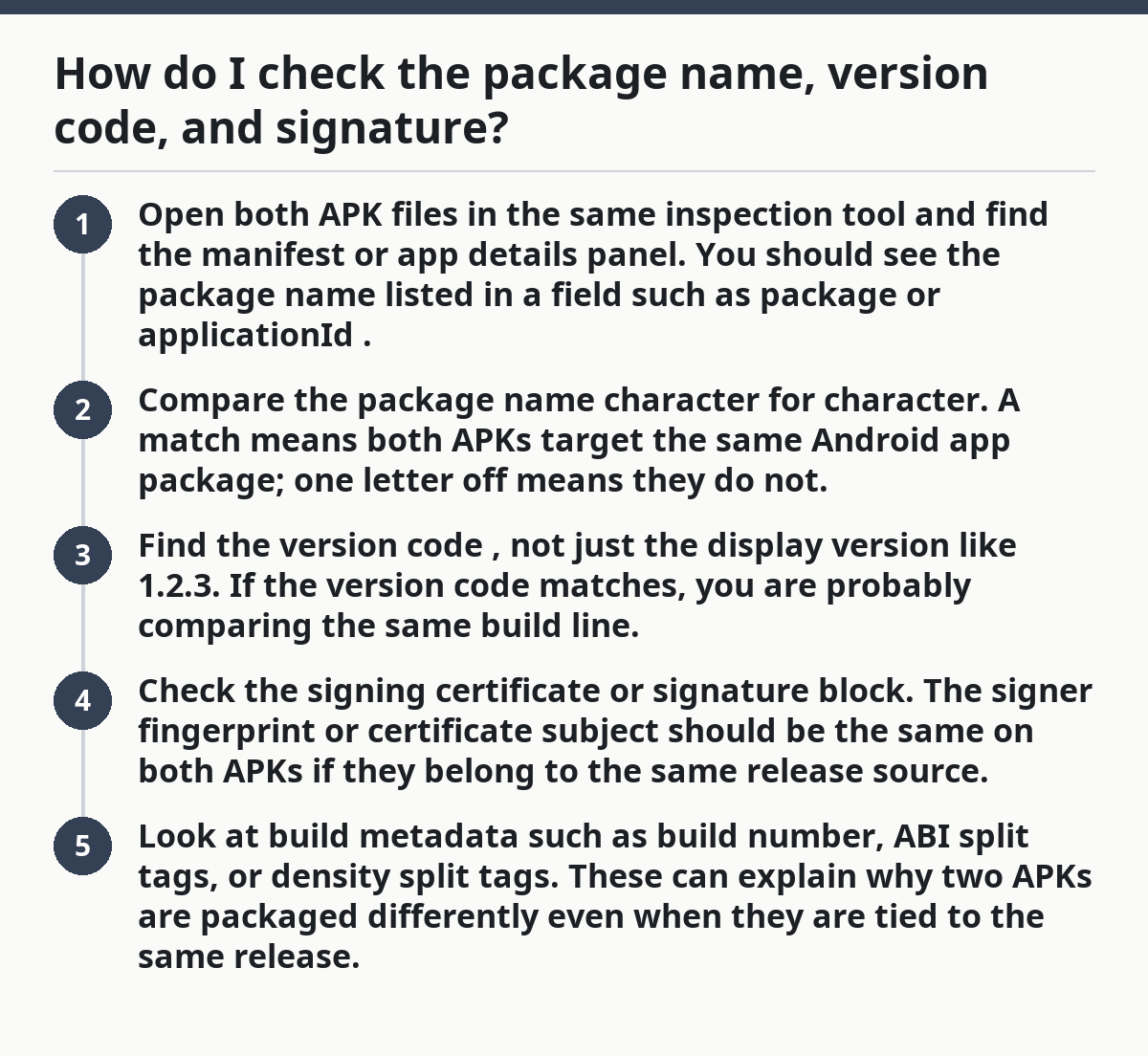
When this works, the tool shows matching package name, matching version code, and matching signer data. A file that differs only in filename or folder path still counts as the same release candidate if those core fields line up.
The catch is that some APK tools show friendly labels, while others show raw manifest fields. Version code may be hidden behind “internal version” or “build number,” so read the label carefully.
Which differences matter, and which ones do not?
If the package name, version code, and signature line up, the next step is to ignore surface differences like filenames and version labels.
A different file name does not prove a different release. Android ignores the filename when it installs an APK. A file named app.apk and another named release_final.apk can still be the same APK release if the package name, version code, and signature match.
A different version name also does not always mean a different release in the way you expect. Version name is the human-readable label, like 2.4.1, while version code is the machine check Android uses. Developers can change presentation details without changing the underlying release identity.
- Same file name, different release? Possible.
- Different file name, same release? Also possible.
- Same version name, different version code? Common.
- Same package name, different signature? Consult a professional before treating it as the same source; verify against the signing certificate.
If you are comparing split APKs, one file may be the base APK and another may be a configuration split for language, screen density, or CPU architecture. Those files belong to the same app package, but they are not the same single-file release artifact. Check the full set before you decide they are interchangeable.
What build metadata can tell you when the obvious fields match
If the package name and version code match, build metadata can explain why the APK files still look different.
Look for build number strings, ABI tags, density tags, and split names in the APK metadata. A file tagged for arm64-v8a is not the same payload as one tagged for armeabi-v7a, even if both belong to the same app release family. The same idea applies to language or screen-density splits.
Here is the practical rule: if the package name and version code match, and the signature matches, then build metadata usually tells you how the files differ, not whether they belong together. If the metadata points to a split APK set, you may need more than one file to install the release correctly.
That is where many generic guides go wrong. They stop at app name or version label and miss the packaging model. On Android, one release can be split into several APK files, especially when a store or bundle tool generates multiple parts.
- Base APK: main app code and resources
- Split APK: language, ABI, or density-specific part
- Metadata clue: explains packaging, not identity
If you need a broader sideload plan after this check, the hub on APK update strategies for sideloaded Android apps is the right next stop.
Common mistakes that lead to the wrong answer
If you rush the comparison, the most common mistake is trusting the display version or the file name and never opening the manifest.
That can waste time and send you to the wrong installer. A repackaged APK can keep the same app name while changing the signature, which means it is not the same signed release. A renamed backup can look different even though it is the same file content.
Another mistake is ignoring the version code because the version name looks close enough. A release labeled 3.1 and another labeled 3.1.0 may not map the same way across Android tools. The version code is the field that controls update order, so use that first when you care about release identity.
A third mistake is assuming any signature match means you are safe to install. This page is only about whether two APK files belong to the same app release. It does not replace a proper signature check before install or a hash comparison against the original download. Those are separate checks on separate pages for a reason.
- Do not trust filenames.
- Do not stop at app labels.
- Do not use version name alone.
- Do not treat split APKs like single-file APKs unless you have checked the full set and, if needed, consulted a professional.
When the files look the same but still should not be treated as one release
If two APKs share a package name, the signature still decides whether they should be treated as the same signed release.
Treat them as different release sources if the signature differs, even when the package name matches. Android can reject the install, or it can see the file as coming from another publisher key. That is a release-level difference, not a cosmetic one.
Treat them as different artifacts if one is a split APK set and the other is a monolithic APK. The app may be the same, but the files are not interchangeable in the same way. A split for arm64-v8a will not stand in for a universal APK if your installer expects the full set.
Use this rule of thumb:
- Package name differs → different app package.
- Package name matches, version code differs → different release build.
- Package name and version code match, signature differs → not the same signed release.
- All three match → strong match for the same app release.
That last line is the one most readers want. It is also the one most shortcuts miss.
FAQ
How can I tell if two APKs are the same app?
Compare the package name, version code, and signature. If all three match, the APKs are very likely from the same app release or the same signed build line. If the package name changes, they are not the same Android app package.
What should match between two APK files?
The package name should match first, the version code should match next, and the signature should match as well. File name and folder path do not matter much. Build metadata can differ when one file is a split APK or a differently packaged copy.
Does a different file name mean a different APK release?
No, a different file name does not mean a different release. Android installs the APK based on its internal package data, not the filename. A rename can happen during download, backup, or sharing without changing the release itself.
Drafted with AI; not yet reviewed by a person.
