
Last updated: November 19, 2026
Quick Answer: In most cases, you can decide in under 60 seconds whether to update by checking whether the changelog mentions a bug you hit, a permission change, or a breaking change. An APK changelog tells you what changed, but the real job is to decide if those changes matter to your Android app in How to Read an APK Changelog and Decide Whether to Update. Update when the note fixes a bug, closes a permission gap, or mentions a breaking change you actually hit. The steps below show you how to read release notes without guessing.
Key Takeaways
- Small lines can still point to a crash fix, a permission change, or an unneeded feature.
- Focus on changes that affect app behavior on your phone, especially bugs, permissions, and anything marked as required.
- An update is worth installing when the changelog fixes a problem you have, removes a blocker, or adds a feature you will use right away.
- Permission changes and breaking changes deserve the closest attention in an APK changelog.
Read the changelog for the change type, not the hype
Three lines can be enough. You’re staring at release notes for an APK and trying to decide whether the install is worth it. The words look small, yet one line can mean a crash fix, a permission change, or a feature you don’t need. Read for the type of change first.
A practical way to sort an APK changelog is to tag each line as one of 4 buckets: bug fixes, feature changes, permission changes, or stability notes. That tells you what kind of risk or benefit sits in the update. Not all changelogs say this cleanly.
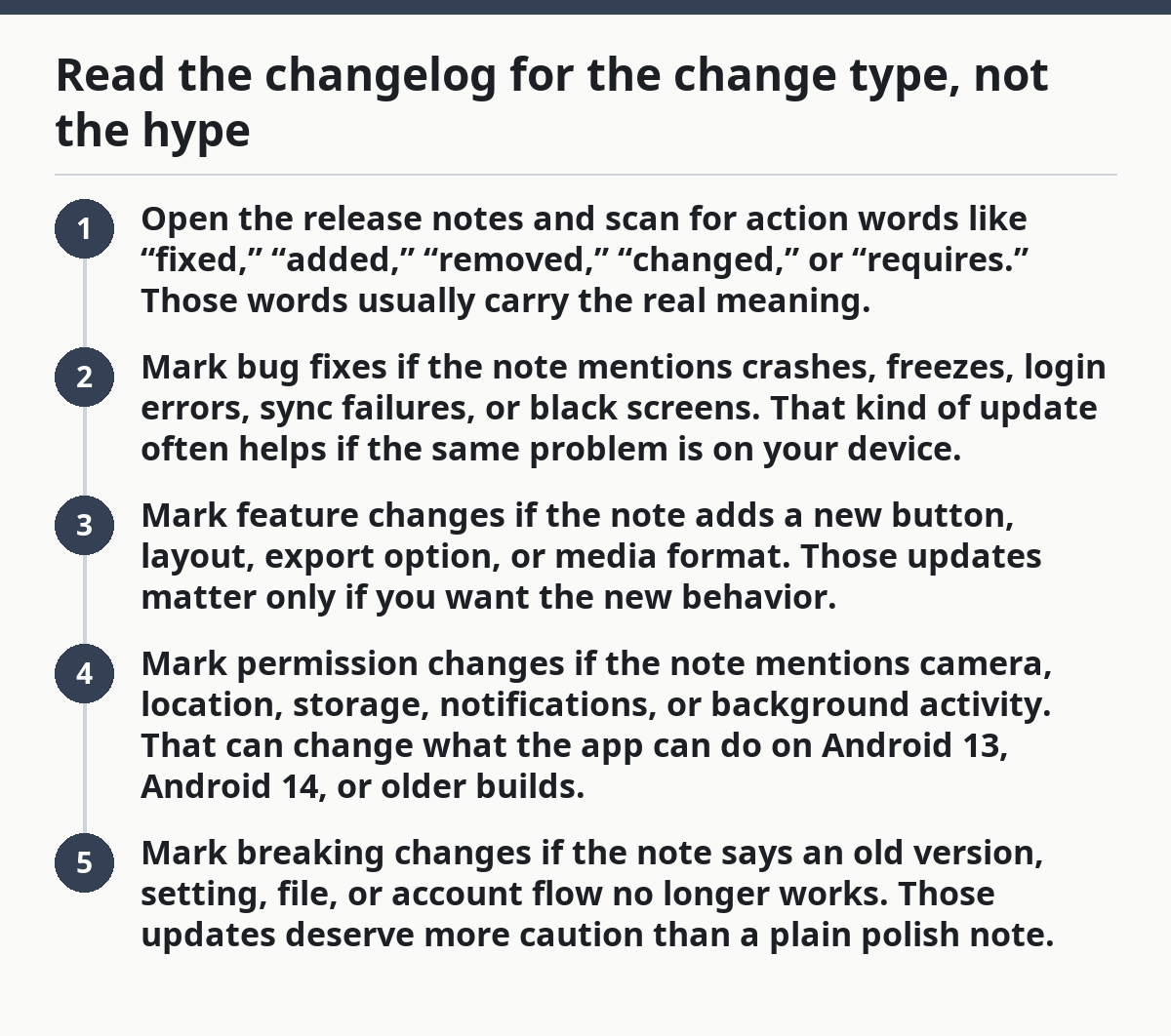
- Open the release notes and scan for action words like “fixed,” “added,” “removed,” “changed,” or “requires.” Those words usually carry the real meaning.
- Mark bug fixes if the note mentions crashes, freezes, login errors, sync failures, or black screens. That kind of update often helps if the same problem is on your device.
- Mark feature changes if the note adds a new button, layout, export option, or media format. Those updates matter only if you want the new behavior.
- Mark permission changes if the note mentions camera, location, storage, notifications, or background activity. That can change what the app can do on Android 13, Android 14, or older builds.
- Mark breaking changes if the note says an old version, setting, file, or account flow no longer works. Those updates deserve more caution than a plain polish note.
When changelogs turn vague and say things like “performance improvements,” treat it as a soft signal, not a promise. Check the app’s documentation or a trusted technician if the change matters to your setup. Google’s Android developer guidance on release notes and app updates is a useful place to verify what a changelog does and does not say: https://developer.android.com/guide/playcore/in-app-updates . That phrase often means minor fixes, but it can also hide a real change with no detail. On the flip side, a plain line like “fixed crash on launch” is specific enough to trust.
What should I look for in release notes?
Look for anything that changes how the app behaves on your phone, especially bugs, permissions, and anything marked as required. A short changelog can still tell you a lot if you know which words carry weight.
Start with the part that affects your use case. Use the APK for offline reading? Then a note about sync or login may not matter. Use it for uploads? A fix for file sharing matters far more than a new color theme.
- Bug fixes: good when the note names a problem you have already seen.
- Feature changes: useful when the new feature fills a gap you actually need.
- Permission changes: important when the APK asks for new access or changes how it uses storage, microphone, location, or notifications.
- Stability notes: worth a look when the app has been crashing, lagging, or draining battery.
- Breaking changes: the red flag line; it can mean a settings reset, a format change, or a function that no longer works the same way.
The release notes are easiest to trust when they name the exact area of the app, such as “video playback,” “download queue,” or “dark mode.” That gives you a clear clue. If the note only says “various fixes,” you have less to go on and should lean on the other clues in the file name, version number, or developer history.
Here’s the catch: changelogs are written for speed, not for you. A developer may compress five real fixes into one bland sentence. Read for patterns, not perfect detail.
How do I know if an update is worth installing?
An update is worth installing when the changelog fixes a problem you have, removes a blocker, or adds a feature you will use right away. If none of those are true, the old APK may already be good enough for now.
Ask three plain questions before you tap install. Did the changelog name a bug you hit in the last 7 days? Did it mention a permission or login change that could affect your current setup? Did it warn about a breaking change that could slow you down if you skip versions?
- Install now if the note says it fixes a crash, broken playback, failed login, or bad sync.
- Install soon if it adds a feature you wanted, even if the app is still working.
- Wait if the note is vague and the app is stable on your device.
- Pause if the changelog mentions a new required permission and you are not sure why it needs it.
A useful rule: the more exact the note, the easier the decision. “Fixed export failure on Android 14” is a strong update signal. “Improved performance” is weaker. If the app is already stable, don’t update just because a new version exists. That is how people trade a working build for a new problem.
The better update is the one that solves a real pain point or closes a compatibility gap. If you cannot name either, there is no rush.
How to spot permission changes and breaking changes
Permission changes and breaking changes are the two lines that deserve the most attention in an APK changelog. They can alter what the app can access or what it can still do after the update.
You’re reading release notes that look harmless until one line says the app now needs access to notifications, files, or background activity. That tiny line may matter more than the new icon. It can affect privacy, battery use, and how the app behaves on Android.
Look for phrases like “now requires,” “permission added,” “permission removed,” “migrated,” “deprecated,” or “older versions unsupported.” Those are the clues that the update changes the app’s rules. A change from one storage method to another can also break old workflows, even if the app opens fine.
- Check permission language for anything tied to storage, camera, contacts, microphone, location, or notifications. Those are the permissions most likely to affect daily use.
- Check breaking-change language for file format changes, login changes, server changes, or a note that older data may not carry over.
- Check version references if the note names Android 12, Android 13, Android 14, or a minimum SDK. That tells you whether your device still fits the build.
- Check replacement notes if the developer says one feature has moved, renamed, or been removed. That can be a sign that muscle memory will fail after the update.
A breaking change is not always bad, but it should never be treated as noise. It means your old habit, file, or shortcut may stop working the same way. If a changelog says “export format changed,” for example, that is a real compatibility issue, not a cosmetic tweak.
If you want a bigger picture on versioning and compatibility, the hub on APK version, compatibility, and updates should sit beside this page. This guide stays on reading the notes, not on update policy.
How to decide with bug fixes, feature changes, and stability notes
Match the changelog to your problem first, then pick the update that solves it with the least risk. That is the whole game.
You’re comparing two APK versions and one says “bug fixes and improvements” while the other says “fixed crash after login.” The second one gives you a real reason to move. The first one is a shrug.
Use this quick filter:
- Bug fixes: update if the bug matches your issue.
- Feature changes: update if the new feature changes how you use the app.
- Stability notes: update if the app has been unreliable, especially on a specific Android version.
- Security or permission notes: update if the change affects access, login, or sensitive data.
- Breaking changes: update carefully, because the cost of a bad surprise is higher.
A lot of generic changelogs hide behind the phrase “improvements.” That phrase may cover crash fixes, memory tuning, UI cleanup, or nothing a normal user would notice. If the note has no detail and your current APK works, hold off until a future version gives you a clearer reason. For broader guidance on why vague release notes are weak evidence, the FTC’s consumer advice on software updates also stresses checking what the update changes before installing it: https://consumer.ftc.gov/articles/software-updates .
The stronger decision is to sort the update into “must have,” “nice to have,” or “skip for now.” That is better than updating on habit.
Common mistakes when reading APK release notes
The biggest mistake is treating every changelog line as if it has the same weight. It does not. A typo fix and a permission change are not equal, even if they appear on the same screen.
Another mistake is assuming “bug fixes” always means safe. Sometimes a bug fix changes timing, login flow, or file handling in a way that affects you. A note can be short and still matter a lot.
- Mistake: chasing vague polish notes. Cost: you may install a version that changes nothing useful. Better move: wait for a note tied to your issue.
- Mistake: ignoring permission changes. Cost: the app may ask for more access than before. Better move: read any line that mentions storage, location, camera, or notifications.
- Mistake: skipping breaking-change lines. Cost: old settings or files may stop working. Better move: look for “requires,” “deprecated,” and “older versions unsupported.”
- Mistake: updating only because the version number is higher. Cost: you trade a stable build for unknown behavior. Better move: ask what the change does for you.
- Mistake: reading only the headline. Cost: the one useful detail may be in the third bullet. Better move: scan the whole note before deciding.
If the release notes are thin, patience beats panic. A later changelog may say more. And if the app already does what you need, a weak release note is not a strong reason to move.
A simple update decision you can use in under a minute
You can decide in under 60 seconds by checking what changed, what it touches, and whether that change matters to your use case. That is fast enough for an APK you install often.
Start with the line that looks most specific. If it names a crash, login, export, playback, or permission, treat that as the main signal. If it only says “stability improvements,” treat it as a low-detail note unless you already have the same problem.
Then ask one final question: does this update fix a problem, add a feature you need, or remove a risk you care about? If the answer is no, keep the current build. If the answer is yes, the changelog has done its job.
A plain changelog is not a sales page. It is a map. Some maps point to a shortcut, some warn about a closed road, and some tell you nothing new. Read it for those signs, and the update decision gets much easier.
What should I look for in release notes?
Look for the exact change, not the marketing line. A useful release note names a bug, a feature, a permission, or a breaking change you can tie to your own use.
If the note says “fixed crash on launch” or “requires notification permission,” that is clear. If it only says “improvements,” the note is weak and should not force an update by itself.
How do I know if an update is worth installing?
An update is worth installing when it solves a problem you already have or prevents one you can see coming. A new version number alone is not enough.
If the changelog names a crash, a broken login, a file problem, or a permission change that affects you, the update is usually worth a look. If the note is vague and the app works fine, waiting is reasonable.
What does ‘bug fixes and improvements’ really mean?
It usually means the developer fixed one or more problems, but did not list them in detail. The phrase can cover small crash fixes, layout tweaks, speed changes, or code cleanup.
That makes it a weak signal. If your APK is stable, you can wait for a more specific release note. If you are already seeing bugs, the update may still be worth trying.
Drafted with AI; not yet reviewed by a person.
