

Last updated: November 19, 2026
Quick Answer: In most cases, you can tell in under 1 minute by checking the extension and the archive contents. An APK that installs by itself is a single file; an APK that needs an installer, extra parts, or a companion package is a bundle.
The article How to Identify Whether an APK Is a Single File or a Bundle Before Installing shows the checks that settle it fast.
Key Takeaways
- A plain .apk is usually one installable package.
- .apks and .xapk often point to bundles, not a single APK.
- File contents matter more than the name alone.
- An archive manager can show split files, asset packs, and extra installers.
- If Android says the file can’t be opened directly, it’s usually not a single package.
Start with the file extension and the file name

The extension is usually the first clue: a lone .apk often means a single installable file, while .apks and .xapk often mean a bundle or container with more than one piece. A file name that includes words like “split,” “bundle,” or “installer” is another warning sign.
Picture this: you’ve downloaded a file and want to know if Android will take it straight away or if it needs extra parts. You can usually settle that in under a minute by checking the ending, the size, and whether the file name looks like a package, not a normal app file. .apk is the main clue.
Use this quick read before you do anything else:
- .apk: often a single package
- .apks: usually a bundle container made for multiple APK parts
- .xapk: usually a package that includes the app plus extra data or split files
- No extension shown: don’t trust the name yet; Android or your file app may be hiding it
The catch is that the extension alone can lie. Some downloads are renamed badly, and some file managers hide the real ending. A file called app.apk might really be a ZIP-like container if it came from a third-party source. That’s why the next check matters.
If you want a broader map of package types, the hub page on APK formats and installation packages is the right place to branch out from here.
What does the archive contents tell you?
The contents tell you whether you have one installable file or a bundle with split components. If the file opens like an archive and shows only one main APK, that points to a single file; if you see several APKs, base.apk, split_config...apk, or extra folders, you’re looking at a bundle.
Picture this: you open the file in an archive manager and the inside looks busy. That is the point to stop treating it like a normal APK. A single-package app is simple inside; a bundle usually has multiple parts, and Android needs the right installer path to put them together. More than one APK is the giveaway.
Here’s what to look for inside the archive manager:
- One APK only: more likely a single file
- base.apk plus split files: bundle behavior
- split_config files: language, device, or screen-density splits
- Extra data folders: common with container formats that carry OBB-style assets or game data
- An installer app or manifest file: a sign the download expects a special install method
The best part? You do not need to understand every file name. You only need to ask one question: “Is there more than one install part?” If yes, it is not a simple single-file install.
Archive managers help here because they show what Windows-like file browsers hide on phones. Open the package with one, and you can usually see the structure in seconds. If your app only shows a single .apk and nothing else, that is a strong sign. If it shows several APKs, don’t force it through the normal installer.
How to check an APK in an archive manager
An archive manager can confirm the package type in 30 seconds if you know what to open and what to ignore. You are not trying to extract everything yet; you are only checking whether the download is a plain APK or a bundle with extra parts.
Picture this: you have a file sitting in Downloads and Android won’t tell you much from the icon alone. Open it with an archive manager, look for the file list inside, and the structure usually gives the answer before you install anything. One file or many is the question.
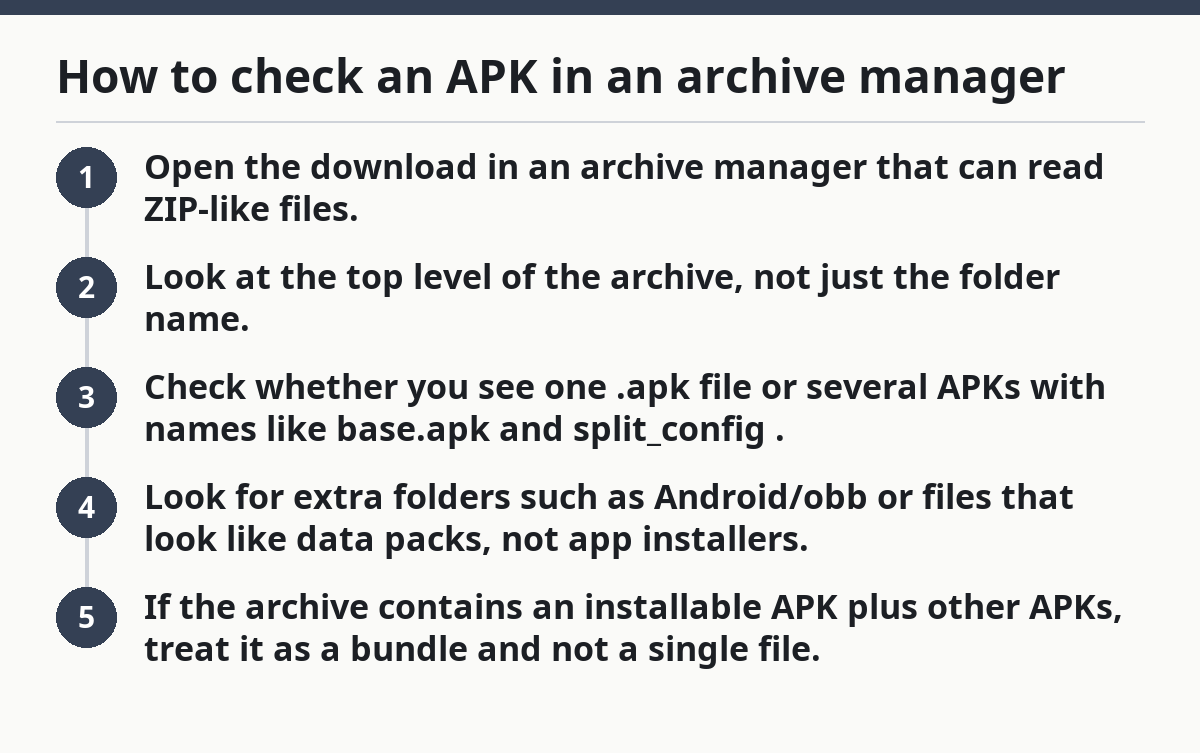
Follow these steps:
- Open the download in an archive manager that can read ZIP-like files.
- Look at the top level of the archive, not just the folder name.
- Check whether you see one .apk file or several APKs with names like base.apk and split_config.
- Look for extra folders such as Android/obb or files that look like data packs, not app installers.
- If the archive contains an installable APK plus other APKs, treat it as a bundle and not a single file.
A plain single-file APK usually has a simple structure. A bundle often brings along separate language packs, architecture splits, or asset data. That is why a “works on my phone” test from one device can fail on another phone model.
Two things trip people up here. First, some archive managers show compressed contents without explaining what they mean. Second, not every extra file is a problem; a lone APK can still sit next to a readme or checksum file. The key is whether the app itself is split into multiple APK parts. That costs you time if you miss it.
Use the APK files, not the notes.
Why a file can look like an APK but still not install
A file can look like an APK and still fail because it is really a bundle container, a renamed archive, or a package that needs a special installer. Android’s stock installer expects a straightforward .apk; it will not always open .apks or .xapk the same way.
Picture this: the name ends in “apk,” but tapping it brings an error or nothing useful. That usually means the file is not a simple one-piece app. It may be a container that hides multiple APKs, or it may include extra data that the standard installer does not know how to unpack. Looks right is not enough.
Here are the common signs that explain the mismatch:
- The file opens in an archive manager, not the normal installer
- You see several APK parts inside the package
- The download includes both app files and extra data files
- The extension is .apks or .xapk, even if the icon looks like an APK
- The app name is present, but the package needs a companion installer or split-aware installer
The truth is, the file name is only the label. The structure is the proof. If the structure says “bundle,” then the normal one-tap install path is the wrong tool. That does not mean the file is bad. It means it is packaged for a different install route.
A bad job here is easy to spot: people rename a bundle to .apk and expect Android to do the rest. That often ends in a failed install or a half-loaded app. The better move is to confirm the package type first, then use the installer that matches it.
What clues show that an app is bundled?
An app is bundled when the download is split into multiple parts, usually for device compatibility, language packs, graphics, or extra game data. The clue is not one single file name; it is the pattern: multiple APKs, split_config names, or a package format like .apks.
Picture this: you want one app, but the download looks like a small stack of files. That stack is the clue. A bundled app is built so Android can choose the right parts for your device, which is why the package may not install as one simple file. Several parts means bundle.
The most common clues are:
- Multiple APKs in one archive
- base.apk plus split files
- split_config.arm64_v8a.apk or similar architecture tags
- Language or density splits
- .apks or .xapk as the download format
Those names are not random. They tell you the package is broken up by hardware or content. A 64-bit phone may need a different split than an older 32-bit device. That matters on Android more than people expect, and it is why one file can fail on one phone and work on another.
Here’s the practical rule: if the download expects you to install more than one APK together, consult a professional or trusted source before you treat it as a single file. That can save you from wasting time on a package that was never meant to be tapped once and done. For background on Android app delivery, see the Android Developers guidance on app bundles and APK installation.
Single APK or bundle: the fastest decision path
The fastest decision path is: check the extension, open the file contents, and look for split APK parts. If you see one APK, it is probably a single file; if you see base.apk, split_config, or a container like .apks, treat it as a bundle.
Picture this: you are standing in Downloads and want the answer now, not after a long hunt. This is the simple order that works in real life. Extension first, contents second, installer third.
Use this 3-step filter:
-
Read the extension.
If it says .apk, keep going. If it says .apks or .xapk, assume bundle until proven otherwise. -
Open it in an archive manager.
Look for one APK versus several APKs. The presence of split_config files means the package is split. -
Check whether Android can open it directly.
If the stock installer refuses, the file is probably not a plain single APK. If it opens cleanly and shows one package, it usually is.
This path is useful because it avoids a common mistake: trusting file size. A large APK can still be a single file, and a small bundle container can still hide multiple install pieces. Size alone does not settle it. Contents settle it.
What to do before you install if you’re still unsure
If you are still unsure, do not tap install yet; inspect the package with an archive manager and confirm whether it contains one APK or several. That extra minute prevents failed installs, broken app launches, and a lot of guessing.
Picture this: the package is in your downloads folder, the name looks plausible, and you are one tap away from installing something you do not fully trust. That is the moment to slow down. A package that hides its structure is telling you to check it, not guess. Pause first.
Use this short checklist:
- Confirm the visible extension
- Open the package in an archive manager
- Look for base.apk and split_config names
- Check for extra data folders or companion files
- Decide whether the package is single-file or bundled before any install
A single APK is simpler to handle and easier to spot. A bundle is not bad, just different. It needs the right install method and often the right app parts together. If you get that wrong, the install can fail or the app can open with missing pieces.
That is why the distinction matters before installation, not after. You are not just identifying a file; you are deciding whether the package is meant for a direct install or a multi-part setup. The difference shows up in the file name, the extension, and the archive contents.
How can I tell what kind of package I downloaded?
Check the extension first, then open the file in an archive manager. A plain .apk is usually a single file, while .apks and .xapk usually point to a bundle with more than one part. If you see base.apk or split_config files inside, you have a bundled package, not a lone APK.
Why does the file look like an APK but not install?
It often looks like an APK because the name ends in .apk, but the inside is really a container or split package. Android’s normal installer expects one straightforward app file, not several parts or extra data. If the archive opens and shows multiple APKs, that explains the failure.
What clues show that an app is bundled?
Multiple APK files inside the download are the biggest clue. Names like base.apk, split_config, or a package ending in .apks also point to a bundle. Those parts usually exist for device matching, language files, or graphics settings, so the app is not meant to be treated as one simple file.
Drafted with AI; not yet reviewed by a person.
