
Last updated: November 19, 2026
Quick Answer: You usually need 1 split-capable installer app and the full file set to install a split APK package on Android without missing files. If the base APK or one required split is missing, the install can fail or open broken. This guide to How to Install a Split APK Package on Android Without Missing Files shows how to check the package, choose the installer, and avoid common errors.
Key Takeaways
- A split APK package is not one file you tap and forget; it’s a set that has to stay together.
- The base APK is the core app, and the other files add device-specific parts like language, screen density, or CPU support.
- A split installer app matters because Android’s normal package screen often won’t join the files for you.
- If one split is missing, the install may stop, or the app may open but act broken.
- The cleanest result comes from using a package that includes every split from the same bundle.
What a split APK package needs before you start
A split APK package needs the base APK plus every matching split file from the same build. If you only have the base APK, the install may begin and then fail, or it may complete with parts missing. The package structure is the whole point here.
Picture this: you’ve downloaded an app folder and you’re ready to tap install, but Android keeps rejecting it because the set is incomplete. That’s not a random error. It means one of the files in the package is absent, mismatched, or not being handed to the installer together.
Before you do anything, check for these pieces:
- Base APK: the main app file
- Config splits: extras for language, screen density, and device architecture
- Installer app: a tool that can join the pieces
- One matching package set: all files from the same release, not mixed from different downloads
The truth is, split packages are picky about matching versions. A French language split from one build and a base APK from another can break the install. Even if the file names look similar, the package can still fail.
What to look for in the folder:
- Same app name across the files
- Similar version labeling
- A group of files, not a lone APK
- No obvious missing split such as language or architecture support
If the package came from a bundle, the set may include files that look like app parts rather than one normal APK. The safest approach is to keep the files together and follow the package source’s instructions or a qualified technician’s guidance. The job is not to flatten them into one file by hand. The job is to install the set as a unit.
How do I install a split APK package on Android?
You install a split APK package by opening it in a split-capable installer app and pointing the installer at the full file set. That is the direct answer, and it matters because Android’s default installer is built for a single APK, not a package split into pieces.
Picture this: you have the download on your phone, and the install button is there, but tapping the base APK alone doesn’t finish the job. The installer needs the companion files too, or the app won’t assemble correctly on the device.
Next, use this process:
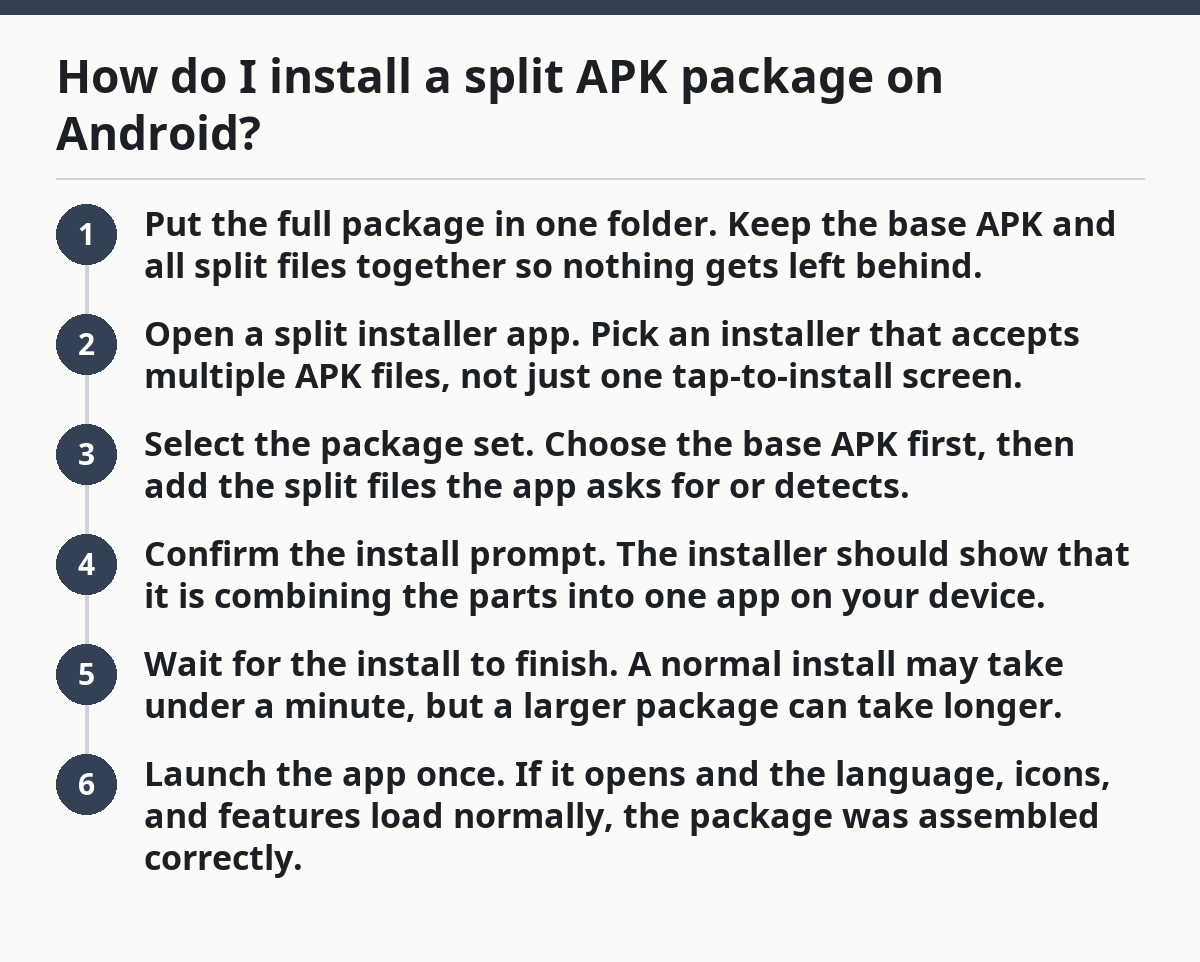
- Put the full package in one folder. Keep the base APK and all split files together so nothing gets left behind.
- Open a split installer app. Pick an installer that accepts multiple APK files, not just one tap-to-install screen.
- Select the package set. Choose the base APK first, then add the split files the app asks for or detects.
- Confirm the install prompt. The installer should show that it is combining the parts into one app on your device.
- Wait for the install to finish. A normal install may take under a minute, but a larger package can take longer.
- Launch the app once. If it opens and the language, icons, and features load normally, the package was assembled correctly.
Here’s the catch: different installer apps phrase the steps differently. Some ask you to choose a folder, some ask for one file first, and some show a list of splits before you approve the install. The workflow changes, but the goal does not.
If the installer warns that a split is missing, stop there. Installing the base APK by itself is the wrong move. You will usually end up with a partial install and more cleanup work later.
Which files belong in the package?
The package should include the base APK and the right config splits for the device that will run it. A complete package often includes language files, screen-density files, and architecture files such as arm64-v8a or armeabi-v7a.
Picture this: the app folder has six files, but you are unsure which ones matter. That’s normal. Split packages are built to carry extra pieces for different phones and tablets, and not every file in the folder belongs to every device.
Common file roles include:
- Base APK: the app core
- Language split: text and locale support
- Density split: graphics sized for the screen
- CPU architecture split: code for a specific processor type
- Feature split: optional modules for certain functions
Not every package includes every type. Some installs need only a few splits; others need more. The exact set depends on the app build and the device.
What a generic guide often gets wrong is this: it treats all extra APK files as optional. In practice, some extras are required for a specific phone, so a cautious check is better than guessing; if you are unsure which file matters, consult the package source or a professional. If your device needs an arm64 split and you skip it, the install may fail or the app may crash on launch.
A quick way to think about it:
- If a file changes the app’s language, it is not decorative.
- If a file matches a screen type or chip type, it may be required.
- If the package came from a bundle, the installer may need every relevant split from that same bundle.
One bad habit causes a lot of trouble: mixing files from different mirrors or download folders. A split package is a set, not a pile of similar APKs. If the app came from a bundle, use the bundle’s own files together.
Why won’t a split APK install by itself?
A split APK won’t install by itself because one file is only part of the app, not the whole app. The base APK holds the core, but the splits carry the pieces Android needs to finish the package for your device.
Picture this: you tap one APK file, expect the app to install, and Android refuses or installs a broken version. That usually means the file you tapped is only the base, or it is one split without the others beside it.
Common failure points:
- Missing base APK: no core app to build from
- Wrong split set: files from different versions mixed together
- Wrong installer: a normal package screen can’t assemble split files
- Missing architecture split: the app cannot match the device CPU
- Missing language split: the app opens, but pieces of the interface are absent
The cost of ignoring that message is wasted time. You may keep retrying the same broken file while the real fix is to collect the missing split or use the correct installer.
Then recheck the folder for every file from the same package, and make sure the base APK is present. Open the package in a split installer app, not the default tap-to-install flow. If one file is missing, redownload the whole set rather than hunting for a random replacement.
Once the package is complete, installation is usually straightforward. Split packages are annoying only when one piece is missing or the wrong app tries to handle them.
What a bad install looks like
A bad install usually shows up as an error during setup, a partial install, or an app that opens with missing features. That is the sign that one split did not get included, or the installer could not combine the package correctly.
Picture this: the app icon appears, but the menu text is blank, a language is wrong, or the app closes the second you open it. That is not a random bug. It often means the split package was incomplete from the start.
Signs the install went wrong:
- The installer stops on a file mismatch
- The app installs, but some screens are blank
- The app opens and closes right away
- A language you expected is missing
- The install only works after a second attempt with a different installer
A bad job usually leaves one of two marks. Either the install fails immediately, or it “works” in a way that breaks the app later. Both point to the same problem: missing files or mismatched splits.
What to do next:
- Remove the partial install.
- Return to the original package folder.
- Check whether every split file is still there.
- Use a split-capable installer app again.
- If the package still fails, get a fresh copy of the same release.
Do not try to patch an incomplete package by guessing which file is missing. That is how people end up with an app that half works and is hard to remove later.
What should I ask before using a contractor or installer service?
You should ask whether the installer supports split packages, whether it can handle the full file set, and what happens if one split is missing. That is the practical question if somebody else is doing the install for you or setting up devices in volume.
Picture this: you are handing the job to another person because the package keeps failing. You want the install done once, not reopened three times because the wrong tool was used or a file was skipped.
Ask these questions:
- Can you install a split APK package as a set?
- Which installer app do you use for split files?
- Do you check for the base APK and all config splits before starting?
- What do you do if the package is missing a language or architecture split?
- Will you remove a partial install before trying again?
If someone says they can “just tap the APK,” that is a warning sign. That approach works for a single-file app, not for a split package. A proper install method should account for the file set, not only the biggest file in the folder.
For a business setting, the bad outcome is not only a failed install. It is lost time across multiple devices because the same mistake gets repeated. A careful installer checks the package once, then installs it the same way on every phone.
Split APK package problems are usually file problems, not phone problems
Split APK package problems are usually caused by missing or mismatched files, not by the Android phone itself. That is why the fix is usually to collect the full package and use the right installer rather than chasing device settings.
Picture this: you’ve already checked the storage, rebooted the phone, and tried the same file again. If the failure keeps coming back, the package itself is the thing to inspect.
Use this final check:
- Base APK present
- Matching split files present
- Same package version across the set
- Split-capable installer app ready
- No random mix of files from different downloads
A few packages are easy to confuse with other formats because they arrive as several files instead of one. For background on package delivery and Android app installation, see the Android Developers documentation at developer.android.com and the Android package installer overview at source.android.com. This page belongs in the broader APK formats and installation packages hub, but the job here is narrower: get the split set installed without leaving pieces behind.
If the package is complete and the installer is right, the install should finish normally. If it still fails, the package is probably incomplete or mismatched. That is the line to hold.
Why won’t a split APK install by itself?
A split APK won’t install by itself because it is only one part of the app. The base APK provides the main app, and the extra splits carry device-specific pieces such as language or screen support. If you tap one file alone, Android may reject it or install an incomplete app.
What files belong in a split package?
A split package should include the base APK and the matching split files from the same build. Those splits can include language, screen density, CPU architecture, or other feature files. If even one required split is missing, the install can fail or the app may run with missing parts.
Do I need a special installer for split apks?
Yes, you usually need an installer app that can join multiple APK files. Android’s default install flow is made for one APK, not a split set. A split-capable installer reads the full package, combines the parts, and installs the app as one unit.
Drafted with AI; not yet reviewed by a person.
