
Last updated: November 19, 2026
Quick answer: to open an XAPK file on Android without breaking the install, use a trusted installer app or careful manual setup, because Android usually does not open XAPK files directly. In most cases, the package includes an APK plus extra game data, and a bad install can leave you with a missing OBB file or a broken app. This guide shows the clean way to do it and what to check before you start with How to Open an XAPK File on Android Without Breaking the Install.
Key takeaways
- XAPK files are often wrappers around an app and its extra data.
- Tapping the file in a file manager usually fails because Android does not treat XAPK as a standard install package, so if you are unsure, consult a professional or follow the package instructions from a reputable source such as Android Developers. Android Developers
- An installer app can unpack the app and place the extra files where they belong.
- Manual setup works, but only if you put the OBB or data folder in the right Android path.
- The most common failure is a good APK with missing game data.
Open the XAPK file the right way
Picture this: you’ve downloaded an XAPK file for Android, and all you want is for the app to start normally after install. One safe path is to use an installer app that can read the package, extract the APK, and place the extra data in the right folder.
Here’s the catch: Android itself does not handle XAPK as a normal one-file install. A file manager may show the package, but that does not mean the system can install it correctly. The result is often a partial install, a missing OBB file, or an app that opens and then crashes.
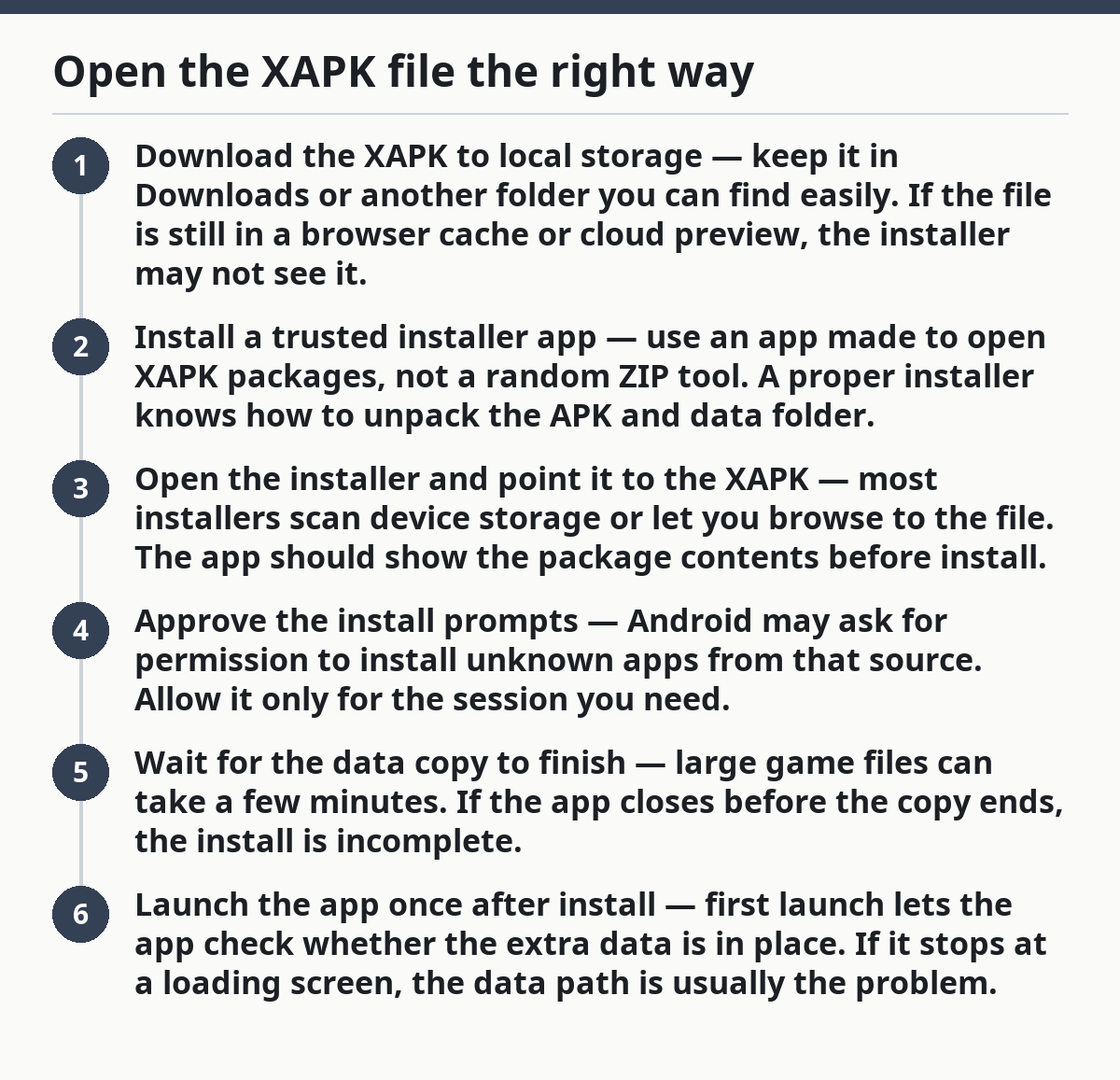
- Download the XAPK to local storage — keep it in Downloads or another folder you can find easily. If the file is still in a browser cache or cloud preview, the installer may not see it.
- Install a trusted installer app — use an app made to open XAPK packages, not a random ZIP tool. A proper installer knows how to unpack the APK and data folder.
- Open the installer and point it to the XAPK — most installers scan device storage or let you browse to the file. The app should show the package contents before install.
- Approve the install prompts — Android may ask for permission to install unknown apps from that source. Allow it only for the session you need.
- Wait for the data copy to finish — large game files can take a few minutes. If the app closes before the copy ends, the install is incomplete.
- Launch the app once after install — first launch lets the app check whether the extra data is in place. If it stops at a loading screen, the data path is usually the problem.
If the installer app says the package is damaged, check the file name and size first. A half-downloaded XAPK is a common cause. If you are still unsure, consult a professional or the installer’s help page before retrying. (Source: Google Files help)
What an XAPK file contains on Android
An XAPK file usually contains an APK plus extra game data, and that extra data is why the file needs special handling. The main app code sits in the APK, while large assets often live in an OBB file or a similar data folder.
That matters because Android installs the app and the data separately. If you only extract the APK and skip the rest, a game may install but still fail at the title screen. Maps, voice packs, levels, and texture files are often the missing piece.
Common contents include:
- APK file — the app installer itself
- OBB file — extra assets, often for games
- Data folder — files the app expects in internal or shared storage
- Manifest or metadata file — a small file the installer uses to read the package layout
The main mistake is treating an XAPK like a simple ZIP archive. Yes, it can often be opened by extraction tools, but that does not mean the files are now installed. They still have to land in the right Android directory.
For a deeper map of file types, the hub on APK formats and installation packages is the right next stop. This page stays on the install side of the problem. For Android file handling basics, see the official Android Developers storage guidance. (Source: Android Developers storage)
How to open an XAPK file without missing the game data
Picture this: you’ve got the app installed, but it still asks for more files or drops you back to the home screen. That usually means the game data never got copied into the correct Android folder, or the OBB file ended up one directory off.
The safer path is simple in theory and fussy in practice. Android expects extra data in a very specific place, and the package only works when the file path matches what the app was built to read.
- Extract the XAPK if your installer asks you to — use the installer’s built-in extraction first. If you must use a file tool, open the package and look for the APK plus an OBB or Android folder.
- Find the OBB path — for many apps, the target is the
Android/obb/folder on internal storage. The app’s own folder name usually sits inside it. - Copy the OBB file to the exact folder — do not leave it one level higher, and do not rename it unless the package instructions clearly say to.
- Install the APK after the data is in place — some packages work best when the data is copied first, then the app is installed.
- Open the app once from the launcher — that first run lets it check the data path and build any remaining cache.
A wrong folder name is enough to break the install. So is a second OBB copy sitting in Downloads, where the app will never read it. For Android folder locations, the official docs on app-specific storage are the most reliable reference. Android storage docs
What to do if Android won’t open the XAPK
Android won’t open the XAPK directly if the file is incomplete, the installer app is the wrong one, or the package expects manual setup. That is normal, not a sign that the phone is broken.
A failed install often looks boring, and that is what makes it annoying. An app may install but never launch. An installer may quit halfway through. A game may open without audio, then crash once it tries to load assets larger than 1 GB.
Check these points first:
- File integrity — if the download stopped early, the XAPK may be truncated.
- Storage space — extra game data can be much larger than the installer file. Leave enough room for both the package and the extracted files.
- Permissions — the installer may need access to files and media to read the XAPK.
- Wrong file type — some downloads are renamed ZIP files or even APKS packages. The extension alone can fool a file manager.
- Bad folder placement — OBB files in the wrong folder are the classic cause of “install succeeded, app failed.”
Use a proper extractor only when the installer app cannot handle the package. Even then, extraction is just the first half. The files still have to be moved into the right Android path. For file integrity checks, the ZIP format reference from the Python standard library is a useful technical cross-check. Python zipfile docs
When manual setup makes sense and when it does not
Manual setup makes sense when the XAPK includes a clear APK and OBB pair, and the installer app keeps failing on the same step. It does not make sense when the package is from an unknown source or when the file structure is unclear.
Picture this: you’re staring at a folder full of files and trying to guess which one Android wants. That is where people make mistakes. Manual setup is precise work, not a shortcut.
Use manual setup only if you can answer these questions:
- Which file is the APK?
- Which folder is the OBB or data folder?
- What is the app’s package name?
- Does the app need the data in internal storage, not an SD card?
If you cannot answer those, stop. A bad manual copy can waste 20 minutes and still leave you with a broken install.
A quick reality check helps:
- Good fit: a game with a named OBB folder and a known package name
- Bad fit: a package that only says “data” with no folder map
- Bad fit: an XAPK that came from a source you do not trust
- Good fit: a phone with enough free space to hold both the archive and the extracted files
Manual setup is a tool, not the default. For most people, an installer app is faster and less likely to scatter files in the wrong place. If you need help verifying package names, the Android app package overview is the authoritative reference. Android package overview
How to tell a clean install from a broken one
A clean install opens normally, reads its data, and reaches the home screen without asking for missing files. A broken install often fails in the first 30 seconds, even if the APK itself installed fine.
The difference is usually visible fast. A healthy install does not keep asking for downloads it should already have. It does not crash as soon as a level starts. It does not show blank menus where art or text should be.
Watch for these signs:
- The app opens but freezes on a splash screen
- The game loads menus but no levels or textures
- Audio works, but videos or maps do not
- The app closes as soon as it reaches a large asset load
- Android shows the app as installed, yet the app behaves like data is missing
If you see one of those, the APK is probably not the main problem. The issue is usually the extra data components that never landed in the right place.
What to ask before you install any XAPK
Picture this: you’re about to tap install, and you want one quick check that saves you from redoing everything later. The right questions are small, but they catch most bad installs before they start.
Ask these first:
- Does the package need an OBB file?
- Is the installer app reading the whole XAPK, not just the APK?
- Is the storage path correct on this Android device?
- Was the file fully downloaded?
- Do I trust the source of the package?
If you can answer “yes” to the first four and feel uneasy about the fifth, stop there. A clean file and the right path matter more than speed.
What files are inside an XAPK?
An XAPK file usually holds an APK plus extra data files, and that extra data is often what makes the package work. The APK installs the app itself, while an OBB file or data folder carries larger assets such as levels, maps, and media.
Do XAPK files need extra data files?
Many XAPK files do, especially game packages with large art or audio assets. If the extra files are missing, the app may install but still crash, freeze, or ask for a separate download on first launch.
Can Android install XAPK files directly?
No, Android usually cannot install an XAPK file directly the way it installs a plain APK. You normally need an installer app or a manual extraction-and-copy process so the APK and its extra data end up in the correct folders.
Drafted with AI; not yet reviewed by a person.
