
Last updated: November 29, 2026
Quick Answer: For most Samsung phones, the safest starting point is 1 official APK file from the developer, matched to your device’s Android version, processor type, and package format. In this guide to APK source choice and file selection on Samsung — The Complete Guide, use the app’s official source first, then pick the APK file that matches your Samsung phone’s Android version, processor type, and package format; avoid random mirrors unless the developer gives no official download. On Samsung, the install setting is only half the job. The other half is choosing the right file, because the wrong APK can fail to install, crash on launch, or ask for permissions your phone cannot satisfy.
Key takeaways
- The safest source is usually the developer’s own site or another place the developer names directly.
- The file name matters: CPU type, Android version, and package format can all decide whether the app works.
- Samsung phones use per-app permission controls for unknown apps, so the installer app itself matters.
- Split packages such as APKM or APKS are not the same as a single APK file.
- A good download choice can reduce both malware risk and the “app not installed” error.
Which source should you trust?
The official developer source is often the best first choice, because it gives you the version the app maker meant to ship and reduces the chance of tampering. If the developer publishes the APK on its own site, in Galaxy Store, or through a well-known distribution page named by the developer, that is the first place to check.
The problem with random mirrors is simple: they often copy files without giving you a clear chain back to the maker. That matters on Samsung because package installers do not tell you whether a file was repackaged, only whether it can be installed. A file can still be technically valid and still be the wrong one to trust.
| Criteria | Official developer source | Third-party APK mirror | Winner for condition |
|---|---|---|---|
| File authenticity | Usually tied directly to the maker | Depends on the mirror’s handling | Official source |
| Version control | More likely to show current builds and notes | May keep older builds without context | Official source |
| Risk of repackaging | Lower if the developer hosts it | Higher if the mirror modifies bundles | Official source |
| Variety of versions | Often limited to the developer’s choices | Often many old and new variants | Mirror for version hunting |
| Ease of finding the right file | Clear when the developer labels files well | Can be messy but searchable | Depends on file labeling |
| Trust when sideloading on Samsung | Stronger choice | Only for careful users | Official source |
| Speed of access | May be slower or less convenient | Often quicker to browse | Mirror, if trusted |
| Best use case | Normal installs | Last resort when no official file exists | Official source |
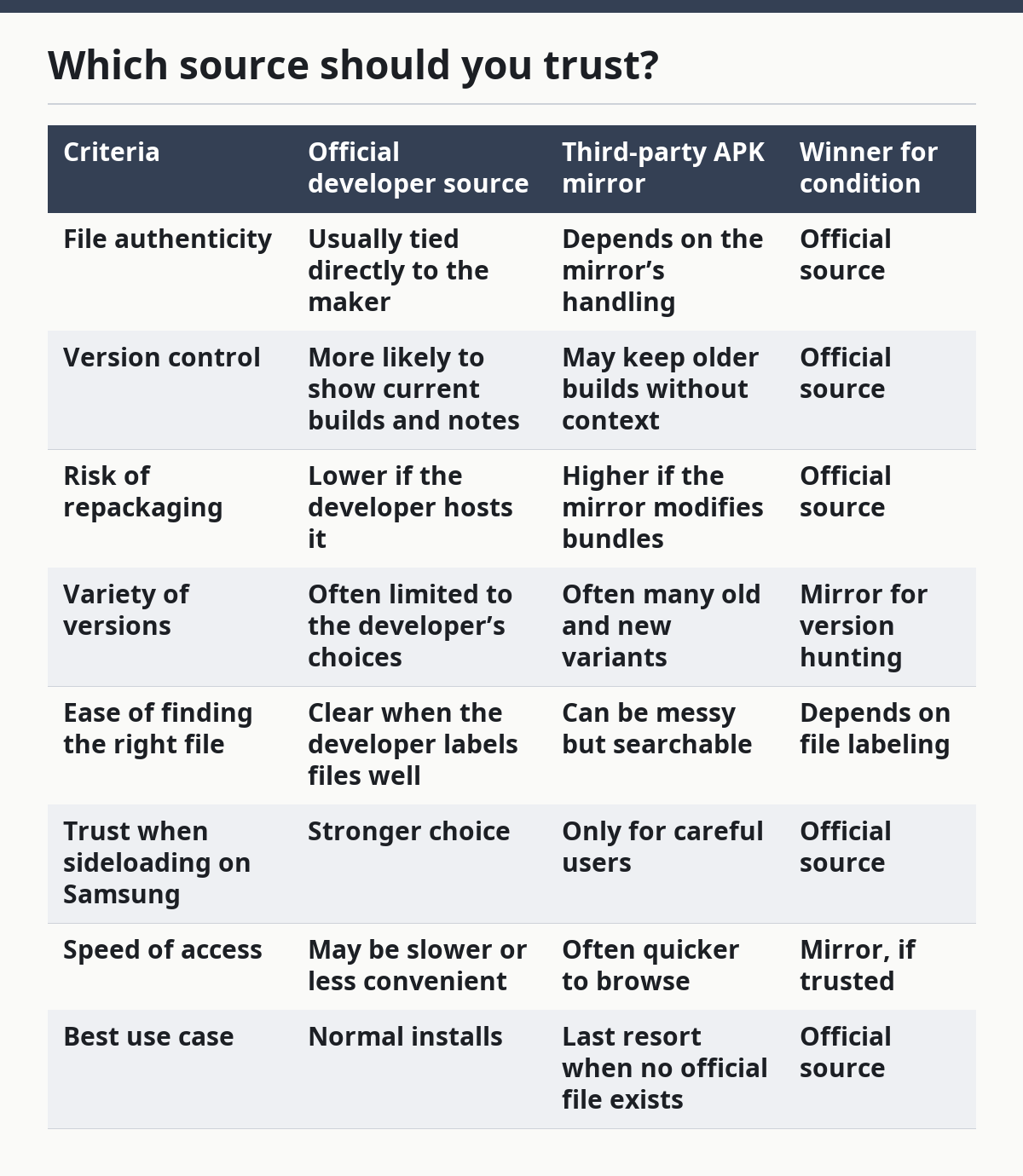
The official source is not the right answer for anyone who wants every old release on one page and is willing to sort through them. It is also not the right answer for users who need a very specific older build for compatibility and cannot get it from the maker. In those cases, a reputable mirror can help, but only if the page clearly shows version, package type, and signing details.
Samsung does not change this rule. One UI may ask you to allow your browser, file manager, or cloud app to install unknown apps, but that permission does not make a bad source safe. It only lets the install happen. For a Samsung phone, the source question comes before the install prompt, not after it.
If a source page does not name the developer, the version, and the package format, treat it as a weak choice and, if you are unsure, consult a professional or the app maker’s support page before downloading. A trustworthy source should tell you what you are getting before you tap download.
Which APK file should you pick?
The right APK file is the one that matches your phone’s architecture, Android version, and the way the app is packaged. On a Samsung phone, the most common mistake is not the source itself but the file variant: a user grabs an arm file on a 64-bit phone, or downloads a split package when the device only has a plain APK installer.
The first thing to check is the CPU architecture. Samsung phones commonly use 64-bit builds, so a file labeled arm64-v8a is often the correct kind of build for modern devices. A file labeled armeabi-v7a is a 32-bit build, which may still run on some phones, but it is the wrong pick when a 64-bit build is available for the same app.
The second thing is Android version support. The file should list a minimum Android version that your Samsung phone meets. If the app needs a newer release than your device has, installation may fail or the app may install and then misbehave.
The third thing is package format. A plain APK is a single install file. APKM and APKS are split-package containers, which often hold multiple parts of the same app. A standard APK installer may not open those by itself. If the download page says APKM or APKS, you may need the matching installer app or a different source that offers a single APK. Android’s app bundle model is also documented by Google as a multi-file delivery format, which is why these variants are common on download pages. (Source: Android Developers)
The fourth thing is app variant. Some apps ship as universal builds, others as device-specific builds. A universal build is easier to choose because it is meant to work across more devices, but it may be larger. A device-specific build can be smaller and more exact, but only if the page labels it clearly.
For Samsung, the simplest file that still fits your device is often a signed APK from the maker, for your CPU type, with a minimum Android version your phone meets. A more complex build is not better unless the source explains why those parts are needed.
How do Samsung’s install settings change the choice?
Samsung’s install settings do not change which APK you should choose, but they do change which app is allowed to open it. On recent Samsung phones, permission for “install unknown apps” is granted per source app, such as your browser, file manager, or cloud storage app. That means the same APK may open fine from one app and be blocked from another. Samsung documents this per-app permission model in its support guidance. (Source: Samsung Support)
This matters because many users assume the APK itself is the problem when the installer is the real issue. If the file sits in Downloads but your browser lacks permission to install unknown apps, the install can fail before the package is even checked. The reverse can happen too: the browser has permission, but the file is actually a split package that the system installer cannot read.
Samsung’s system makes the install path part of the decision. If you downloaded a plain APK, open it from the app that has permission to install unknown apps. If you downloaded APKM or APKS, the file may need a matching installer instead of Samsung’s default package prompt. The file format decides the tool.
This is also why file managers matter. A file manager can be a cleaner route than the browser when you already saved the package locally. It lets you inspect the file name before opening it, which helps you catch mistakes such as the wrong architecture or a bundle format you did not mean to download.
A useful habit is to check three lines before tapping the file: version, architecture, and format. If any of the three does not fit your Samsung phone, stop there. The install prompt will not explain your mistake in plain language, but the file name often will.
Official APK or mirror: which is better for Samsung?
The official APK is usually the better choice for most Samsung users because it gives the clearest path from developer to device. A mirror only wins when the official source is missing the version you need or does not publish a file your phone can use.
The specific strengths of the official source
The official source gives you the clearest answer to the question “what is this file?” That matters when the app has several builds, because the developer’s own page is more likely to explain which one is current, which one is stable, and which one is meant for wider compatibility. It also gives you a better chance of seeing release notes that explain why a new build exists.
Another strength is update clarity. If you later want to update the app, the same source usually points to the next version. That reduces the chance of mixing unrelated builds from different pages. On a Samsung phone, that consistency is useful because sideloaded apps do not always behave like Play Store apps during updates.
The drawback is simple: official pages are often less complete. Some developers publish only one file, or only an Android App Bundle for store delivery, not a plain APK for sideloading. That can leave you without a direct install file even when the app itself is legitimate.
The specific strengths of a trusted mirror
A trusted mirror is useful when you need older versions, archived builds, or file variants the developer no longer posts. That can matter on Samsung if a newer version breaks a feature you still need or if your phone runs an older Android release and the latest build no longer supports it.
Mirrors also often show multiple variants in one place, which makes file selection easier when you know what to look for. A page can show arm64-v8a, armeabi-v7a, universal, and bundle formats side by side. That is convenient, but only if the mirror labels those files clearly and does not bury the important details.
The weakness is trust. A mirror can be accurate and still be a second-hand source. If the page does not show who signed the file, which version it is, or what changed, the file may be harder to judge than the official release.
How do you choose the right variant?
The right variant is the one that matches your Samsung device instead of the biggest file on the page. A larger file is not a better file, and a file with more labels is not automatically safer.
The usual variants are easy to sort once you know the pattern. arm64-v8a is the common 64-bit Android build label. armeabi-v7a is the older 32-bit label. A universal build is made to cover more devices, which often makes it the easiest default choice when you cannot get a clear device-specific match.
The important part is reading the labels as a checklist. If your Samsung phone is modern and the page offers both arm64-v8a and universal, the arm64-v8a build is often the cleaner fit because it matches the device architecture directly. If the page offers only a universal APK from the developer, that is usually the better download than guessing at a more specific file from an unclear mirror.
Split packages need a different decision. APKS and APKM can be fine when they come from a source that explains how to install them. They are not the same as a single APK and should not be treated like one. If you want the simplest path on Samsung, a single APK is easier than a bundle file, because it opens with the normal installer flow.
A good file page should answer at least four questions before you download: what version is this, what Android version does it need, what CPU type is it for, and is it a single APK or a bundle? If the page leaves those out, the problem is the listing, not your phone.
What can go wrong if you pick badly?
A bad choice usually fails in one of three ways: the file will not install, the app will install but crash, or the app will run with missing features. On Samsung, those outcomes often come from file mismatch rather than device failure.
The most common error is the “app not installed” message. That can happen when the APK is signed differently from the version already on the phone, when the file is corrupted, or when the package type is not one the installer can read. It can also happen if the file is for the wrong architecture or requires a newer Android version than the phone has.
The second problem is a silent mismatch. The app may open, but some features never appear because the build was meant for a different device profile or a different service configuration. That happens more often with split packages and region-specific builds, where the file itself is valid but incomplete for your phone or account setup.
The third problem is update confusion. If you install a mirror version that does not match the developer’s normal update path, later updates may fail or overwrite the wrong variant. That can create cleanup work, especially if the app holds local data you care about.
Samsung users sometimes blame the phone because the install prompt appeared right before the error. The prompt is only the last step. The real choice was the source and file long before that screen showed up.
When should you avoid sideloading entirely?
You should avoid sideloading entirely when the app has no clear source, no clear file label, or no real reason to be installed outside the Play Store or Galaxy Store. If the only download page you found is vague, overloaded with ads, or missing version details, stop there.
This is also the right call if the app asks for more trust than its source deserves. A flashlight app from an unknown mirror is a bad trade, and so is a utility app that wants deep access before it has earned trust. Samsung’s permission screens are not a quality seal. They only tell you what the app wants after it lands on the phone.
Another reason to skip sideloading is when the app already exists in a standard store and the sideloaded copy adds nothing. The store version usually handles updates better and gives you a cleaner uninstall path. If the goal is only to use the app, not to preserve a specific build, the store route is simpler.
The cleanest rule is this: sideload only when the file source is named, the variant is clear, and the reason for sideloading is specific. If one of those three parts is missing, the risk goes up for no real gain.
What is the best choice for most Samsung users?
The best choice for most Samsung users is the official APK from the developer, in a single file format, matched to the phone’s architecture and Android version. That choice wins because it gives the fewest moving parts and the clearest trust path.
A trusted mirror becomes the better choice only when the official source does not provide the file you need. That can happen with older versions, archive builds, or special variants. In those cases, a mirror is a tool, not a default.
The file choice should follow the same rule of simplicity. If the page offers a plain APK that fits your phone, choose that over a bundle. If the page offers multiple CPU variants, choose the one that matches the device instead of assuming a universal build is always better. If the source page does not explain the file, do not guess.
This is the part many generic guides get wrong: they talk about sideloading as if the main decision is only “allow unknown apps” or “not allowed.” On Samsung, the source choice and the file choice matter more than the permission toggle. The toggle is just the door.
What should you check before tapping download?
You should check five things before you tap download: who published the file, what version it is, what Android version it needs, what CPU type it targets, and whether it is a single APK or a split package. Those five checks help prevent most of the avoidable mistakes.
The source should name the developer or another trusted publisher, not just a random file host. The version should be visible, not hidden behind a download button with no context. The minimum Android version should be listed somewhere on the page or in the file details. The CPU label should be obvious if it is not a universal build. The package type should be spelled out if it is not a plain APK.
The safest move on Samsung is to slow down at the page, not at the install prompt. By the time Android asks for permission, the hard choice is already over. The right file is the one that fits before it ever reaches the installer.
FAQ
Can a Samsung phone install any APK file?
No. A Samsung phone can install many APK files, but not every APK will work on every device. The file still has to match the phone’s Android version, CPU architecture, and package format.
Is the Galaxy Store better than a random APK mirror?
Yes, when the app is available there. The Galaxy Store gives you a clearer source path than a random mirror, and that reduces trust problems. If the app is not in the store, the official developer source is the next best choice.
Why does an APK install fail on Samsung even when the file downloads fine?
Because download success is not install success. The file may be the wrong architecture, may need a newer Android version, may already be installed under a different signature, or may be a split package that Samsung’s default installer cannot handle.
Should I choose arm64-v8a or universal?
Choose arm64-v8a when the page clearly offers it for a modern Samsung phone and the listing matches your device. Choose universal when that is the only clearly labeled option from a trustworthy source. Do not pick a variant just because it looks larger or newer.
Is APKM the same as APK?
No. APKM is a bundle format, not the same as a single APK file. It often needs a compatible installer or a source that explains how to open it, so it is not the easiest choice if you want a simple Samsung install.
Drafted with AI; not yet reviewed by a person.
