
Last updated: November 20, 2026
Quick Answer: 1 plain .apk file usually installs directly on a Samsung phone, while split packages need 2 or more parts and a split-aware method. The right APK install method depends on what files you have, not just on the word “APK.” A single .apk file can usually be installed from a Samsung phone with the built-in package installer, but split packages such as .apks, .xapk, or a folder full of APK parts need a different path. The wrong method is the main reason installs fail on Android 8.0 Oreo and newer.
Key takeaways
- A plain
.apkis the simplest case and usually installs with one tap. - Split packages need all their parts, not just one file.
- Samsung phones add one extra permission step for “unknown apps.”
- The file type matters more than the download source.
- Some files are not meant for manual install at all.
What actually determines the right answer here?
The file type determines the right install method more than the app name does. If the download is one .apk, the built-in Android installer is usually enough; if it is a bundle or split package, the phone needs every part of that package to be present before installation can finish.
That changes the workflow in a very specific way. A lot of people see the word “APK” and assume every Android install works the same. It does not. A plain APK is one complete app package. A split package can include the base app plus language files, screen-density files, or device-specific parts, which is why a single file often fails on its own.
This is also where Samsung phones confuse people. Samsung still uses standard Android package installation, but the phone may block apps from unknown sources until that permission is granted for the specific app used to open the file. On Android 8.0 and later, that permission is per-app, not a global switch.
The cleanest way to think about it is this: if the file ends in .apk, start with the normal installer; if it ends in .apks, .xapk, or comes as several files, treat it as a split package and use the method that can handle all parts together. If you are unsure, consult a qualified Android support technician or the original app publisher, and check the Android package guidance in the Android Developers documentation and Samsung’s unknown apps support page.
Sources: Android Developers, Samsung Support.
Quick check: if you have one .apk file, you are probably in the easy path; if you have several files or a container file, you are not.
Which APK package type do you have?
The package type decides whether the phone can install it directly or needs extra help. A normal .apk is the file most people mean when they say “APK,” but there are several related file types that behave very differently on a Samsung phone.
Here is the short version:
.apk= one app package.apks= usually a bundle of split APKs in a single container.xapk= a container used by some download sites, often with APK parts and extra data- multiple APK files = a split install that must be handled together
The mistake that wastes the most time is trying to open only one part of a split package. If the app depends on a base file plus configuration splits, one file by itself is incomplete. The install may fail with a parse error, “app not installed,” or a message that looks vague because Android is missing one of the required pieces.
Use the file name as your first clue. If the download site gave you a single file and it ends in .apk, you have the plain version. If the site says “split APKs,” “APKS,” or “XAPK,” assume the package is not a simple one-file install. In that case, the install method matters as much as the file itself.
Samsung does not change the package format. A Galaxy S24, a Galaxy A series phone, and an older Samsung device all follow the same Android install rules here. The difference is usually permission handling and which installer app opens the file.
| Situation | Best path | Why other options fail |
|---|---|---|
One .apk file |
Open it with a file manager or Downloads app | Split-package tools are unnecessary and can add confusion |
.apks file |
Use an installer that supports split packages | The normal installer may see only a container, not the full app |
.xapk file |
Use a tool that can read the container and extra data | The standard installer often ignores the extra package parts |
| Several APK files | Install with a split-aware method | One file alone is incomplete |
| App from Play Store | Use Play Store instead of manual install | Manual install may be blocked or pointless |
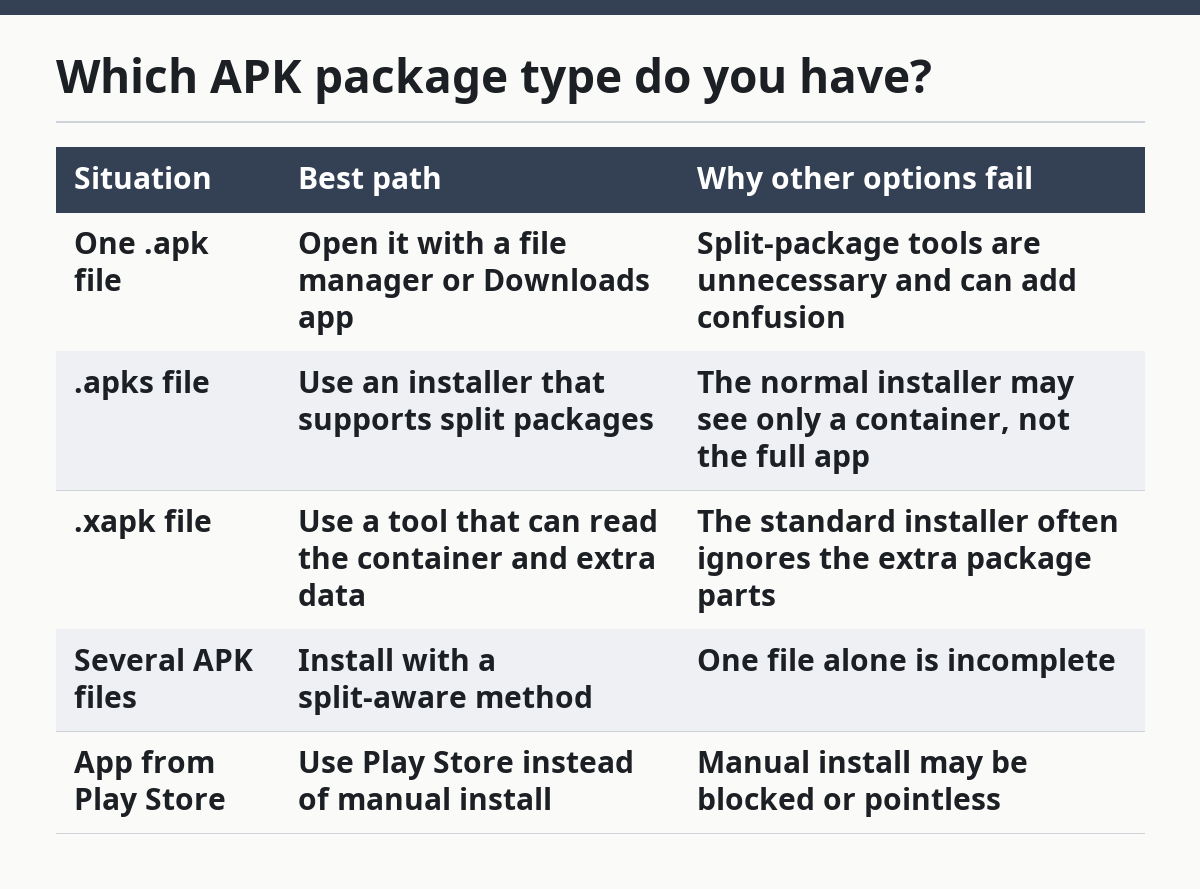
Quick check: if the download contains more than one APK-related file, treat it as a split install, not a plain APK.
How do you install a single APK on Samsung?
A single APK installs directly on Samsung phones if the installer app has permission to install unknown apps. That is the normal path when you have one complete .apk file and do not need any extra package parts.
Start with the file itself, not with a settings menu. On many Samsung phones, tapping the APK from the Downloads app or a file manager is enough to launch the system installer. If Android blocks it, the phone will usually point to the permission screen you need next.
Use this path when the file is one APK and the app is meant for your device’s Android version. The standard process is simple, but it still has a few gates.
- Open the file in Samsung My Files, Files by Google, or the Downloads app.
- Tap the `.apk` file once to start the package installer.
- If the phone says the app is blocked, open the permission prompt for “Install unknown apps.”
- Allow that permission for the specific app you used to open the file, such as My Files or Chrome.
- Go back and tap the APK again.
- Review the install screen, then tap Install.
- Wait for the confirmation message, then open the app from the home screen or app drawer.
That “install unknown apps” step is the part many people miss. On Android 8.0 Oreo and later, you do not turn on a universal switch for every app. You grant the permission to the browser or file manager that is trying to hand the APK to the installer. Samsung follows that model.
This path is wrong for split packages. If the file you tapped is really a container or only one piece of a larger app, the normal installer may reject it even when permissions are correct. The problem is not your phone; the package is incomplete for that method.
Quick check: if the APK is one file and your Samsung phone only complains about permission, you are on the right track.
How do you install split APKs, APKS, or XAPK files?
Split packages need a split-aware installer because the app is divided into pieces. If you only have one file from the bundle, the install will usually fail; if you have all parts, the package can be installed, but only with the right method.
This is where generic advice falls apart. A normal APK installer is built for a single package. A split package may include a base APK plus device-specific and language-specific parts. That is why file type matters. The phone is not being picky; it is missing required pieces.
There are two broad ways this is handled: a dedicated split-package installer app, or a download source that installs the full package for you. The right choice depends on whether you downloaded one container file or several package parts.
- Check the file type before you tap anything. Look for `.apks`, `.xapk`, or multiple APK files.
- Make sure every part of the package is saved on the phone before starting.
- If the package is a single container file, open it with an app that supports split installs.
- If the package is several files, place them in one folder so they are easy to select together.
- Grant unknown-app permission to the installer app if Android asks for it.
- Start the install and wait until the installer confirms that all splits are in place.
- Open the app and check that it launches, signs in, and loads the main screen.
A normal APK installer fails here because it cannot assemble the package on its own. That is the main trade-off: split packages give app publishers more flexibility, but they make manual install harder for the person using the phone. If you do not need a split package, a single APK is easier to manage.
If the package is a split bundle, avoid random conversion tools that claim to “turn XAPK into APK” unless you know exactly what is being extracted. A bad conversion can leave out required files and create an install that looks successful but crashes on launch.
Quick check: if the download is a bundle, not one file, you need a method that installs every split together.
Which install method should you use?
The best method is the one that matches the file type and the phone’s permission state. If the file is a plain APK, use the built-in installer. If it is a split package, use a split-aware installer. If the app is already in the Play Store, that is usually the cleanest path, because it handles updates and compatibility checks automatically.
This comparison helps when the same app is available in more than one form. A lot of beginners waste time because they choose the wrong path first, then blame Samsung when the problem is actually the package type.
| Install method | Best for | Main strength | Main weakness |
|---|---|---|---|
| Built-in Android installer | Single .apk files |
Fast and simple | Cannot assemble split packages |
| File manager install | Single .apk files on Samsung |
Easy to start from Downloads or My Files | Still needs unknown-app permission |
| Split-aware installer | .apks, .xapk, multi-file bundles |
Handles base and split parts together | Extra app needed |
| Play Store install | Apps available in the store | Updates and compatibility are handled for you | Not every app is in the store |
| Manual sideload from a browser download | Trusted single APKs | Flexible when the app is not in the store | Higher risk if the source is poor |
If the app matters for daily use, the Play Store path is usually the least troublesome. If the app is not in the store, the manual path is fine, but only when the package is complete and the source is trustworthy. If you are installing a work app or a tool from a known developer site, a single APK is much easier to validate than a bundle from an unfamiliar download page.
Samsung adds one more practical point: the app you use to download the file can become the app that needs permission to install it. Chrome, Samsung Internet, My Files, and Files by Google can all be the gatekeeper. That is normal on Android 8.0 and later.
Quick check: if you want the fewest steps, use the Play Store; if the app is outside the store, match the method to the file type.
When does the standard advice break down?
The standard advice breaks down when the file is incomplete, the phone blocks unknown apps, or the app does not match the device. Those are the four biggest failure points, and each one changes what you should do next.
If the APK says “app not installed,” the file may be corrupt, the signature may conflict with an older version, or the package may be missing parts. If the phone says the app is blocked, the permission was not granted to the right app. If the app installs but crashes immediately, the package may not match the device’s architecture or Android version. If the file came from a site that bundles extra data in a container, the normal installer may never see the real app structure.
Here is how the edge cases change the path:
- The file is
.apk, but install fails immediately → what changes: the file may be damaged or incompatible. What to do instead: re-download the file from the original source, then try again. - The file is
.apksor.xapk, but only one file is present → what changes: the package is incomplete. What to do instead: get the full bundle or use the source’s own installer method. - Samsung blocks the install screen → what changes: the permission is missing for the app that opened the file. What to do instead: grant “Install unknown apps” to that exact app.
- The app installs but will not open → what changes: the APK may not fit the device or Android version. What to do instead: find a build meant for that device and Android release.
- An older version is already installed → what changes: signature conflicts can block the new file. What to do instead: remove the old build first if the developer allows that path.
- The download came from a browser and not a file manager → what changes: the browser may be the app that needs permission. What to do instead: give Chrome or Samsung Internet the install permission, then retry.
This is also the point where a generic “just turn on unknown sources” answer goes wrong. On modern Samsung phones, the setting is not one global switch for everything. The permission is tied to the app that is handing off the APK.
Quick check: if the failure message is vague, stop guessing and check file type, permission, and compatibility in that order.
How do you keep the install safe?
The safest install is the one that comes from a source you can name and a package type you understand. A single APK from a known developer is easier to judge than a random split bundle with no clear origin.
Security starts with the source, not the extension. The file ending in .apk does not make it safe, and a file from a flashy download site is not safe just because it opens. A clean install path still depends on trust. If the app is available in the Play Store, that is usually the simplest way to avoid package confusion and update trouble.
A few practical checks help without turning this into a long audit. Confirm the app name and developer, check that the file type matches the install method, and avoid packages that ask for more permissions than the app should reasonably need. If the app is supposed to be a simple calculator and asks for contacts, SMS, and device admin, that is a warning sign.
The official Android guidance on app distribution and package installation is worth reading because it explains why Android separates package install from app trust. Samsung’s support materials on unknown-app permissions explain the phone-side control you will actually touch. For background, see Android Developers, Android App Bundles, and Samsung’s unknown apps support page. Sources: Android Developers, Samsung Support.
Quick check: if you cannot explain where the file came from in one sentence, do not treat it like a routine install.
What should you do on a Samsung phone, step by step?
A Samsung phone should handle a plain APK with the built-in installer and handle split packages only through the correct package type method. The clean workflow is simple enough once the file type is known.
Start with the easiest path and move only as far as the file demands. If it is one APK, the phone’s file manager and installer are enough. If it is a bundle, the same phone still works, but the install path changes because the package is no longer a single file.
- Check the file extension first: `.apk`, `.apks`, `.xapk`, or multiple files.
- Move the file into Downloads or a folder you can find quickly in My Files.
- If it is a single APK, tap it and follow the standard installer.
- If Android asks for permission, allow installs from the app that opened the file.
- If it is a split package, open it with a split-aware installer or the tool provided by the source.
- Complete the install, then open the app once to confirm it launches.
- If the app fails, check compatibility before trying again with a different installer.
The main benefit of this order is that it prevents random trial and error. People often start with a permission setting, but the file type is the first filter. A simple APK does not need a bundle tool, and a bundle does not get fixed by toggling a permission alone.
One more Samsung-specific habit helps: use one app consistently for downloading and opening files. If Chrome downloaded the APK, Chrome may be the app that needs the install permission. If My Files is opening it, My Files may need that permission instead. That small detail causes a lot of confusion on Android 8.0 and later.
Quick check: if you want the shortest path on Samsung, identify the package type first, then grant permission only if the system asks.
FAQ
What is the difference between an APK and an APKS file?
An APK is usually one complete app package, while an APKS file usually contains a bundle of split APKs. The difference matters because a single APK can often install directly, but an APKS file usually needs a split-aware installer to bring in every required part.
Why does Samsung say “install unknown apps”?
Samsung uses that message when the app handing off the install file is not allowed to install apps yet. On Android 8.0 Oreo and later, that permission is set per app, such as Chrome or My Files, not as one global switch for the entire phone.
Why does my APK say “app not installed”?
That message usually means one of three things: the file is incomplete or corrupt, the package conflicts with an older version, or the APK does not fit the phone’s Android version or architecture. The fix is to check the file type and source before trying a different installer.
Can I install any APK on a Samsung phone?
No, not every APK will work on every Samsung phone. The app still has to match the device’s Android version and package requirements, and some downloads are not meant for manual install at all. If the app comes as a split package, the normal one-file method will not be enough.
Is it better to use the Play Store instead of sideloading?
Yes, when the app is available in the Play Store, that is usually the cleaner option. The store handles compatibility, updates, and package delivery without forcing you to manage file types or installer permissions by hand.
Drafted with AI; not yet reviewed by a person.
