
Last updated: November 20, 2026
For a Samsung phone, the short answer is this: an APK updates only when the new file has a higher version code and is signed with the same key as the app already on the device. Quick answer: there are 3 checks that decide most APK update outcomes on Android: package name, signing key, and version code. If you want a conservative path, let the app update from the same source that installed it; if you need to hold a build, keep the old APK and update by hand only when you are ready. I write about Android install flows and versioning rules, and this is the part people most often miss.
Key takeaways
- Android does not treat every APK as interchangeable. Version code and signing key decide whether an update is accepted; if you are unsure, consult a qualified Android technician or the app developer and check Google’s app versioning and app signing guidance.
- Manual APK updates give control, but they also add the risk of skipped fixes and broken installs if the file comes from the wrong source.
- Automatic updates are easier to live with on a Samsung phone, but only if the app source is trustworthy and the version stream stays consistent.
- The biggest mistake is mixing sources for the same app, then expecting Android to merge them cleanly.
- If an app needs to stay pinned to a tested build, version control matters more than speed.
What does APK version control actually mean?
APK version control means tracking which build is newer, which build is safe to install over another, and which build should stay in place. On Android, the critical field is the version code, not the friendly name you see in the app listing. Android’s own app versioning guide explains that the version code must increase for an update to be accepted, while the version name is mainly for humans; see Google’s documentation on app versioning.
That matters because two APK files with the same app name can behave very differently. One may install as a fresh app, one may update an existing app, and one may fail outright if the signing key does not match. The signing rule is not optional; Google’s app signing documentation explains that Android uses the signing certificate to verify that an update really belongs to the same developer.
This is why “latest APK” is not enough information. A newer filename does not guarantee an accepted update. A build with the wrong signing key, a lower version code, or a different package name will not replace the app already on the phone. That is the core idea behind APK version control: the device is not just checking age, it is checking identity.
On a Samsung phone, the practical result is simple. If you keep the same app source and follow the version sequence, updates are usually straightforward. If you bounce between stores, mirrors, mod sites, or copied files, Android may reject the update or leave you with duplicate installs that do not share data.
How does Android decide whether an APK can update?
Android decides an APK can update when the package name matches, the signing key matches, and the version code goes up. That three-part check is the heart of the process, and missing any one of those parts changes the result.
The package name tells Android which app it is. The signing key proves who built it. The version code tells Android whether the file is newer than what is already installed. If the package name differs, Android sees a different app. If the signing key differs, Android sees a different developer. If the version code is not higher, Android sees no update to install.
That means a user can have the same visible app icon and still fail an update. A common case is an APK from one mirror, then a later APK from another mirror that was repackaged. The app may look identical in the store listing, but Android cares about the package identity inside the file.
Because of that rule, sideloading can feel strict. You cannot usually “downgrade” by accident, and you cannot safely replace an app with a file that was built from a different signing key. That protects the device, but it also means the person managing the phone has to keep track of source, build history, and update path.
If you want a plain rule to remember, it is this: Android updates are not based on wishful thinking, file name, or install order. They are based on package match, signature match, and a higher version code.
Should you update APKs manually or automatically?
Manual APK updates give you control; automatic updates give you less work and fewer missed patches. For most Samsung users who just want the app to keep working, automatic updates from the same source win because they reduce human error. Manual updates are better when you need to hold a specific build, test a new version before anyone else, or use an APK from a source that does not offer a proper update stream.
| Criteria | Manual APK updates | Automatic updates | Winner for this condition |
|---|---|---|---|
| Control over timing | You decide when to install each file | The source pushes updates on its own schedule | Manual, if timing matters |
| Risk of missed updates | Higher, because updates depend on you | Lower, because the source can notify or auto-install | Automatic, for everyday use |
| Chance of source mismatch | Higher, if files come from different places | Lower, if one source owns the full update path | Automatic, when one store controls the app |
| Ability to stay on one build | Strong, because you can skip updates | Weak, because updates may arrive quickly | Manual, for pinned builds |
| Effort over time | More work after every release | Less work after setup | Automatic, for convenience |
| Recovery from a bad release | Easier to pause and wait | Harder if the update lands before you react | Manual, for cautious testers |
| Update consistency | Depends on your discipline | Depends on the store or updater | Automatic, if you trust the source |
| Downgrade avoidance | Better, if you keep the old file and version notes | Worse, because auto-updaters move forward | Manual, for version pinning |
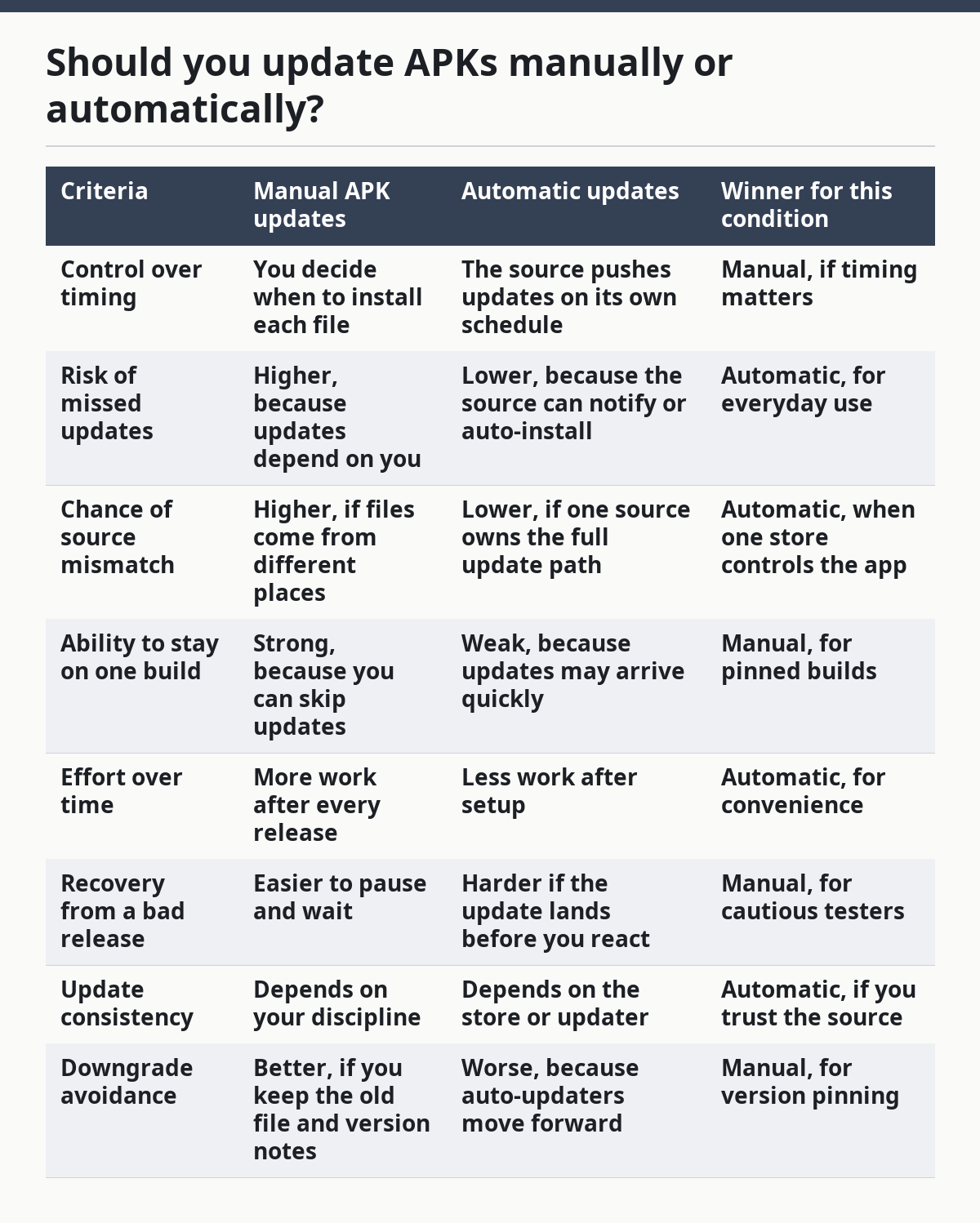
The real trade-off is not “good versus bad.” It is control versus convenience. Manual updates suit people who can track build numbers and keep the original APK archive. Automatic updates suit people who want the app to behave like a normal app, not like a project.
There is one catch that a generic guide often leaves out: automatic updates are only as clean as the source behind them. If the app came from an unofficial mirror or a repackaged APK site, the update path can break the first time the signature changes. At that point, the phone may ask for a fresh install instead of an update, and user data can get messy fast.
When is a manual APK update the right choice?
A manual APK update is the right choice when you need version control more than speed. That usually means a pinned build for testing, a bug workaround, or a device where a newer release is known to cause trouble.
This is common when someone installs an APK because the app is not in the Play Store, or because the Play Store version is not the one they need. In that case, a careful practice is to keep the old APK file, note its version name and version code, and only move to a newer file when you have checked that it is truly the next build from the same developer. Google’s versioning rules make the version code the deciding number, so that field matters more than the label the developer shows in the listing.
Manual updates also help when you need to compare behavior between two builds. If an app changes login flow, file access, or device permissions, a controlled manual update lets you keep a known-good version on hand. That can save time when the newer build breaks something important, especially on a Samsung phone where the user may rely on the app daily.
The downside is obvious: manual means you become the updater. Miss one release and you can drift onto an old build for weeks. That can leave you without security fixes, without bug fixes, and without compatibility changes that the app now expects.
Manual updating is not for anyone who wants set-and-forget behavior. It is for people who can name the version they are on, know where the APK came from, and keep track of what changed.
When should you let the app update itself?
Let the app update itself when the app source is stable and you do not need to pin the build. That is the better path for most people, because it removes the most common mistakes: forgotten updates, wrong files, and accidental signature mismatches.
Automatic updates make the most sense when the same store or installer owns the full lifecycle of the app. That usually means the app was installed from a trusted source that can keep publishing newer signed builds under the same package name. When that chain stays intact, Android can accept each new version code without drama. The user does not need to compare files, check certificates, or keep an archive of old APKs.
This path is also easier to live with on a Samsung phone because it reduces maintenance. The app stays current, security fixes arrive sooner, and there is less chance of ending up with two similar-looking files from two different sources. A lot of update trouble starts when someone downloads “the newer APK” from somewhere else and expects it to behave like the original app. It often does not.
The weakness of automatic updates is that you give up some control. If a new build changes behavior, you may not notice until after the update lands. If the update is bad, you may need to wait for a fix or roll back from backup. That is the price of convenience.
Automatic updating is not right for a build you are studying, a workaround you need to keep, or any app source that changes identity between releases. If the chain is not clean, the updater is not helping you.
What problems cause APK updates to fail?
APK updates fail because the device sees a different app, a lower version, or a mismatched signature. Those are the three most common failure points, and they are all tied to version control.
The first problem is a lower or equal version code. Android treats that as not newer, so the install may stop right there. The second problem is a different signing key. That means the update is not from the same developer identity, so Android blocks it. The third problem is package mismatch. If the package name changes, the phone sees a separate app instead of an update.
There are also practical problems that do not show up in a neat error explanation. A user may have two sources for the same app, one from a store and one from a downloaded APK. A user may have an old APK saved on the phone and forget that a newer one was already installed. A user may rename the file and assume that changes the app version, when it does nothing of the sort.
This is where APK version control becomes useful rather than academic. If you keep a note of the version name, version code, and source, you can tell at a glance whether a new file should update the app or be treated as something else. Without that, you are guessing; if the file history is unclear, consult a professional before forcing an install.
The biggest consequence of a failed update is not the error message. It is the confusion that follows when the user no longer knows which file is current. That is when duplicate installs, stale builds, and broken app data start showing up.
How do you manage APK versions on a Samsung phone?
You manage APK versions on a Samsung phone by keeping one source of truth for each app and by recording the version code before you replace anything. That is the cleanest way to avoid update mistakes.
Start with the installed app and note its version name and version code in the app details screen if the device shows them. Then save the APK file only from the same source that will provide the next update. If you later download a file from somewhere else, treat it as a new package identity until you confirm the signing key and package name match the original. If you are unsure, consult a professional or the app developer and compare the file against Google’s app versioning and app signing guidance. This is the point where many beginners get tripped up: the file can look identical while the Android identity inside it is not.
Samsung’s phones do not change the Android versioning rules. A Galaxy device still follows the same package, signature, and version code logic that Android expects. So the simplest operating rule is also the best one: one app, one source, one update path. Samsung’s own support pages on installing apps and managing app permissions reinforce that the phone follows Android’s install model, not a separate one.
If you need to keep a backup, store the old APK separately and label it with the version name you know. If you are testing, keep a plain note of what changed and whether the new build is safe to keep. That small amount of discipline is often enough to prevent the “which file is this?” problem that turns a simple update into a mess.
The part to avoid is copying APKs around without records. A Samsung phone can install what it is given, but it cannot guess your intent. Version control makes your intent visible.
Which update choice should you make?
Choose manual APK updates if you need to pin a build, control the timing, or keep a tested workaround alive. Choose automatic updates if the app comes from one trusted source and you want the least maintenance. Neither if you are mixing APKs from different sources and cannot tell which signing key or version code belongs to the app already on the phone.
That is the cleanest decision rule for most Samsung users. If the app is important and the source is stable, automatic updates are easier and safer over time. If the app is unusual, sensitive to changes, or only available as an APK, manual updates give you the control you need but also the responsibility to manage it well.
The wrong choice is the one people make by accident: installing a file from one place, then updating from another without checking whether the package is the same. That is where update failures and broken app history start. A little version discipline avoids most of that pain.
When should you reconsider this choice entirely?
You should reconsider the whole update plan if the app changes signing keys, the package name changes, or the source cannot prove which build is current. Those are not small annoyances; they are signs that the app may no longer have a clean upgrade path.
Another reason to stop and reset is a phone that already has mixed installs. If one version came from a store and another came from a sideloaded APK, the safer move may be to remove the app, confirm the source, and install only one clean copy. That is slower, but it is often better than trying to force a broken update chain back into place.
A third warning sign is when the user no longer knows what version is installed. If the version code is unknown and the file source is unclear, updates become guesswork. At that point, the best move is to slow down and rebuild the app history from scratch.
This is the part of APK management that people skip because it feels tedious. It is also the part that prevents the most trouble. Version control is not extra paperwork; it is the reason the update either works or fails.
Can you keep one APK version and still stay safe?
You can keep one APK version safely for a while, but only if the app does not need urgent fixes and the build still works on your phone. Holding a version is sometimes the right call, especially when the newer release is unstable or changes a feature you depend on.
The risk is time. Every day you stay on an old build, you are choosing stability over new fixes. That can be fine for a short stretch, but it is not a plan for every app. If the app handles sign-in, files, or account data, old versions can become a problem when the service behind the app moves on.
A good rule is to keep the old APK only as long as you need it, then move forward once the newer build is confirmed. That way you get the control of version pinning without turning it into a permanent habit. On a Samsung phone, that balance usually works better than either extreme.
FAQ
How do I know whether one APK will update another?
One APK will update another only if the package name matches, the signing key matches, and the version code is higher. If any one of those fails, Android treats it as a different file or rejects the install.
Is the version name or version code more important?
The version code is more important for installation. The version name is mostly for human reading, while Android uses the version code to decide whether the file is newer.
Can I install two versions of the same app on one Samsung phone?
Not as the same package with the same identity. If the package name changes, Android may allow both as separate apps, but they will not behave like one app with two versions.
Why did my APK update fail even though the file looked newer?
The file may have had the wrong signing key, the same or lower version code, or a different package name. A new filename does not guarantee a valid update.
Should I always let APKs update automatically?
No. Automatic updates are best for ordinary use, but manual updates are better when you need to pin a version, test a build, or keep tight control over the install path.
Drafted with AI; not yet reviewed by a person.
