
Last updated: November 20, 2026
Quick answer: in 3 steps, install the XAPK with an installer app, let it extract the APK and data files, and verify the OBB lands in the correct folder. This guide to How to Install an XAPK File on Android Without Breaking the Install focuses on the common failure points, because a plain Android package prompt is usually not enough for an XAPK that includes extra storage data. If you need the official baseline, see Android’s package install and storage guidance from Android Developers and Android’s app-specific storage docs.
Key takeaways
- XAPK files are not plain APKs, so Android usually needs help to open them.
- The safest practical path is an installer app that can read the package and place the files where they belong.
- The extra data often lives in an OBB folder, and the folder path matters.
- If the install fails, the problem is often the file name, the storage location, or missing permissions, not the phone itself.
- XAPK is not the same as APK or APKS, so using the wrong method wastes time.
What does an XAPK need to install cleanly?
An XAPK needs two things handled together: the app package and any extra files that come with it. In practice, that often means an APK plus one or more data files, often an OBB file, and Android will not always place them correctly on its own.
This is why a plain file tap is unreliable. Android can install an APK directly, but an XAPK is a container format, so the device may treat it as an unknown download unless an installer app reads it first. For most users, that means using a known installer app, and if the package still looks suspicious or incomplete, it is reasonable to consult a professional or the app’s support page before forcing the install. The extra data is what keeps the app from opening with missing assets, empty screens, or a failed launch after the first 10 seconds.
The cleanest mental model is simple: the APK is the app, while the extra files are the content the app expects to find later. If those files do not reach the right storage location, the install can look finished and still break at launch.
For a broader map of package types and install methods, the hub on APK package types and install methods is the right place to start. This page stays with the XAPK flow and the parts that go wrong most often.
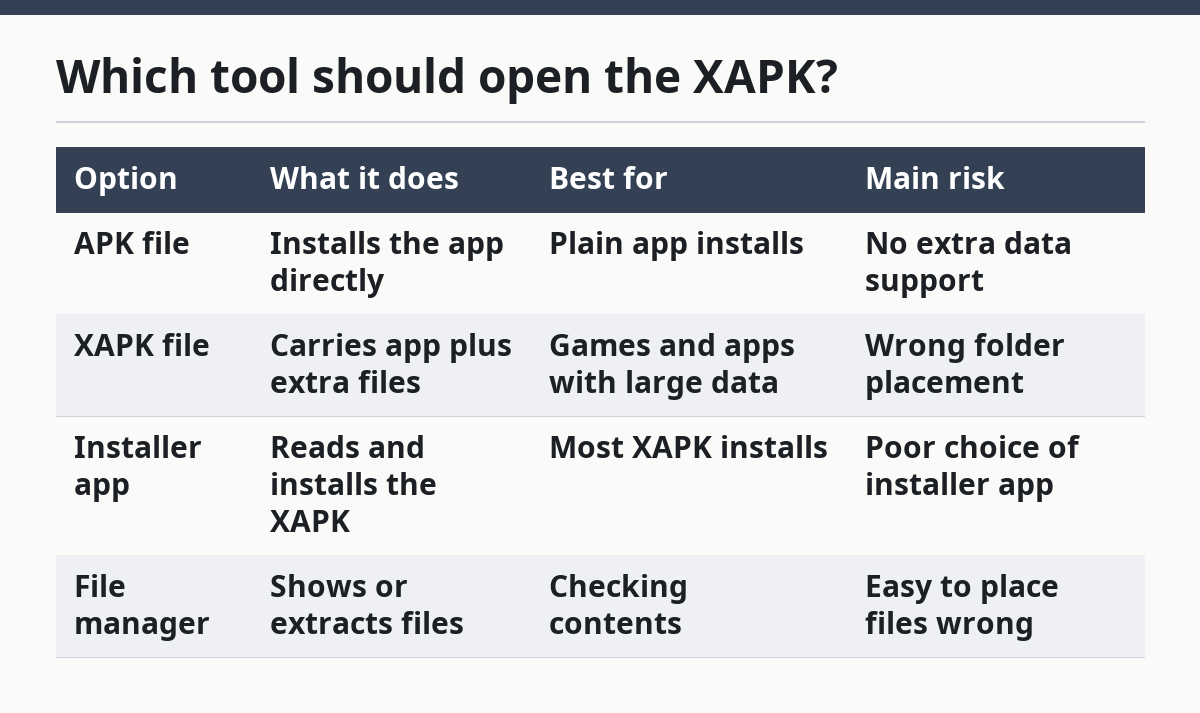
Which tool should open the XAPK?
An installer app should open the XAPK, because Android’s built-in package prompt is made for APK files, not for a package that bundles extra data. The installer app is the piece that extracts the contents and copies them into place.
A generic file manager can show the file, but that does not mean it can install it. Many file managers can unzip archives, yet an XAPK is not just a zip you should scatter across storage by hand. That shortcut often leaves the APK in Downloads and the OBB file nowhere useful.
Use an installer app that clearly says it supports XAPK packages. If the app asks for storage access, that is not a bonus permission; it is the tool it needs to read the file and write the extracted data into the right folder. For more on Android’s file access model, see the Android Developers storage overview.
| Option | What it does | Best for | Main risk |
|---|---|---|---|
| APK file | Installs the app directly | Plain app installs | No extra data support |
| XAPK file | Carries app plus extra files | Games and apps with large data | Wrong folder placement |
| Installer app | Reads and installs the XAPK | Most XAPK installs | Poor choice of installer app |
| File manager | Shows or extracts files | Checking contents | Easy to place files wrong |
How do you install an XAPK file step by step?
You install an XAPK file by downloading it, opening it with an installer app, and making sure the extracted files land in the storage location the app expects. Each step matters, because skipping one usually creates a broken install rather than a clean one.
-
Download the XAPK file to a folder you can find again, such as Downloads.
Keep the filename unchanged if possible, because renaming it can confuse some installer apps. -
Open the installer app and choose the XAPK file from storage.
The app should detect the package and show the APK plus any extra data before installation starts. -
Grant storage access when Android asks for it.
Without that permission, the installer app may not be able to read the package or copy the contents. -
Start the install inside the installer app and wait for it to finish.
A good install process should place the APK and the extra files without asking you to move them by hand. -
Check the storage location if the app needs OBB data.
If the package includes an OBB file, it should end up where the app can find it later, not left in Downloads. -
Open the app once the install is done and see whether it launches normally.
If it opens to a blank screen or asks to download missing data, the extra files did not land in the right place. -
Delete the leftover installer file only after the app works.
Keep the original XAPK for a short time in case you need to reinstall it or move it again.
The main rule is to let the installer app handle the package as a package. Hand-copying pieces works only when the structure is simple, and XAPK is usually the opposite of simple.
Where do the OBB files go?
OBB files go into the app’s OBB storage folder, because that is where Android games and large apps usually look for extra assets. If the folder is wrong by even one level, the app can install and still fail to load its data.
The common mistake is leaving the OBB in Downloads or moving it into the APK folder. That saves time for about 30 seconds and costs you the app launch later. The file needs to sit in the Android storage path the app expects, not wherever the download finished.
If the installer app offers to place the OBB automatically, that is often the best option. If you are moving it yourself, check the folder name carefully before you copy anything. One misplaced file can look like a bad app, when the real problem is just the wrong storage location.
This is also why XAPK is not a good format for casual manual installs. The package can be correct and still fail because the extra data is outside the path the app reads. When the file is large, that mistake is harder to spot because the app may not show an error until launch.
Why won’t an XAPK install directly?
An XAPK won’t install directly because Android treats it as a container, not as a standard app package. The phone wants an APK for a normal install prompt, while the XAPK often needs extraction first.
That difference creates the most common install errors. The file may open as “unsupported,” the system may say the package is invalid, or the app may install but fail to run because the OBB file never moved. None of those messages means the phone is broken; they usually mean the wrong tool handled the file.
A few signs point to the real problem quickly. If Android offers only a share sheet or a file preview, the phone is not seeing a normal APK. If the installer app stops at 0% or 99%, the package may be incomplete, named badly, or missing storage permission. If the app opens and then closes, the APK installed but the extra data did not.
This is the part many generic guides skip: the install can fail even when the APK part is fine. XAPK is a two-piece job, so the fix is usually in the packaging flow, not in a reboot.
What errors should you check first?
You should check storage access, the file format, and the folder path first, because those three issues cause most XAPK install failures. They are faster to verify than reinstalling the app three times.
A good order saves time:
- No installer app: install one that supports XAPK packages.
- Wrong file format: make sure the download is really XAPK and not APK, APKS, or a damaged zip.
- Permission blocked: allow the installer app to read and write files.
- Wrong storage location: confirm the OBB file is not stranded in Downloads.
- Partial download: redownload if the file seems to stop mid-transfer or the install aborts immediately.
The trade-off is simple. Manual control gives you more visibility, but it also gives you more ways to misplace the files. Automatic extraction inside the installer app is slower than a direct APK tap, yet it is the better choice for XAPK because it reduces folder mistakes.
If the package still fails after those checks, the safer move is to remove the broken install, clear the leftover extracted files, and start again with a fresh download. Reusing a damaged package can waste more time than a clean restart.
When should you avoid manual extraction?
You should avoid manual extraction when the XAPK includes game data or other large content, because the wrong move in the storage path can break the install even if the APK itself is fine. Manual extraction is easy to get wrong and hard to diagnose later.
That does not mean the files are mysterious. It means the cost of one misplaced OBB file is higher than the time saved by skipping the installer app. If the package is small and the extra files are obvious, manual handling may look tempting, but it is still the riskier path for most users.
The safer rule is: let the installer app do the first pass, then inspect the result only if the app fails to launch. That keeps the process tied to the package structure instead of to guesswork. It also avoids the common trap of thinking the APK alone is enough.
A useful comparison is this:
| Method | Speed | Risk of broken install | Best use |
|---|---|---|---|
| Installer app | Moderate | Lower | Most XAPK installs |
| Manual extraction | Fast at first | Higher | Only when you know the folder structure |
| Plain APK install | Fastest | Lowest | APK files only |
For most Android users, especially on a Samsung phone, the installer app is the better call. It is not the only way, but it is the one least likely to leave you with an app that installs and still refuses to open.
Do I need an app to open XAPK files?
Yes, in most cases you do need an installer app to open an XAPK file. Android’s normal install flow is built for APK files, not for a package that includes extra data files. If you try to open XAPK directly, the phone may not know what to do with it.
The installer app reads the package, extracts the contents, and puts the files in the right place. That is what prevents the common “installed but won’t run” problem.
Where do OBB files go?
OBB files go in the app’s OBB storage path, not in Downloads. That folder placement matters because games and large apps look for their extra assets there after install.
If the OBB stays in the wrong folder, the app can install and still fail at launch. The installer app may move it for you, which is often safer than trying to copy it by hand.
Why won’t an XAPK install directly?
An XAPK will not install directly because Android does not treat it like a plain APK. The file usually bundles an app plus extra data, so the phone needs help unpacking it first.
If you tap it like a normal app package, Android may reject it, open it as a file, or install only part of it. That is why the installer app matters more for XAPK than for APK.
The simplest way to think about it is this: APK installs directly, XAPK needs extraction, and OBB files need the right folder. If those three pieces line up, the install usually goes the way you expect.
Drafted with AI; not yet reviewed by a person.
