
Last updated: November 20, 2026
An APK is safe only when you trust both the file and the place it came from. On a Samsung phone, the safest path is still the Play Store or Galaxy Store; a direct APK can be fine, but only if the app, the publisher, the signature, and the download source all check out.
Key takeaways
- A clean-looking APK is not proof of safety. The source, signing certificate, and app behavior matter more than the filename.
- The safest installs on Samsung phones come from the Play Store or Galaxy Store because those stores add extra checks before the app reaches your device.
- A direct APK is most reasonable for apps that are unavailable in your region, in beta, or distributed by the developer on a site that clearly names the publisher and signs the file.
- The biggest red flags are “free” paid apps, modified apps, permission lists that make no sense, and downloads from mirror sites with no clear owner.
- If an APK asks for SMS, accessibility, device admin, or notification access and the app does not obviously need it, stop and ask why.
Is an APK file safe?
An APK file is safe only when it comes from a publisher you can verify and it installs an app that asks for normal, expected permissions. APK is just the Android app package format; it is not a safety label, and it is not proof that the app is legitimate.
That is the part many beginner guides miss. People often treat “APK” as a risk by itself, when the real risk is the source, the signer, and the code inside the package. A file named app.apk can be harmless, tampered with, repackaged, or loaded with adware, depending on where it came from.
For Android security guidance, the Android Developers site explains safe app distribution and signing practices, and Google’s Play Protect documents how Google scans apps for harmful behavior. Two useful references are Android Developers security guidance and Google Play Protect. Those sources do not make every APK safe, but they show the baseline Android uses to judge trust.
The practical answer for a Samsung phone is simple: if the app exists in the Play Store or Galaxy Store, start there. Use an APK only when you have a clear reason, a known publisher, and a reason to trust the file more than a random web page.
How do you tell if an APK can be trusted?
An APK can be trusted when the publisher is identifiable, the download source is official or well documented, and the package details match the app’s known identity. Trust is not a feeling here; it is a chain of checks.
Start with the publisher. A trustworthy APK usually comes from the app maker’s own site, the Play Store, or another store the maker names directly. The app description should match what the app does, the domain should match the brand, and the developer name should not look like a copycat version of the real company.
Next, check the signing certificate. Android apps are signed by the developer, and that signature is how Android knows whether the app came from the same source as the earlier version. If a file claims to be an update for an app you already use, but it is signed differently, that is a warning sign. A different signature can mean a repackaged app, not a normal update.
Then look at the permissions. A calculator, wallpaper app, or flashlight app that wants contacts, SMS, or accessibility access needs a strong explanation. Permissions should fit the app’s job. If the app asks for device admin or notification access and the feature does not clearly depend on it, that is a reason to stop.
Finally, check the download page itself. A serious publisher usually names the version, the package name, and the change log, and it does not hide behind a string of download buttons. If the page is covered in pop-ups, “download now” traps, or multiple file mirrors, the source is weaker.
What makes an APK risky on a Samsung phone?
An APK is risky on a Samsung phone when it comes from a site you cannot trace, when it has been modified, or when it asks for access that the app does not need. Samsung phones are still Android phones, so the same basic Android risks apply, but Samsung users often run into extra confusion from sideloading prompts, “unknown app” warnings, and download pages that look polished but are not official.
One major risk is repackaging. A bad actor can take a real app, add ad code, trackers, or credential theft logic, then redistribute it under the same name. The icon may look right. The app name may look right. The file may even launch and work for a while. The damage often shows up later, after the app has already been granted permissions.
Another risk is the fake update trap. A site may claim the APK is a newer build of a known app, but the change log is vague and the signer is unknown. That is a common way to spread malware because users want the newest version and skip the checks.
A third risk is dependency on side-loaded permission abuse. Some malicious apps do not need root or advanced hacks; they only need the user to hand over accessibility access, SMS reading, or device admin rights. Once that happens, the app can read screens, intercept codes, lock the device, or push the user into fake login pages.
Samsung-specific features help, but they do not erase the risk. Samsung Knox and Android’s own protections can catch some harmful behavior, yet no phone can turn an untrusted APK into a safe one. The file still has to earn trust before installation.
Should you use the Play Store, Galaxy Store, or a direct APK?
The Play Store wins for most people because it gives the best mix of identity checks, review controls, and automatic scanning, while the Galaxy Store is the next-best option for Samsung-specific apps. A direct APK only makes sense when the app is not available in either store or the publisher clearly directs you to a direct download.
| Criteria | Play Store | Galaxy Store | Direct APK download | Winner for this condition |
|---|---|---|---|---|
| Publisher verification | Strong account and listing controls | Samsung-managed store listing | Depends on the site | Play Store for general trust |
| Ease of updates | Automatic in most cases | Automatic for Galaxy apps | Manual unless the app has its own updater | Play Store |
| Risk of repackaging | Lower | Lower | Higher if the site is weak | Play Store or Galaxy Store |
| Samsung-specific app support | Good | Often best for Samsung features | Varies by app | Galaxy Store for Samsung-only tools |
| Availability of niche or regional apps | Limited by region and policy | Limited | Often best for rare apps | Direct APK |
| Warning signals to the user | Built-in checks and alerts | Built-in checks and alerts | User must check everything | Play Store |
| Permission visibility | Clear listing, reviews, policy info | Clear listing, reviews, policy info | Source page may be thin | Play Store |
| Sideloading burden | Low | Low | High | Play Store |
| Best use case | Everyday apps | Samsung apps and device tools | App not in stores | Depends on need |
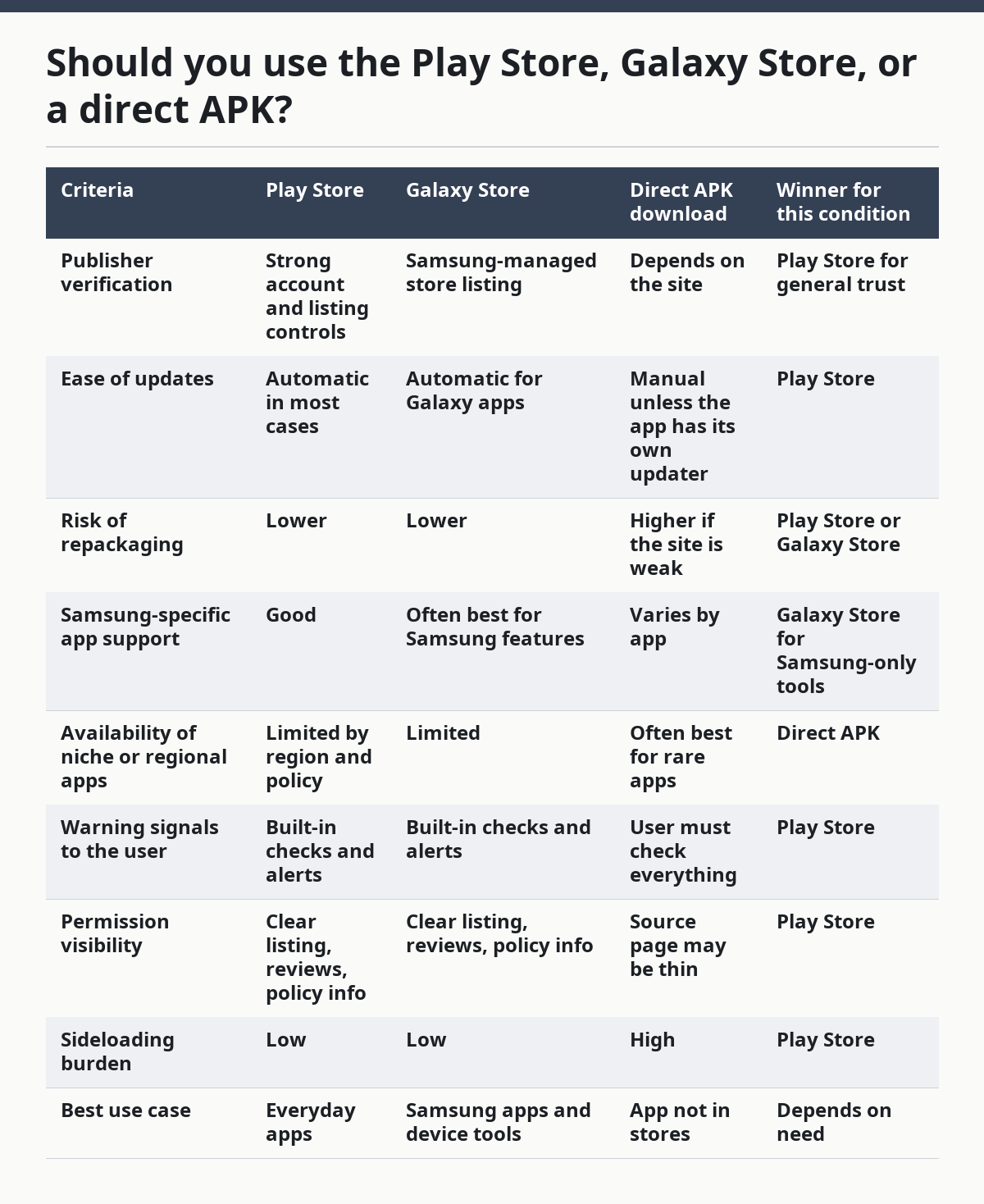
The practical verdict is plain: use the Play Store first, Galaxy Store second, and a direct APK only when the app source is strong enough to justify the extra work. The direct file is not automatically bad, but it shifts all the judgment onto the user.
That shift matters. A store can still host a bad app, but a random download page gives the user fewer guardrails, fewer signals, and less protection if something goes wrong. For most phone owners, that is a poor trade unless the app is genuinely unavailable elsewhere.
How do you check an APK before installing?
An APK should be checked in five steps before installation, and each step should answer a different trust question. The goal is not to prove the file is perfect; the goal is to see whether it is trusted enough to run on the phone.
First, verify the source domain. If the app maker has a known site, the download link should live on that site, not on a mirror, forum post, or file host with no company name. If the site hides its ownership, that is a problem.
Second, verify the publisher name. The developer listed on the download page should match the app’s public brand or known company name. A spelling change, a random studio name, or a name that copies another brand is a serious warning.
Third, compare the package details. A real app usually has a stable package name and version history. If a site says the APK is for a major app but the file name, package name, or version notes look off, pause.
Fourth, check the permissions before launch. Android shows permission prompts during installation or first use, and those prompts should fit the app’s purpose. A music app should not need SMS access. A simple utility should not need access to accessibility unless the feature is clearly tied to that system-level function.
Fifth, watch for signs that the file has been altered. Oddly aggressive ads, a request to disable security settings, or a prompt to install extra “helper” apps are all bad signs. A normal publisher does not need to pressure the user into turning off protection just to use the app.
If a file fails any of those checks, the safest move is to skip it. That is not paranoia; it is cost control. One bad APK can create more work than the app was worth.
When should you skip the APK entirely?
An APK should be skipped entirely when the same app is already available in the Play Store or Galaxy Store and there is no clear reason to sideload it. If the official store has the app, the store version is usually the lower-risk choice.
Skip the APK when the download page promises a premium app “for free.” That is one of the oldest traps in Android sideloading, and the logic is obvious: if a site is giving away a paid app, the file may be the product. Adware, trackers, and credential theft often hide behind that offer.
Skip it when the app needs risky permissions without a strong reason. An app that asks for accessibility access, SMS, contacts, or device admin may be legitimate, but those requests deserve scrutiny. If the app’s main job does not depend on them, the request is a warning, not a technicality.
Skip it when the site is full of mirrors, pop-ups, fake “download” buttons, or vague claims like “verified safe.” Safety claims without a named publisher, a clear signature trail, or a real support page are cheap. A serious app source does not need to shout.
Skip it when the APK comes from an outdated forum post or a random file-sharing page. Old links are not automatically wrong, but they are easier to hijack, clone, or replace with a different file. A file that has been passed around for years without a current publisher page is hard to trust.
A final reason to skip: if the app is not critical, do not accept the risk. A weather widget, game, or theme pack rarely justifies a manual install if the source is weak. The convenience is small, and the downside can be large.
What are the real warning signs of a fake APK?
A fake APK usually gives itself away by a mismatch between the app’s promise and the site’s behavior. The biggest warning sign is not one problem; it is several small ones adding up fast.
A bad site often uses urgency. It may say “latest version,” “verified,” or “fast download,” but it does not explain who published the file or why it should be trusted. Real trust comes from traceable identity, not pressure.
Another warning sign is a permissions mismatch. If the app claims to be a simple tool but the installer wants broad access to files, messages, accessibility, or device admin, the app may be trying to gain control rather than offer a function. The more sensitive the access, the more honest the need should be.
A third sign is version drift. If the file name says one thing, the page says another, and the package name does not match the known app, the file may be a clone or a repackaged build. That is a common pattern in malicious Android downloads.
A fourth sign is lack of update history. Legitimate developers usually show release notes, version numbers, and support contact paths. If a page has no update history and no support trail, it is asking for trust without giving any reason.
One more sign matters on Samsung phones: repeated prompts to ignore warnings or disable protection. If a site tells the user to bypass security settings just to install a basic app, the site is the problem. A trustworthy APK source should not need the user to lower defenses first.
Can an APK be safe if it comes from a third-party site?
A third-party APK can be safe, but only when the site is acting like a distributor for a clearly identified developer, not like a mystery mirror. The site must make it easy to see who made the app, what file is being hosted, and whether the package is still current.
This is where many generic guides get too relaxed. They say third-party APKs are “fine if you trust the site,” but trust is not a slogan. It depends on whether the site names the developer, links to the official project, describes the file accurately, and avoids bundling extra installers or adware around the app.
The best third-party case is a developer-controlled site. The developer names the app, posts the version, explains the change log, and provides a clean download. In that setup, the APK is not really “third-party” in spirit; it is direct distribution with one extra hop.
The worst third-party case is a mirror site that copies listings from somewhere else. That site may look polished, but it may not control the file, and it may not know whether the package was altered. If the site cannot explain its relationship to the developer, the user is left guessing.
For a Samsung phone, the default rule is simple: a third-party site must earn the download with transparency. If it cannot do that, the APK does not deserve the install.
What should a Samsung user do before turning on unknown app installs?
A Samsung user should turn on unknown app installs only for the specific app that needs it, and only for the short time needed to install the file. Android’s permission model is built that way for a reason: broad, permanent sideload access makes mistakes easier.
The useful habit is to open the install source’s permission screen, allow that source if needed, complete the install, and then turn the permission back off. That keeps the phone from staying open to random APKs after the job is done. A one-time action is safer than leaving the door opened.
It also helps to keep Google Play Protect active. Google’s own guidance on Play Protect explains that it scans apps for harmful behavior and gives warnings when it sees something suspicious. That is not a guarantee, but it is a useful backstop. Turning off that layer to install a single APK is usually the wrong trade.
Samsung’s own security tools can add another layer of checks, but they do not make a weak source safe. Security software is a second opinion, not a license to ignore bad signs. The source still matters most.
The better routine is boring and effective: install only when needed, from a known publisher, on a current phone, with warnings still enabled. That routine is not flashy, but it prevents most of the common mistakes people make with APK files.
What if the APK is required for a niche app?
A niche APK is reasonable when the app is hard to find in the Play Store or Galaxy Store, and the publisher has a real, traceable presence. That includes some beta builds, regional apps, open-source tools, and vendor utilities that are distributed directly.
In that case, the question is not “Is it an APK?” The question is “Is the publisher real, and does the file match what the publisher says it is?” If the answer is yes, a sideload can be the right move. If the answer is fuzzy, the app is not worth the risk.
The trade-off is convenience versus control. A niche app often gives more control because it is distributed directly, but it also puts more responsibility on the user. There is no store review layer to lean on, and no easy safety badge to trust blindly.
A smart way to judge niche apps is to look for three things: an official developer page, a clear package history, and a support path that leads back to the maker. If those three pieces are missing, the app may still work, but the source trust is weak.
That is why niche APKs are for informed use, not casual use. They can make sense, but only after the source has proven itself. The file format is not the issue; the trust chain is.
What is the final verdict on APK trust?
Choose the Play Store if the app is available there and you want the lowest-risk path. Choose the Galaxy Store if the app is Samsung-specific or clearly supported there, because it keeps the install inside a familiar store channel. Neither if the APK comes from a source that hides the developer, asks for unrelated permissions, or pushes you to disable protection.
That is the clean rule. An APK is not safe because it is an APK, and it is not unsafe because it is an APK. It is safe when the publisher is real, the source is clear, the signature makes sense, and the permissions match the app’s job.
For a Samsung phone owner, the best habit is simple enough to remember: stores first, direct downloads second, blind sideloading never. That rule avoids most of the trouble without turning every install into a research project.
Is every APK dangerous?
No, every APK is not dangerous. Many legitimate apps are distributed as APKs, especially beta builds, regional apps, and developer releases. The danger comes from weak sources, altered files, and permissions that do not fit the app’s purpose.
Can Samsung phones block bad APKs by themselves?
No, Samsung phones cannot block every bad APK by themselves. Built-in protections can warn about suspicious behavior, but they do not make an untrusted file trustworthy. The source and publisher still need to make sense before installation.
Is it safer to use an APK from the app maker’s own site?
Yes, an APK from the app maker’s own site is usually safer than one from a mirror or file host. The site still needs to be checked, but direct publisher control is a strong trust signal. The file should still match the app name, version, and package details.
What permission should make me stop first?
SMS, accessibility, and device admin permissions should make you stop first if the app does not clearly need them. Those permissions can give an app broad control over messages, screen content, or device settings. If the app’s job does not obviously require that access, skip it.
Drafted with AI; not yet reviewed by a person.
