
Last updated: November 29, 2026
Quick answer: Samsung hides the “install unknown apps” setting for each app in a per-app list, usually under Settings > Apps > Special access > Install unknown apps. On most Galaxy phones, the path starts in Settings > Apps > Special access > Install unknown apps, then you pick the app you want to use, such as Chrome, Samsung Internet, or My Files. For Android’s own guidance on this permission model, see the Android help page for installing unknown apps and Samsung’s Security and privacy settings support.
Key takeaways
- Samsung uses a per-app approval screen, so each source app gets its own yes or no.
- The setting sits under Special access, not in the main security menu.
- The list view shows apps that can ask for APK installs, such as Chrome, Samsung Internet, and My Files.
- If the app is not on the list, the phone has not granted that app permission yet.
- This is a safety feature, so only the download source you trust should be allowed.
- The permission is usually just a few taps away, but the exact path can vary by One UI version.
Where is the Samsung unknown apps setting?
Samsung hides the unknown apps setting in Settings > Apps > Special access > Install unknown apps. That is the place to check when a phone refuses an APK, because the permission is tied to the app that opens the file, not to the file itself. Samsung’s support pages describe the same app-based permission model, and Android documents the same per-source behavior.
This is the part many people miss. A Samsung phone does not usually show one universal “unknown sources” switch in the main settings screen. Instead, it keeps a short app list, and each source app can be approved on its own. That is why Chrome can be allowed while another browser still stays blocked.
The wording can change a little by One UI version and Android version, but the structure stays similar. On some phones the path is only two taps away from the Apps screen; on others, you may need to open the three-dot menu or choose Special access before you see the list. The setting name itself is the clue: Install unknown apps.
A reader looking for the hub article on how to install an APK on a Samsung phone should use this page as the map, not the full install guide. The hub covers the file download and install steps; this page only explains where Samsung stores the permission and why the phone asks per app.
How do you open the permission list?
You open the permission list by going to the Apps settings and choosing the app that will open the APK. The key point is that Samsung expects you to approve a source app first, then use that app to launch the install.
Use these steps:
- Open Settings.
- Tap Apps.
- Open Special access.
- Tap Install unknown apps.
- Pick the app you plan to use, such as Chrome, Samsung Internet, or My Files.
- Turn on the permission for that app.
- Return to the APK and open it again from the same source app.
The result you want is simple: the chosen app moves from blocked to approved in the list. If you see a toggle next to the app name, that switch is the permission. If you only see an app page, the allow option is usually inside that page.
This is not a broad system-wide change. It is a permission stored against one app entry at a time, so the list view is the real control panel. If the APK came from a browser, the browser is the app that needs permission. If the file came from a file manager, that file manager is the app that needs it.
For a quicker route through Samsung’s menu layout, our Samsung Galaxy settings guide and Android permissions basics pages can help with the menu names you may see.
Why Samsung uses separate app approvals
Samsung uses separate app approvals because the phone needs to know which app is allowed to start an APK install. One approved app does not automatically give that power to every other app on the phone.
If you allow Chrome and the APK still will not install from Samsung Internet, the problem is usually not the phone as a whole. It is that Samsung Internet still needs its own permission in the list. The same idea applies to My Files if the APK is opened from local storage.
The per-app model also explains why the setting can feel hidden. Samsung does not want one broad switch that stays open for every download source forever. Instead, it stores a short allow list that can be reviewed later. That is useful if you only want one browser to handle APK installs and want the other apps to stay blocked.
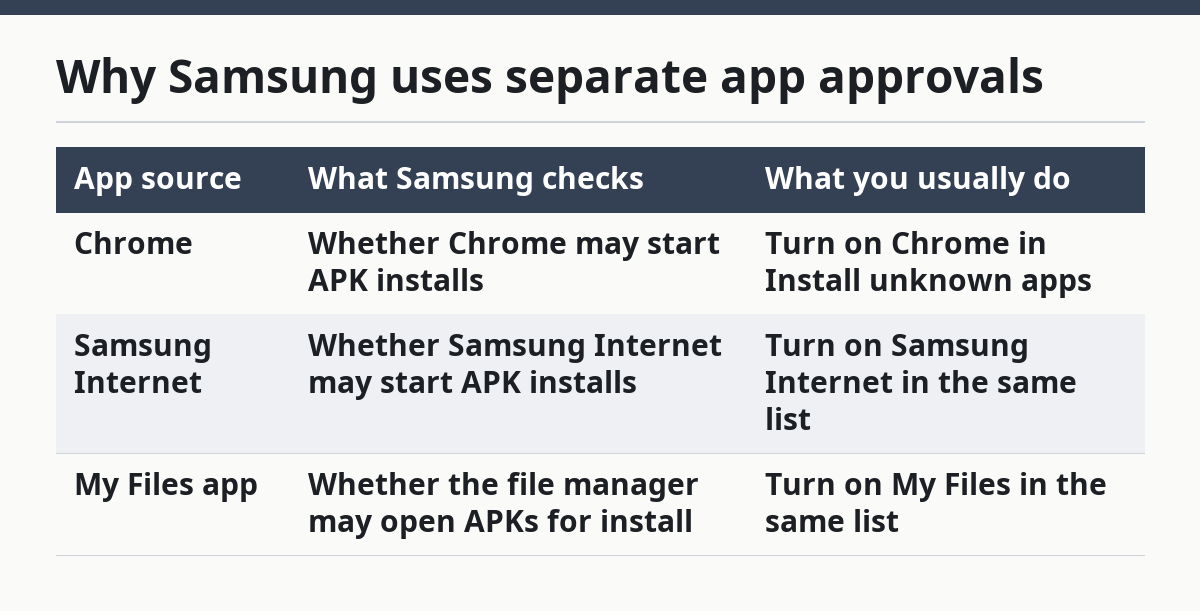
Here is the difference in one view:
| App source | What Samsung checks | What you usually do |
|---|---|---|
| Chrome | Whether Chrome may start APK installs | Turn on Chrome in Install unknown apps |
| Samsung Internet | Whether Samsung Internet may start APK installs | Turn on Samsung Internet in the same list |
| My Files app | Whether the file manager may open APKs for install | Turn on My Files in the same list |
This model is also why a generic “install unknown apps” answer can mislead people. The phone is not asking for a one-time global permission. It is asking which source app should be trusted.
What changes between Android versions?
The menu path can shift a little between Samsung software versions, but the setting still lives under app permissions. On some phones the wording looks almost identical; on others, one level may be tucked behind a three-dot menu or a slightly different Special access layout.
A Samsung Galaxy on a newer One UI build may show the path in a cleaner order, while an older device may place the same list deeper in the Apps screen. The permission name itself is the stable part. That is the main version difference to expect.
This is also why older advice about a single unknown sources switch can cause confusion. On current Samsung phones, the phone usually wants the approval attached to the source app, not to the whole device. The change is not just cosmetic. It changes where the setting lives and how you turn it on.
If the phone is using a newer One UI build, the app list may be more explicit. You may see the source app names clearly, and the phone may show that only some apps can request this permission. On older builds, the same list can look a bit plainer, but the job is the same.
For a reader trying to install an APK, the version issue matters because the path is not always identical, yet the fix usually is. If the phone is not showing the old instructions word for word, keep looking for the Special access section and the per-app list. Samsung moved the setting, but it did not remove it. Android has kept the same per-app permission model for years, even as menus changed.
Which apps usually need the permission?
The app that opens the APK usually needs the permission, and that is often a browser or file manager. On Samsung phones, the common names people see are Chrome, Samsung Internet, and the My Files app.
That means the answer depends on where the APK came from. If the file was downloaded in Chrome, Chrome is the source app. If the file came from Samsung Internet, that browser is the source app. If the APK is sitting in internal storage and you open it through My Files, then My Files is the app that needs approval.
This is the point where many people make the wrong assumption. They look for the permission under the APK file itself, but Samsung stores it by app source. The phone cares less about the file name and more about which app is trying to hand the install to the package installer.
The source-app list can also help when a person is unsure which permission to change. If the APK will not start, check which app launched it last. That app is the one to approve. If the file is opened in a different app, Samsung may ask for permission again, because the approval is not shared across every app.
A good rule is simple: one source app, one permission. That is the logic behind the Samsung setting, and it is why the setting can feel buried until you know where the app list is.
What looks wrong when the setting is missing?
A missing setting usually means the phone has not shown the app in the Install unknown apps list yet, or the user is looking in the wrong menu. The common mistake is to search only the Security page and skip the Apps section.
If the list is empty or the expected app is not there, the phone may not have been asked to treat that app as an APK source yet, or the app may not have launched an install flow. If you still cannot find it, consult a professional or check Samsung support documentation before changing more settings. The fix is to find the app under Settings > Apps and then open the Special access path.
Another common mistake is allowing one app and then trying to install from a different one. A person may approve Chrome, then tap the same file in Samsung Internet and wonder why Samsung blocks it again. That costs time and creates the impression that the setting failed. It did not fail; the source app changed.
A third mistake is turning the permission on and then expecting every APK to install without a check. Samsung still blocks files that are malformed, incomplete, or not meant for the device. The permission only answers one question: whether the source app may start the install flow.
If the page still looks strange, compare the app name in the permission list with the app name that opened the file. If they do not match, the problem is usually the wrong source app, not the APK itself. That comparison is safer than guessing.
Samsung install unknown apps: what to remember
Samsung keeps APK permission by app, not by one master toggle. That is the short answer a person needs when the phone asks where to hide the setting.
The path to remember is Settings > Apps > Special access > Install unknown apps. Once inside, pick the app that will open the file, not the file itself. If the download came from Chrome, Samsung Internet, or My Files, approve that exact source app in the list.
For the full install process after that, see the hub article on how to install an APK on a Samsung phone. This page only solves the map: where Samsung placed the permission and why the permission is per app.
Why is there no single unknown sources switch on Samsung?
Samsung moved away from one all-purpose switch so it could control APK installs by source app. The phone now asks which app should be trusted to start the install, instead of opening the door for every app at once. That makes the permission easier to audit later.
Does Samsung use separate permissions for each app?
Yes, Samsung uses separate permissions for each source app. Chrome, Samsung Internet, and My Files can each appear as separate entries in the list, and each one can be allowed or blocked on its own. One approval does not automatically cover the others.
What menu contains apk install permissions?
The permission lives under Settings > Apps > Special access > Install unknown apps. On some Samsung phones the wording or menu order shifts a little, but the setting stays in the Apps area, not in the main Security screen. The app list is the part to open.
Drafted with AI; not yet reviewed by a person.
