
Last updated: November 19, 2026
Quick answer: APK installation is simplest when you have one complete file, but split APKs, AAB, XAPK, and APKM can change the install path; this guide to APK installation and package types — The Complete Guide shows how to tell which one you actually have and what that means for a device. APK installation is the part that gets people stuck when an Android app won’t open, and the right package type decides whether the app installs at all. This guide sorts out APK, split APK, AAB, XAPK, and APKM, then shows which one belongs on your phone and which one does not.
I write about Android app packaging and installs for a living, so I know where people usually get tripped up: file type, split installs, and bad sideloading habits. This guide will settle which package you have, how it installs, what can go wrong, and when to stop before you break an app or your device.
Key takeaways
- APK is the classic install file for Android, but many modern apps ship as split packages that need extra files to work.
- AAB is a publishing format for app stores, not something you normally install by hand.
- XAPK and APKM are wrapper formats used by some download sites to bundle the base APK with required splits or extra data.
- If an app fails to install, the problem is often the wrong architecture, missing split files, or a version mismatch — not your phone itself.
- Sideload only from sources you trust. A package can look normal and still carry malware or a broken signature.
What an APK actually is, and why the file type matters
An APK is the installable Android app package, and it is only one package type in a much bigger system. This APK installation and package types guide matters because one downloaded file may be the whole app, or only part of it. Picture this: you’ve found an app on a site, tapped the download button, and now you have one file on your phone. The real question is not just “can I open it?” but “is this the whole app, or only part of it?”
A plain APK usually contains the app code, resources, manifest, and signing data in one file. That sounds simple because it is simple. Modern Android apps often do not ship as one file anymore, especially when they use multiple screen densities, languages, or device-specific code.
The reason this matters is practical: a file can have the right extension and still refuse to install. You may be missing a split package, using a build for the wrong CPU architecture, or trying to install a bundle meant for an app store. If you want the app to run, you need the right package type, not just any Android-looking download.
The main package types you’ll run into
- APK: The classic Android install file. Often works by itself if it is a complete build.
- Split APK: A set of related APK files that must be installed together.
- AAB: Android App Bundle, used for publishing to app stores, not direct sideloading.
- XAPK: A container format, often bundling a base APK plus OBB data or splits.
- APKM: Another container used by some stores to carry split APK sets.
The catch is that the file name tells you less than the package structure does. A file called “app.apk” may still be incomplete if the app depends on splits that were left behind.
How APK installation works on Android
APK installation works by checking the package signature, reading the manifest, and placing the app where Android can run it, but the installer only succeeds when the file matches your device. Because of that match, the install prompt is a real compatibility check, not a formality. Picture this: you tap a downloaded app and Android starts the install prompt. That prompt is not a formality. It is the system checking whether the package can actually run on your phone.
On modern Android, installation can come from the built-in package installer, a browser download, a file manager, or an app store. The rules stay the same: the package must be signed correctly, not conflict with an existing install in the wrong way, and match the device’s architecture and Android version well enough to run.
The result of a failed install often depends on one small mismatch. A package built for arm64-v8a will not help a device that needs a different architecture. A split package without its config APKs will install only partway or fail outright. A package signed by a different developer key cannot replace the one already on the phone unless the update path matches.
Useful checks before you install:
- Confirm the file source and the app name.
- Check whether the download is a single APK or a split set.
- Look for the required Android version.
- Match the architecture if the listing shows one, such as arm64-v8a or armeabi-v7a.
- Make sure the package name matches the app you want, not a clone with a similar icon.
A normal install is fast. A failed one usually leaves a clear error. The hard part is reading that error correctly.
APK vs split APK vs AAB: what changes for you?
APK is simplest for sideloading, split APK is common in modern app delivery, and AAB is mostly a developer format — that is the part beginners miss. Picture this: you expect one download to behave like one app, but the publisher has broken the app into pieces to save space or serve different devices. The app still looks normal in the store. The files behind it are not.
A traditional APK is one file that can often install on its own. A split APK set divides the app into a base package plus configuration splits, such as screen density, language, and CPU architecture. Android uses those pieces together. If you only have the base file, the app may install and then crash, or it may not install at all.
AAB, or Android App Bundle, is different again. It is the format developers upload to Google Play and some other app distribution systems. The store generates the right APKs for each device. That means users usually never see the AAB directly. If you see a site offering an AAB for manual install, treat that as a warning sign and consult a professional or the app publisher before proceeding. It is not the normal delivery path for end users. For package behavior and app bundle delivery, see the Android Developers documentation at https://developer.android.com/guide/app-bundle.
| Criteria | APK | Split APK | Winner for [condition] |
|---|---|---|---|
| Single-file convenience | Usually installs in one file when it is a complete build | Needs multiple files installed together | APK for simple sideloading |
| Works with many device types | Can be oversized or generic | Built to match device specifics | Split APK for efficiency |
| Manual install difficulty | Lower | Higher | APK for beginners |
| Storage use | Often larger than needed | Usually smaller per device | Split APK for lean installs |
| Store delivery fit | Can be used, but not always ideal | Works well with store-generated installs | Split APK for modern app stores |
| Risk of missing pieces | Lower if truly standalone | Higher if one split is missing | APK for offline sharing |
| Best for cloning or redistribution | Often easier to share | Harder to move around manually | APK for basic file transfer |
| Update behavior | Simple when the signature matches | More complex and tool-dependent | APK for plain installs |
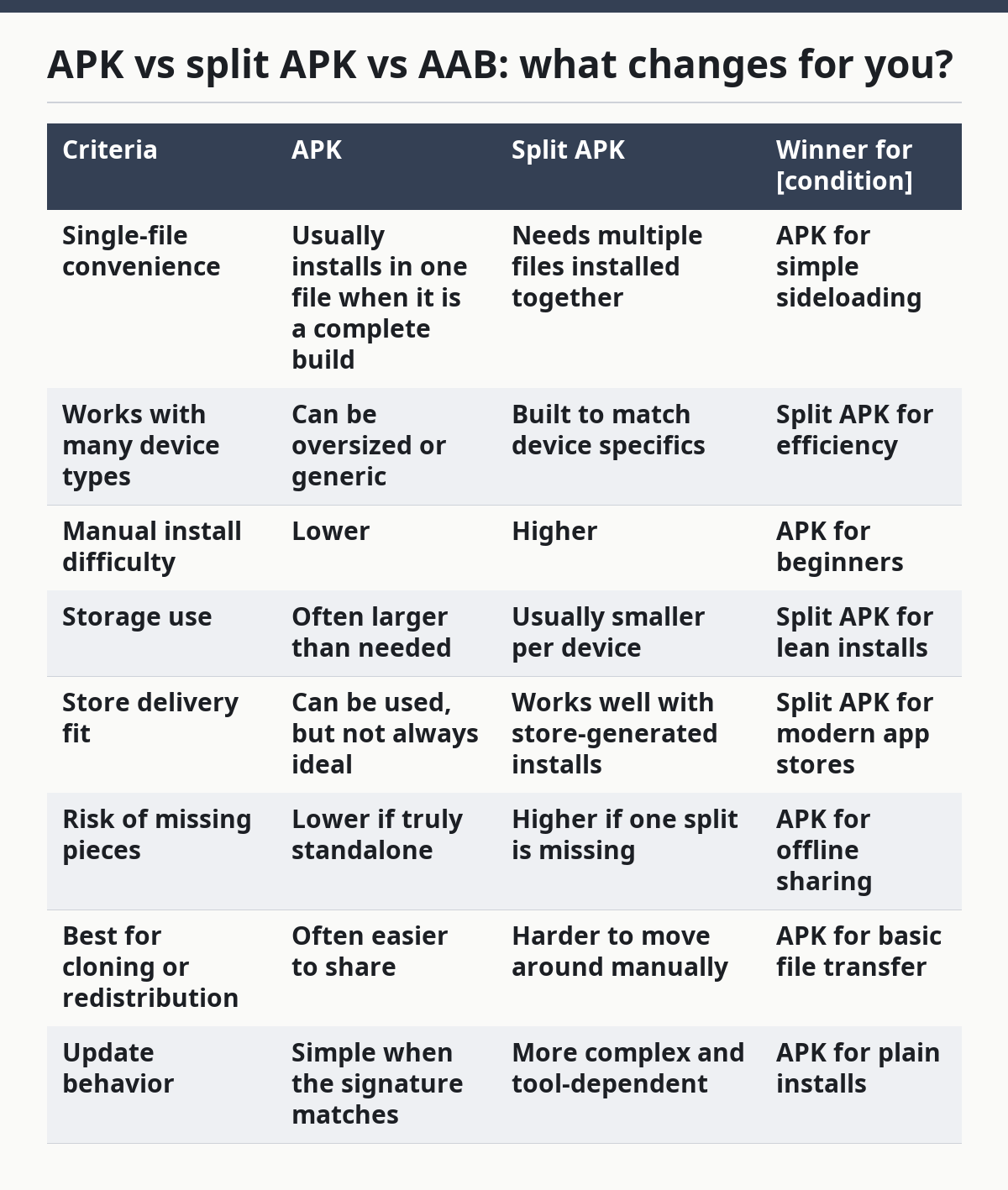
The truth is, split APKs are often better for the publisher and more annoying for the user. If you only want the app on one phone, a normal APK is easier. If the app was packaged for efficient delivery, the split set may be the correct install path.
What XAPK and APKM mean in real life
XAPK and APKM are wrapper files that bundle what a plain APK often leaves out, and they exist because modern apps need more than one file. Picture this: you download a game and the main app file is not enough. The site has wrapped the package with extra data or split pieces so it can all travel together.
XAPK is commonly used to hold a base APK plus OBB files or related split components. OBB files can contain large assets like game data, audio, or maps. APKM is used by some app stores and package tools to carry a group of APKs in one container. Neither format is the standard Android app install format in the way APK is. They are delivery wrappers.
That matters because wrapper formats create two common problems. First, a phone’s built-in installer may not understand them at all. Second, people think the wrapper is the app itself, when in fact it may be a container that needs a special installer or extraction step. If a site asks you to use its own installer tool, that is usually because the package is not a plain APK.
Good use cases:
- Large games with extra data files
- Store downloads that ship multiple splits
- Backup tools that package several pieces together
Bad use cases:
- Quick sideloading from an unknown site
- Installing on a device with little storage and no clear package instructions
- Sharing with someone who only expects one file
A wrapper is not bad by itself. The problem is confusion. If you do not know what is inside, you do not know what you are installing. For broader Android app safety guidance, Google’s Play Protect overview is useful: https://support.google.com/googleplay/answer/2812853.
Why APK installs fail, and how to read the error
APK installs fail for a few repeat reasons, and most of them are package problems, not phone problems. Picture this: you tap install, wait for the progress bar, then get a dry error message that says the app could not be installed. That message looks vague because Android is trying to protect the system while keeping the diagnosis short.
The most common failures come from signature mismatch, incompatible Android version, missing split APKs, architecture mismatch, and low storage. If the app was already installed from another source and signed with a different key, Android will block the update. If the package targets a newer API level than your device supports, it may not run. If the app depends on a set of splits and one is missing, the install can fail or the app can crash at launch.
Signs to check right away:
- The file extension is wrong or the package is a wrapper you did not unpack.
- The app listing mentions arm64-v8a, armeabi-v7a, or x86 and your device does not match.
- The install says “App not installed” after replacing an older version.
- The download came from a mirror with no clear publisher.
- The app launches and then closes, which can point to missing data or incompatible splits.
For a trusted source on Android app signing and package behavior, the Android Developers documentation is the right place to start: https://developer.android.com/studio/publish/app-signing and https://developer.android.com/guide/app-bundle. For package verification and app safety signals, see NIST’s mobile app security guidance at https://csrc.nist.gov/publications/detail/sp/800-163/rev-1/final.
Here’s the catch: the error text often points to the last symptom, not the root cause. “App not installed” can mean at least four different things. Check the package type first.
Which package type should you choose for a safe install?
APK is the safest choice for a simple manual install, split APK is the right choice when the app was built that way, and AAB should stay in the developer’s lane. Picture this: you need the app working today, not a lesson in packaging theory. The package type you choose should match the job in front of you.
If you are installing from a trusted file source and the app is meant to be shared as one file, a plain APK is easiest. If the listing says the app uses split files, you need the full set or a tool that can install them together. If you are a developer or tester, AAB helps you understand store delivery, but it is not the normal direct-install file for a user.
My plain advice:
- Choose APK if you want the easiest direct install and the file is complete.
- Choose split APK tools if the app source clearly says the app comes as multiple packages.
- Ignore AAB for everyday sideloading.
- Treat XAPK and APKM as delivery containers, not final answers.
The file type usually tells you how much friction you should expect. One file is easier than several files. A store bundle is usually not meant for hand installation.
A good install source will tell you the package name, version, Android requirement, and architecture. A bad one hides all of that behind a download button and a hope.
When to stop and find a different file
You should stop and find a different file when the package type does not match your device, the source looks unsafe, or the install needs a tool you do not trust. Because the install chain has already gone wrong, the safest move is to pause. Picture this: you have a file in hand, but every step is turning into a guess. That is the moment to pause.
A bad download often shows one or more of these signs:
- The file name does not match the app you want.
- The package asks for permissions that make no sense for the app type.
- The site offers no version history or package details.
- The install fails after a replacement attempt, which can mean a signature conflict.
- The app is wrapped in a container but the site never explains what is inside.
If you are seeing these problems, the answer is not to keep tapping install. Find a source that identifies the package clearly, or use the app store version if that exists. A clean source matters more than a clever workaround.
Android’s package system rewards careful matching and punishes guesswork. That is also the reason the system can verify signatures and block obvious tampering.
What a bad APK job looks like
A bad APK job is one where the file installs but the app crashes, the app refuses updates, or the wrong package ends up on the device. A broken sideload can also leave duplicate app data, stale permissions, and a confused user who thinks the phone itself is failing.
Common signs:
- The app opens and closes immediately.
- The installer says the package is invalid.
- The update will not replace the old version.
- The app works on one device but not another with the same brand.
- The download source cannot explain the package type.
FAQ
What is the difference between an APK and a split APK?
An APK is a single install file, while a split APK is one part of a larger app package. Split packages are installed together so Android can match the app to your device’s screen, language, and CPU type.
Can I install an AAB file on my phone?
Usually no. AAB is a publishing format for app stores, not the normal file for direct phone installation. If a site offers an AAB for sideloading, that is a sign to be cautious and check whether the source is legitimate.
Why does my APK say “App not installed”?
That message often points to a signature conflict, a missing split file, an unsupported Android version, or the wrong architecture. It is a generic error, so the file type and source usually need checking before the phone itself gets blamed.
Are XAPK and APKM safe?
They are only as safe as the source that provides them. XAPK and APKM are container formats, so they can hold legitimate app pieces, but they can also hide unwanted extras if the site is careless or dishonest.
What should I download if I just want the app to work?
A plain APK from a trusted source is the simplest choice when the app is meant to be installed as one file. If the app is listed as split or bundled, use the exact package the source provides and avoid guessing.
Drafted with AI; not yet reviewed by a person.
