
Last updated: November 19, 2026
Quick Answer: tap the APK in the browser download bar, then approve the package installer prompts. If the bar is gone, open the browser’s Downloads list and tap the file there. The steps below cover the handoff from Chrome or another browser to Android’s installer, plus the few prompts that stop people cold.
Key Takeaways
- The browser download bar is often the quickest handoff point for a fresh APK.
- Chrome usually sends the file to Android’s package installer, not to the app itself.
- If Android blocks the install, it is usually a permission prompt, not a broken file.
- A vanished download often lives in the browser’s Downloads list or the system download manager.
- This page covers the browser-to-installer path only, not USB, SD card, or general APK troubleshooting.
What the browser download bar should do with an APK
Picture this: you’ve just finished a download in Chrome, and the bar or banner at the bottom shows the APK name you expected. You do not need to move it by hand first; the normal next move is to open that download and let Android hand it to the package installer.
The browser download bar is often the quickest entry point when the file is already on the phone. On many Android builds, the bar disappears after a tap, and the installer opens in a second or two. On others, the same file sits under Downloads in Chrome or the system Download Manager if you miss the banner. Android’s app install flow is documented by Google in install unknown apps and in Android help.
Here’s the catch: the file name matters. If you downloaded something.apk, Android should treat it as an app package, but if the name or source looks wrong, check it carefully or ask a qualified Android support professional. If you saved a web page, a zip file, or a renamed file that does not end in .apk, the browser may not offer the install flow at all.
- Chrome: often shows a bottom bar or a small download card.
- Android download bar: the quick tap target for the file you just got.
- Package installer: the screen that asks for permission and then installs.
If you are using the hub page on APK installation and package types, this page handles the browser handoff only. For browser permissions, see install unknown apps. For APK basics, see Android help.
How do I install an APK from the browser download bar?
You install it by tapping the APK in the browser’s download bar, then following the installer prompts that appear. That is the whole path on most Android phones.
On Android, the browser usually does not “install” the app itself. It hands the file to the system installer, and that installer decides whether the file can run. If the file was downloaded correctly, the process is usually a short chain of taps.
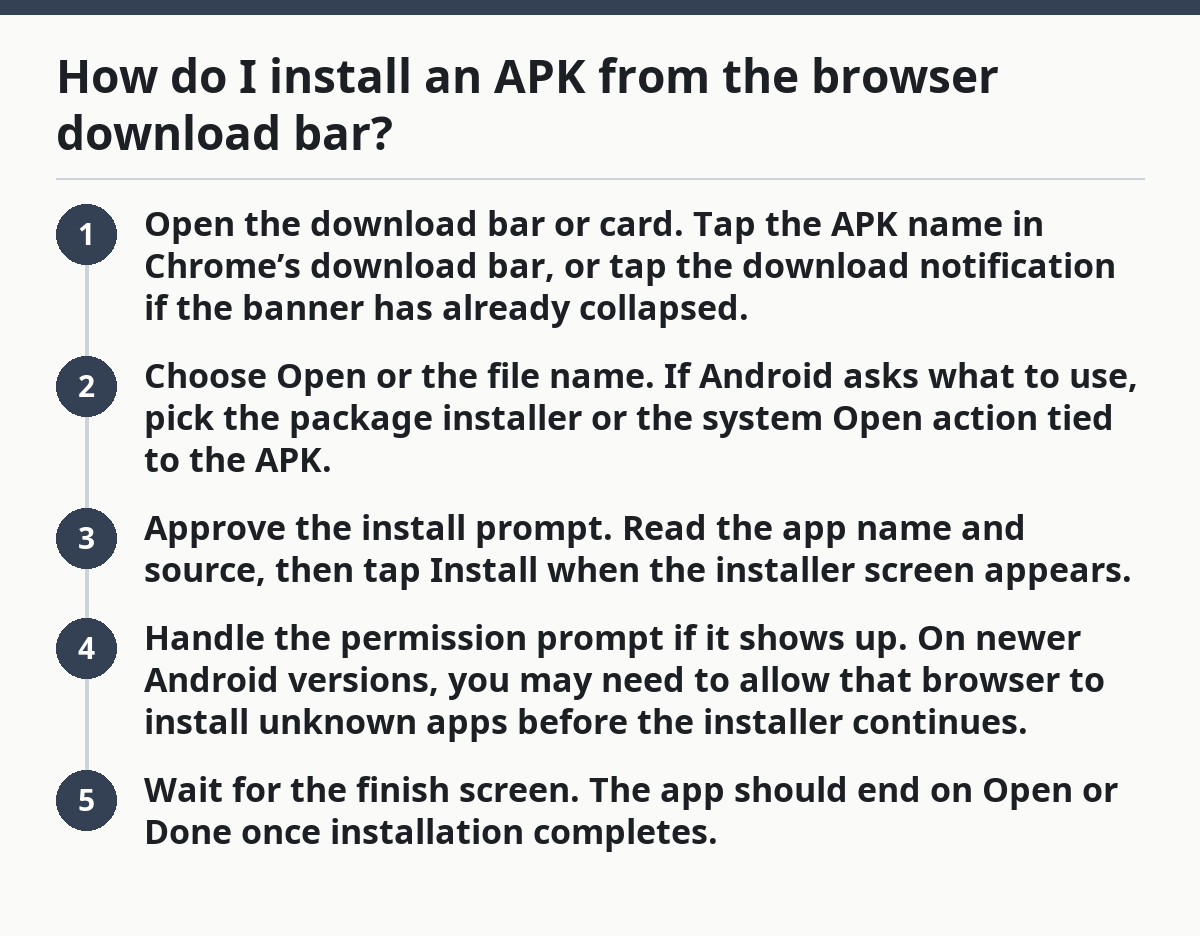
- Open the download bar or card. Tap the APK name in Chrome’s download bar, or tap the download notification if the banner has already collapsed.
- Choose Open or the file name. If Android asks what to use, pick the package installer or the system Open action tied to the APK.
- Approve the install prompt. Read the app name and source, then tap Install when the installer screen appears.
- Handle the permission prompt if it shows up. On newer Android versions, you may need to allow that browser to install unknown apps before the installer continues.
- Wait for the finish screen. The app should end on Open or Done once installation completes.
That flow is normal in Chrome and other mobile browsers. It is also the path that breaks most often when the phone blocks app installs from that browser. If the file opens in a document viewer instead of the installer, the wrong app handled the tap.
What to tap if the download bar disappears
Picture this: the APK finished, the bar vanished, and you have no idea where Android put it. You still have a direct path through the browser’s downloads list, and it usually takes under a minute.
The file is not lost just because the banner closed. Chrome keeps a downloads page, and Android also keeps a system download record on many devices. The number to watch for is one file, not five copies; people often start a second download because the first one seems gone.
- In Chrome, tap the three-dot menu and open Downloads.
- In some browsers, the download card is hidden under the same menu.
- If the file is still there, tap it once to reopen the installer path.
- If Chrome shows an Open or Open file option, use that instead of browsing folders.
A common mistake is backing out of the browser and then searching the phone’s home screen. That wastes time. The browser’s own downloads list is often the fastest route because it still knows the exact file you grabbed.
If the browser says the file is present but nothing happens when you tap it, the phone may be asking for a source permission or a different app handler. That is a settings problem, not proof that the APK is bad.
What installer prompts and permission prompts mean
The installer prompts mean Android is checking whether the file should be allowed to install. That check is normal, and it is the part that most often stops a first-time install from Chrome.
On modern Android, browser-based installs usually trigger a permission gate before the installer runs. You may see wording like Install unknown apps, Allow from this source, or a prompt tied to Chrome itself. The phone is asking whether Chrome can hand APK files to the installer. Google documents that flow in install unknown apps.
If you see that prompt, the fix is usually simple:
- Open the prompt and allow installs for Chrome or the browser you used.
- Return to the download bar or downloads list.
- Tap the APK again.
- Continue through the installer screen.
The setting is per app on many Android versions, so allowing Chrome does not always mean every browser is allowed. That matters if you downloaded the file in Chrome but then tried to open it in a second browser or file viewer.
The first prompt is about the source. The second prompt is about the app itself. Do not rush both at once. Read the package name, because a mislabeled file can still look like an APK to the eye. Google’s Android help explains that package names and app sources matter during installation.
Why the APK opens wrong from the download bar
Picture this: you tap the APK and Android opens a PDF viewer, a zip tool, or some other app instead of the installer. That means the phone used the wrong handler, and the file did not reach the package installer.
This usually happens for one of three reasons. The file extension is wrong, the browser is passing the file to a non-installer app, or Android has not been allowed to install from that browser yet. A renamed file is the easiest trap, because example.apk.txt can look close enough at a glance.
The best correction is to stop and check the file name. If it does not end in .apk, the browser’s download bar is doing exactly what the file type tells it to do. If the name is right and the wrong app still opens, use the browser’s Downloads screen or the system Download Manager instead of the first tap target.
A second mistake is tapping the file twice in a row. That can spawn two prompts or send you back to the browser without any clear message. One clean tap is better.
This is not the same problem as an install error after the installer opens. Those are different pages, and the fix is different too.
Which browser and Android screens matter most?
Chrome and the Android download bar are the two screens that matter most for this specific job. Once you know where the download lives and where the installer prompt appears, the rest is only a few taps.
The browser side gives you the file. The installer side takes over from there. On many phones, the path looks like this: Chrome download bar → Downloads list → package installer → permission prompt → Install. That chain is short, but each screen has a purpose.
If you use another browser, the labels may change slightly. You might see Open, Open file, or a small download chip instead of a bottom bar. The job stays the same. Find the APK, hand it to the installer, and accept the prompt that lets the browser install unknown apps if the phone asks for it.
A good rule: if you can see the file name and the .apk ending, you are in the right place. If you are staring at a folder tree or a cloud app, you have stepped away from the browser download path.
For broader background on file types and APK handling, the hub page on APK installation and package types is the next stop. For browser permission details, see install unknown apps and Android help.
Why won’t my browser open the APK automatically?
The browser may be blocked from installing unknown apps, or Android may have passed the file to the wrong app handler. That is common with Chrome, where the first open needs a permission step. Open the browser’s app permission for installs, then tap the APK again from the download bar or Downloads list.
How do I launch an APK from the download bar?
Tap the APK name in the browser’s download bar or download card, then choose the installer if Android asks for one. If the bar is gone, open the browser’s Downloads page and tap the file there. The file should hand off to the package installer, not to a document viewer.
What if the file disappears after downloading?
It is usually still in the browser’s Downloads list or the system download manager. Chrome keeps a record even after the bottom bar closes, so start there instead of searching folders. If the file truly is gone, the download may have failed before the APK finished saving.
Drafted with AI; not yet reviewed by a person.
