
Last updated: November 19, 2026
Key Takeaways
- Android is asking which app should handle the file, and for an APK the right answer is usually the package installer or the downloads app, not a document viewer.
- Pick the app that hands the APK to the installer, usually Downloads or a file manager.
- Tap the installer path, then confirm the install on the next screen.
- Clear the wrong default, then reopen the APK from Downloads or a file manager.
Android throws up that chooser because it does not know which app should open the APK file, and the fix is to choose the package installer, not a random app. This article covers How to Install an APK When Android Asks to Use a Different App to Open It, and the goal is simple: open the file, send it to the right handler, and stop the bad default from sticking around.
What that Android prompt is really asking
Android wants to know which app should handle the file; for an APK, the answer is usually the package installer or the downloads app, not a document viewer. Picture a tap on an APK inside a file manager, then a chooser with 3 or 4 apps that all seem plausible. The file is fine. The association is not.
An APK is an app package, so Android needs an installer app that can pass it to the system installer. A PDF reader, ZIP tool, or cloud app can open the contents, but that does not mean it can install the app. That mix-up shows up a lot on phones with custom launchers or heavily changed file associations.
Use the chooser for one job only: route the APK to an installer path. If you see options like Package Installer, Installer, Install unknown apps, or a system Downloads app, that is the lane you want. See a photo app, note app, or archive app? Stop there.
- Good choices: Package Installer, system Downloads, sometimes Files by Google or the built-in file manager
- Bad choices: gallery, notes, email, PDF, archive, or media apps
- What you want next: the install screen, not a preview screen
Which app should open an APK file?
The right app is the package installer or the app that hands the APK to it, usually the Downloads app or a file manager. Picture the APK sitting in Downloads while Android gives you a list instead of just opening the installer. That is a file-association problem, not an app problem.
On many Android phones, the built-in Downloads app opens an APK cleanly because it recognizes a package file. A good android file manager can do the job too if it passes the file to the installer. Some phones label the installer plainly; others hide it behind a generic name like “Install” or “Package Installer.”
But not every file manager is equal. Some third-party browsers can look at APKs and still fail to launch the installer screen. When that happens, switch to the system Downloads app or the phone’s built-in file manager.
A quick rule helps:
- If the app shows an Install button, it can probably open the APK the right way.
- If it shows Open with and a long app list, choose the installer.
- If it shows file contents instead of an install screen, back out and try a different handler.
On some phones, the installer only appears when you tap the APK from the Downloads app instead of a browser or chat app. Tiny change, big payoff.
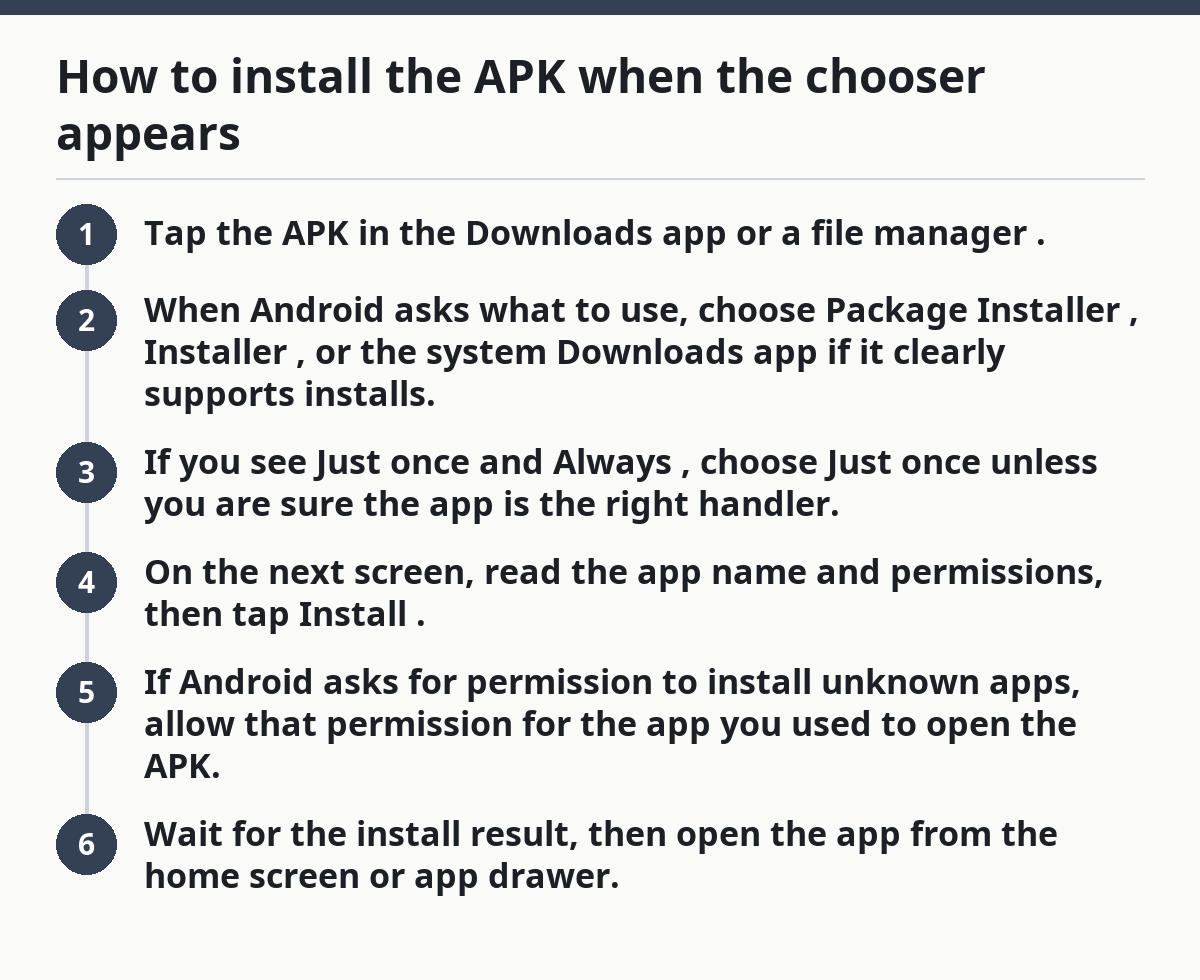
How to install the APK when the chooser appears
You install it by picking the app that leads to the package installer, then confirming the install on the next screen. Picture Android popping up the “Open with” box and giving you 5 seconds to choose. Slow down. Pick the right path once, and the rest usually falls into place.
- Tap the APK in the Downloads app or a file manager.
- When Android asks what to use, choose Package Installer, Installer, or the system Downloads app if it clearly supports installs.
- If you see Just once and Always, choose Just once unless you are sure the app is the right handler.
- On the next screen, read the app name and permissions, then tap Install.
- If Android asks for permission to install unknown apps, allow that permission for the app you used to open the APK.
- Wait for the install result, then open the app from the home screen or app drawer.
If the installer never appears, the file may be opening in the wrong app association. Close the chooser, then take a different route: open the APK from the system Downloads app, not from email, chat, or a cloud storage preview.
The first try matters. Pick the wrong app and Android may remember it. That is annoying, and it tends to come back later.
How do I make Android stop using the wrong app?
Clear the default association for the app that hijacked the APK, then open the file again from the Downloads app or file manager. Picture every APK you tap landing in the same useless app. Android is remembering that choice, and you need to wipe it out.
Start with the app that opens the file incorrectly:
- Go to Settings
- Open Apps
- Find the app that keeps taking the APK
- Tap Open by default or Set as default
- Clear its defaults if the phone offers that option
If the chooser lets you pick Always, undoing that setting is the clean fix. On many phones, the default can be reset in under a minute. After that, open the APK again from the Downloads app or your android file manager and choose the installer this time.
If the wrong app is a browser, cloud storage app, or archive tool, it may have taken over because you opened the APK from there first. That happens a lot. The fix is not reinstalling the APK file; it is changing which app Android thinks should handle that file type.
A few things help keep it from recurring:
- Use the same system app for APKs each time
- Avoid opening APKs from previews in email or chat apps
- Choose Just once until you know the right handler is working
Common mistakes that keep the install from starting
The biggest mistake is choosing an app that can read the file but cannot install it. Picture the APK opening, but all you get is a file preview, a ZIP view, or a text dump. That looks promising. It is not.
Another mistake is setting the wrong app to Always. That turns a one-time annoyance into a repeat problem, because Android will keep routing APKs to the same bad handler. If you already did that, clear the default in app settings before trying again.
A third mistake is starting from the wrong place. Some phones handle APKs better from the Downloads app than from email, browser downloads, or cloud sync apps. The file is the same; the route is not.
If the APK was renamed, truncated, or wrapped in a preview screen by another app, Android may not show the installer path cleanly. In that case, move the file back into Downloads and open it there with the system file manager.
Here’s the catch: if the prompt only offers apps that clearly are not installers, you are not at the install step yet. You are at the file-association step. Back out, reset defaults, and reopen the file from a different system app.
- Wrong app chosen: usually leads to previews instead of installs
- “Always” tapped by mistake: can keep the wrong default in place
- Opening from a chat preview: often routes through the wrong handler
- Using a ZIP or document app: usually stops the install path
A quick check before you try again
You can tell you are on the right path when the next screen says Install and names the app package, not the file viewer. Picture tapping the APK, then seeing an installer dialog instead of a document window. That is the sign you want.
A clean install path usually has three pieces:
- The file opens from Downloads or a file manager
- Android asks about the app to use, or goes straight to Package Installer
- The next screen shows an install prompt, not a preview
If you still get the wrong app, try the same APK from another system path. Open the Downloads app first, then tap the file there. If that fails, use the phone’s built-in file manager instead of a third-party one. Some custom Android builds handle file associations badly, and switching the opening app can be the fastest fix.
This problem sits inside the wider APK installation and package types flow, and it is worth separating it from file-format issues. A bad opener is different from a broken APK.
Why Android asks what app to use
Android asks because more than one app claims it can handle the file, and the system needs you to choose the one that can hand it to the installer. Picture the phone seeing “.apk,” while several apps insist, “I can open files.” That does not mean they can install packages.
The prompt is normal when file associations are missing, changed, or reset after an update. It is also common on phones with custom file managers, work profiles, or aggressive app cleaners that wipe defaults. The phone is not saying the APK is bad; it is saying the opening app is unclear.
If the chooser appears every time, that can be normal if the right app is not the default yet. The trouble starts when Android keeps offering the wrong app or when the choice is locked to something that cannot install APKs. Then you need to reset the default and start over from the system Downloads app or file manager.
The answer is usually boring, which is good. Pick the installer, clear the wrong default, and keep the file in a system folder Android already trusts. That avoids a lot of circular nonsense.
Why does Android ask what app to use?
Android asks because the file can be handled by more than one app, and it needs you to choose one. For an APK, that choice should lead to the package installer, not a reader or preview app. If the prompt keeps showing up, the phone has not settled on a default file association yet.
Which app should open an apk file?
The package installer should open it, or the app that passes the APK to the package installer. On many phones, that means the system Downloads app or the built-in file manager. Pick a photo app, PDF app, or archive app, and the install usually will not start.
How do I stop the wrong app from opening apks?
Clear the default for the app that keeps hijacking the file, then reopen the APK from Downloads or a file manager. Go into Settings, find the app, and reset its open-by-default setting. After that, choose the installer only once until Android remembers the right path.
Drafted with AI; not yet reviewed by a person.
