
Last updated: November 19, 2026
Quick Answer: compare the APK version code against the official release list entry and use the matching version name and changelog to confirm it. In this guide on How to Compare an APK Version Code Against the Official Release List, the code comes first because it ties the file to a release record more reliably than the public label. The steps below show how to compare them without guessing.
Key Takeaways
- Match the APK’s version code to the official release entry, then verify the version name and changelog.
- Version names are for readers; version codes track release order, and they can diverge.
- The official release list is the source of truth for build order and changelog history.
- Read build numbers and changelogs together, because either one alone can mislead you.
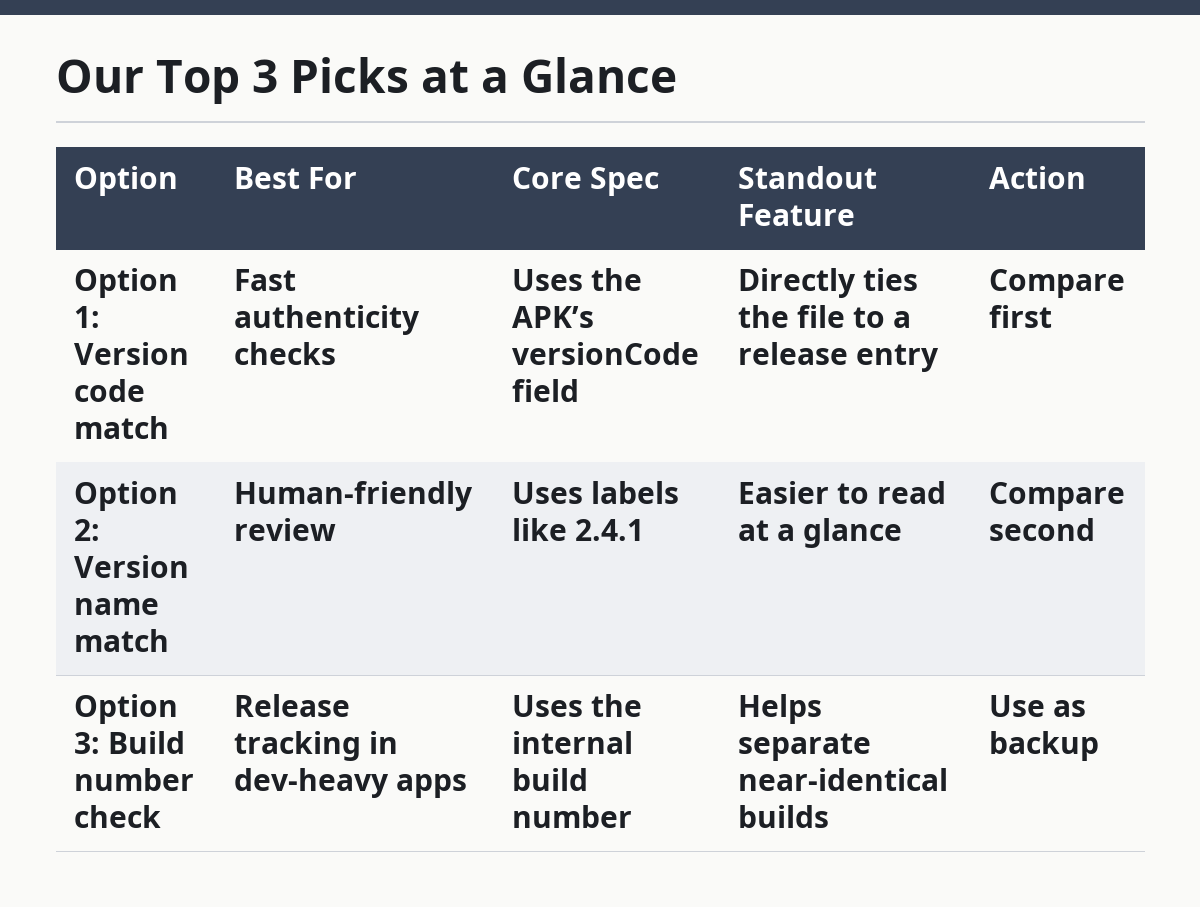
Our Top 3 Picks at a Glance
| Option | Best For | Core Spec | Standout Feature | Action |
|---|---|---|---|---|
| Option 1: Version code match | Fast authenticity checks | Uses the APK’s versionCode field |
Directly ties the file to a release entry | Compare first |
| Option 2: Version name match | Human-friendly review | Uses labels like 2.4.1 |
Easier to read at a glance | Compare second |
| Option 3: Build number check | Release tracking in dev-heavy apps | Uses the internal build number | Helps separate near-identical builds | Use as backup |
How do I compare an APK version code against the official release list?
Compare the APK’s versionCode with the official release list entry that carries the same build number, then check the matching version name and changelog. That is the fastest way to tell whether the file lines up with the publisher’s release history.
A folder, a release page, and two nearly identical numbers. Only one proves the file belongs to the right release; the other just looks tidy on the screen. Start with the internal code, then check the release note beside it.
Here’s the catch: the version name can repeat patterns, but the versionCode should move in a single sequence. If the official list says 105 and your APK says 104, that is not a match, even if both show 2.3.0. The code wins.
Use this order:
- Open the APK’s app info or manifest details and note the versionCode.
- Open the official release list or changelog and find the same app entry.
- Match the code first, then the version name.
- Check whether the release note mentions a hotfix, beta, or staged rollout.
- If the code matches but the changelog does not, stop and treat it as a different build; if needed, consult the publisher’s release notes or a qualified professional before drawing a final conclusion.
This method works because release lists usually track builds in ascending order. A higher build number often points to a later package, but the feature set can still differ across branches or variants. Some developers ship multiple APKs with the same version name and different codes for device variants.
What counts as a real match
A real match means the APK’s versionCode, versionName, and release note line up with one entry on the official page. If one piece is off, the file may still be legitimate, but it is not the same release record.
Use this quick check:
- Same app name
- Same
versionCode - Same
versionName - Same release date or release note slot
- Same changelog language or feature list
When the official page is sparse, the code matters most. That is the field machines use to sort releases, and it is harder to fake into a believable story than the friendly version label.
What if the version name matches but the version code does not?
Then the APK and the official release list do not match, even if the screen shows the same 2.4.1 label. Version names are for people; version codes are for release order, and those two can drift apart.
Picture this: you spot the same version name on two APKs and assume they must be identical. They might not be. One could be a reissued build, a device-specific package, or an older binary wrapped in a newer label. The code mismatch is the warning sign.
This is where many generic guides go wrong. They stop at the label and miss the file history behind it. That costs time, and it can send you down the wrong release path.
Use the mismatch as a decision point:
- If the release list has a higher code than your APK, your file is older.
- If the release list has a lower code, your file may be newer or from a different branch.
- If the code leaps by more than one step, look for skipped releases, beta builds, or split APK variants.
- If the changelog mentions a patch but the code does not move, you may be looking at a reposted package.
Pros and cons of trusting the version name alone
- Pro: easy to read without tools
- Pro: often matches the public release note
- Con: can stay the same across multiple internal builds
- Con: can hide backported fixes or variant packages
Who Should Skip This: anyone doing source verification should not rely on version name alone; the version code check is the better fit.
If you are a casual user comparing obvious public releases, this can still be a quick first pass.
Skip this if: you need to know whether an APK matches the publisher’s actual release record.
Why the official release list is the source of truth
The official release list is the source of truth because it shows the developer’s own release order, build numbers, and changelog history. A file on its own tells you less than the publisher’s record.
Picture three places to check: the APK, the store page, and the changelog archive. Only one explains how the publisher intended releases to line up. That page is the one that matters when you compare codes.
No long investigation is needed. A clean release list usually gives you the code, the version name, and a note about what changed. That is enough to confirm whether the APK sits where it should in the sequence.
Look for these clues on the official release page:
- A numbered release entry
- A build number or
versionCode - A date stamp
- A short changelog
- A note about beta, alpha, or stable status
If the page is from a well-maintained project, the entries often run in strict order. If it is sloppy, the build number still gives you a better anchor than the marketing label. In either case, the release list is stronger than a reposted download page.
You can also use the release list to spot odd packaging. If the APK’s code falls between two official entries, it may be a partial rollout or a renamed build. That is a sign to pause and look closer.
The clues that matter most
Not every detail matters equally. For this job, the code and the changelog carry the most weight. The rest helps you confirm the story.
Rank the clues like this:
versionCode- Official version entry
- Changelog
- Release date
- Version name
How do I read build numbers and changelogs without getting fooled?
Read build numbers and changelogs together, because either one by itself can mislead you. A build number tells you release order; a changelog tells you what the publisher says changed.
Picture this: the release page lists build 218, but the changelog only says “bug fixes and improvements.” That is not much, yet it still gives you a fixed point. You can match the APK code to the build and stop there if the goal is authenticity, not feature research.
Some developers keep the version name stable across several internal builds. The build number moves, the public label does not, and the changelog gets shorter. That is normal in fast release cycles.
Use this simple read:
- If the build number rises, the APK should usually be newer in the official sequence.
- If the changelog mentions a fix that your APK lacks, the file may be earlier than the list claims.
- If the changelog names a feature that your APK has but the code is lower, the file may belong to a different branch.
- If the release note is vague, use the version code as the tie-breaker.
Do not overread a flashy changelog. A line like “performance improvements” can cover minor code changes that never show up in the version name. The code is still the cleaner comparison point.
Common mistakes that cost you the right match
These mistakes can lead people to the wrong release entry; if the result matters, it is worth checking carefully or asking a qualified professional to review it:
- Reading the version name first and stopping there
- Comparing against a mirror site instead of the publisher’s release list
- Ignoring split builds for different device types
- Treating a beta note like a stable release
- Assuming the changelog is complete
Each one costs you a clean match. The fix is boring but reliable: start with the code, then confirm the changelog, then decide whether the file belongs on the release list.
Step-by-step: compare the APK to the release list
The correct comparison is a 5-step check that starts with the internal code and ends with the official changelog. Use the same app name and release page every time.
Picture this: you are sitting with one APK file and a release page open in a browser tab. You want a yes-or-no answer, not a theory. This sequence gets you there without extra detours.
Follow these steps:
- Find the APK’s versionCode in the file details, manifest view, or app info screen. Write down the exact number.
- Open the official release list for that app and locate the matching release entry by date, label, or build number.
- Compare the release entry’s code with the APK’s code. A match means the file fits that release slot.
- Check the version name and the changelog to confirm the release note describes the same build.
- If the code matches but the note is vague, use the build number and release order to confirm where the file sits in the sequence.
When the numbers line up, you have a clean match. If they do not, the APK may still be valid, but it does not belong to that official release entry. That is the point where you stop calling it the same build.
Use a simple verdict:
- Match: same code, same release entry, same changelog slot
- Partial match: same version name, different code
- Mismatch: code and release list disagree
That verdict is what keeps you from trusting a file because it “looks close enough.”
When a version code match is not enough
A version code match is not enough when the publisher ships variant APKs, staggered rollouts, or branch-specific builds. In those cases, the code can match the release list while the package still differs in a practical way.
Picture this: the release page says the build is official, and the code lines up. You might still have a device-specific package, a beta build, or a reissued file with the same public label. The code confirms the release slot, not every detail of the binary.
On the flip side, that is still useful. If your job is source trust and release verification, the code is the first filter. It tells you whether the APK sits in the publisher’s own sequence. If it passes, you can move on to the other checks owned by this cluster, such as certificate and hash comparison, on their own pages.
What the code check can’t do:
- Prove two APKs are the same binary
- Prove the signature is original
- Tell you whether the file needs an update
- Explain device-specific packaging
What it can do:
- Place the APK in the official release order
- Spot older or newer builds fast
- Catch bad reposts with wrong labels
- Separate stable releases from lookalikes
That makes it a first-pass filter, not the whole answer. If the release list is thin or the developer reuses labels, the code still gives you the best anchor available.
Is the version code more important than the version name?
Yes. The version code is more important for release comparison because it tracks build order, while the version name mainly helps people read the release label.
Picture this: two APKs both show 3.1.0, but one has code 42 and the other has code 45. The code tells you which one belongs later in the official sequence. The name does not. That is why the code is the stronger match point when you compare against a release list.
If the version name and code disagree, trust the code for release order. Then use the changelog to see whether the publisher changed the label after the fact. In a clean release list, the two usually move together, but the code still carries the final say.
How do I find the version code?
You find the version code in the APK’s app details, manifest data, or package info view, depending on the tool you use. Some file viewers show it as versionCode, while others hide it inside the package metadata.
A plain file manager usually won’t show it. You need an APK analyzer, a package inspector, or an app info screen that exposes build metadata. Once you find it, compare that number with the official release list entry, not just the public version label. That is the direct route to a reliable match.
What does a build number tell me?
A build number tells you where a release sits in the developer’s sequence. It is the clearest sign of whether one APK came before another, even when the version name stays the same.
Build numbers are useful when changelogs are short or vague. If the official list says build 218 and your APK says 217, the file is earlier in the line. If the numbers match, you have a better case for saying the APK belongs to that official release entry.
Drafted with AI; not yet reviewed by a person.
