
Last updated: November 19, 2026
Key Takeaways
- APK version management tracks the installed build, the replacement build, and signer compatibility.
- The safest path depends on source, device state, and whether you can risk data loss.
- An APK is worth installing only after you verify the source, signer, and permissions you already trust.
- Android rejects some APK updates when version code, signature, architecture, or split files do not match.
APK updates and version management are messy when you install apps outside the Play Store, because you can easily mix the wrong build, miss a signature change, or break an app that depended on an older version. APK updates and version management in this guide focus on package name, signing key, version code, and rollback path — not file name alone. The sections below settle when to update, when to hold back, and how to avoid a bad install.
What APK version management actually means
APK version management means tracking which app build is installed, which build should replace it, and whether the new APK is signed the same way as the old one. If you only think in terms of “latest file,” you’ll miss the details that decide whether Android accepts the update or rejects it.
Picture this: you already have an app on a phone, and you find a newer APK online. If the package name matches but the signing key changed, Android usually treats it as a different app, so a direct update may fail; if you are unsure, consult the app developer or a mobile professional. If the version code goes backward, the install fails. That’s the whole game.
The key pieces are simple:
- Package name: the app’s identity on Android, like
com.example.app. - Version name: the human-readable label, such as
2.4.1. - Version code: the internal number Android uses to decide upgrade order.
- Signing certificate: the cryptographic key that proves who built the APK.
If those four pieces line up, an update usually behaves. If one is off, things get weird fast. Quick check: if you’ve ever seen “App not installed” after downloading a newer APK, this is the section that explains why.
Which update path should you use?
The safest path is usually the one that matches your source, your device state, and whether you can tolerate app data loss. If the app came from the Play Store and still exists there, let Play handle it. If you sideloaded it, you need to manage the update yourself.
Here’s the catch: not every “update” is really an upgrade. Some APKs are region variants, beta builds, split packages, or re-signed forks. Those behave differently, even when the app icon looks the same.
| Situation | Best Path | Why Other Options Fail |
|---|---|---|
| Play Store app still installed | Update in Play Store | Sideloading can conflict with the store build |
| Sideloaded APK from same signer | Install newer APK over current one | Uninstalling first can erase local data |
| Same app, different signer | Uninstall old app, then install new one | Android blocks signature mismatch updates |
| Need older build for compatibility | Install older APK only after removing newer version, or use app rollback if supported | Downgrade often fails on version code |
| Multiple APK splits involved | Use bundle-aware installer or full split set | A lone base APK may miss required resources |
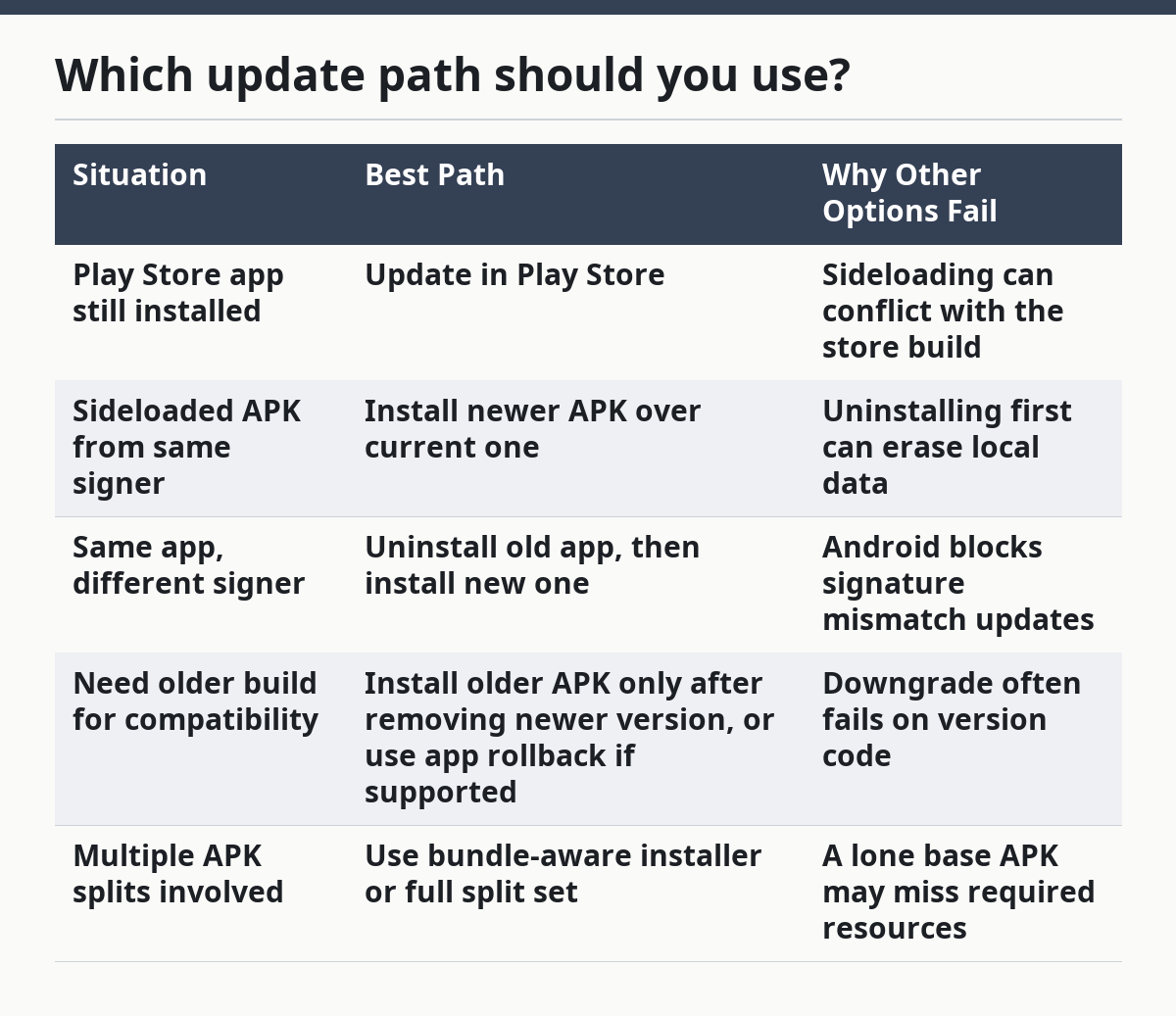
Real update management is boring on purpose. You confirm the source, check the signer, compare version codes, and only then install. If you skip that order, the phone tells you the truth with an error. Quick check: if you keep APKs from more than one site, you need this workflow, not casual tapping.
How do you tell whether an APK is safe to install?
An APK is worth installing only after you verify the source, the signer, and the app’s permissions against what you already trust. It is not safe in an absolute sense, but it can reduce the biggest risks.
Picture this: you’re holding two APK files with the same app name. One is from the developer’s site, the other is from a mirror. The file names match. The danger is that the names don’t matter nearly as much as the signature and source.
Use this order every time:
- Check the source first. Prefer the developer’s site, the Play Store, or a trusted distribution page that clearly lists the developer name.
- Compare the package name and version name with the app you already have installed.
- Check whether the signer is the same. A signing mismatch means this is not a direct update.
- Review the permissions the app requests. A flashlight app asking for contacts access is a red flag.
- Scan the file with a reputable malware scanner on the device or on a desktop before installing.
- Keep a backup of the current APK if you may need to roll back later.
Two authoritative places to understand Android app signing are Google’s Android documentation on app signing and the Android developer guidance on versioning. The details matter because Android does not guess for you.
- Android Developers: App signing
- Android Developers: Versioning your app
- Android Developers: APK signature scheme
- Android Developers: App bundle overview
The biggest mistake is trusting a mirror because it has a newer date or a bigger download count. Those are not trust signals. They are just noise. Quick check: if you can’t answer “who signed this APK?” in one sentence, don’t install it yet.
Why does Android reject some APK updates?
Android rejects some APK updates because the new file breaks one of the install rules: lower version code, signature mismatch, incompatible architecture, or missing split files. That is not random; it’s the system protecting the installed app record.
Now, you might be wondering why the app works fine on one phone and fails on another. The reason is often the device’s Android version, CPU type, or whether the app came as a split APK set rather than a single file. A file that looks complete may still be only part of the install.
Common failure points include:
- Version code went backward: Android sees it as a downgrade.
- Different signer: the new APK cannot replace the old one.
- Split package missing pieces: you installed the base APK without needed splits.
- ABI mismatch: the app was built for the wrong CPU architecture, such as ARM64 vs. armeabi-v7a.
- Min SDK too high: the app no longer supports the Android version on the device.
If you hit this wall, stop trying random APKs. Identify the exact reason first. An app installer like SAI or an adb install command can often tell you whether the problem is splits, signature, or downgrade rejection. Consult a professional if the app is important and the error is unclear, because that can save time and help prevent data damage.
Once you know the failure type, the fix is usually obvious. Use the matching signer, install the full split set, or move to a build that supports your device. Quick check: if the error appears only during install and not when opening the app, this section is your map.
When should you keep an older version instead of updating?
You should keep an older version when the new build breaks a feature you need, drops support for your device, or changes the app in a way you can’t accept. That is a practical choice, not nostalgia.
Picture this: the latest update removes a button you use daily, or it adds a new login flow that fails on an older Android phone. If the app is critical and the new build is unstable, one short-term answer can be to hold the current version and block auto-update.
Use this path only when you have a reason you can name clearly:
- Record the exact version you want to keep, including the version code if you can find it.
- Turn off Play Store auto-update for that app, or disconnect the app from store updates if it was sideloaded.
- Back up the app data if the app stores local settings or offline files.
- Save the known-good APK somewhere you can find later.
- Test the newer version on a secondary device if one exists, so you know whether the problem is version-specific.
- Keep notes on why you stayed back, because six months later that detail matters.
The trade-off is real. Older versions may miss security fixes, server compatibility changes, or bug fixes the app now expects. A holdback is a temporary tactical move, not a forever plan. If the app depends on a server that forces updates, the old build may stop working without warning. Quick check: if you need one app feature that the newest version broke, this is the path to follow.
How do you downgrade an APK without wrecking data?
You downgrade an APK by removing the newer build first, then installing the older one, because Android usually blocks a direct version rollback. If the app is signed the same way and allows it, some workflows preserve data; if not, assume a clean install may be required.
Picture this: you updated yesterday, the new build is unstable, and now you want the last working version back. If the app’s data matters, your first job is protecting that data before you touch the install.
Follow this sequence:
- Check whether the app stores data locally or in the cloud.
- Back up the app data with a tool that matches your device setup, or export settings inside the app if that option exists.
- Save the older APK and confirm it came from the same signer as the current app.
- Uninstall the current version if Android refuses the downgrade.
- Install the older APK.
- Open the app and verify that the data, sign-in state, and key settings survived.
Some apps tolerate rollback. Many don’t. Banking apps, DRM-heavy apps, and apps with server-side checks often break when you mix old client code with new server rules. On the flip side, simple utilities and offline tools are usually less fragile.
This is where people make a costly mistake: they assume “uninstall” and “data wipe” are the same thing. They are not always the same, but on Android they are close enough that you should plan for loss unless you have a confirmed backup. Quick check: if you are considering a downgrade because of a bug, back up first and don’t assume the old version will behave better.
What should you do with split APKs and app bundles?
You should install split APKs as a set, not as a single file, because many modern apps are broken into a base APK plus configuration splits. If you only sideload the base file, you may get missing graphics, crashes, or an install that never finishes right.
Picture this: you download one file from a mirror and expect the app to work. Then the app opens with missing languages, broken assets, or a launch crash. That’s classic split-package trouble.
The right tools matter here. Common options include SAI, APKMirror Installer, and adb install-multiple on a desktop. These tools know how to handle multi-file installs better than the stock file picker.
Use the right path for the package type:
- Single APK: normal install is fine if signer and version code match.
- Split APKs: use an installer that can apply all splits together.
- Android App Bundle outputs: expect multiple components, not one file.
- Mixed-source installs: avoid them unless you know each split belongs to the same version.
One quiet failure mode is language or screen-density mismatch. The app may “install” but look wrong because the needed split wasn’t included. Another is architecture mismatch, where the base file is right but the native library split is not.
If you want fewer headaches, get the full package set from the same release page and the same version label. Quick check: if the download page lists several APK files for one app, treat them as one unit.
The edge cases that break normal advice
Normal advice breaks down when the app is a fork, a beta, a region-locked build, a work profile app, or a system app. In those cases, the package name alone won’t tell you what to do next.
Picture this: everything looks standard until the install fails for a reason that doesn’t fit the usual checklist. That’s when version management stops being routine and starts being specific.
| Scenario | What changes | What to do instead |
|---|---|---|
| Beta build on the same app name | Beta and stable may share a package but differ in update channel | Stay on one channel; don’t mix beta and stable APKs |
| Forked app or rebrand | Signer and package name may both change | Treat it as a new app and plan for a fresh install |
| Work profile device | Policy may block sideloading or background updates | Check the device policy before changing versions |
| System app or OEM app | The app may be tied to firmware and vendor signing | Use the device maker’s update route, not random APKs |
| Region-locked build | App availability may depend on country or server checks | Match the build to the region the service expects |
| Hidden split dependency | Install fails even with the right APK file | Use the full split set or a bundle-aware installer |
The real takeaway is that “same app” can mean different things on Android. Same icon is not enough. Same package name is better, but still not enough if the signer changed or the app belongs to a managed device.
A good rule is this: if the app came from a different channel, treat it as a different update path until proven otherwise. That keeps you out of the worst install loops. Quick check: if your app came from a beta link, a work phone, or an OEM image, do not follow the standard sideload advice blindly.
What are the best habits for long-term APK management?
The best habits are to keep a clean archive, track version codes, and block surprise updates before they wreck a working setup. That’s less exciting than hunting the newest build, but it saves you from repeat disasters.
Picture this: six months from now, you need the exact APK that worked on a certain Android 12 device, and the download page has changed. If you never saved the version number and signer details, you’ve lost the trail.
Use a simple maintenance routine:
- Save each known-good APK in a folder named with the app name and version.
- Write down the version name, version code, and source site in a note file.
- Keep one backup of any app that is critical to your work or phone setup.
- Turn off auto-update for apps you manage manually.
- Check new versions against the same signer before installing.
- Prune old builds only after you know a newer one works on your device.
Two more practices help a lot. First, keep a desktop copy of tools like adb and a split installer, because phone-only workflows get clumsy fast. Second, keep a recovery path for data-heavy apps so a failed update doesn’t become a full reset.
This is not about hoarding every APK forever. It’s about keeping the one you may need when a vendor changes the rules. Quick check: if you have more than three manually installed apps, you need an archive habit.
FAQ
Can I update an APK without losing data?
Yes, if the new APK is signed the same way and Android accepts it as a direct upgrade, your data usually stays in place. If the signer changes or you have to uninstall first, assume data loss is possible unless you have a backup.
Why does the same APK install on one phone but not another?
Because device rules differ. Android version, CPU architecture, screen density, and managed-device policy can all change the result. A build that fits one phone can fail on another even when the app name is identical.
Is it safe to install APK updates from mirror sites?
Only if you can verify the source, signer, and package details with confidence. Mirror sites can be useful, but they are not all equal, and a matching file name does not prove the APK is genuine.
What’s the difference between version name and version code?
The version name is the label people see, like 3.2.0, while the version code is the internal number Android uses for upgrade order. If version code goes backward, Android usually treats it as a downgrade even if the version name looks newer.
Should I keep old APK files after updating?
Yes, if the app matters to you or has a history of bugs. Keep the last known-good build and note where it came from, because rollback is much easier when the correct file is already saved.
Drafted with AI; not yet reviewed by a person.
