

Last updated: November 20, 2026
Quick answer: keep the app on one version by turning off every auto-update path for that app, then saving the APK file separately as a backup. On Android, a sideloaded app can still change versions if the store that installed it is set to auto-update, if a second store is managing it, or if you later tap an update prompt by mistake. For the topic How to Keep an APK on a Specific Version Without Letting It Auto-Update, the practical goal is to keep one installed version code unchanged until you choose otherwise. See Google Play’s auto-update help and Android’s app settings guidance for the basic controls. Google Play Help and Android Help both document update controls.
Key takeaways
- Stop updates at the source first: the app store, the installer app, or both.
- Keep one APK file saved somewhere obvious so you can reinstall the same version if needed.
- Watch for store conflicts, because one app can be controlled by more than one update system.
- Manual updates work best when you treat version pinning as a habit, not a one-time setting; if you are unsure which store controls the app, check with a professional or the device maker’s support resources. Samsung Galaxy Store Help
- This approach keeps an installed app fixed, but it does not make the app immune to every change on Android.
What does “version pinning” mean for an APK?
Version pinning means keeping one installed app on one chosen release instead of letting Android replace it with a newer build. For a sideloaded APK, the goal is simple: the installed app stays at the same version code until a person changes it on purpose.
That matters because an APK file is only one part of the story. The installed app, the source that delivered it, and the update settings tied to that source can all affect what runs on the phone. A Samsung phone may also have more than one place where app updates are managed, especially if the app came from a store first and was later replaced by an APK.
This is not the same as compatibility checking or rollback. It is also not a downgrade guide. The point here is to hold the line at one version and stop the system from moving past it.
How do I stop a sideloaded app from auto-updating?
You stop a sideloaded app from auto-updating by turning off update controls in the place that installed or manages the app, then checking that no other store still has permission to update it. That is the real fix, because one hidden update path can override the setting you already changed.
Use this order:
- Open the store app that originally installed the app, such as Google Play or Samsung Galaxy Store, and find the app’s page.
- Turn off auto-update for that app, or for apps in general, in the store’s update settings.
- Check the installed app’s source in Android settings if the phone shows it, so you know which store owns updates. Android Help
- Remove the app from any second store that also lists it, because a second store can conflict with the first.
- Keep the APK file saved in a folder you can find later, such as Downloads or Documents, so the same version is easy to reinstall.
- Ignore in-app update prompts if the app shows one, because some apps ask for a newer version even when the store is quiet.
- Recheck the update setting after a major phone change, such as after a reset or a new login, because those changes can restore default app behavior.
The result should be that the installed app stays on the same version until you decide otherwise. If the app still changes, the update source is usually not the one you just edited.
Which update source is actually in control?
The store that controls the installed app is the one that matters, not the one you remember using months ago. If an app appears in both Google Play and Samsung Galaxy Store, either place may try to manage updates depending on how the app was installed and what permissions are active.
| Update source | What it can do | What to check |
|---|---|---|
| Google Play | Auto-update apps that came from Play or were linked to Play services | App page, auto-update setting, account used on the phone |
| Samsung Galaxy Store | Update apps that Samsung manages on Galaxy phones | App page, store update settings, stored account |
| APK file in Downloads | Does not update by itself | Whether the file is only a backup copy |
| In-app updater | Can prompt for a newer build inside the app | Update screen inside the app itself |
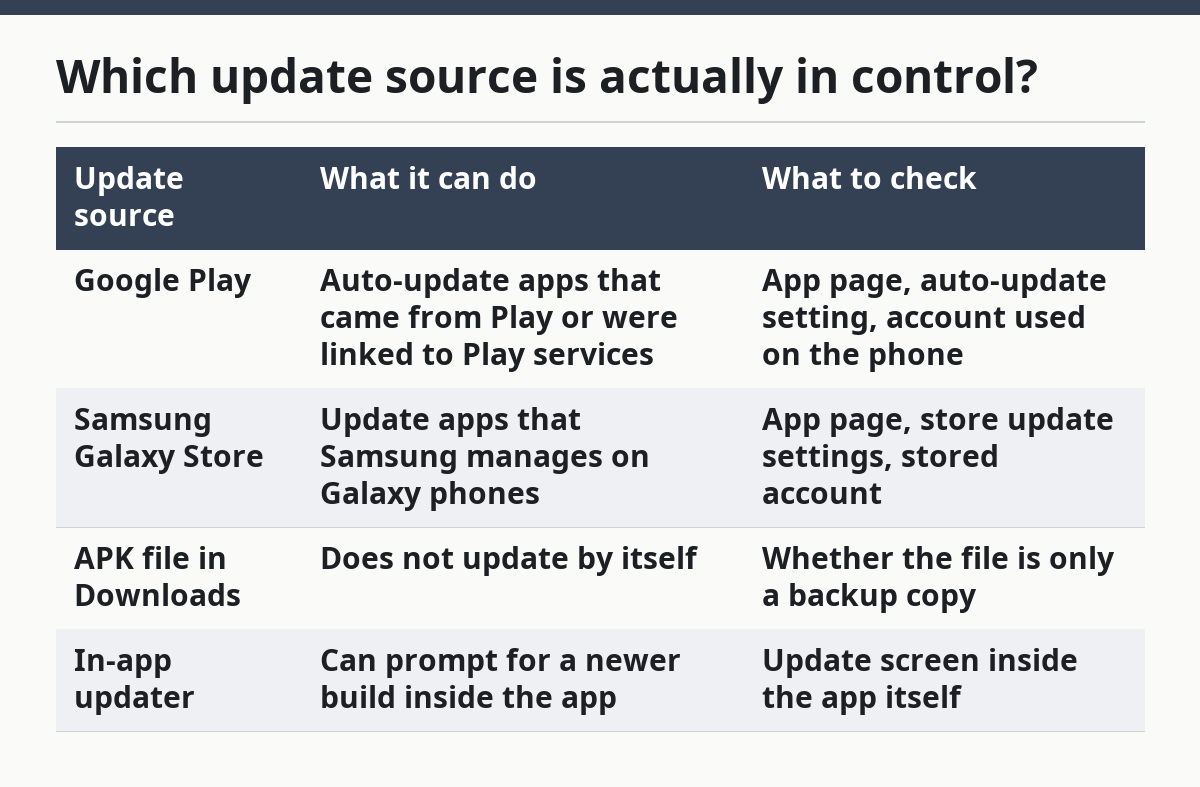
This is where many readers get tripped up. They turn off one setting and assume the job is done, but a second store still sees the app as its own. On a Samsung phone, that conflict is common enough to check every time the app changes versions without warning. Samsung’s support pages and Google Play’s help pages both describe update control at the store level. Samsung Galaxy Store Help and Google Play Help
How do I keep the APK file ready without changing the app?
You keep the APK file ready by saving the exact file you want to reuse and labeling it clearly, instead of relying on the installed app alone. The file is your fallback, but it should not be treated as the app itself, so if you are unsure about file handling or device policy, consult a professional or the device maker’s support guidance.
A clean manual workflow helps:
- Save the APK file in a fixed folder, not in a temporary chat download.
- Rename the file with the version number or date in the name if the filename is vague.
- Store the file once, then leave it alone so you do not confuse it with newer downloads.
- Open the file only when you mean to reinstall it, because repeated taps can start an install flow.
- Keep the installed app separate from the file, since deleting the APK does not remove the installed app and keeping the file does not pin the version by itself.
A file by itself cannot stop updates. It only makes the same version easy to install again if the phone loses it, gets reset, or the app is removed. That is useful, but it is not a replacement for update settings.
What causes a sideloaded app to change versions?
A sideloaded app changes versions when a store, updater, or manual install replaces the installed app with another build. The most common cause is not the APK file breaking; it is another system deciding that a newer version should take over.
The usual causes are plain:
- Auto-update is still on in the store that owns the app.
- A second store is active and updates the same app.
- The app was reinstalled from a newer APK by mistake.
- An in-app prompt was accepted during a sign-in or launch screen.
- A phone reset or account change restored default update behavior.
- The app was originally from a store, then sideloaded later, and the store still treats it as managed.
The cost of missing the cause is simple: the app stops being the version you chose. If that version matters for a device workflow, a login method, or a specific screen layout, the change can break habits fast.
When should you not rely on one fixed APK version?
You should not rely on one fixed APK version if the app needs security fixes, account compatibility, or a service that only works on current builds. A pinned version can be useful, but it is not a free pass to ignore what the app depends on.
There are two hard limits to keep in mind. First, some apps will refuse to work after they detect an old build. Second, a phone update, store update, or account change can alter how the installed app behaves even if the APK file never moved. That is why version pinning is best for cases where the app works well as-is and the reader wants stability more than new features.
This approach is not for anyone who needs the newest security patches right away or who cannot check the app after a phone update. In those cases, the safer choice is to allow updates and manage them on purpose rather than try to freeze a version.
If you want the broader picture of update paths and version control, the hub on APK updates and version management is the right next stop. For deeper device-level guidance, Android’s own app-setting help and Google Play’s update help are the most authoritative starting points. (Source: Android Help and Google Play Help)
What is the fastest way to check that updates are really off?
The quickest practical check is to look in the store, look in the app list, and confirm that the app version has not moved after a normal restart. That usually takes only a few minutes and catches the most common misses.
Use this short check:
- Open the store app and confirm the app is not marked for automatic update.
- Open Android app settings and look for the installed version number if your phone shows it.
- Launch the app once to see whether it asks for an update.
- Restart the phone and open the app again, because some update prompts appear after a reboot.
- Check the app version number after the restart.
If the version number stays the same and the app launches normally, the freeze is holding. If it changes after a reboot, another update source still has control.
FAQ
How do I stop a sideloaded app from auto-updating?
Turn off the update setting in the store that manages the app, then check for a second store that may still own it. The app itself may also show an update prompt, so do not rely on one setting alone. On a Samsung phone, this often means checking both Google Play and Samsung Galaxy Store.
Can I keep one APK version installed permanently?
You can keep one APK version installed for a long time, but not forever in every case. The app can still change if a store updates it, if the phone is reset, or if the app stops working on that build. Version pinning is stable, but it is not absolute.
What causes a sideloaded app to change versions?
A sideloaded app changes versions when an update source replaces the installed app with a newer build. The usual causes are auto-update settings, a second store, an in-app update prompt, or a fresh install from a different APK file. A phone reset can also bring update behavior back.
Drafted with AI; not yet reviewed by a person.
