
Last updated: November 19, 2026
Key Takeaways
- The answer is in the APK’s native code folders, not the app name, icon, or Play Store listing.
- The device CPU must match the APK’s ABI, or native code will not load.
- The quickest check is to compare
lib/folders with the phone’s supported ABIs. - Wrong clues usually cause the most errors.
An APK’s Android app architecture decides whether it needs 64-bit or 32-bit support. To check whether an APK needs 64-bit or 32-bit Android, look at its native libraries first. If it contains arm64-v8a, it needs 64-bit support, while armeabi-v7a and x86 point to 32-bit or x86 builds. The steps below settle what to look for and what it means.
How to check whether an APK needs 64-bit or 32-bit Android in a few minutes
Picture this: you have an APK file and a phone in front of you, and you need to know if the app will even start. The answer is in the APK’s native code folders, not in the app name, icon, or Play Store listing. arm64-v8a means 64-bit ARM support; armeabi-v7a usually means 32-bit ARM; x86 means Intel-based Android builds.
Here’s the catch: many APKs contain more than one architecture. A single APK can ship with both arm64-v8a and armeabi-v7a files, which means it can run on both 64-bit and 32-bit Android devices. If the APK has only one of those, that is the lane it expects.
- Rename the APK from
.apkto.zip. On most computers, that lets you inspect the file like a normal archive. - Open the archive and go to
lib/. That folder holds native libraries for specific CPU types. - Look at the subfolders.
arm64-v8ameans 64-bit ARM;armeabi-v7ameans 32-bit ARM;x86means Intel Android;x86_64means 64-bit Intel Android. - If you see only
arm64-v8a, the app needs 64-bit support on an ARM device. If you see onlyarmeabi-v7a, it is a 32-bit build. - If you see more than one folder, the APK is multi-ABI and can cover more than one device class.
A file look can answer the architecture question quickly. It is often the clearest place to start.
What the folders inside the APK mean
Picture this: you’ve opened the APK and you’re staring at four folder names that look like jargon. They are not random. They describe the CPU instruction set the app’s native code was built for, and that is what decides whether the APK can load on your device.
The common Android architecture names are easy to read once you map them to real hardware. arm64-v8a is the 64-bit ARM ABI used on modern phones. armeabi-v7a is the older 32-bit ARM ABI. x86 and x86_64 are for Intel-based Android devices, which are far less common in phones but still show up in emulators and a few tablets.
arm64-v8a= 64-bit ARMarmeabi-v7a= 32-bit ARMx86= 32-bit Intelx86_64= 64-bit Intel
The truth is, the folder name matters more than the app label. An APK can say nothing obvious about architecture on the outside, and the version name won’t tell you either. The lib/ folder is the reliable clue.
One more detail matters: some APKs are pure Java or Kotlin and have no lib/ folder at all. In that case, the APK may not carry architecture-specific native code, or it may still depend on architecture in other bundled components. If the app uses native libraries, though, those folders are the first place to look.
Can my phone run a 64-bit APK?
Picture this: the APK says arm64-v8a, and now you’re trying to figure out if your phone can handle it. The device’s CPU architecture has to match, or the app won’t load its native code. A 64-bit APK needs a 64-bit-capable Android device CPU, while a 32-bit APK is usually more forgiving on older phones.
On Android, the useful device-side clue is the CPU ABI, not the screen size, Android skin, or storage amount. If your device is built on arm64, it can usually run both 64-bit and many 32-bit ARM apps. If it is 32-bit only, it cannot run a 64-bit-only APK.
A device info app or a shell tool can show the supported ABIs. You’re looking for strings like arm64-v8a, armeabi-v7a, or x86_64. If the supported list includes arm64-v8a, the phone has 64-bit support. If the list tops out at armeabi-v7a, it doesn’t.
The catch: support lists can show more than one ABI. That does not mean the phone is “both” in a vague sense—it means Android can choose from multiple instruction sets. The app still needs a matching library inside the APK.
- Phone supported ABI includes
arm64-v8a→ 64-bit APKs can run - Phone supported ABI includes only
armeabi-v7a→ 64-bit-only APKs will fail - Phone supported ABI includes
x86orx86_64→ match Intel builds, not ARM builds
If you want the cleanest shortcut, compare the APK’s lib/ folders with the phone’s supported ABI list. Those two pieces line up more often than any other clue.
How to read an APK when it contains more than one ABI
Picture this: the APK shows arm64-v8a, armeabi-v7a, and maybe x86 all in one archive. That usually means the developer packaged multiple native libraries so one file can serve different Android device CPU types. You’re not looking for a single “winner” folder; you’re checking whether your device is covered.
A multi-ABI APK is a good sign because it can install on more devices without separate downloads. If your phone is 64-bit ARM, arm64-v8a is the key folder. If your phone is older and only supports 32-bit ARM, armeabi-v7a is the one that matters. If you’re using an emulator or an Intel device, look for x86 or x86_64.
Here’s the catch: the presence of a 64-bit folder does not erase the others. An APK that includes arm64-v8a and armeabi-v7a can still run on many phones, because Android will pick the library that matches the device. That is why a single APK can sometimes work across a wide range of hardware.
What you should not do is assume “more folders = better for every phone.” A multi-ABI package still has limits. If the APK has no folder that matches your CPU family, the app may install and still crash on launch when it reaches a native library it cannot load.
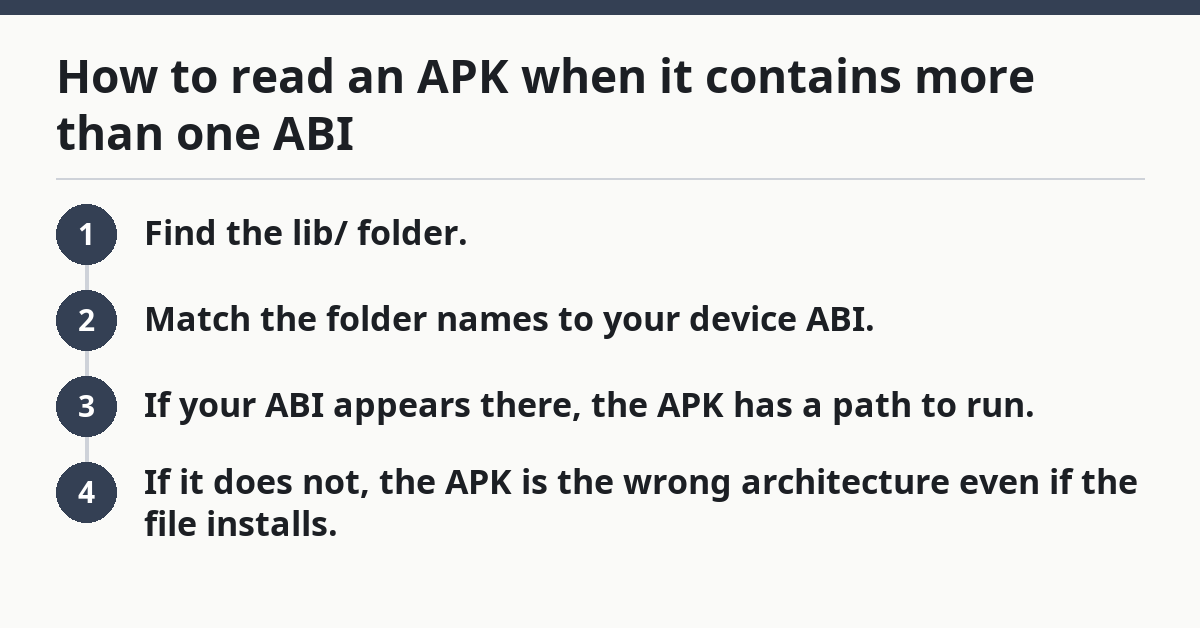
A quick checklist helps:
- Find the
lib/folder. - Match the folder names to your device ABI.
- If your ABI appears there, the APK has a path to run.
- If it does not, the APK is the wrong architecture even if the file installs.
That simple compare is often enough to rule a file in or out in under 2 minutes.
What the wrong architecture looks like in practice
Picture this: the APK installs, but the app refuses to open or throws a native library error right away. That is the classic wrong-architecture problem. The app file may look fine, yet the CPU cannot load the native code it contains.
The most common symptom is a startup failure tied to a missing or incompatible .so library. On Android, those libraries live inside the APK under lib/. If your device is 32-bit only and the APK ships only arm64-v8a files, the app has nowhere usable to land. The reverse is less dramatic on modern phones, because 64-bit Android devices often support 32-bit apps too.
There are two costs here. First, you waste time sideloading an APK that never had a chance to run. Second, you may blame the wrong thing—Android version, permissions, storage—when the real issue is CPU architecture. That confusion slows down troubleshooting.
The fix is simple: match the architecture before you install. If you are checking a file from a download page or a backup, open the APK and inspect lib/ before you tap install. If the APK is for your own app build, export a split that includes the ABI your device family needs.
A useful rule of thumb:
arm64-v8aonly → 64-bit ARM devicesarmeabi-v7aonly → older 32-bit ARM devicesx86only → Intel Android devices- mixed folders → broader compatibility, as long as your device ABI is included
That rule saves more time than guesswork.
The fastest way to check your own phone and the APK side by side
Picture this: you want one answer, not a scavenger hunt. The quickest method is to compare the APK’s lib/ folders with your phone’s supported ABIs, then stop once you see a match.
Then use this order:
- Open the APK and note every folder inside
lib/. - Check your phone’s supported ABIs with a device info app or a shell command.
- Look for the strongest shared match.
- If the APK has
arm64-v8aand your phone supportsarm64-v8a, you’re clear on architecture. - If the APK has only
x86and your phone is ARM-based, skip it.
On Android, the relevant CPU names are short, but they are exact. A phone that says arm64 is not the same as one that says armeabi-v7a only. That difference is the whole point of the check.
If you’re dealing with a lot of APKs, file inspection is faster than trial installs. It also saves you from chasing a problem that is not about app version, not about storage, and not about a corrupted download. The architecture either matches or it doesn’t.
For a wider compatibility walkthrough, the hub page on APK compatibility and install readiness covers the broader decision tree. This page stays focused on the architecture piece so you can answer the 32-bit versus 64-bit question first.
Common mistakes that lead to the wrong answer
Picture this: you checked the APK, but you still aren’t sure what it needs. Most mistakes come from reading the wrong clue. The file name, version number, and even the app description can all mislead you.
The first mistake is trusting the APK name. A file called app-release.apk tells you nothing about arm64-v8a or armeabi-v7a. The second is checking only the Play Store description, which usually won’t list the ABI. The third is mixing up Android version compatibility with CPU architecture. Those are different gates.
A fourth mistake is assuming every Android phone is 64-bit. Many are, but not all. If your device is older or low-end, it may still be 32-bit only, and a 64-bit APK will fail even if the Android version is current.
Here’s the smarter habit:
- Look inside
lib/first - Match the ABI to the device CPU
- Treat Android version as a separate check
- Don’t rely on the file name or store listing
Once you know the four ABI strings—arm64-v8a, armeabi-v7a, x86, and x86_64—the guesswork drops hard. You can usually tell at a glance what kind of device the APK is built for.
That is the whole job on this page: read the architecture, match the device, and avoid the install that was never going to work.
How do I know if my phone needs 64-bit APKs?
Your phone needs 64-bit APKs only if its supported ABI list includes arm64-v8a and the app you want is 64-bit-only. If the phone supports only armeabi-v7a, it is a 32-bit device and cannot run a 64-bit-only APK. The APK’s lib/ folder is a strong clue.
What happens if I install the wrong architecture?
The app usually fails at launch or crashes when it tries to load its native libraries. The APK may still install, which makes the problem look mysterious, but the CPU and the bundled code do not match. Check lib/ before installing to avoid that dead end.
Can a 32-bit phone run a 64-bit APK?
No, a 32-bit-only phone cannot run a 64-bit-only APK. The device needs a 64-bit-capable CPU and matching Android support such as arm64-v8a. If the APK also includes armeabi-v7a, then the 32-bit device may run that 32-bit part instead.
Drafted with AI; not yet reviewed by a person.
