
Last updated: November 19, 2026
How to Tell Whether an APK Has the Right Android SDK Requirement for Your Phone usually comes down to the app’s minimum SDK and your phone’s Android version. The APK is right for your phone only if your device meets the manifest’s SDK floor, or it won’t install at all. The steps below show how to read that requirement and judge it fast.
Key Takeaways
- The APK’s manifest tells you the SDK floor, not the app store page.
- minSdkVersion is the main number that decides install reach.
- targetSdkVersion affects app behavior, but it does not set the install floor.
- Your phone can still fail even when the version numbers look close.
- The manifest gives the clean answer; screenshots and app listings often do not.
What the APK’s SDK requirement really tells you
How to Tell Whether an APK Has the Right Android SDK Requirement for Your Phone starts with the APK’s SDK requirement, which tells you the oldest Android release the app can run on, and the number to watch is minSdkVersion. If that number is higher than your phone’s Android version, the APK is not a fit.
Picture this: you’ve got an APK file, your phone is in hand, and you just want a yes-or-no answer before you tap install. The manifest inside the APK usually gives that answer faster than any app store page. On the flip side, the word “SDK” gets used in two ways, and that confuses people.
A clear reading starts with the APK manifest, the file that names the app’s package, permissions, and SDK limits. Two fields matter here:
- minSdkVersion: the lowest Android API level the APK will accept
- targetSdkVersion: the Android API level the app is built to behave well on
The first one controls whether the app can install. The second one does not raise or lower the install floor by itself. That is where many guides blur the line.
If you see only “Android 8.0+” or “requires Android 10 and up,” that is usually a simplified version of the same idea. It points to the minimum SDK, but it may leave out the exact API level. For a careful check, the manifest is often better than the marketing copy.
If you want the bigger compatibility picture too, the APK compatibility and install readiness hub sits above this page. This article stays on the SDK requirement itself.
How do I read the SDK requirement from the APK manifest?
You read the SDK requirement from AndroidManifest.xml or the app’s build metadata by checking the minSdkVersion line. If the APK was packaged in a way that hides the manifest from plain view, use a file inspector that can read APK contents.
Picture this: you’ve downloaded an APK, and all you can see is a filename and maybe a description page. That is not enough. You need the manifest entry that says what Android versions the app was built to accept.
Use this sequence:
-
Open the APK with an APK inspector or unzip tool.
An APK is a ZIP container. A plain archive tool may show files, but many apps store the manifest in a compiled form. A dedicated APK viewer gives you the cleaner read. -
Find
AndroidManifest.xml.
This file usually holds the package name, permissions, and SDK tags. If the tool shows human-readable output, look for the SDK section rather than guessing from the app title. -
Check
uses-sdk.
The relevant lines are usuallyminSdkVersionandtargetSdkVersion. The minimum is the install gate. The target is the behavior target. -
Compare
minSdkVersionto your phone’s Android API level.
If the APK saysminSdkVersion=24, your phone needs Android API 24 or newer. If your device is below that, the install should fail. -
Ignore the label if it only says “Android 7.0+” without detail.
That wording is a shorthand. It can be right, but the manifest is the source of truth. -
Watch for split APKs or app bundles.
Some app sets depend on more than one package. One file may not tell the whole story.
A manifest read like this gives you the real threshold, not a guess based on the app’s name or icon. That matters when the file came from a third-party site and the listing is thin.
Which number matters more: minimum SDK or target SDK?
Minimum SDK matters more for installability; target SDK matters more for behavior. If you only want to know whether the APK can install on your phone, the minimum SDK is the number that decides it.
Picture this: the app page says “target Android 14,” your phone runs Android 12, and you start wondering if that target number blocks you. It usually doesn’t. The target SDK tells Android how the app should behave under newer system rules; it is not the same thing as the install floor.
Here’s the catch:
- A low minSdkVersion and a high targetSdkVersion can still install fine.
- A high minSdkVersion blocks installation, even if the target number looks harmless.
- A developer can raise the target SDK for policy or behavior reasons without raising the minimum SDK.
That difference trips up a lot of readers because many app pages show only one number, or they use Android version names instead of API levels. Android 11, Android 12, and Android 13 are user-friendly labels, but the manifest is written in API levels. The conversion matters.
For example, if an APK lists minSdkVersion 21, it can run on Android 5.0 and above. If your phone is Android 10, that’s fine. If the same APK lists targetSdkVersion 33, that just means the app is tuned for Android 13 behavior. It does not mean your phone must be Android 13 to install it.
This is why simple version-number matching can mislead you. A reader sees “Android 13” on a page and assumes the APK won’t work on Android 12. That may be wrong if the minimum SDK is lower.
How to match the APK’s SDK to your phone’s Android version
You match the APK to your phone by comparing the APK’s minSdkVersion with your device’s Android version or API level, then looking for obvious gaps. If your phone is lower, the APK is not compatible on install.
Because you’re checking the phone against the APK, start with the device screen and the manifest side by side. A quick judgment saves you from guessing, and it keeps you from overreading the wrong clue.
Use this practical check:
- Find your phone’s Android version in Settings > About phone.
- Convert that version to an API level if the manifest uses API numbers.
- Read the APK’s minSdkVersion.
- Compare the two numbers directly.
- If the app requires a newer API level than your phone has, stop there.
A few examples make the logic plain:
- Phone is Android 12, APK minimum is Android 8.0 → install should be allowed
- Phone is Android 9, APK minimum is Android 10 → install should fail
- Phone is Android 13, APK minimum is Android 13 → install should be allowed
- Phone is Android 13, APK minimum is Android 14 → install should fail
The mistake is assuming that “close enough” works. Android is not like headphone fit. The app checks a threshold, and that threshold is usually hard.
If the APK was built for a recent Android release, the app may also depend on newer permissions, storage rules, or system behavior. That does not change the install floor, but it can make the app act oddly on older devices. A successful install is not the same thing as a smooth run.
For exact matching, the manifest wins every time. The app listing, the filename, and the marketing copy are all second-tier clues.
What can make an APK fail even when the SDK looks right?
An APK can still fail if the SDK matches but the file is split, corrupted, signed badly, or built for hardware your phone does not have. The SDK requirement is necessary, though it may not be sufficient by itself.
Picture this: the manifest says your phone should qualify, but the install still stops. That feels frustrating because the obvious number looked fine. The truth is, the SDK check is only one gate.
Common reasons:
- Split APK set missing pieces: some apps need multiple APK files, not one
- Bad or altered signature: the package may be rejected by Android
- Corrupt download: a broken file can fail before the SDK check even matters
- Architecture mismatch: the app may expect an ARM build while your file is for a different chip family
- Feature dependency: the app may require a camera, sensor, or system feature your phone lacks
The key mistake here is blaming the SDK number for every failure. That can waste time. If the manifest fits and the install still fails, the problem is often outside the SDK section.
A reader should also know this: some sites rewrite APK descriptions with vague compatibility claims. Those claims can be wrong in both directions. A page might say “works on all Android phones” when the manifest says otherwise, or it might scare you off with a high-looking version label that is only the target SDK.
That is why the manifest reading is often the best first pass. It narrows the problem fast, even if it does not explain every install error.
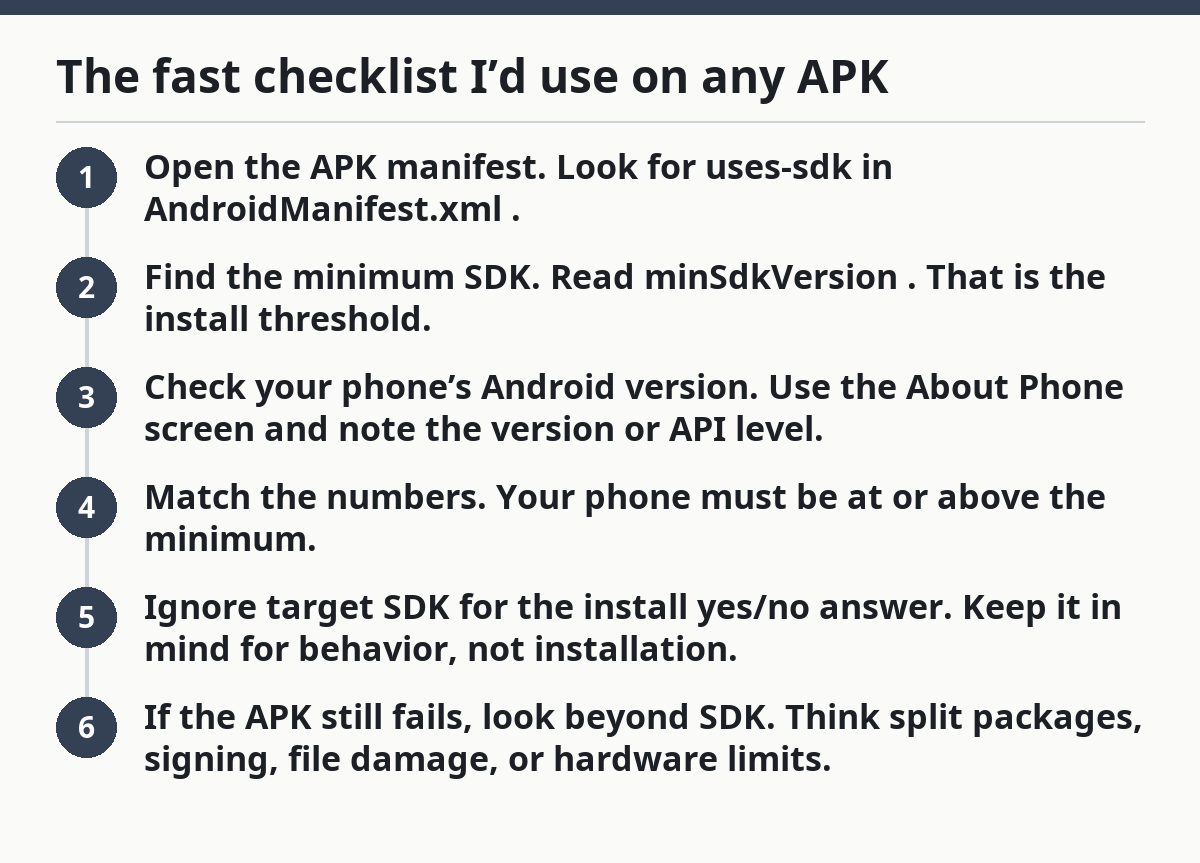
The fast checklist I’d use on any APK
The fast checklist is: check minSdkVersion, compare it with your phone’s Android API level, and only then worry about target SDK or other file issues. That gets you the real answer in under a minute when the numbers are easy to see.
Picture this: you want the shortest path from download to decision, and you don’t want a long explanation every time. This is the clean triage I’d use on a random APK file.
-
Open the APK manifest.
Look foruses-sdkinAndroidManifest.xml. -
Find the minimum SDK.
ReadminSdkVersion. That is the install threshold. -
Check your phone’s Android version.
Use the About Phone screen and note the version or API level. -
Match the numbers.
Your phone must be at or above the minimum. -
Ignore target SDK for the install yes/no answer.
Keep it in mind for behavior, not installation. -
If the APK still fails, look beyond SDK.
Think split packages, signing, file damage, or hardware limits.
Because of that, a quick judgment can save you from guessing, but it also keeps you from overreading the wrong clue. Many readers stop at the app name or the store blurb and miss the actual gate. The manifest removes that fog.
If you need a deeper decision tree after this, the compatibility-and-readiness hub can carry you into the next step. This page’s job is narrower: tell you whether the APK’s SDK requirement fits the phone in your hand.
Common mistakes when checking APK SDK compatibility
The most common mistake is reading the target SDK as if it were the install requirement. That leads to bad calls because target and minimum do different jobs.
Picture this: you’ve got two numbers, both look technical, and the page only gives you one of them. It’s easy to choose the wrong one and think your phone is incompatible when it isn’t. Likewise, the same mistake happens in reverse, too.
Watch for these errors:
-
Using the app store name instead of the manifest
Cost: you trust a summary, not the package itself.
Do this instead: readuses-sdkin the APK. -
Confusing Android version names with API levels
Cost: you may compare the wrong scale.
Do this instead: map the version name to the API level before judging. -
Assuming “newer target SDK” blocks old phones
Cost: you reject APKs that would install fine.
Do this instead: if you are unsure, treat target SDK as behavior info and check a trusted Android source or a professional who can confirm the device-specific impact. -
Ignoring split APKs
Cost: the file looks right, but the install still fails.
Do this instead: make sure you have the full package set. -
Trusting screenshots or forums over the manifest
Cost: you inherit someone else’s guess.
Do this instead: check the file you plan to install.
The better habit is simple: read the manifest first, then ask what the rest of the file needs. That order cuts down on false alarms.
A final limit is worth stating plainly. If you are trying to compare the APK against a specific device model or an official release list, that is a separate question. This page is only about the SDK requirement itself, not version-by-version release matching.
What is the minimum sdk in an apk?
The minimum SDK in an APK is the lowest Android API level the app allows for installation. It appears as minSdkVersion in the APK manifest. If your phone’s Android version is lower than that number, the app should not install.
Why does an apk reject my phone even if it looks compatible?
An APK can reject your phone even when the Android version seems close because the file may need a higher minSdkVersion, a different CPU architecture, a complete split package set, or a valid signature. The SDK match is only one checkpoint. A good manifest does not rule out other install blockers.
How do i read the sdk requirement?
Read the SDK requirement by opening the APK manifest and checking the uses-sdk section, especially minSdkVersion. That is the install limit. If the file is hard to inspect, use an APK viewer or analyzer that can show the manifest in readable form.
Drafted with AI; not yet reviewed by a person.
