

Last updated: November 19, 2026
Quick Answer: The safest practical way to find the latest safe APK build without the Play Store is to use the app’s official website or release page, then confirm that the APK is the newest signed build listed there.
This guide to How to Find the Latest Safe APK Build Without Using the Play Store shows you how to check the release page, compare version history, and verify the download before it hits your Android phone.
Key Takeaways
- Start with the app’s own site, not a random search result.
- Match the APK version to the newest release note or changelog entry.
- Check the signing certificate or source mirror before you tap download.
- Use version history to spot stale builds and broken uploads.
- If the source cannot show a clear build trail, skip it.
Start at the source the app itself controls
Since you need the newest build of an app and the Play Store isn’t an option on your device, the safest practical path is usually the app’s official website, then its release page if the developer publishes one. That is where you can see the current build number, the file name, and the notes that tell you what changed.
A developer-controlled page gives you a known target instead of a search page full of copies, reposts, and old files. On Android, the version number matters more than the name on the button.
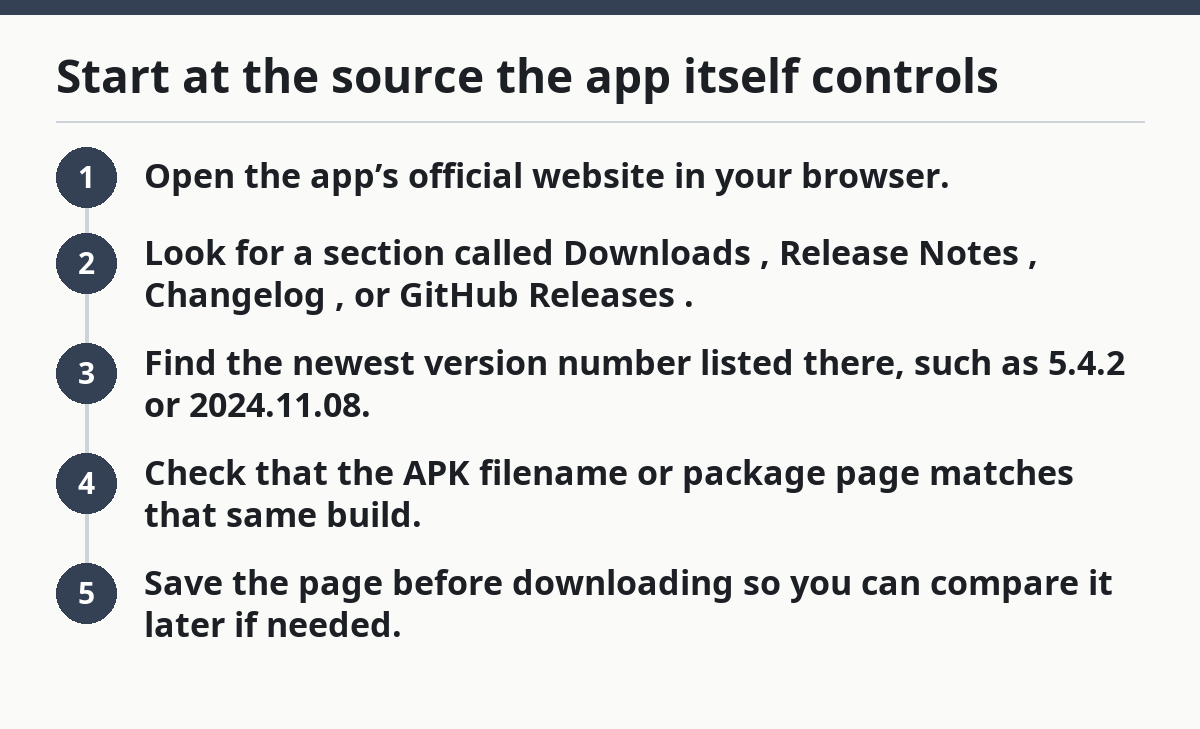
Use this short route first:
- Open the app’s official website in your browser.
- Look for a section called Downloads, Release Notes, Changelog, or GitHub Releases.
- Find the newest version number listed there, such as 5.4.2 or 2024.11.08.
- Check that the APK filename or package page matches that same build.
- Save the page before downloading so you can compare it later if needed.
If the site hides the version or sends you through three ad pages, stop. A clean release page is a better sign than a flashy download button.
How do I know which build is newest?
The newest build is the one with the highest version number on the developer’s release page and the latest date in its changelog. If two files look close, the build tag, upload date, and file name usually settle it.
Some teams use semantic versioning like 2.8.1, while others use date-based labels like 2024.11.08, so you need to compare the source page, not just the number on the APK file itself.
Follow this order:
- Read the latest release note on the official site or repo.
- Match the version code or build label to the APK file.
- Check whether the release note says “stable,” “beta,” or “RC.”
- Prefer the newest stable build unless you need a test version.
- If the page lists multiple APKs, choose the one for your device type only if the page explains why there are splits.
A version history page is better than a lone download button because it shows the sequence. You can see whether a build was replaced, pulled, or superseded. That matters when you are trying to avoid stale mirrors.
If there is no release history at all, treat the file as unverified and consider checking with the developer or a qualified Android professional, because you cannot confirm where it came from. Android Developers: App signing
What makes an APK source feel official?
An APK source feels official when the file, the page, and the signature all point back to the same developer. That usually means the app’s website, its GitHub releases page, or another mirror named by the developer itself. GitHub Docs: About releases
The first thing to check is whether the site uses the app’s own domain and the same package name you expect on Android. The second is whether the release note links to the exact file hash, signing note, or build label. A real source does not need to shout.
Look for these signals:
- The download sits under the developer’s domain or an official repository.
- The file name includes the app name and version, not random words.
- The release page shows the same version in the note and the file.
- The page explains whether the APK is universal, arm64-v8a, armeabi-v7a, or another Android build target.
- The mirror, if one exists, is named by the developer rather than found through a search ad.
Do not confuse a polished page with an official one. A clean layout can still host old builds or a repackaged file. The source matters more than the design.
A source that cannot point to a release note, a signing statement, or a version trail is not official enough for this task. It may still be useful for reading about the app, but not for picking the latest safe APK build.
Verify the download before you install
You verify the download by matching the APK’s version, package name, and signature details against the release page before you install it. That takes a few minutes and reduces guesswork.
Compare the file you got with the file the developer says to install. If the source lists a checksum, signature note, or fingerprint, use it. If it does not, at least confirm the version string and package name line up exactly. Android Developers: Verify app signatures
- Download the APK from the official website or named mirror.
- Open the release page again and note the exact version.
- Check the downloaded file name for that same version.
- If the page gives a SHA-256 or similar checksum, compare it with your file tool.
- On Android, review the install prompt and confirm the app name and package before approving.
A signed build is the key clue here. A legitimate APK should still carry the developer’s signature, and that signature should stay consistent across updates from the same source. If a download page cannot explain the signature or points to a different package name, do not install it.
You do not need a lab to do this. You just need to slow down long enough to compare two screens.
What release pages tell you that mirrors do not
Release pages tell you whether the APK is current, while mirrors only tell you that a file exists. That difference matters when the goal is the latest safe build.
A mirror can be useful when the developer uses one, but it is never as informative as the release page. The release page shows the order of builds, the fixes in each version, and whether the file is a full APK, split APK, or beta channel build. A mirror often leaves out all of that. (Source: OWASP MASVS)
Use the release page to answer these questions:
- Is this the current stable build?
- Was the build replaced after upload?
- Is the app still supported on your Android version?
- Does the developer call out a known issue in this release?
- Is there a newer hotfix already posted?
On the other hand, a mirror can still help when the official site is slow or when the developer documents it as a backup source. In that case, use the mirror only after you have checked that it carries the same version, the same package name, and the same release date.
If the mirror has a newer date but the notes are older, be careful. That can mean the file was rehosted, not updated. A good mirror copies the developer’s release data, not just the APK.
Common mistakes that lead to stale or fake builds
The biggest mistake is downloading the first APK you find instead of the newest one on the official release page. That can land you on an old build, a beta you did not want, or a repackaged file with a different signature.
A second mistake is trusting the version number alone. A file named 3.2.1 can still be the wrong package, the wrong Android split, or an old upload copied to a fresh page. Version labels help, but they do not replace the release note.
Other mistakes cost time or trust:
- Using a search result page as if it were a source page.
- Ignoring the changelog, which tells you whether a build is stable or a test.
- Installing a file because the page looks polished.
- Skipping signature checks when the source gives them.
- Downloading from a mirror that the developer never mentions.
The fix is boring and effective: start with the official website, read the release page, and compare the file against the note. If you cannot match at least two of those three, keep looking.
A good habit is to keep the app’s release page bookmarked. That way, the next time you need the latest APK build, you are not starting from a blank search box.
The fastest safe workflow on Android
The fastest safe workflow on Android is to go official first, compare the version, and only then download the APK. It takes less than one clean pass through the page if the source is organized.
Use this routine every time:
- Open the app’s official website.
- Find the release page or changelog.
- Note the newest stable version number.
- Open the download link for that exact build.
- Check the file name, package name, and any checksum.
- Install only after the details match.
That routine is simple because the problem is simple: you are not trying to learn the app, only to identify the newest safe build. A clean source should make that easy.
If a page buries the version in a tiny note and the download button in a different section, slow down. Hidden details are where people grab the wrong build. A trustworthy release page is usually obvious after one scroll.
This also keeps you from confusing official mirrors with random APK sites. The source trail should be clear enough that a second visit lands you on the same file in under a minute.
For broader version and compatibility issues, the hub on APK version, compatibility, and updates is the right next stop.
Should I ever skip the official release page?
You should skip the official release page only when the developer has clearly moved distribution to a named mirror or repository and the same release notes still point there. If the page is dead, empty, or silent, treat that as a warning sign rather than a green light.
That is not the same as saying “never use a mirror.” Some developers publish legitimate mirrors because their main site goes down, their bandwidth is limited, or they keep a public GitHub release page instead of hosting files themselves. The key is that the developer has to name the mirror or repository as part of the source chain.
Skip the source if:
- The page has no version history.
- The APK name does not match the release note.
- The file is newer than the latest note but gives no explanation.
- The page pushes you through unrelated ads before the download.
- The build appears as a repack without a developer signature.
If none of those problems are present, the release page is still your best starting point. It is the only place that ties the newest build, the version history, and the official file together.
How do I know which build is newest?
The newest build is the one listed most recently on the developer’s release page, with the latest version number or build tag attached to it. If the page uses dates, use the newest date; if it uses version numbers, use the highest stable release that the changelog supports.
How can I tell if an APK is official?
An APK is official when the developer’s site, release note, and file details all match. Look for the same package name, the same version, and a signing note or checksum that points back to the developer.
Where should I look for release notes?
You should look on the app’s official website, GitHub Releases page, or another repository the developer names directly. The best release notes list the version, the date, and the fixes in that build, not just a bare download button.
Drafted with AI; not yet reviewed by a person.
