
Last updated: November 19, 2026
Key Takeaways
- Larger APKs often match new language packs, high-resolution images, offline data, or bundled libraries.
- Match the APK version exactly before treating file size as meaningful.
- Size changes are normal when they line up with documented content changes.
- Compare the build, read the changelog, and judge whether growth fits the new content.
An APK file size mismatch can tell you something, but not everything. How to Compare an APK File Size With Release Notes starts by matching the version, then checking whether the file-size change fits what the Android app actually added or removed. The steps below show when a bigger file makes sense, when a smaller one does too, and when the jump looks odd.
Compare APK size with release notes the right way
You compare APK file size with release notes by matching the APK’s version number to the app’s version history, then checking whether the file-size change fits the features, fixes, or asset changes listed for that release. If the notes mention a new language pack, high-resolution images, offline data, or a bundled library, a larger APK often tracks with that change.
Picture this: you have an APK file on one screen and the official changelog on the other. The number you care about is the version code or version name, because that is what ties the file to the release notes, not the app title alone. Without that match, the size comparison is guesswork.
The point is not to prove anything from file size alone. It is to use size as a sanity check. A file that grew by a lot while the notes mention only “bug fixes” deserves a closer look. A file that shrank after asset cleanup or split APK work may be perfectly normal.
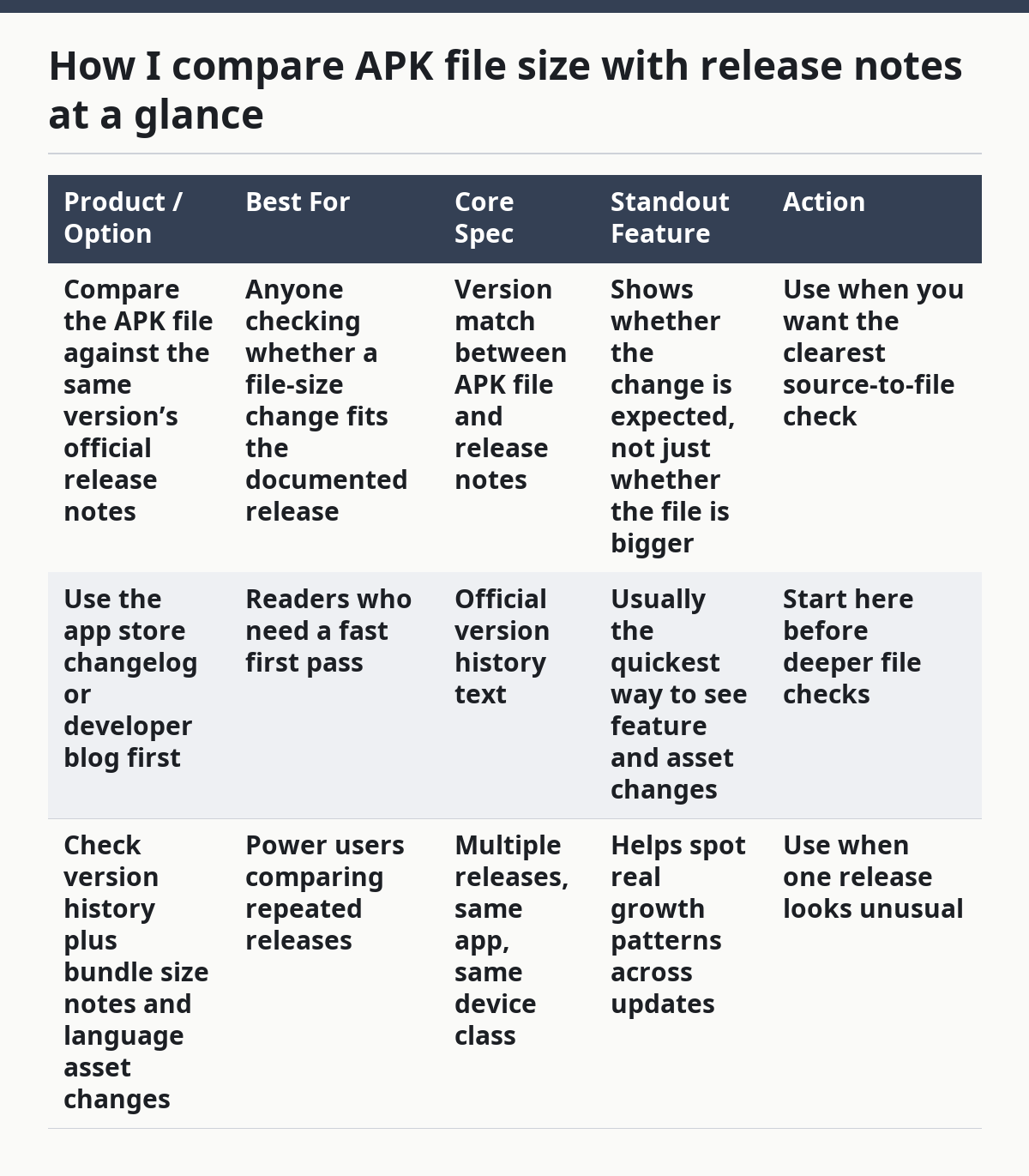
How I compare APK file size with release notes at a glance
- #1 Best Overall: Compare the APK file against the same version’s official release notes
- #2 Best Budget Pick: Use the app store changelog or developer blog first
- #3 Best Heavy-Duty / Upgrade Pick: Check version history plus bundle size notes and language asset changes
| Product / Option | Best For | Core Spec | Standout Feature | Action |
|---|---|---|---|---|
| Compare the APK file against the same version’s official release notes | Anyone checking whether a file-size change fits the documented release | Version match between APK file and release notes | Shows whether the change is expected, not just whether the file is bigger | Use when you want the clearest source-to-file check |
| Use the app store changelog or developer blog first | Readers who need a fast first pass | Official version history text | Usually the quickest way to see feature and asset changes | Start here before deeper file checks |
| Check version history plus bundle size notes and language asset changes | Power users comparing repeated releases | Multiple releases, same app, same device class | Helps spot real growth patterns across updates | Use when one release looks unusual |
What should match before file size means anything?
The APK version should match the release notes exactly before file size means anything. If the version number, build number, or release date does not line up, the size comparison can mislead you in 2 seconds flat.
Picture this: you downloaded an APK from a mirror and the notes on the official site describe a different build. Even a 10 MB gap may mean nothing if the file is not the same release. The first job is to align the release version, then compare size.
Use this order:
- Find the APK version name or version code. Open the file’s details in your download folder, file manager, or APK viewer.
- Open the official release notes. Look for the same version number or build tag.
- Check the date and platform. A release for tablets, arm64, or a specific device branch can carry a different file size.
- Compare the stated changes with the size shift. New graphics, new languages, or offline packs usually explain growth better than a generic “stability improvements” line.
- Decide whether the change fits the story. If the notes say “translation update” and the file is only a little larger, that’s normal. If the notes are tiny and the file jumps hard, keep reading.
Two authoritative places usually help here: the app’s own changelog page and the app store’s version history, if the developer uses one. For Android packaging behavior, the Android Developers documentation on app bundles and APK delivery is also a useful reference point.
Common mismatch clues
- The APK is for a different version code
- The release notes cover a later date
- The file came from a different build channel
- The notes mention split APKs or an app bundle, but the file you have is a single APK
- The app is the same, but the build is for arm64-v8a, x86, or another device target
When not to trust the number alone
- The app uses compressed assets
- The release switched to split delivery
- The update changed only server-side behavior
- The developer stripped out extra language packs or media files
What file-size changes are normal in release notes?
Normal file-size changes are the ones that line up with real content changes in the release notes. A change of a few megabytes can make sense when an app adds a video player, high-res icons, more fonts, offline maps, or larger bundled libraries.
Picture this: the notes say “added downloadable stickers” or “new onboarding images,” and the APK is bigger. That fits. The same is true when a release removes old assets, drops unused code, or moves heavy content out of the base APK. A smaller file is not automatically suspicious.
The truth is, release notes often summarize the user-facing side and skip the packaging side. That leaves you to infer the size change from the kind of update:
- UI refresh: expect image and style changes, sometimes a modest size bump
- New language support: expect more text assets or translation files
- Offline features: expect a larger base package if data is bundled inside
- Bug fixes only: expect little change, unless the developer replaced a third-party library
- Game content or media app updates: expect larger swings, sometimes very large ones
A good comparison uses the release note wording, the app category, and the APK type. A productivity app and a 3D game will not behave the same way. That sounds obvious, but it is where bad comparisons happen.
Typical release-note clues and what they usually mean
- “New feature” — size may rise if it needs new code or assets
- “Performance improvements” — size may stay flat or move a little
- “Bug fixes” — size change should usually be modest
- “Updated libraries” — size can change even when the visible app looks the same
- “New locales” — size often grows, sometimes by a noticeable amount
Pros and cons of using release notes as the guide
Pros
- Gives context for why the APK changed
- Helps separate expected growth from odd growth
- Works well for version-by-version checks
Cons
- Notes can be vague or incomplete
- Developers rarely mention packaging changes directly
- A small note can hide a big asset shift
Who Should Skip This: someone trying to prove malware from size alone should use a hash check or another file-verification method instead.
Buy this if: you are checking a known app update against the official changelog.
Skip this if: you need a yes-or-no answer about file integrity from file size only.
How do I compare an APK file size with release notes step by step?
You compare an APK file size with release notes by matching the exact build, reading the change log, and then asking whether the file growth fits the new content. The fastest practical way is a 5-step check that takes about 5 minutes once you know where the version info lives.
Picture this: you are at your desk with a downloaded APK and an app page open in the browser. The goal is not to find a perfect explanation for every kilobyte. The goal is to decide whether the size change is ordinary, explainable, or worth a second look.
-
Record the APK size exactly. Use the file manager or download page and note the file in MB or KB, not “small” or “large.”
You need a fixed number for comparison. -
Find the version name and version code. Open the APK details or the manifest if your tool shows them.
That gives you the build identity. -
Open the official release notes for that same version. Use the app’s site, app store listing, or developer blog.
A matching version number matters more than the marketing title. -
Underline the changes that can affect size. Look for assets, languages, media, bundled SDKs, offline content, or architecture changes.
Those are the usual reasons an APK file gets bigger or smaller. -
Judge the gap against the notes. If the notes point to real content changes, the file size shift is usually expected. If the notes are thin and the size jumps hard, mark it as unusual and keep checking.
-
Compare against the previous version if you have it. One release can be noisy. Two or three releases show the pattern better.
A steady climb is easier to explain than one sudden spike.
This method works even when the release notes are plain language. You do not need source code or a disassembler to spot a basic mismatch. You only need the version match, the file size, and a careful read.
Good signs
- The notes mention new assets
- The file size changes are modest across several versions
- The app category explains the shift, like media, maps, or games
- The version history shows feature growth over time
Red flags
- The APK grew a lot, but the notes say only “minor fixes”
- The file size changed, but the version number does not match
- The release notes are for a different device branch
- The update path is unclear and the file came from a third-party mirror
Which size change should make you pause?
A size change should make you pause when it does not fit the release notes or the app’s normal update pattern. The exact number that counts as “odd” depends on the app, but a jump that looks large next to a tiny changelog is worth questioning.
Picture this: the release notes mention only a typo fix, yet the APK is suddenly much larger than the last build. That does not prove anything bad. It does mean the file deserves a second check before you install it or pass it along.
Use this rule of thumb: compare the change to the app’s own history, not to a random app in a different category. A note about a new theme pack may explain a much bigger shift than a note about a crash fix. The context matters more than the raw file size.
Pause if you see this pattern
- Big size jump, tiny notes
- Big size drop, no packaging note
- Version mismatch
- Different CPU architecture
- Release notes that mention split delivery, but you only have one APK
Don’t overread these cases
- A small size increase after a text-only update
- A size drop after asset cleanup
- A stable size across several routine bug-fix releases
- A larger file when the developer adds a bundled component the notes mention by name
If the change is weird, the right move is not panic. It is to compare the same version across official sources, then move to stronger checks if needed. This page is one piece of the APK source trust and file verification set; it tells you whether the size story makes sense, not whether the file is safe on its own.
What the comparison does well — and what it doesn’t
The comparison does well at spotting whether the file size matches the release story, and it does poorly at proving trust by itself. That is the line to remember.
Picture this: you want a fast screen for an APK file before you install it. File size plus release notes can catch obvious mismatches in under 10 minutes, especially when the update is supposed to be small. It is a practical check, not a final verdict.
What it does well
- Shows whether the size shift has a believable reason
- Helps you spot odd jumps in version history
- Makes release notes more useful than they look at first glance
- Works with simple tools and no special software
What it does not do
- It does not prove the APK is safe
- It does not prove the file is original
- It does not tell you whether the APK was repacked
- It does not replace hash verification or deeper file checks
Good workflow
- Match the version.
- Read the release notes.
- Compare the file size.
- Flag anything that does not fit.
- Move to the next verification step if the file still looks off.
That workflow keeps the comparison in its lane. It is a sanity check, not a verdict machine. If the notes and size line up, you have one more reason to trust the file. If they do not, you have a reason to slow down.
Does file size reveal if an APK is safe?
No, file size does not reveal whether an APK is safe. A small file can still be risky, and a large file can be perfectly normal. Use the size only as a consistency check against the official release notes and the version history, not as proof of safety. It is one clue, not a verdict.
Why would the file size change between versions?
File size changes when the app adds or removes assets, updates libraries, changes language packs, or shifts packaging. A release note that mentions new features, media, or offline content often explains a larger APK. A cleanup release can shrink the file if the developer trims unused resources or moves content elsewhere.
Drafted with AI; not yet reviewed by a person.
