
Last updated: November 19, 2026
Quick answer: Safe APK sourcing and verification usually comes down to one number: 1 trusted origin. Download from the developer’s own release channel or an official store, then verify the signature before you install anything. This guide on safe APK sourcing and verification explains where to get APKs, how to check them, and when to walk away.
Key Takeaways
- The safest APK is usually the one that comes from the app maker, not a mirror site with a fresh logo and old files.
- Signature checks matter more than file names, screenshots, or promises in the description.
- If a site repacks apps, strips signature data, or hides the original developer name, treat it as unsafe and consider asking a qualified professional for help if you are unsure.
- Version numbers help, but a signed match is what tells you the file is the real app.
- One bad install can give an app far more access than the website ever asked for.
What makes an APK source safe?
Safe APK sourcing means the file comes from a place that can prove who built it and has not tampered with the package. For safe APK sourcing and verification, the developer’s own site or official distribution channel is the strongest starting point, because you can compare the APK’s signing certificate against the app you already trust.
Picture this: you need an Android app that is missing from your region’s store, and a search result offers three download buttons, two “mirror” badges, and one “verified” seal with no explanation. The safe answer is to ignore the badges and ask one question: who signed this APK, and can I verify that signature?
A source is safer when it has these traits:
- The developer names the app and publishes the download themselves.
- The site explains the version, build, and release date.
- The file has a matching signature or checksum from the developer.
- The page does not bundle installers, extra apps, or fake “update” buttons.
- The URL uses the brand you expect, not a lookalike domain.
The opposite is easy to spot once you slow down.
Bad signs:
- “Mod,” “cracked,” “premium opened,” or “no ads” in the file name
- Download pages that hide the real publisher
- Repack sites that never mention signatures
- ZIP files with several APKs and no clear reason
- Requests to turn off browser warnings or install an unknown helper app
A source can also be technically reachable and still be a bad idea. A random file host may hold a real APK today and a repacked one tomorrow. That is not source trust; that is luck. For broader software-supply-chain context, CISA’s supply chain guidance is a useful authoritative reference: https://www.cisa.gov/supply-chain
Where should you get an APK from first?
The developer’s own release page is the first place to check, and the official app store is the next safest option if the app exists there. A developer-controlled source lets you compare the package name, version code, and signing certificate without trusting a third party to keep the file intact.
Picture this: you already know the app name, and now you are choosing between the maker’s GitHub release page, a mirror site, and a blog post with a direct link. The maker’s page wins because it can show release notes, hashes, and the exact package the team published.
Good sources usually include one or more of these:
- The developer’s website
- The developer’s GitHub, GitLab, or similar release page
- The official app store listing
- A verified distribution channel named by the developer
Risk rises fast when you move away from those. Mirror sites can be useful for archival copies, but they are not proof of origin. A mirror is only as trustworthy as its update and moderation process, and many do not publish a clear signing-policy page. For example, Google documents Android app signing in its developer guidance, which is why release verification matters: https://developer.android.com/studio/publish/app-signing
If you must use a third-party source, ask three questions:
- Does the page name the original developer?
- Does it publish a checksum or signature file?
- Does the APK’s signing certificate match the developer’s known release?
If the answer to any of those is no, stop there.
That gap matters.
The Android package format also uses the .apk extension, but the extension alone says nothing about safety. A file named something.apk can still be tampered with.
How do you verify an APK before installing it?
You verify an APK by checking its signature, package name, and checksum against a trusted source before the first install. If those do not line up, the file is not the app you think it is, even if it opens on your phone.
Picture this: the download finishes, the file name looks right, and the app icon is on the thumbnail. That visual match means very little. A valid APK can still be repacked, renamed, or wrapped in a bundle that behaves differently once installed.
Use this order:
- Confirm the source. Make sure the file came from the developer or a channel the developer names.
- Check the package name. The Android package identifier should match the app you want.
- Compare the signature. The signing certificate should match the developer’s known release.
- Match the checksum if provided. A SHA-256 hash on the release page is better than a vague “verified” label.
- Scan the file locally. A scan is not proof of safety, but it can catch obvious malware or repacks.
The signature is the real gatekeeper. If the developer published an APK signed with one certificate and the file you downloaded is signed with another, you are not looking at the same app lineage. That is true even if the name and icon are identical.
Here’s the catch: checksum checks tell you a file has not changed since the publisher made that hash public, but they do not prove the publisher is honest. A checksum is useful only when it comes from a source you already trust.
Useful tools and checks:
- On Android, package detail viewers can show the app’s signing identity after installation
- On desktop, APK analysis tools can inspect the manifest and signature blocks before install
- Android Studio’s
apksignerandapkanalyzertools can inspect package metadata for advanced users - VirusTotal can help with a quick reputation scan, but it does not replace signature verification
For background on Android app signing, the Android Developers docs explain why the signing key matters and how Play App Signing works:
https://developer.android.com/studio/publish/app-signing
A file with a clean scan and a bad signature is still bad.
Do not treat the scan as the verdict; if you are unsure, consult a qualified professional and check a trusted source such as the Android Developers guidance above.
What should you check on the APK page before downloading?
The APK page should tell you who built the file, which version it is, what changed, and how to verify it. If the page hides those basics, that is not an oversight; it is a warning.
Picture this: you land on a polished download page with a giant button and three paragraphs of marketing copy. The safe APK sourcing and verification checklist starts with the release data, not the design, so read the version details first and ignore the page styling.
A useful APK page usually includes:
- The developer or publisher name
- The package name
- The version number or version code
- The release date
- The file size
- A checksum or signature reference
- A changelog
- A minimum Android version
A page gets sketchy when it leans on urgency instead of evidence. Watch for lines like “download now before the mirror is removed” or “latest working version” without any release data. Those are pressure tactics, not verification.
Specific red flags:
- The publisher name does not match the app’s real developer
- The page only offers one button with no file details
- The download is wrapped in an installer that asks for extra permissions
- The site pushes you toward “security scanners” before you can get the file
- The version number is vague, missing, or inconsistent across the page
A good listing gives you enough information to cross-check the file before you trust it. A bad listing asks you to trust first and verify later. That order is backwards.
If the page provides a hash, compare it exactly, character for character. If it provides a signature file, make sure you know which signing key should match. If it provides neither, you are doing blind download roulette.
What are the biggest APK risks people miss?
The biggest risks are repacked apps, old builds, fake updates, and permission creep after install. These are the problems that slip past casual checks because the file still “works” and looks familiar on the surface.
Picture this: you install an APK from a site that seemed fine, and the app opens normally. The damage, if there is any, does not announce itself with a crash. It shows up later as extra ads, strange permissions, stolen sessions, or a profile you never meant to create.
The most common hidden risks:
- Repacked APKs: Someone takes a real app, adds code, and resigns it. The app may still run, but it is no longer the original.
- Old versions: An older build can miss security fixes already patched upstream.
- Fake updates: A site says an app is “new” but serves an old or altered package.
- Permission abuse: A flashlight app that asks for contacts, SMS, or accessibility access is a bad bet.
- Bundle confusion: A file may not be a plain APK at all, but an install package that needs extra handling.
A common mistake is to trust appearance over lineage. The icon, title, and app splash screen are easy to copy. The signing certificate is much harder to fake without changing the package’s identity.
The best practical protection is simple: check the package name, compare the signing identity, and avoid “mod” or “cracked” versions entirely. The official app store model is not perfect, but it reduces repack risk because it gives you a stronger chain of custody. Third-party APK sites have to earn that same trust one file at a time, and many never do.
The honest side-by-side: official store vs. side-loaded APK
The official store wins for most people because it handles signing, updates, and malware screening in one place. Side-loading wins only when you need a version the store does not carry or a developer releases directly outside the store.
Picture this: you want an app that is missing from your region, or you need a build that the store no longer offers. Now the choice is not abstract. You are deciding between convenience and control, and the wrong pick can leave you with an altered package.
| Criteria | Official store | Side-loaded APK | Winner for this condition |
|---|---|---|---|
| Source control | App store operator mediates the file | You must judge the source yourself | Official store for low-risk installs |
| Signature trust | Managed through the store flow | Must be checked manually | Official store |
| Version access | Usually current public build | Can include direct-release or older builds | Side-loaded APK for special versions |
| Malware screening | Store-level scanning and review | Depends on the source and your checks | Official store |
| Regional limits | Can block some apps by country or device | Can bypass store availability | Side-loaded APK |
| Update handling | Automatic, if enabled | Manual unless the source supports updates | Official store |
| Archive access | Older builds may disappear | Archived releases are easier to find | Side-loaded APK |
| User effort | Low | Higher, with more checks | Official store |
| Risk of repacks | Lower | Higher if the source is weak | Official store |
| Debugging or testing use | Limited for some workflows | Better for QA or special installs | Side-loaded APK |
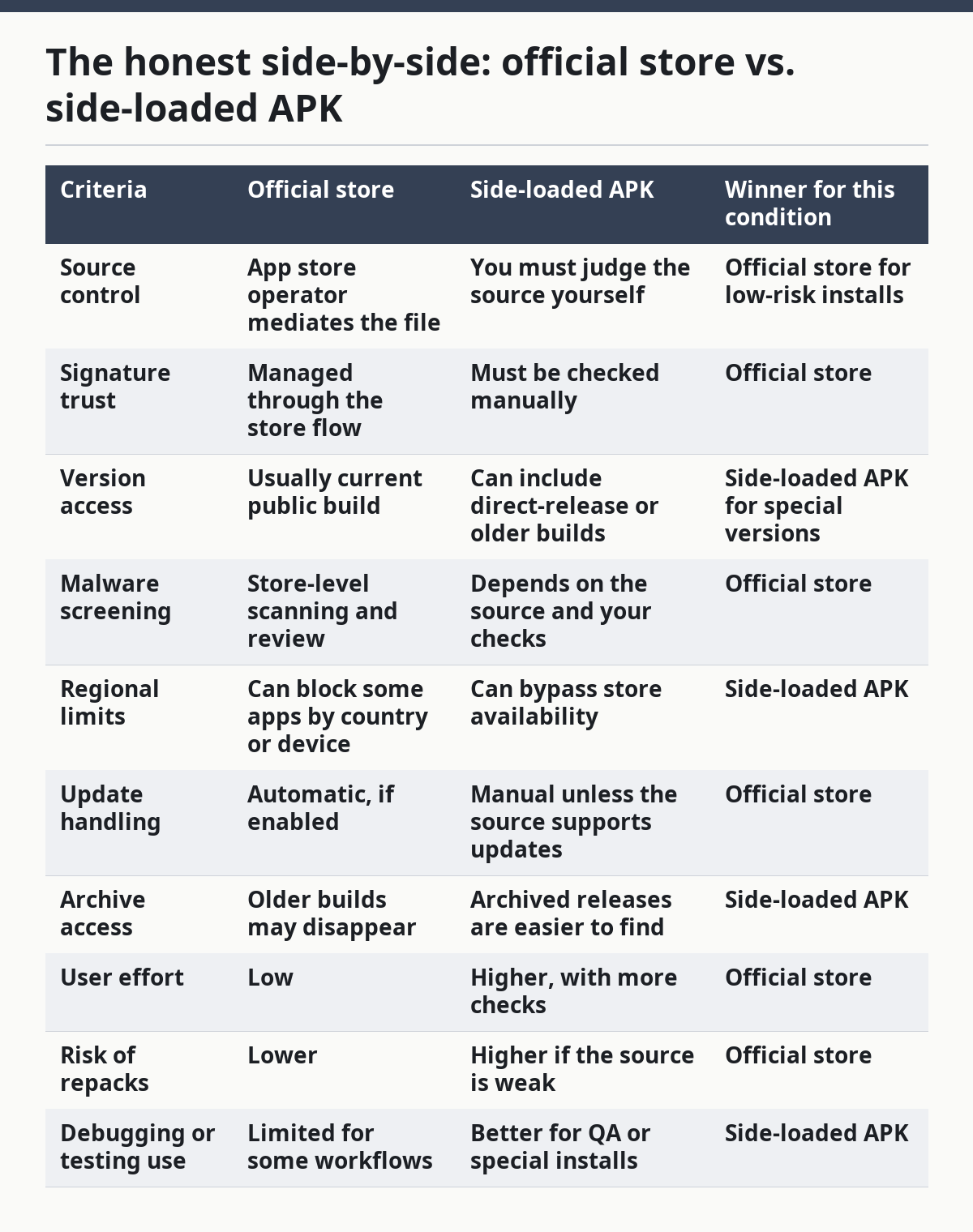
The official store is safer for the average reader because it reduces the number of decisions you have to make. Side-loading is not unsafe by default, but it puts every verification step on you. That is a real burden.
The downside of the store is control. Some apps are delayed, geo-blocked, or removed. If the developer publishes a signed APK directly, that can be the correct route — but only if the release page gives you enough proof to trust the file.
So the question is not “store or APK?” So the question is whether you have a verifiable APK source and enough evidence to check it.
Which verification method should you trust most?
The signing certificate is the most important check, and the checksum is the next best cross-check when it comes from the developer’s own page. File names, icons, and screenshots are much weaker signals.
Picture this: two files have the same name, the same icon, and the same version label. One came from the developer’s release page, the other came from a mirror with ads. Only one of those gives you a real origin trail.
Use this ranking:
- Developer signing certificate
- Developer-published checksum
- Official store listing
- Package name match
- File name match
- Visual design match
Why this order? Because the first two are tied to the file itself, while the others can be copied. A fake page can borrow the app icon in minutes. It cannot easily fake a correct signing lineage without changing the package identity.
The practical workflow is simple:
- Find the app’s official release page
- Confirm the package name and version
- Compare the signature or hash
- Download only after those match
- Keep the release page open until install is complete
If the source cannot give you a signature or checksum, you can still reduce risk by staying with the developer’s own site or a recognized store. But that is a fallback, not a guarantee.
For readers who want a standards body reference, NIST maintains broad guidance on software integrity and supply-chain risk, including the idea that provenance and verification matter more than appearance:
https://www.nist.gov/
That page is a general starting point, not an APK-specific checklist, so treat it as context rather than a replacement for app-signing checks.
A clean-looking APK with no verifiable origin is just a nice-looking risk.
That is the whole game.
When should you not install an APK at all?
You should not install an APK when the source cannot prove origin, the app asks for the wrong permissions, or the file is only offered through a repack site. If you cannot verify the package, the safest choice is usually to skip it.
Picture this: you have found the exact app you want, but the only download is behind a chain of ad redirects and a site that says “verified” without showing how. This is the point where patience saves you more than curiosity.
Do not install if:
- The site hides the developer name
- The file comes as a “mod,” “premium,” or “cracked” build
- The checksum is missing or does not match
- The app asks for permissions that do not fit its job
- The page wants you to install a helper app first
- The download only works after disabling browser or device warnings
The best refusal is the one you make before the file lands on your device. Once installed, a malicious app can request accessibility access, overlay permissions, or device admin features that make removal harder.
There are also cases where side-loading is simply the wrong tool. If the app exists in the official store and does not need special access, use the store. If your goal is normal daily use, do not take side-loading risk just to save a minute.
If you need a side-loaded APK for a legitimate reason, keep the scope tight:
- Use the smallest trusted source set
- Verify before install
- Remove the APK after installation if you do not need it again
- Re-check after each update, not just the first one
The cleanest rule is the blunt one: if you cannot explain why you trust the file, you do not trust it enough.
How do I keep APK installs safe after the first download?
You keep them safe by treating every update like a new file and every app like a permission check. The first install is only the start; the next update can change the risk profile.
Picture this: the app looked fine a month ago, and now it pushes an update from a different mirror or asks for a fresh permission it never needed before. That is how problems sneak in after the initial install.
Use this maintenance routine:
- Revisit the original source for each update.
- Check whether the developer’s signing identity is unchanged.
- Compare the version notes for any new permission requests.
- Remove apps that stop getting updates from a trusted source.
- Review permissions after major Android updates.
A signed app update from the same developer is much easier to trust than a fresh APK from a new site. If the source changes, the trust changes with it.
Two Android-specific habits help a lot:
- Keep “install unknown apps” enabled only for the one app you use to open trusted APKs
- Turn it off again when you are done
- Review app permissions after install and after updates
- Watch for accessibility, SMS, contacts, and overlay permissions in particular
If an app needs those permissions for a clear, documented reason, fine. If not, that is a problem worth solving before you use it.
The truth is, most APK mistakes happen after the first good decision. The download was safe enough, then the next one wasn’t. A clean update path matters just as much as the first install.
FAQ
Is it safe to download APKs from third-party sites?
Only if you can verify the file’s origin and signature. A third-party site can be acceptable when it mirrors an official release and preserves the developer’s signing identity, but many do not document that well enough to trust blindly.
What is the safest way to verify an APK?
The safest check is the app’s signing certificate against a trusted developer release. A checksum helps too, but only when the developer published it on a page you already trust.
Can VirusTotal tell me if an APK is safe?
No, not by itself. A scan can catch obvious malware or suspicious behavior, but it does not prove the APK came from the real developer or that it has not been repacked.
What should I do if the APK signature does not match?
Do not install it. A signature mismatch means the file is not the same app build you expected, and the safest move is to find the official release or skip the install entirely.
Is side-loading always risky?
No, but it always adds work. Side-loading is reasonable when you need a direct release from the developer or a version the store does not offer, yet it shifts verification onto you.
Drafted with AI; not yet reviewed by a person.
