
Last updated: November 29, 2026
Quick Answer: put the APK in the Samsung phone’s Downloads folder. In most cases, that is the easiest 1-folder choice to find later in My Files, and it sits in internal storage where the file picker can see it. If the file ends up in Documents or another folder, installation can still work, but Downloads is usually the cleanest choice.
Key takeaways
- The APK does not need a special folder to install, but Downloads is the easiest place to find it.
- Internal storage is often the most practical default because it is visible in Samsung’s file tools.
- My Files can open APKs from several folders, not just one.
- If a file is hard to spot, the problem is usually location or file visibility, not the APK itself.
- A folder like Documents can work, but it is a poorer choice if you want the shortest path.
Which folder should you use?
Use the Samsung Downloads folder, because that is the folder most people can reach in a few taps from My Files. On a Samsung phone, it is often the best default when you already have the APK file and want the least friction before installing it.
That answer is about convenience, not a technical requirement. Android app packages are not tied to one folder name, and Samsung does not require a special install directory such as a 2024 system folder or a hidden path. The file only needs to be somewhere the phone can read, and Downloads is the easiest place to remember.
If you are deciding between Downloads, Documents, and any other folder in internal storage, choose Downloads unless you have a strong reason not to. A file buried three folders deep is harder to spot, especially on a phone screen where the file list only shows a few items at once.
For a reader who wants the shortest route, the practical rule is simple: save the APK in Downloads, then open My Files and tap it there. Samsung’s own file app is built for this kind of local file access. If you want the broader installation steps later, the main guide on how to install an APK on a Samsung phone covers the rest of the process.
Why Downloads beats Documents on Samsung
Downloads beats Documents because the folder name matches the way Samsung’s file picker already groups recent files. In normal use, Downloads is where browser saves, messaging attachments, and many file transfers land first. That makes it the most predictable 1-folder choice for an APK.
Documents is not wrong. It is just less useful for this job. A file in Documents can be harder to recognize if you store PDFs, notes, and office files there too. When the folder has 20 or 30 items, an APK can disappear in the crowd, and that costs time when you only want to install one app.
The same logic applies to other internal folders. Music, Pictures, and Video are meant for media, so placing an APK there only adds noise. If the file picker or My Files view shows by category, the APK may still appear, but it will not feel obvious.
| Folder on Samsung | Good choice for an APK? | Why it helps | Main drawback |
|---|---|---|---|
| Downloads | Yes | Easy to find in My Files and common file pickers | Can get crowded if many files land there |
| Documents | Maybe | Works if you keep it tidy | Easier to lose among PDFs and notes |
| Other internal storage folders | Only if needed | File still stays on the phone | Harder to spot later |
| External storage folders | Not the simplest choice here | Can store the file if visible | Adds another place to check |
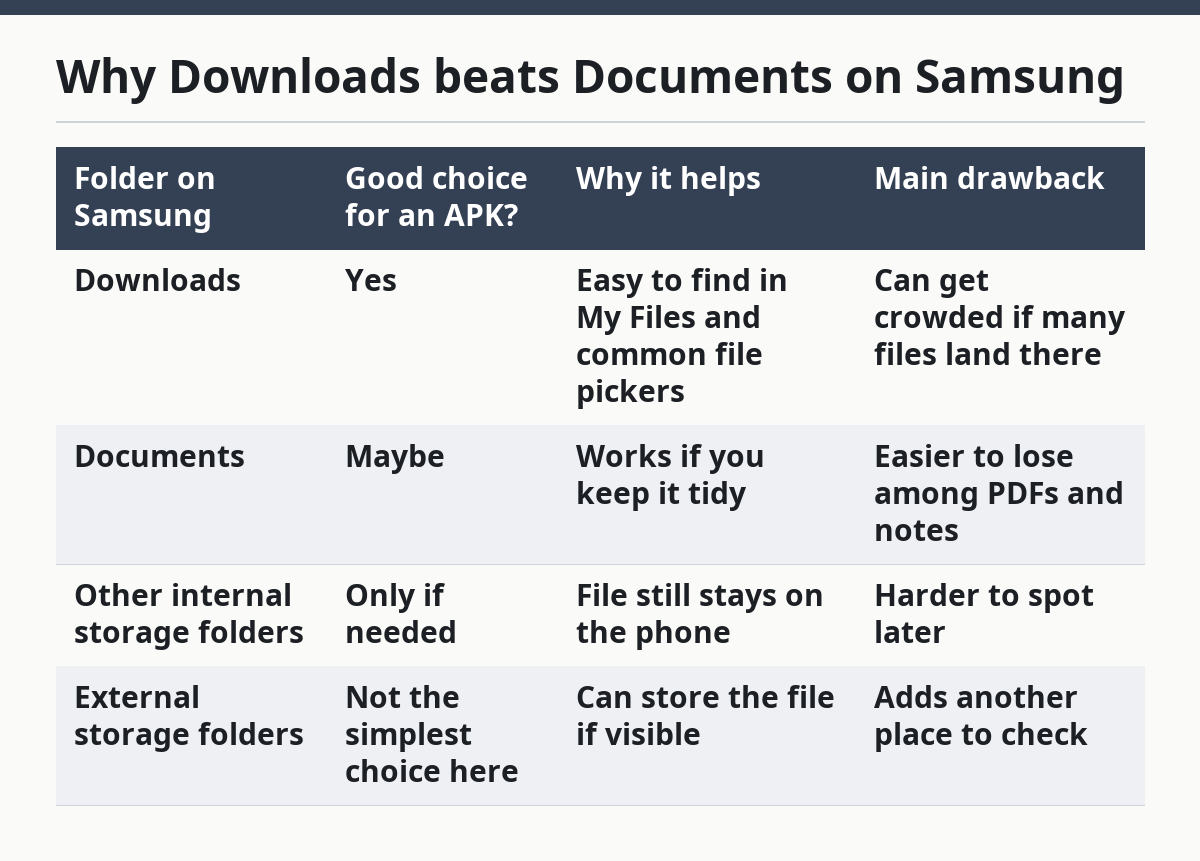
The table makes the trade-off plain: any readable folder can hold the file, but Downloads gives the best mix of speed and visibility. That matters most when the goal is not file management, just getting one APK ready.
How do you place an APK where Samsung can see it?
You place an APK in a folder that sits in internal storage and stays visible to My Files. The path does not need to be fancy, and it does not need a special APK folder. A normal folder such as Downloads works because Samsung can browse it directly.
A simple workflow looks like this:
-
Save the APK in Downloads or another internal storage folder you can open in My Files.
The result is a file sitting in a place Samsung can reach without extra steps. -
Open My Files on the Samsung phone.
You should see storage categories or an internal storage view, which makes the file easier to locate. -
Tap Internal storage, then open Downloads.
The APK should appear as a file entry, often with the file name you saved. -
Tap the APK file itself.
Samsung should hand the file to the installer flow rather than treating it like a photo or document; if you are unsure about a file from an unknown source, consult a professional or Samsung support before opening it. For the permission side of app installation, see Google Android Help. -
If the file does not appear, check whether it was saved in a different folder name such as Documents or in a cloud location instead of local storage.
That usually explains why the file seems to vanish even though it exists.
The key detail is visibility. A file can be on the phone and still feel missing if it is inside a folder that you are not opening. In that case, the folder is the problem, not the APK format.
Samsung’s file tools are designed to browse local storage, which is why internal storage matters more than any single folder title. A file saved on the phone in 2025-style storage layouts is usually easier to find than one left in a syncing app, a hidden cache, or a remote location.
What folder problems stop people?
The most common folder problem is not using a local folder at all. If the APK is still sitting in a cloud app, a message attachment preview, or a browser download that never finished, My Files may not show it where you expect. That wastes time because the file looks “downloaded” but is not in a normal folder yet.
Another common problem is saving the APK in a folder with too many files. Documents can become a catch-all for work files, and then the APK is just one more line in a long list. That makes the install step feel broken when the real issue is file clutter.
A third issue is file visibility. Some Samsung views sort by type, some by folder, and some by recent items. If you only look in one view, you may miss the APK even though it is present in internal storage. On a phone screen, that matters more than on a laptop, because you see less at once.
Do not overcomplicate the fix. If the APK is missing, move it to Downloads and check there first. That is the most useful habit because it keeps one folder as the default landing spot. It also avoids the “Where did I save it?” problem that comes up after 2 or 3 file moves.
A generic tip to “just use any folder” leaves out the practical part: humans forget paths. Downloads gives you one place to check every time, and that saves more effort than trying to make Documents behave like a download bin.
Does file picker behavior change the best folder?
File picker behavior can change which folder feels easiest, and that often makes Downloads the safest choice because pickers usually surface recent and common folders first. When a Samsung screen opens a file picker, it does not always show every folder in the same order. A file in Downloads is more likely to be obvious than one buried deeper in internal storage.
That matters if you are opening the APK from an app that asks you to browse to a file. A picker might show Downloads, Recent, and some media folders before it shows a longer internal storage tree. If the APK lives in Downloads, the path to it is shorter and less confusing.
This is also why the answer is different from a strict “best folder” for archiving. For long-term storage, some people prefer Documents because they organize files there. For installation, though, the goal is speed and visibility, not neatness. A folder that looks tidy on a desktop can be slower on a Samsung phone with a 6-inch or larger display where fewer items fit on screen.
If you want the file to be easy to find later, keep the filename simple too. A clear name plus Downloads is easier to scan than a vague label buried in a folder with 40 other items. The folder is only half the job; the name helps the file picker too.
Samsung Downloads folder or another folder?
The Samsung Downloads folder is the best default, while another internal folder is fine if it is easy to open in My Files. That is the plain answer. The choice is not about what the APK needs to “live” in; it is about how fast you can find it on the phone.
If you want a quick comparison, think of it this way:
- Downloads: best for speed and for first-time installs.
- Documents: acceptable if your phone is already organized that way.
- Any readable internal folder: works, but can take longer to search.
- Folders you rarely open: poor choice for a file you plan to install soon.
There is one honest downside to Downloads: it can get messy fast. If you save many files there, the folder loses its advantage. That is why the choice is best for a reader who wants one APK ready now, not for someone building a long-term filing system on a phone.
For a Samsung phone owner who simply wants the simplest path, the answer stays the same: Downloads first, then My Files. A more elaborate folder structure adds more taps without helping the install.
Where does the file need to be for My Files to open it?
The file needs to be in local internal storage where My Files can read it directly. That usually means Downloads or another visible folder on the phone itself. If My Files can see the folder, it can usually show the APK.
Because that is the part many generic guides skip, it helps to be precise. They act as if the folder name is magic. It is not. Samsung only needs a file location that the system can browse, and the user needs to be able to see that location without hunting through menus for 5 minutes.
If you are unsure, open My Files and start from Internal storage. That view gives you the clearest map of what is actually on the phone. A folder stored on the device is different from a file held in a cloud folder or a sync app, and that difference is often what confuses beginners.
For the cleanest setup, keep the APK in Downloads until the install is done. After that, you can leave it there or delete it if you no longer need it. The key is that the install path stayed simple.
A useful external reference on file access is Samsung Support’s My Files documentation, and Google’s Android Help page on installing unknown apps explains the permission side of app installation. For device safety basics, see Samsung security support.
FAQ
Does the folder matter for apk installation?
The folder matters for finding the file, not for the APK format itself. A Samsung phone can install an APK from a visible local folder such as Downloads or Documents, as long as My Files or the file picker can reach it.
Is Downloads the best place for apk files?
Downloads is the best default place for most people. It is the easiest folder to open in My Files, and it keeps the APK in a spot that feels familiar on a Samsung phone. The only real drawback is clutter if you save too many files there.
Can Samsung install apks from any folder?
Samsung can install APKs from any folder that the file system can show and open. The file still needs to be in internal storage or another readable location. The folder name is less important than whether you can find the file quickly and open it through My Files.
Drafted with AI; not yet reviewed by a person.
