

Last updated: November 19, 2026
Quick Answer: an APK version code is the internal number that helps place a file in its release order, and build 241 is a clear example of the kind of number you may need to match. In How to Read an APK Version Code and Match It to the Release List, the safest approach is to compare the code with the build number and the release entry, then confirm with the notes. The steps below help identify which APK belongs to which release line.
Key takeaways
- The version code is the app’s internal sequence number, not the pretty version label you see in the store.
- A higher code usually means a later build, but the numbering scheme can be simple or strange.
- A reliable match usually comes from pairing the code with the build number and the official release list.
- Release notes can help confirm features and fixes, but they are not always enough on their own.
- If two APKs share the same version name, the version code is what separates them.
How do I read an APK version code?
An APK version code is a machine-readable number inside the app package that identifies one build in a release line. It is usually a single integer, such as 42, 1057, or a much larger value, and the app uses it to decide whether one build is newer than another.
Picture this: you have two APK files with the same visible version name, but you need to know which one came first, which one came later, and which release note matches each file. The version code is the first thing to check, because it often sorts the builds cleanly even when the version name does not.
That code sits beside the version name and the build number. The version name is what people read, like 3.8.1. The build number is the internal release marker, and some teams expose it in the app’s About screen or in the file metadata. If the release list says “build 241” and the APK shows version code 241, that is often the cleanest match.
Here’s the catch: version codes are not standardized across every developer. One app may count up by one for each release. Another may encode major, minor, and patch info into a larger number. So the code tells you order first, meaning second.
Common places to find it:
- The APK metadata in an APK inspector
- The app’s About screen, if the developer shows it
- The release list or changelog, if the team publishes build numbers
- The app store listing, where the version name is visible but the code usually is not
If the code is larger, that often means the build is later. If it is smaller, it is usually older. That rule applies in many release lines, but you still need the release list to confirm the exact lineage.
How do I match an APK to a release list?
You match an APK to a release list by lining up the version code, then checking the build number and the release notes for the same release entry. A three-part check can help avoid guessing.
Picture this: you have a folder full of APKs named by date, and the release page lists version names, codes, and a few notes like bug fixes or UI changes. You do not need to read every note in order. You need to match the internal number to the release line first, then confirm the build details.
Use this procedure:
- Open the APK metadata and write down the version code and version name. The result is your base identity for that file.
- Find the release list for the app and scan for the same code or build number. Many changelogs list both, even if the store page shows only the version name.
- Compare the build number if the release list uses one. A note like “Build 241” should line up with the APK’s internal number or the number shown in the developer’s notes.
- Cross-check the release notes for one or two unique changes, such as a feature toggle, a bug fix, or a package rename. The result should make the APK’s place in the line obvious.
- Sort by code if the list is messy. If the release page is out of order, the numeric code usually restores the timeline.
The best part is that one exact match can stop the hunt. If the code, build number, and release note all point to the same entry, you have a strong match.
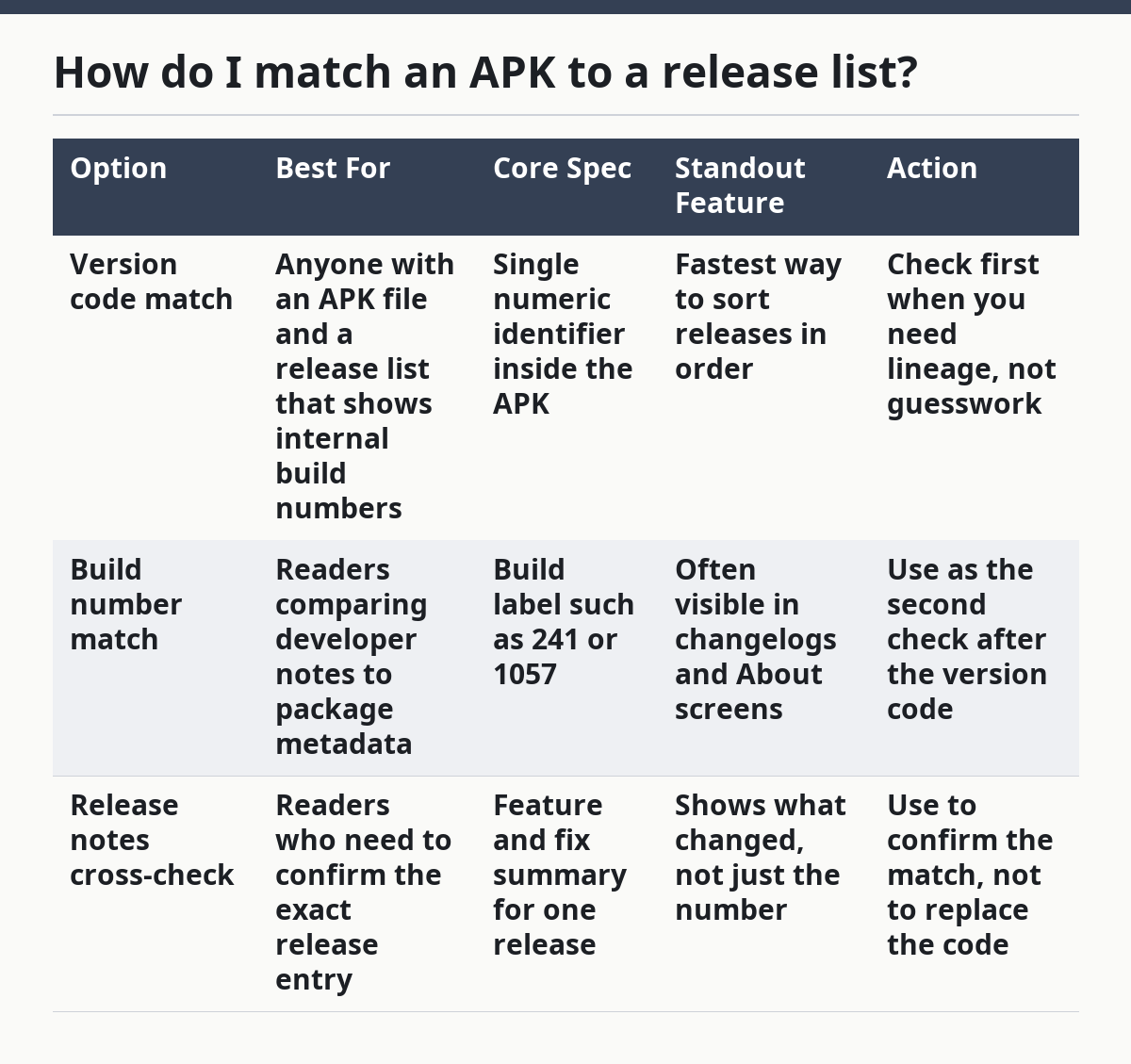
Use the comparison table below when the release list gives you more than one clue and you need to sort them fast.
| Option | Best For | Core Spec | Standout Feature | Action |
|---|---|---|---|---|
| Version code match | Anyone with an APK file and a release list that shows internal build numbers | Single numeric identifier inside the APK | Fastest way to sort releases in order | Check first when you need lineage, not guesswork |
| Build number match | Readers comparing developer notes to package metadata | Build label such as 241 or 1057 | Often visible in changelogs and About screens | Use as the second check after the version code |
| Release notes cross-check | Readers who need to confirm the exact release entry | Feature and fix summary for one release | Shows what changed, not just the number | Use to confirm the match, not to replace the code |
What does the APK version code mean on its own?
The APK version code means release order, not user-facing detail, and it is only partly useful by itself. A code of 250 tells you that the build is later than 249 in the same numbering system, but it does not tell you what changed.
Picture this: you see a package with version name 5.2.0 and version code 318. On another site, you find a release list that jumps from 312 to 318 with no note in between. The code tells you where the file sits on the timeline, even if the notes are thin.
That number is useful because apps can share the same version name across more than one build. A developer may push hotfixes, rebuild the package, or ship a variant for a different device family while keeping the name unchanged. The code is the tie-breaker.
On the flip side, the code can be misleading if you assume every app uses the same pattern. Some teams embed meaning into the digits, like major release in the first digits and patch in the rest. Others count upward in their own sequence. There is no universal public format.
What the code can tell you:
- Whether one APK is newer than another in the same line
- Whether a file probably belongs before or after another release
- Whether the release list entry is the same build, if the numbers match
What it cannot tell you alone:
- Which features changed
- Whether the app was repackaged for another device
- Whether the release notes mention the same fixes
That is why the code is the start of the match, not the finish.
Which clues should you trust first: version code, build number, or release notes?
The version code comes first, the build number comes second, and the release notes come last. That order gives you the cleanest match without relying on marketing copy or vague changelog text.
Picture this: two APKs show the same version name, but one release page mentions “build 87” and another says “hotfix for login.” You need to know which file belongs to which entry before you waste time opening the app. The code and build number are the anchor; the notes are the confirmation.
A quick ranking helps:
- Version code — best for ordering and matching exact package lineage
- Build number — best when the developer publishes internal release IDs
- Release notes — best for checking that the changes line up with the file
The release notes can be messy. One note may describe a feature, another may list only “minor fixes,” and a third may be copied from a prior release. That is why a note alone is a weak match. If the code says 402 and the release list says 402, that is stronger than a paragraph that merely sounds familiar.
Usually, the best match comes from a combo of two items, not one. If the code and build number agree, you are usually done. If they conflict, the release list may be incomplete, or you may be looking at a repackaged APK.
Common mistakes that break the match
The most common mistake is treating the version name like the version code, and that can send you to the wrong release in under a minute. A visible name such as 2.4.0 may cover several internal builds, so it is not enough for a clean match.
Picture this: you search a release list by version name, find the right-looking entry, and stop there. Then you notice the APK’s build number does not line up. That mismatch usually means you matched the label, not the file.
Watch for these errors:
- Ignoring the code entirely — cost: you may pick the wrong build when names repeat
- Assuming bigger digits always mean a newer app — cost: a developer can change numbering rules across major releases
- Using release notes as the only proof — cost: copied notes can point to the wrong entry
- Skipping the build number — cost: you miss the one field that often separates two close releases
A better method is simple. Start with the version code, then check the build number, then open the release note for a unique change that belongs to that entry. If all three point the same way, the match is solid.
If the release list is missing internal numbers, use the code to place the APK in the order, then compare the surrounding notes. That gives you a likely match without pretending the list says more than it does.
How to compare two APKs without getting fooled
You compare two APKs by checking whether their version codes form a clean sequence and whether their build numbers line up with the release list. That is the fastest way to tell a straight update from a parallel build.
Picture this: two APK files both claim the same version name, but one was published on Monday and the other on Thursday. You need to know if one replaced the other, if they belong to different device splits, or if one is just a repack. The code gives you the first answer.
Use this short check:
- If the codes are different, the files are not the same build.
- If the higher code appears in the newer release entry, the timeline is probably correct.
- If the codes match but the file details differ, you may be looking at the same release in two package variants.
- If the release list only shows notes, use the code to place each APK before and after the notes you do have.
One practical warning: do not treat the code as a safety check. A higher version code does not tell you whether the app is from an official source, whether it was repackaged, or whether it belongs on your device. It only tells you where it sits in the release sequence.
That makes the code a comparison tool, not a trust tool. It answers “which build is this?” much better than it answers “should I install it?”
What’s the cleanest way to use release notes with the code?
The cleanest way is to use release notes as confirmation after the code and build number already point to one release entry. That keeps the notes in their real role: explanation, not identity.
Picture this: you have narrowed the APK to build 318, and the release page for 318 says “fixes crash on startup, updates login flow.” You do not need the whole note to match the file. You only need enough detail to confirm that you are on the right release line.
A solid cross-check looks like this:
- Version code: matches the release entry
- Build number: matches the internal label if one is published
- Release note detail: names at least one change that fits the release
If the note is vague, that does not automatically mean the match is wrong. Some changelogs are short because the release was minor. But if the note clearly describes a different feature set, the file may belong to another build or another branch.
For a broader map of APK version control and update choices, the hub page for this topic can sit above this guide. This article stays on one job: reading the code and matching it to the release list.
FAQ
How do I read APK version codes?
You read an APK version code as an internal build number that shows release order. It is usually a single number inside the package metadata, such as 42 or 318, and a higher code usually means a later build in the same release line. Use it with the version name and build number for a better match.
How do I match an APK to a release list?
You match an APK to a release list by comparing the version code first, then checking the build number, then reading the release note for one unique change. If the list shows build 241 and the APK metadata also shows 241, that is usually the cleanest match. If the note fits too, the match is stronger.
What version code means in APKs?
A version code in APKs means the app’s internal release sequence, not the user-facing version label. It helps sort builds that may share the same visible version name. The number tells you which package is newer or older within that app’s release line, but it does not describe features on its own.
Drafted with AI; not yet reviewed by a person.
