
Last updated: November 19, 2026
Quick Answer: An APK download link is official only when the publisher names the host, the release page matches it, and the final domain can be traced back to the publisher’s site. This guide shows you how to check the domain, the release page, the redirects, and the mirror label before you tap download. In this article, How to Check Whether an APK Download Link Is Official means checking the file host, not the app name alone.
Key Takeaways
- The link itself matters, not just the page around it.
- A real host usually matches the publisher name, release notes, or a stated mirror.
- Redirects can hide the final domain, so check the last URL before you trust it.
- “Mirror” is not the same as “fake,” but the label should be explicit.
- If the host, publisher, and release page don’t line up, it is safer to treat the link as unverified and, if needed, consult a professional.
Picture this: you found an APK link and want to know if it points to the real file host, not a copycat or a random upload. A practical first pass is to match the final domain to the publisher’s official site, release page, or named mirror.
Here’s the catch: a clean-looking download page can still point somewhere else after a redirect. The steps below show you how to check the destination, not just the buttons you can see.
What an official APK file host looks like
An official APK file host usually sits on a domain the publisher controls, names, or links to from its own release page. That host may be the main website itself, a clearly branded download subdomain, or a mirror the publisher lists by name. It should not feel anonymous.
Picture this: you’re looking at a download link on a software page and trying to separate a real host from a random third-party upload. The useful clues are the domain name, the release page, and whether the publisher repeats that host in more than one place.
Look for these signs:
- The domain matches the app or publisher name, or a known brand family.
- The same host appears on the official website and in the release notes.
- The page says “mirror,” “download server,” or “release assets” instead of pretending to be the publisher itself.
- File names look consistent with the app’s versioning, such as a version number or build tag.
- The link uses HTTPS and lands on the same domain you expected, not a long chain of hops.
A page can still fail this check even with a lock icon. HTTPS only means the connection is encrypted; it does not prove the file host is official.
How do I check the APK download link before I click it?
You check the APK download link by reading the destination, tracing any redirects, and comparing the final host to the publisher’s official site or release page. On a desktop browser, that usually takes under 1 minute.
Picture this: the button says “Download APK,” but the visible text is just the start. The real question is where the link lands after one click, and whether that landing domain is one the publisher actually uses.
Use this order:
- Hover or long-press the link and read the URL shown by the browser. Expect the host name to look like the publisher’s domain or a named mirror.
- Open the link in a new tab, then check the address bar after the page loads. If the domain changes, note the final domain, not the first one.
- Compare that final domain with the publisher’s official website. If the site has a release page, look for the same host there or in the release notes.
- Scan the file name. A normal APK host often uses the app name and a version string, such as
v3.2.1or a build number. - Look for words like “official,” “mirror,” “release,” or “assets” on the source page. These labels help explain why the file sits on that host.
- If the download route jumps through several unrelated domains, stop and recheck. One clean redirect is common; a chain of odd domains is not a good sign.
A good link usually settles on one recognizable host. A bad one tends to wander. That wandering is the clue.
Which domain clues actually matter?
The domain itself matters more than the page design, because the file host’s name tells you who controls the delivery path. A polished page on the wrong domain is still the wrong domain.
Picture this: you see an APK page with the app logo, screenshots, and a neat download button. The design can be copied in 10 minutes; the domain name is harder to fake well, and that is where the useful check starts.
Pay attention to these details:
- Brand match: The host name contains the publisher or product name in a way that makes sense.
- Subdomain logic: A download area on the publisher’s own domain, such as a clearly named downloads or releases subdomain, is easier to trust than a separate lookalike domain.
- Top-level domain: A host on an unrelated country-code or odd generic domain is not automatically bad, but it needs stronger proof from the publisher.
- Spelling consistency: Small changes in the name can signal a different operator. One swapped letter can matter.
- URL depth: A direct release path is easier to verify than a chain with many tracking-style segments.
The truth is, domain clues are strongest when they line up with the publisher’s own site. If the app’s official website says one host and the download button goes to another, pause and verify that mismatch with the publisher’s release notes or, if needed, a professional source.
A useful habit: search the publisher’s official site for the exact filename or version number. If the same file appears there, or on a named release page, that is a much better sign than a random search result.
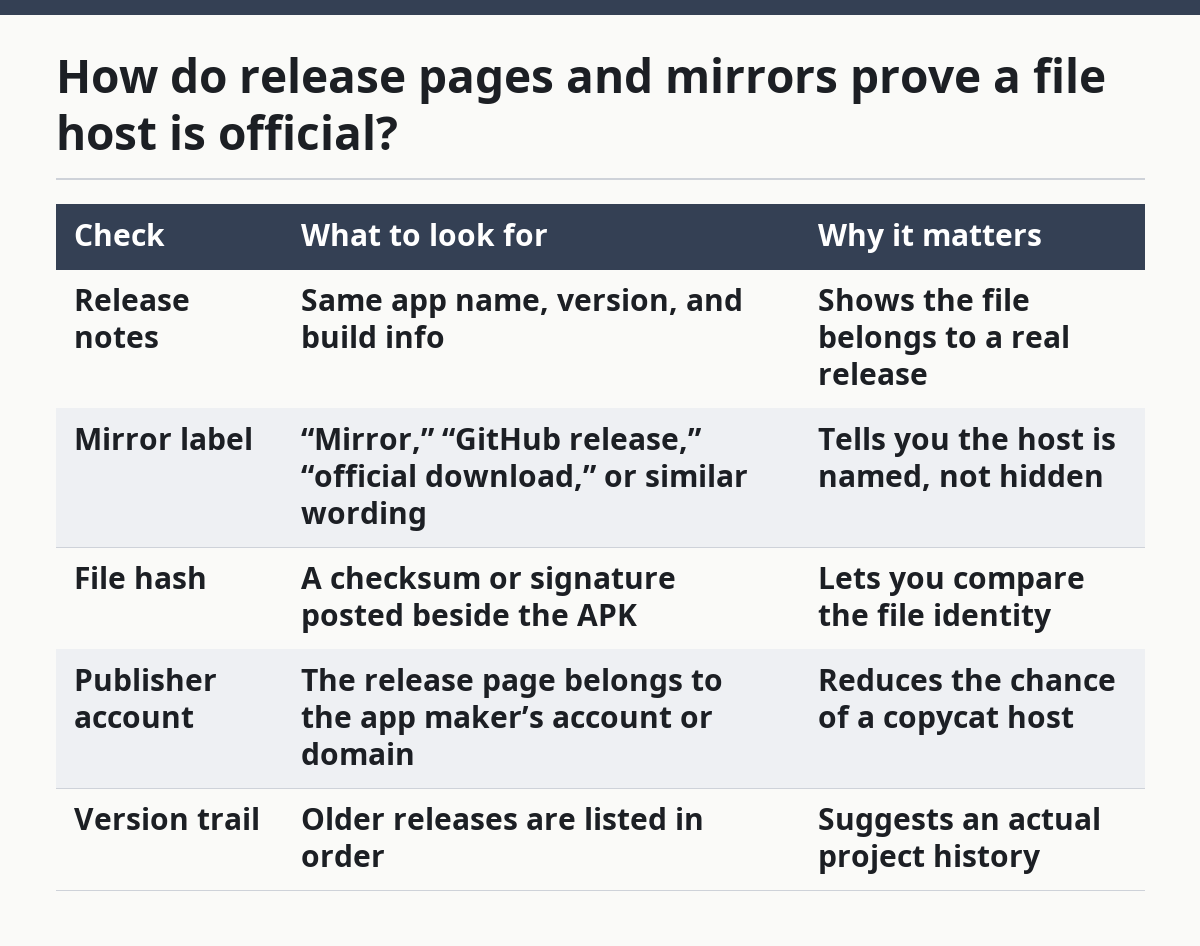
How do release pages and mirrors prove a file host is official?
Release pages prove a file host is official when the publisher lists the download there, names the mirror, or links to the same file from its own update notes. A mirror can be legitimate, but the publisher should make that relationship plain.
Picture this: you are on a versioned release page, and the page lists one APK along with notes about what changed. That setup is far more trustworthy than an anonymous download page, because the file sits inside a documented release trail.
Use this checklist:
| Check | What to look for | Why it matters |
|---|---|---|
| Release notes | Same app name, version, and build info | Shows the file belongs to a real release |
| Mirror label | “Mirror,” “GitHub release,” “official download,” or similar wording | Tells you the host is named, not hidden |
| File hash | A checksum or signature posted beside the APK | Lets you compare the file identity |
| Publisher account | The release page belongs to the app maker’s account or domain | Reduces the chance of a copycat host |
| Version trail | Older releases are listed in order | Suggests an actual project history |
Mirror links can be fine when they are documented. A mirror without a label is a problem. A mirror with a label and a matching release page is a different case.
On the flip side, a file host that appears only on one random page and nowhere else on the publisher’s site deserves suspicion. A real publisher leaves a trail: official website, release page, version note, then download host.
What mismatch signs mean the link is not official
A mismatch usually means the APK download link is not pointing to an official file host, or at least not one you can verify yet. The strongest warning is disagreement between the link domain, the publisher name, and the release page.
Picture this: the app says one developer name, the website says another, and the download link lands on a third domain. That kind of mismatch is not a small typo problem. It means the chain does not hold together.
Watch for these red flags:
- The file host has no connection to the official website.
- The release page never names the host.
- The link is labeled “mirror” but no mirror source is shown.
- The final domain changes after a redirect to something unrelated.
- The file name does not match the app, version, or build pattern.
- The same APK appears on several unrelated domains with no publisher trail.
A mismatch does not always prove a bad file, but it does mean you do not have enough proof to call it official. That is the line that matters.
Here’s the practical cost: if you trust the wrong host, you lose traceability. You can’t tell where the file came from, who posted it, or whether later updates will match the same source.
A better move is to go back to the publisher’s official website and look for the file from there. If the site does not list that host, do not fill in the gap with guesswork.
What should I do if the APK link is still unclear?
If the APK link is still unclear, stop at the source page and keep searching from the publisher’s official website, not from the download page you found first. That is usually the safest way to avoid mistaking a copycat host for the real one.
Picture this: you have one link that looks close but not quite right. The page may be real enough, but the host is still unproven. Because the release page is the missing piece, patience saves time later.
Use these next steps:
- Start from the app publisher’s official website, not a search result.
- Find the release notes or download section there.
- Look for the same APK filename, version number, or release date.
- Check whether the site names a specific host, mirror, or release asset source.
- If the site uses a code host or file service, confirm the publisher account name matches the app project.
- If none of that lines up, skip the file and wait for a clearer source.
The best part? You do not need a lab or a technical tool to make this call. A careful read of the domain, the release page, and the redirect path is usually enough.
This page sits inside the broader APK source trust and file verification hub, but this article stays on one job: checking whether the link points to an official file host. That narrower question is easier to answer well.
How can I tell if a mirror link still counts as official?
A mirror link still counts as official when the publisher openly names it, links to it from the official site, or places it on a release page with the app version and file details. If the mirror is described and traceable, it can be legitimate.
Picture this: you see “mirror” in the label and wonder if that means second-rate or fake. It doesn’t. A mirror is just a duplicate host, and some publishers use them to spread bandwidth or keep old releases online.
A legitimate mirror usually has:
- A clear “mirror” label or a named hosting partner.
- The same version number or build as the main release.
- A path that matches the official release notes.
- A publisher account or site that links back to the main project.
- A file name that stays consistent across the official site and the mirror.
A mirror becomes suspicious when the label is missing or the source cannot be traced. If the page says nothing about who owns the host, what the mirror copies, or why the file is there, you are left guessing.
That is the whole test in plain English: if the publisher can account for the host, the link may be official. If the host exists on its own with no trail, it is not verified.
How do I know if a download link is official?
A download link is official when the final domain matches the publisher’s own site or a mirror the publisher names on a release page. The link should line up with the app name, version, and file path too. If the host appears nowhere on the official website, treat it as unverified.
What does a safe file host look like?
A safe file host is one the publisher can identify in public, on an official site or release page, with a clear version trail and a matching filename. It does not need to look fancy. It does need to be traceable, consistent, and tied to the same publisher account or domain.
Can mirror links still be legitimate?
Yes, mirror links can still be legitimate if the publisher says they are mirrors and points to them from the official source. The problem is not the word “mirror”; the problem is an unnamed mirror with no connection to the publisher’s release page. If you can’t trace it back, don’t treat it as official.
Drafted with AI; not yet reviewed by a person.
