

Last updated: November 19, 2026
Quick Answer: most Android install problems come down to three package types, and the easiest one is the single APK. This guide to APK formats and installation packages — The Complete Guide explains what each type does, what usually goes wrong, and how to tell which package you actually have.
Key Takeaways
- One APK can install by itself; split packages need all the matching pieces.
- APKs are install files, split APKs work together, and AAB is a publishing format for Google Play.
- APK installs fail when the file doesn’t match your device, the signature is wrong, or Android lacks required parts.
- You can identify the package type by its extensions, the download page, and how it is delivered.
What an APK really is
An APK is the file Android installs when an app is delivered as a single package. If you have an Android phone and a file ending in .apk, that file may install on its own — or it may be only one piece of a larger app package.
Picture this: you’ve downloaded an app file from a site, tapped it, and Android refuses to install it. The problem is often the package type, not the app itself. Some apps ship as one APK; others ship as split APKs or app bundles that need extra files.
Here’s the catch: Android has changed how apps are packaged over time. The old “one app, one APK” setup still exists, but many modern apps use multiple files for language packs, screen densities, features, and device-specific code. That saves space, but it also creates confusion.
A plain APK usually contains:
- app code
- resources like images and layout files
- a manifest that tells Android the app’s name, permissions, and entry points
- a signature that proves who built it
That signature matters. Android checks it before installing or updating the app. If the file is altered after signing, the install should fail. If the package was built for a different Android version or chip architecture, it may fail too.
The main question isn’t “what is an APK?” It’s “what kind of package does this app use, and what do I need to install it safely?”
APK, split APK, AAB: what’s the difference?
APK is the installable file your phone understands, split APKs are multiple APK files that work together, and AAB is a publishing format developers upload to Google Play. The user-facing difference is simple: a single APK can often be tapped and installed, while split packages usually need a special installer.
Picture this: you found an app on a mirror site and see files named base.apk, config.arm64_v8a.apk, and config.en.apk. That’s not a broken download. It’s a split package, and Android needs all the matching pieces for the app to run correctly.
The easiest way to think about the formats is this:
- APK: one installable file
- Split APK: several APKs that work as one app
- AAB: a development and publishing format, not usually something you install directly
The truth is, many apps on Google Play are no longer delivered as a single APK to every device. Google Play can generate device-specific splits from an AAB. That means your phone gets only the code and resources it needs, which can reduce download size.
But there’s a trade-off. Split packages are less convenient to sideload. If the listing says “APK” but the file set includes multiple parts, a normal file browser install may not work. You may need an installer that supports split APKs, such as APKMirror Installer or another package manager that understands bundle-style installs.
For a beginner, the practical rule is this:
- if it is one
.apkfile, Android may install it directly - if it is several
.apkfiles, they usually need to be installed together - if it is
.aab, it is probably not meant for direct manual installation
Why some APKs install and others fail
APK installs fail when the file doesn’t match your device, the signature is wrong, or Android doesn’t have all the pieces it expects. That is the most common reason a package looks fine but still won’t open.
Picture this: you tap an app package and get a message like “App not installed.” The file may be valid, but the device can still reject it for a few specific reasons. Most of them have nothing to do with the app icon or the download site.
Common causes include:
- wrong Android version: the app requires a newer API level
- wrong CPU architecture: arm64-v8a, armeabi-v7a, x86, and x86_64 are not interchangeable
- signature mismatch: you already have a different version installed
- missing split files: a single APK was not enough
- permission restrictions: the phone blocks installs from unknown sources
There’s another issue many generic guides skip: an APK can be perfectly safe-looking and still be the wrong build for your device. For example, a 64-bit-only package won’t help an older 32-bit device. A package built for Android 14 may not install on Android 11.
If you’re trying to troubleshoot, start with the file name and listing:
- look for architecture tags like
arm64-v8a - check the minimum Android version
- see whether the download mentions split APKs, bundles, or “APK + OBB”
- confirm whether the app is already installed from another source
When an app update fails, the existing installed package can block the new one if the signatures don’t match. That’s especially common with modded files, repackaged apps, or unsigned builds.
How to tell which installation package you have
You can tell the package type by looking at the file extensions, the download page, and the way the app is delivered. A single .apk is the simplest case; multiple files or bundle language hints usually mean a split install.
Picture this: you’re on a download page with five files and no plain answer. The filename usually gives it away if you know the terms to scan for. That saves you from tapping around blindly.
Use this quick check:
- One file,
.apkonly: likely a normal APK .apkm,.apks, or.xapk: usually a container that holds several APKs and sometimes extra data- Multiple
.apkfiles: a split APK set .aab: developer bundle, not a direct install file for most users- Extra OBB or data files: the app may need additional assets after install
A container format like .apkm or .xapk is meant to make split delivery easier for users, but it also means you need the right installer. A file manager can open one APK, but it may not handle a package bundle correctly.
The smartest move is to read the file list before you download. If the page shows base.apk plus several config.*.apk files, the app probably depends on the full set. If only one file is offered and the app still fails, the issue is more likely device compatibility than package structure.
Don’t ignore the app’s own install notes. Some games and large apps need an additional data package even after the APK installs. That extra data is usually not part of the APK itself.
How APK formats and installation packages changed Android installs
Modern Android installation packages are built around smaller downloads, device targeting, and store-managed delivery. The benefit is less wasted space; the cost is more confusing side-loaded installs.
Picture this: you remember the old days when every app seemed to be one download. That still happens, but Android’s delivery system now prefers tailoring the package to the device. It’s efficient, but it can make manual installs harder to understand.
The shift is driven by practical needs:
- different screen sizes need different image assets
- different chips need different compiled code
- different languages need different text resources
- some features should only ship to compatible devices
That is why Google Play and some third-party stores often use bundle-based delivery. The store does the splitting for you. When you sideload, you become the installer, which means you also take on the work of matching the right files.
Here’s the catch: the more specialized the package, the less forgiving it is. A universal APK is easier to share, but it can be larger. A split package is smaller and cleaner for the device, but it is easier to install wrong.
For regular users, the practical takeaway is simple: if the app came from Google Play, don’t assume the store’s internal package format can be dragged out and installed by hand. If the app came from a mirror, check whether that mirror is offering a universal APK or a bundle of splits.
The safest way to install APKs
The safest way to install APKs is usually to use the official store when possible, and only sideload from sources you can verify. If you do sideload, confirm the package type, the Android version, and the signature before you install.
Picture this: you need an app that isn’t in your region’s store, or you’re testing a beta version. The file may be legitimate, but sideloading raises the stakes. A bad package can waste time, break updates, or expose the device to junk.
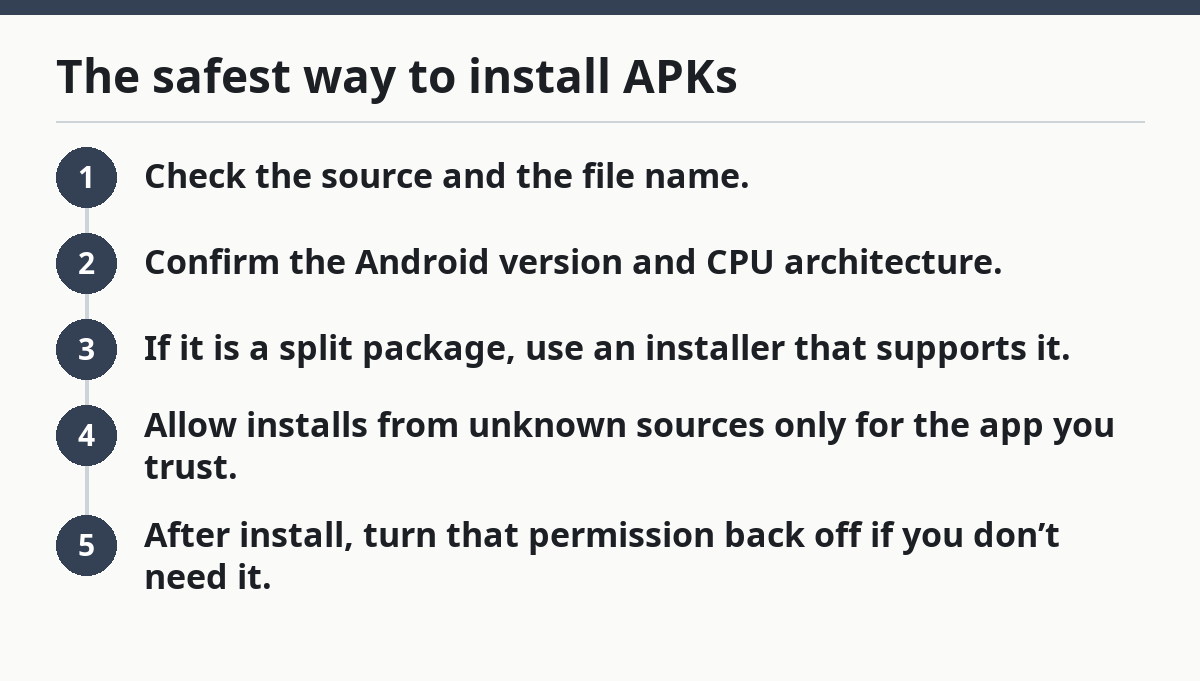
A sensible install process looks like this:
- Check the source and the file name.
- Confirm the Android version and CPU architecture.
- If it is a split package, use an installer that supports it.
- Allow installs from unknown sources only for the app you trust.
- After install, turn that permission back off if you don’t need it.
Android’s permission model is there for a reason. Unknown-source installs should not stay open all the time unless you have a clear need for them. That small habit can reduce the chance of accidental installs later.
There’s also a trust issue with repackaged apps. If a file says it is the same app but the signature or package name is different, you are not looking at the original publisher’s build. That can be harmless in some cases and risky in others. The package name and signing key are part of the app’s identity.
If the app is important — banking, work, password tools, or anything tied to personal data — use the official store or the publisher’s own site. The convenience of a random mirror is not worth a broken or tampered install.
What a bad APK job looks like
A bad APK job usually shows up as failed installs, update loops, missing features, or apps that crash at launch because the wrong package was used. The package may still open, but it won’t behave like a proper install.
Picture this: the icon appears, the app starts, and then it quits on the splash screen. That can happen when the APK is missing the right native libraries, when a split file was skipped, or when the build doesn’t match the device’s architecture.
Watch for these signs:
- the installer says the app is already installed, but updates never finish
- parts of the app are missing, such as language packs or images
- the app opens on one phone model and fails on another
- the package asks for odd permissions that don’t fit the app’s function
- a store listing and the file name don’t match
A bad install is not always a bad app, but it is always a sign to stop and check the package. Reinstalling the same broken file three times won’t fix a missing split or an architecture mismatch.
The worst mistake is often forcing the install with a random workaround. That can leave behind partial app data or conflict with the next clean install. If you suspect the package is wrong, remove it completely and start over with the correct build.
For work phones and shared devices, a botched install can also create support noise. The faster fix is often to identify the package type first, not to keep tapping “install” and hoping the phone changes its mind.
Which package should you choose?
Choose a single APK if you want the easiest manual install and the app is offered as one signed file. Choose a split or bundle-based package if the publisher says the app needs it for your device, language, or architecture. Neither is right if the source is unclear or the file doesn’t match your phone.
Picture this: you have two download options, one plain APK and one split package. The plain file is easier to install by hand, but the split package may fit your phone better and waste less storage. The right choice depends on how the app was built and how you plan to install it.
The basic rule is practical:
- single APK for simple sideloading
- split APK or installer bundle for modern apps delivered in parts
- official store install when you want the least risk and the smoothest update path
If you expect to update the app often, store delivery is usually better than manual sideloading. The store handles compatibility and signing for you. If you need a one-time install, a single APK can be fine as long as it matches your device.
If you are handling a package for a work task, a test build, or a region-specific app, ask three questions before you install: What Android version does it need? What CPU architecture does it target? Is this one file or several?
Those three answers prevent most of the pain.
FAQ: APK formats and installation packages
Can I install every APK with a file manager?
No. A file manager can usually open a single APK, but it often cannot install split APKs or bundle-based packages on its own. If the app comes as several files, you may need an installer that supports that format.
Is an AAB file the same as an APK?
No. An AAB is a publishing bundle, not the usual end-user install file. Developers upload AABs to app stores, and the store generates the APKs that devices actually install.
Why does the same app have different APK files?
Because devices are not all the same. Some APKs are built for different processor types, Android versions, screen sizes, or languages, so the publisher can ship only the parts a device needs.
What should I check before sideloading an APK?
Check the source, the Android version requirement, the architecture tag, and whether the package is single-file or split. If any of those do not match your device, the install may fail or the app may crash later.
Why does Android say “App not installed”?
That message usually means the package conflicts with an existing app, lacks the right signature, or doesn’t match the device. The file may still be valid, but it is not valid for that phone in that form.
The bottom line on APK installation packages
APK is the install file most Android users recognize, but modern apps often arrive as split packages or bundle-based downloads that need the right installer and the right device match. If you know the file type, check the architecture, and respect the app’s signature, you avoid most install failures before they start.
A plain APK is the easiest path. A split package is the more flexible one. The wrong package is just wasted time.
Drafted with AI; not yet reviewed by a person.
