

Last updated: November 19, 2026
Quick Answer: In under 2 minutes, you can usually tell whether the topic of How to Tell Whether an APK Bundle Needs an Installer App applies to a download by checking whether it is a single .apk or a bundle such as .apks or .xapk. Start with the file itself. Then check the contents. This guide covers the signs, the file checks, and the quick tests that settle it.
Key Takeaways
- A single
.apkusually installs directly; bundle formats often do not. - File names, inside-the-archive contents, and install errors give the clearest clues.
apksandxapkoften package multiple pieces, not one installable file.- If the package contains more than one APK file, a helper app is often required.
- Manual extraction can work, but only if you can identify the base APK and the right split parts.
How do you know if an APK bundle needs an installer app?
You know it when the download is really a container for several install pieces, not one complete app package. In How to Tell Whether an APK Bundle Needs an Installer App, the clearest signs are .apks, .xapk, or a zip-like file with multiple APKs inside; the plain Android package installer may not be enough.
Picture this: you tap a file, Android opens a basic installer, and the install fails before it starts. Or you open the download and see more than one APK sitting inside the archive. First clue, right there. That usually means bundle, not standalone APK.
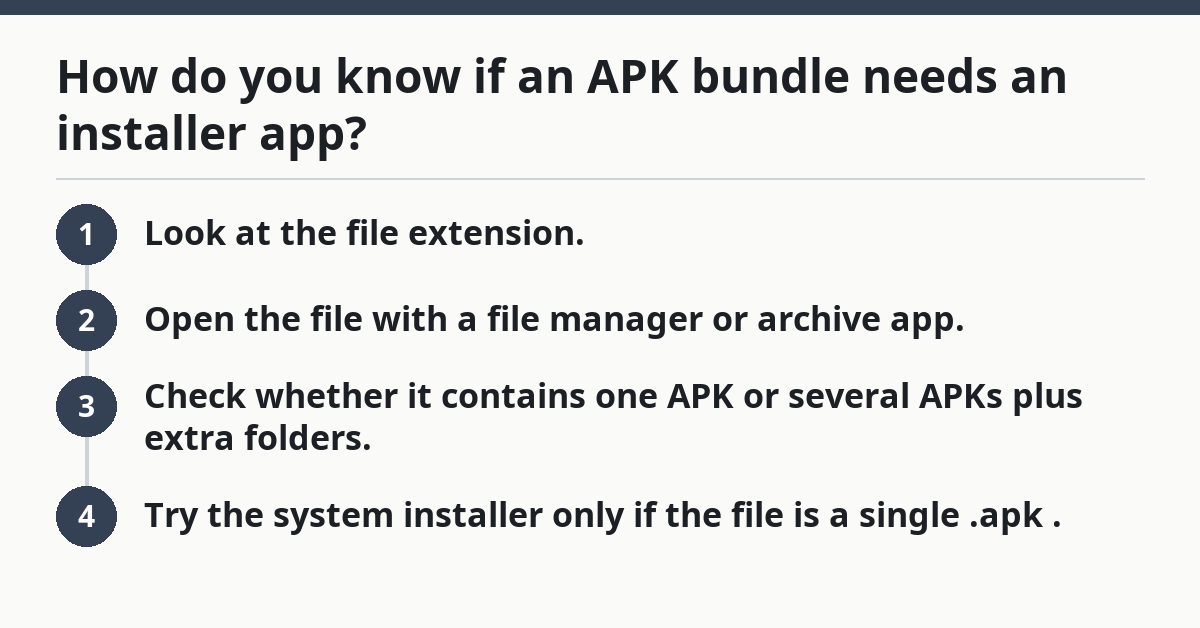
A quick check usually settles it in under 2 minutes:
- Look at the file extension.
- Open the file with a file manager or archive app.
- Check whether it contains one APK or several APKs plus extra folders.
- Try the system installer only if the file is a single
.apk.
What usually means “needs an installer app”:
- The extension is .apks
- The extension is .xapk
- The file opens like a ZIP archive and shows multiple APKs
- The app data is split into base and configuration APKs
- The download includes extra assets such as OBB data
What usually does not need a special installer:
- A plain .apk
- One APK file with no extra split parts
- A package that the Android installer can parse on its own
The file structure tells the story. You do not need the app’s marketing name. If it looks like a bundle, consult a trusted guide or the app publisher’s instructions before you treat it like one. If it looks like one normal APK, start there first. For background on package formats, see the APK formats and installation packages guide.
What file names and endings are the biggest clue?
The ending is often the fastest clue, and .apks or .xapk are common warning signs. A plain .apk is usually a single install file, while those bundle endings often point to a package that may need a helper app or a manual split install.
Picture this: you are in Downloads and the filename ends in .apk, .apks, or .xapk. No guessing needed. The ending alone narrows the likely install method, and it saves you from tapping the wrong thing three times.
Here is the practical read:
- .apk: usually one installable Android app file
- .apks: often a bundle with multiple APKs inside
- .xapk: often an APK plus extra data files, sometimes OBB content
- .zip or .rar: could be anything; you must inspect the contents
A file ending by itself is not the whole answer, though. Some downloaders rename bundles badly, and some sites disguise archives as APKs. That means the file extension is a clue, not proof.
Use these checks before you install:
- Long-press the file and view details
- Open it in a file manager that can inspect archives
- Look for base.apk or more than one APK file
- Check whether there is a separate data folder, often for game assets
On the flip side, a file ending in .apk can still fail if it is damaged or incomplete. That does not always mean the app itself is bad; it may just be a bad download. Big difference.
For a second check, compare the filename with the content inside the archive. If the name says APK but the contents show several files, treat it as a bundle and review the package carefully. See also the related how to install split APKs guide.
How to tell by opening the package contents
You can tell by opening the package contents if it contains more than one APK or a mix of APK files and asset folders. A bundle usually shows a base APK, split APKs, and sometimes extra data files rather than one clean app file.
Picture this: you rename or open the download as an archive and the folder view shows multiple parts instead of one package. That is the moment the install question gets easy. One file is a direct install candidate. Several files mean bundle territory.
Use this simple check:
- Open the file with a file manager that can view archives.
- Look for file names like
base.apk,config.xxx.apk, or other split parts. - Check for folders such as
Android/obbor extra data files. - Count the APK entries. More than one often means a split install.
What the contents usually mean:
- One APK only: probably no installer app needed
- Base APK + split APKs: installer app or split-aware install method likely needed
- APK + OBB/data files: the APK alone is not the whole job
- Several APKs with device-specific names: the package is tailored and may need a helper
The catch is that a bundle can look normal until you open it. A file name can say one thing while the inside says another. That is why content inspection beats guesswork.
If you are using a laptop to inspect the file, a standard archive tool can help you see whether the package is really a container. You still should not install random extracted files just because they are there. Pick the base package and the matching splits, not everything in the folder. For safer file checks, the APK vs XAPK vs APKS reference can help.
What is a split APK, and why does it change the answer?
A split APK changes the answer because the app is divided into pieces, and the Android system may need help putting those pieces together. The base APK holds the core app, while split files carry device-specific code, language packs, or screen-density assets.
Picture this: you have a game or app that looks small at first, then reveals extra APK parts inside the download. The app may still be valid, but the install is no longer a simple one-file job. That is where installer apps earn their keep.
A split package often includes:
- one base.apk
- one or more configuration APKs
- separate language or architecture files
- extra assets that do not sit inside the main APK
Why this matters:
- A plain installer may only see one piece
- Missing one split can break the app
- Wrong architecture files can stop the app from launching
- Extra assets may stay unused if they are not placed correctly
If you only have the base APK, the app may open but crash, or it may not install at all. If you have the splits but not the right installer, Android may refuse the bundle or ignore the extra parts. That is a packaging issue, not proof that the app itself is broken.
This is also where many people confuse a bundle with a damaged file. A split APK set is not broken just because it is not single-file friendly. It is built to be installed as a set. Odd-looking? Yes. Broken? Not necessarily.
For another related workflow, see the split APK installer apps page. The same package can behave differently on different devices, so checking the file layout matters.
Can you install a bundle without an installer app?
You can sometimes install a bundle without an installer app, but only if you can extract the right files and your Android setup accepts split installs. For a normal user, that is the less reliable path, and it takes more care than tapping one file.
Picture this: you have the bundle open in an archive tool and you see several APKs plus extra data. You might be tempted to drag out the biggest APK and call it done. That is the mistake. A bundle can need the whole set, not the biggest file.
A safer manual check looks like this:
- Extract the archive to a folder.
- Find the base APK.
- Look for split APKs that match your device type.
- Keep any required asset files together.
- Install only if you know the package is complete.
Manual extraction works best when:
- the archive is clearly labeled
- the bundle has only a few split APKs
- you can identify the base package
- you are comfortable checking file names carefully
Manual extraction is risky when:
- the package is large and messy
- the file names do not explain which parts belong together
- the app depends on OBB data or other assets
- you are not sure which split matches your device
The truth is, manual extraction is a workaround, not the clean answer. A proper installer app is often the simpler route for bundles like apks and xapk because it understands the package structure. So the better question is not “Can I force it?” but “Does this file really need help to install correctly?”
For a broader map of Android package types, the hub on APK formats and installation packages gives the bigger picture without mixing up each format here.
What a bad package or wrong install attempt looks like
A bad package or wrong install attempt usually shows up as an immediate install failure, a missing app icon, or an app that opens and then crashes. That does not always mean the app itself is bad; it often means the package type and the install method do not match.
Picture this: you tap what looks like a normal APK, but the installer stops with no useful result. Or the app seems to install, yet it never appears in the launcher. That gap between “downloaded” and “usable” is where most bundle mistakes live.
Common failure signs:
- The installer rejects the file before setup starts
- Android says the app is not installed
- The app installs but has missing content
- The app launches, then closes right away
- Game assets are missing after install
What those signs often mean:
- You used a plain installer on a bundle
- One or more split APKs are missing
- The package was built for a different CPU type
- Extra data files were not placed correctly
- The download itself is incomplete or damaged
What to do instead:
- Recheck the file ending
- Open the archive and count the APK parts
- Confirm that the base APK is present
- Use an installer app if the package is split
- Redownload if the file looks truncated or broken
A bad install result is useful information. It tells you the package may not be a standalone APK, even if the filename tries to look like one. That is the clue most people miss.
Which APK formats need a special installer?
The APK formats that most often need a special installer are .apks and .xapk, plus split APK sets that arrive as several files. A plain .apk often installs directly, but bundled formats usually need an app that can read the package structure.
Picture this: you are deciding before you tap. The file name, the archive contents, and the number of APK pieces tell you more than the download page does.
Use this short rule:
- Single
.apk: try the normal Android installer first .apksbundle: expect a special installer or careful manual handling.xapkpackage: expect extra data and bundle-aware installation- Multiple APK files: treat it as a split install, not a single APK
Two solid outside references help here if you want the technical background: the Android Developers docs on app bundles and the Android Package Installer behavior described by Android platform documentation. The exact package on your phone may vary by device and Android version, which is why the file structure matters more than the label alone.
The plain answer is simple. If the package is one file and one file only, it may not need an installer app. If it comes as a bundle, split set, or archive with several APKs, assume it probably does until you prove otherwise. See Android app bundles and APK installer troubleshooting for related context.
Which apk formats need a special installer?
.apks and .xapk are the common formats that need a special installer. Split APK sets also often need one, because the app is spread across several files instead of one standalone package. A plain .apk usually does not need that help.
Can I install all apk files with the same method?
No, not all APK files use the same method. A single .apk often installs directly, but bundle formats and split APKs may need a helper app or manual extraction. If the file contains more than one APK or extra asset folders, do not assume the normal installer will handle it.
How do I know if a package is a bundle?
Open the file and look for multiple APK parts or extra data folders. A bundle often contains base.apk, split APKs, or files that sit alongside the main app package. If the download is a single APK with no extra pieces, it is more likely a standard install file.
Drafted with AI; not yet reviewed by a person.
